101 - Install and Activate HandL UTM Grabber
Start with HandL UTM Grabber by installing the WordPress plugin, activating your license key, resetting access, and preparing your site for UTM tracking.
- How to Activate User Account
- How to Download HandL UTM Grabber/Tracker Free Version
- How to Download & Activate HandL UTM Grabber/Tracker V3
- Where is my license key?
- How to de-activate/reactivate license key on a new domain?
- How to activate license on a new domain?
- How to Reset Your Password?
- How to cancel my membership? - HandL UTM Grabber Guide
- How to upgrade my plan? - HandL UTM Grabber Guide
- How to downgrade my plan? for HandL UTM Grabber
- I need invoice - HandL UTM Grabber Guide
- How to update HandL UTM Grabber v3 plugin?
- How to change credit card on file? - HandL UTM Grabber Guide
- Which sites are my licenses being used on? for HandL UTM Grabber
- Update Name and Email on Your Account - HandL UTM Grabber Guide
- Performance Overview - is UTM Grabber really slow?
- How to Submit Feature Requests for HandL UTM Grabber
How to Activate User Account
Activate User Account for HandL UTM Grabber
UTM attribution overview
This guide explains Activate User Account for HandL UTM Grabber. It helps you configure HandL UTM Grabber correctly so campaign attribution works reliably across WordPress and keep the marketing context needed for accurate reporting across forms, bookings, signups, and sales.
1. Remember Your Registered Email Address
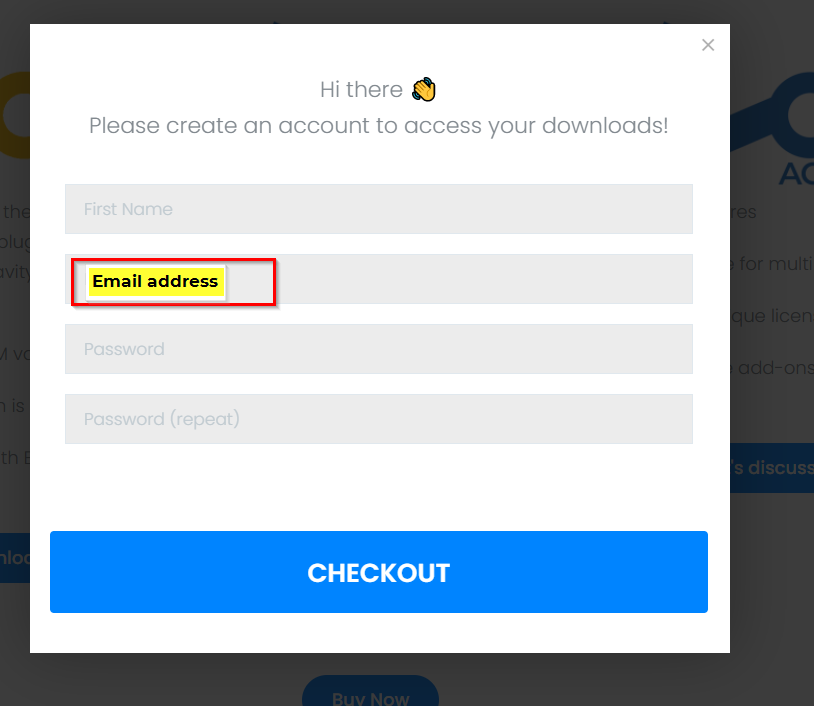
2. Check Your Registered Email
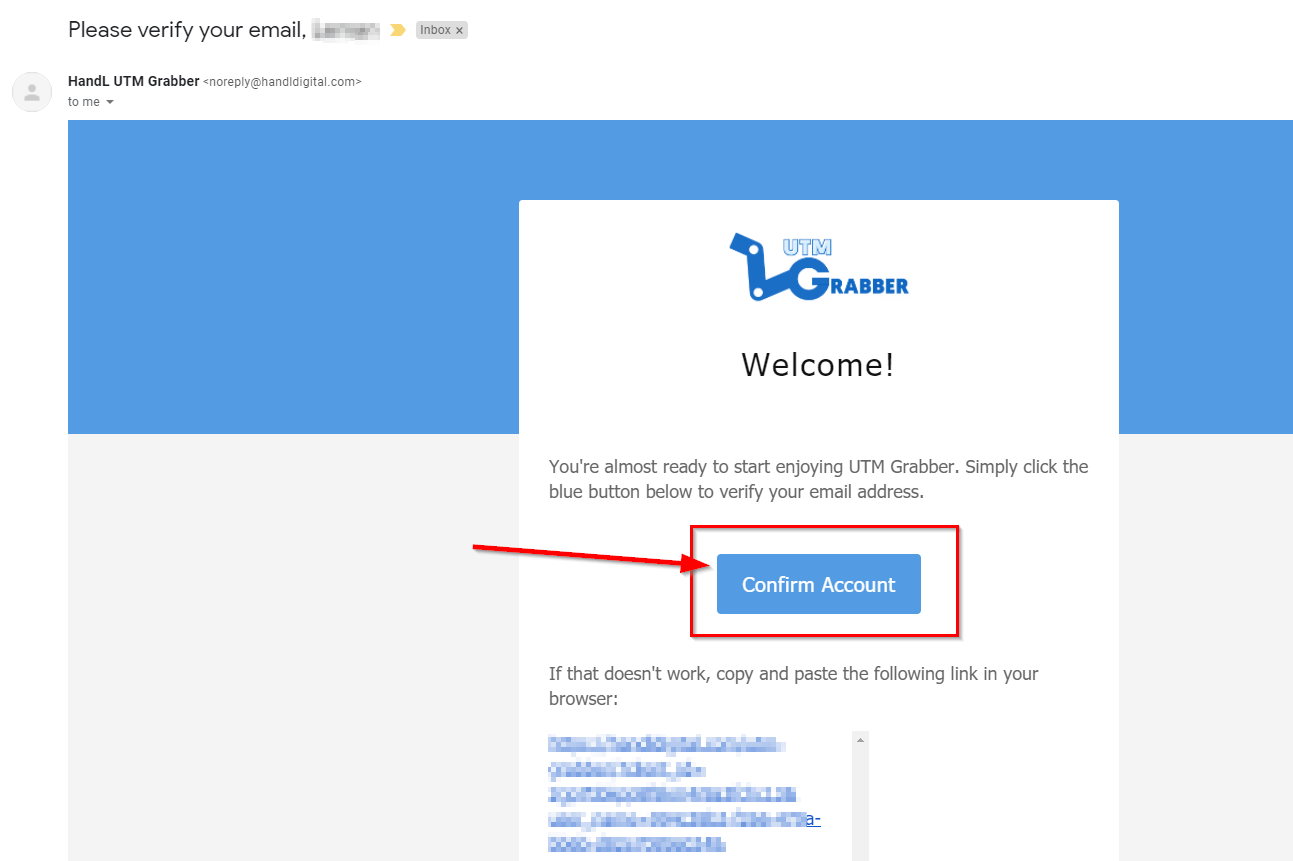
Please check your registered email inbox to confirm your account. You will have an email from HandL UTM Grabber with the subject 'Please verify your email.'
Please check your registered email inbox to confirm your account. You will receive an email from HandL UTM Grabber with the subject 'Please verify your email.' If you have not received your confirmation email from us, please check your spam or junk folder and white list our email address noreply@handldigital.com.
If you still have not received your verification email, please contact us. We will be happy to assist you.

3. Open the Confirmation Email and Click the 'Confirm Account' Button
How to Download HandL UTM Grabber/Tracker Free Version
First Installation of HandL UTM Grabber/Tracker Plugin Free Version from WordPress
UTM attribution overview
This guide explains First Installation of HandL UTM Grabber/Tracker Plugin Free Version from WordPress. It helps you configure HandL UTM Grabber correctly so campaign attribution works reliably across WordPress and keep the marketing context needed for accurate reporting across forms, bookings, signups, and sales.
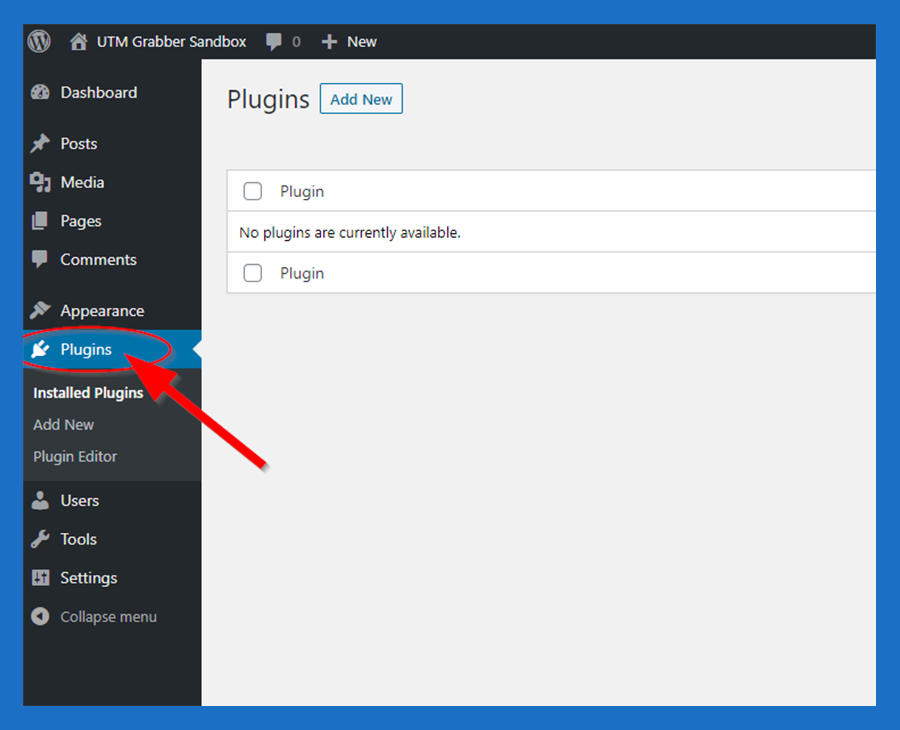
1. Click Plugins
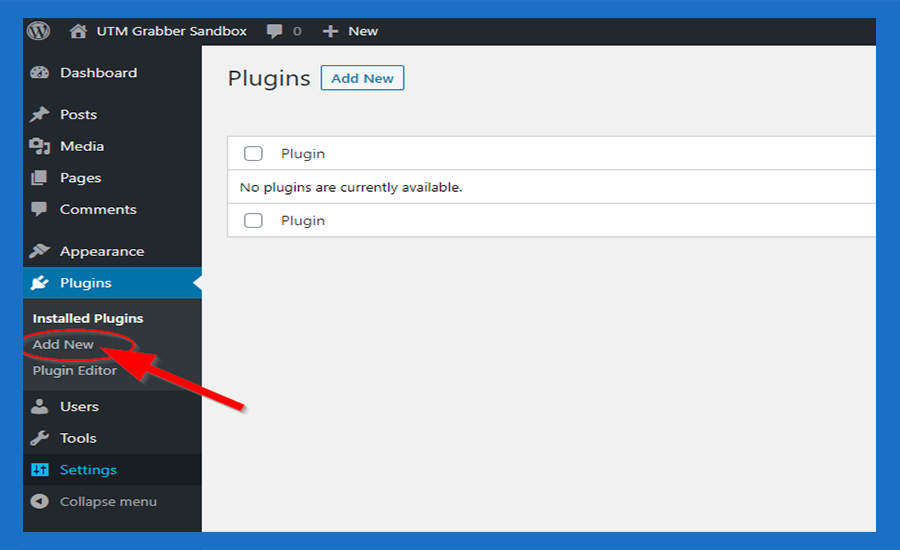
2. Click 'Add New'
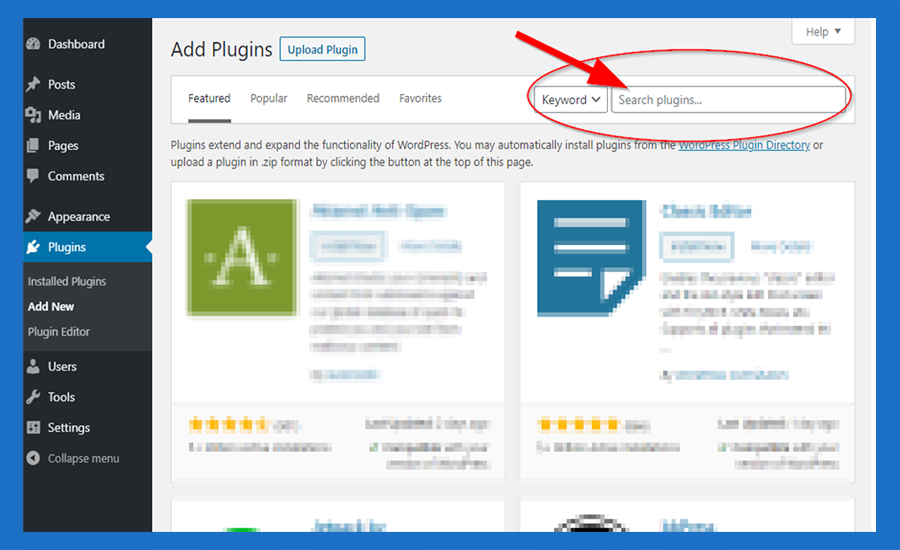
3. Click 'Search Plugins box'
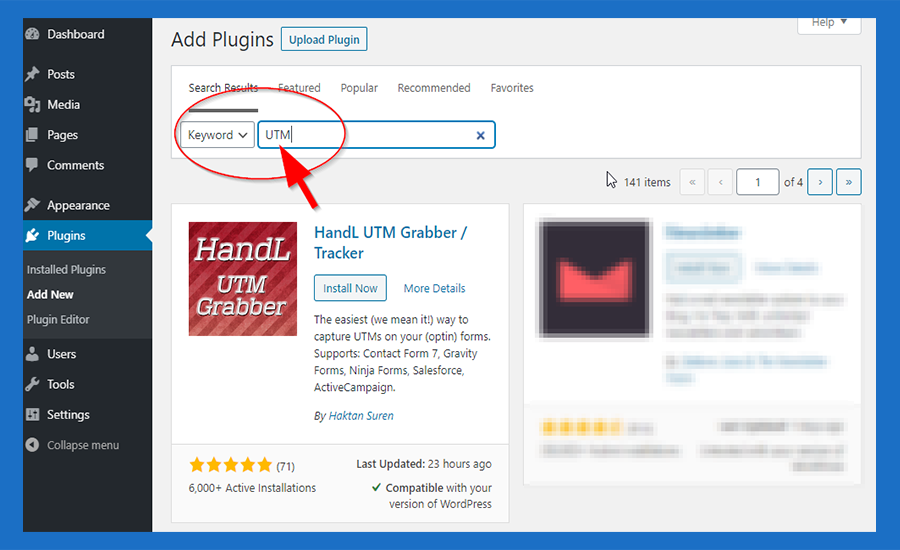
4. Write 'UTM'
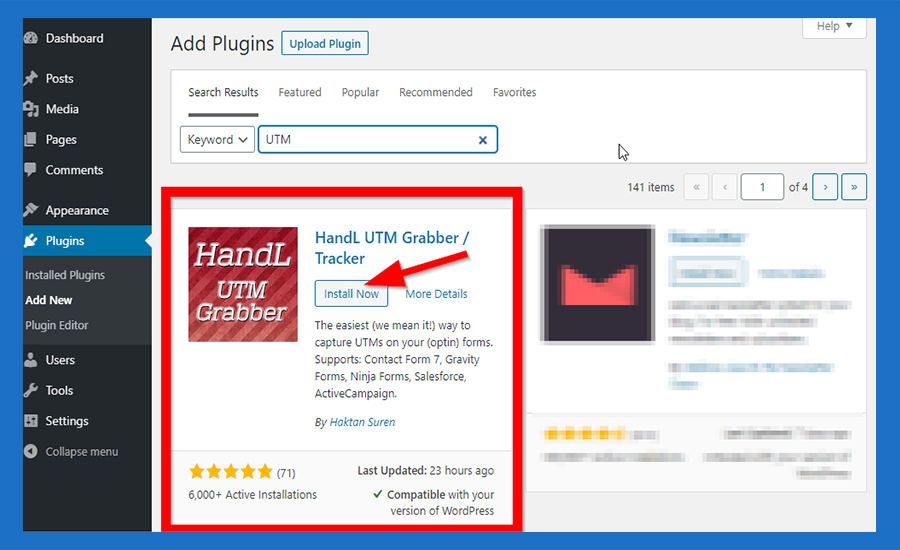
5. Click 'Install Now' button
5. Click 'Activate' button
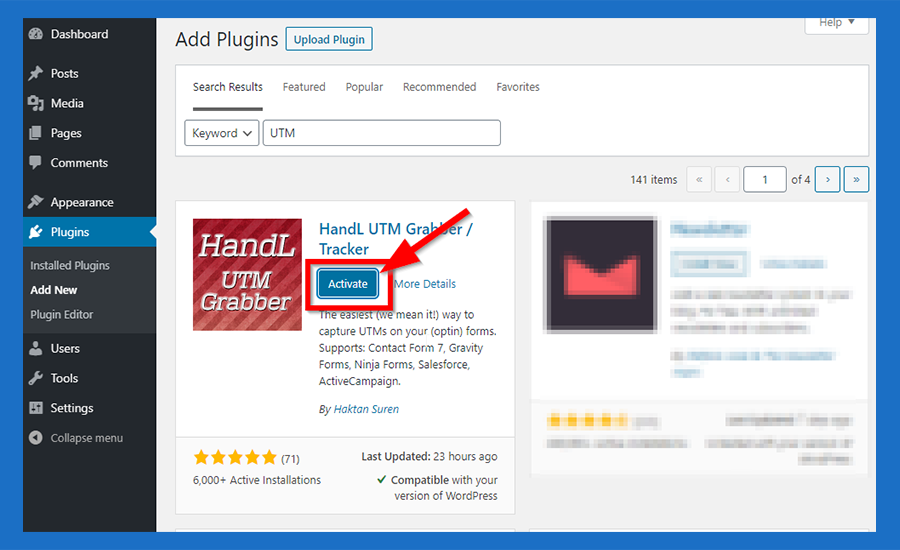
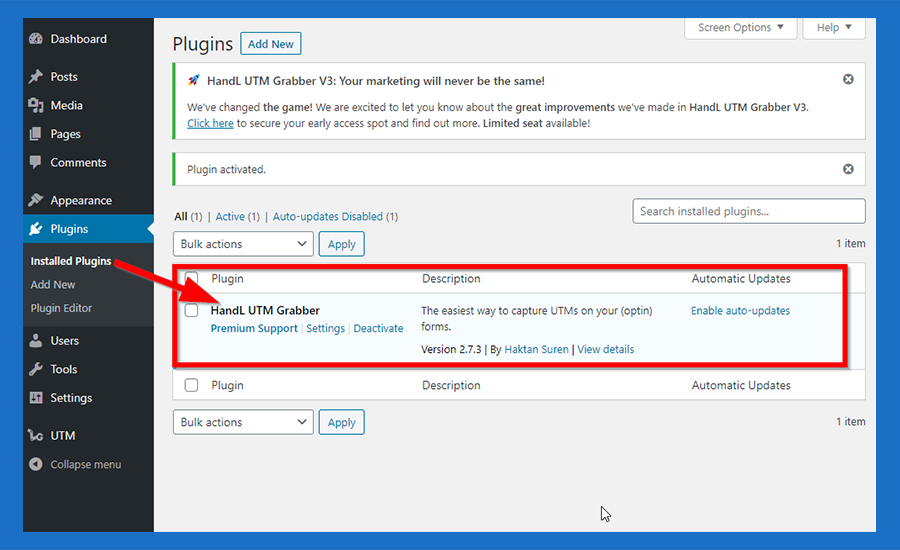
6. Congratulations! You have HandL UTM Grabber/ Tracker Free Version
How to Download & Activate HandL UTM Grabber/Tracker V3
How to Install HandL UTM Grabber/Tracker V3
UTM attribution overview
This guide explains How to Install HandL UTM Grabber/Tracker V3. It helps you configure HandL UTM Grabber correctly so campaign attribution works reliably across WordPress and keep the marketing context needed for accurate reporting across forms, bookings, signups, and sales.
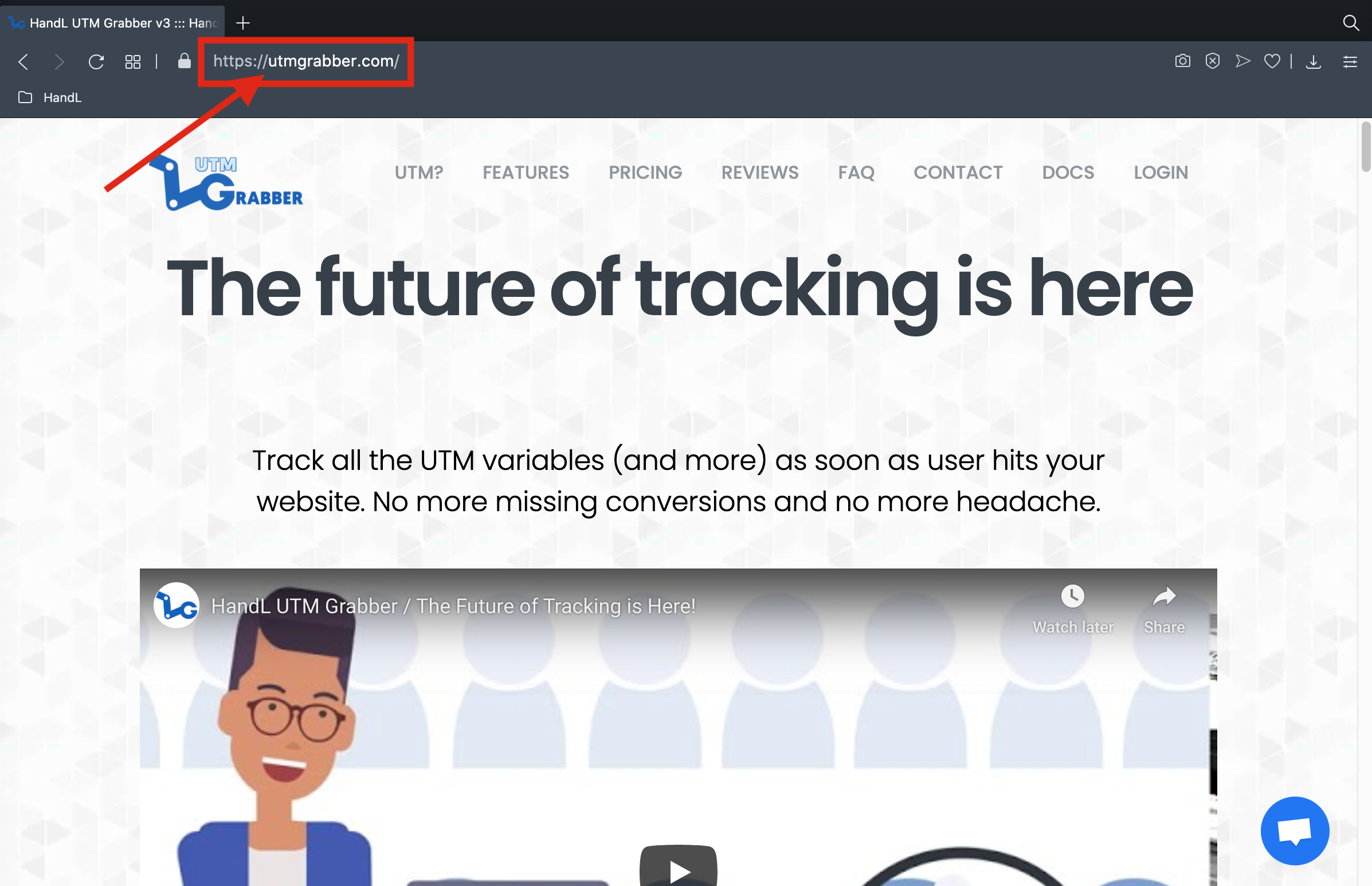
1. Open https://utmgrabber.com/ on your browser
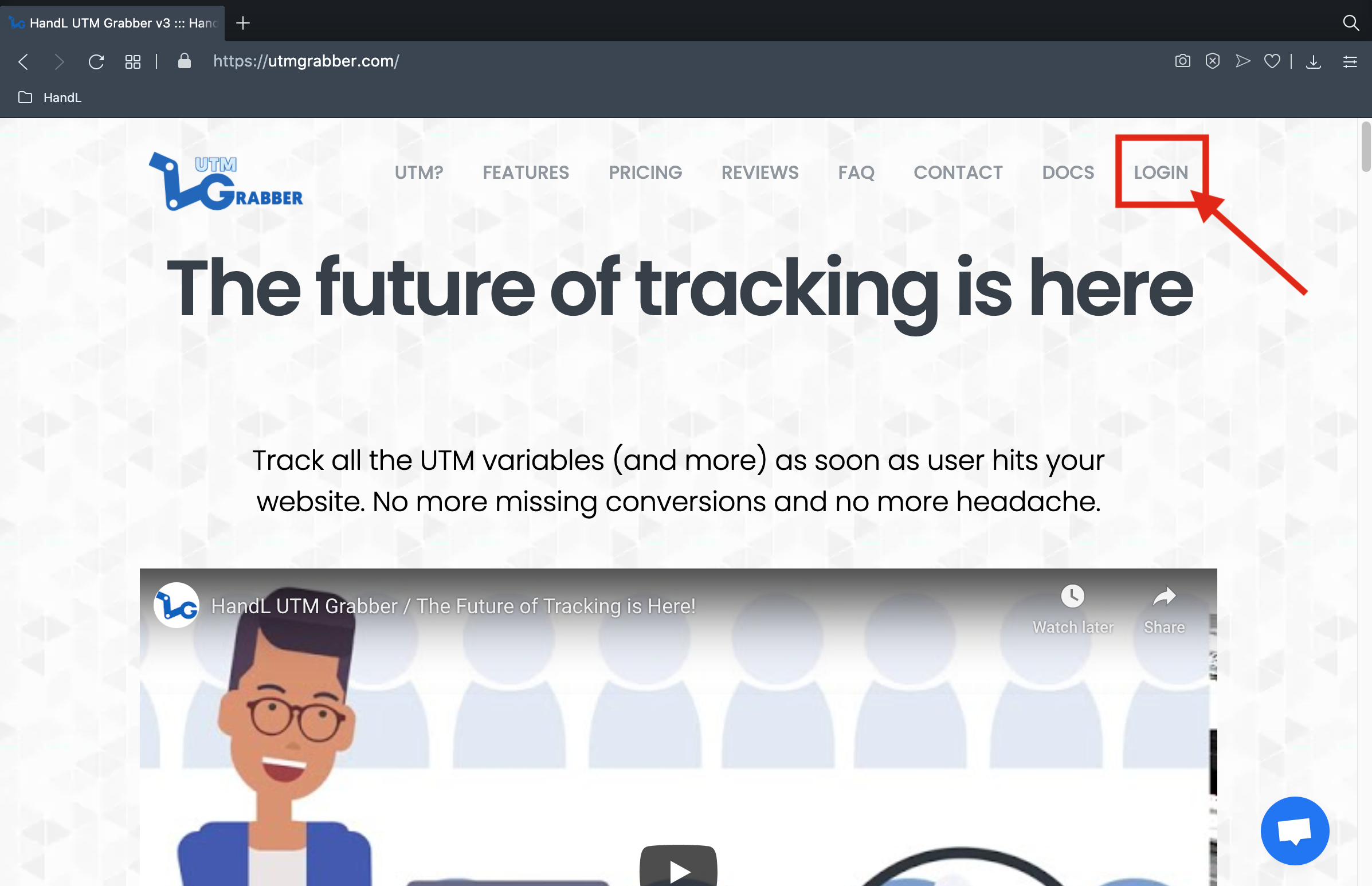
2. Click the 'LOGIN' Button
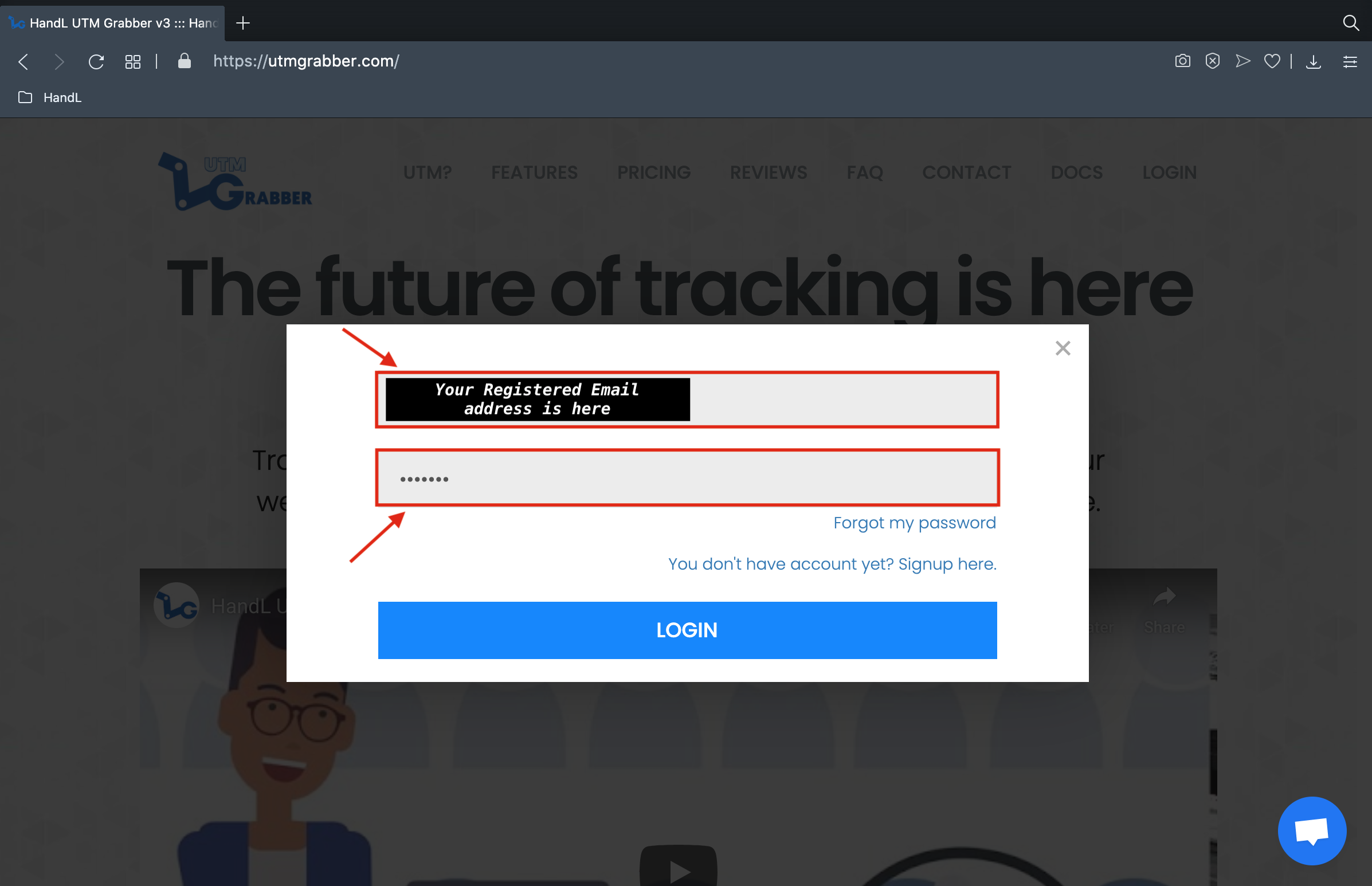
3. Login Your Registered Account
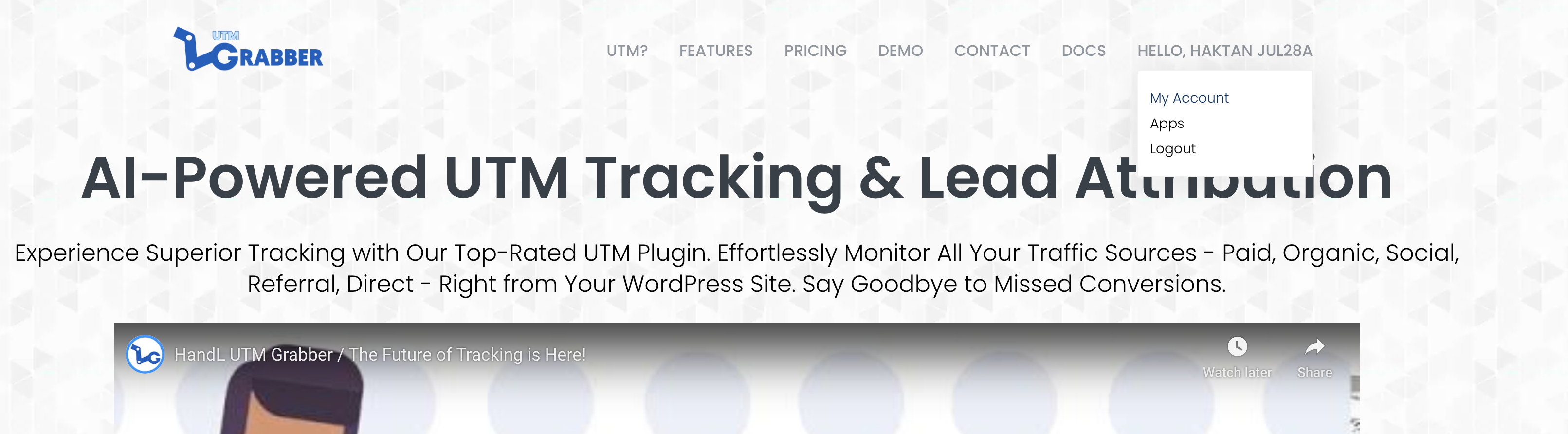
4. Click 'My Account' under your name section
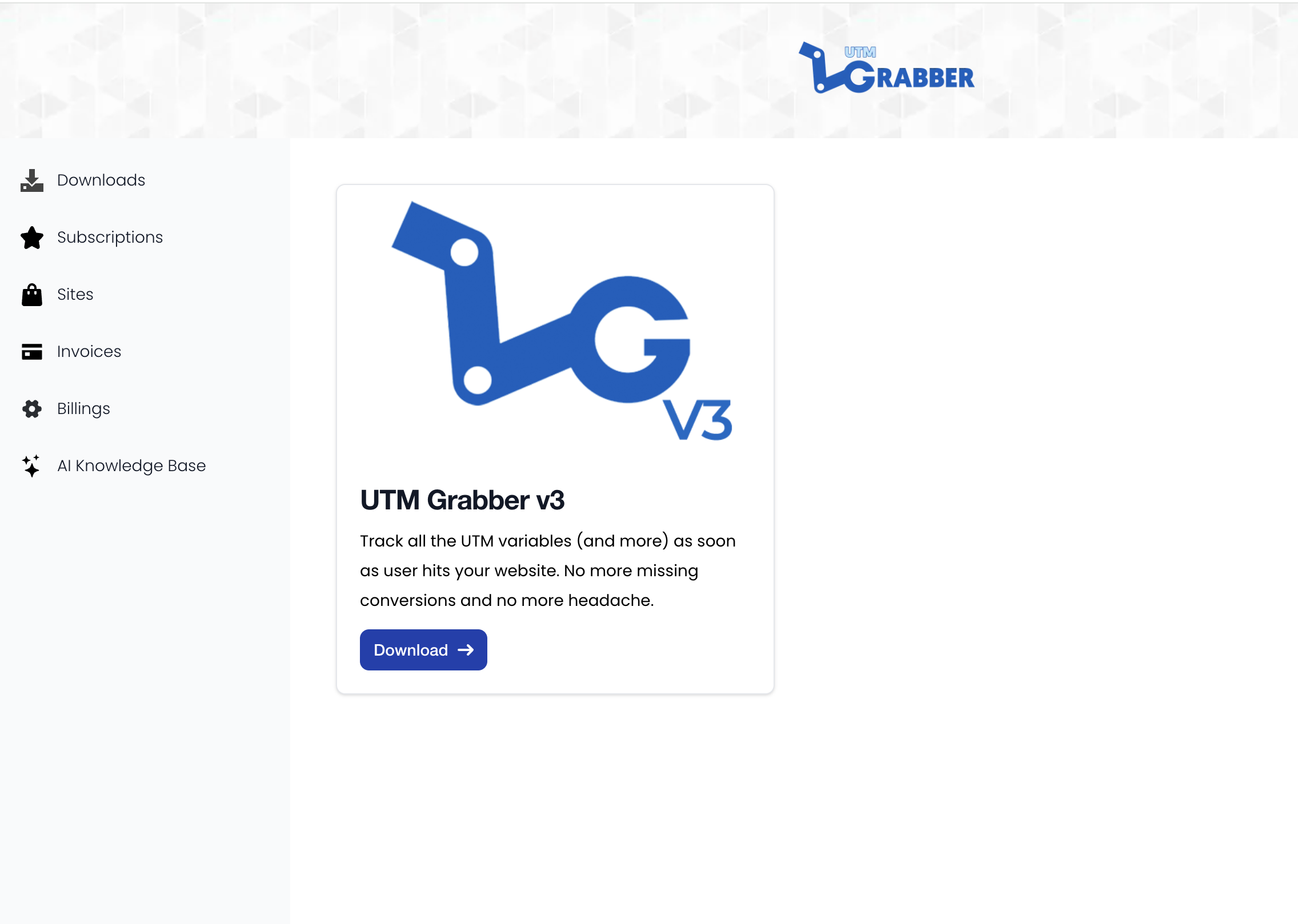
5. Click to the download icon under the 'Download' section
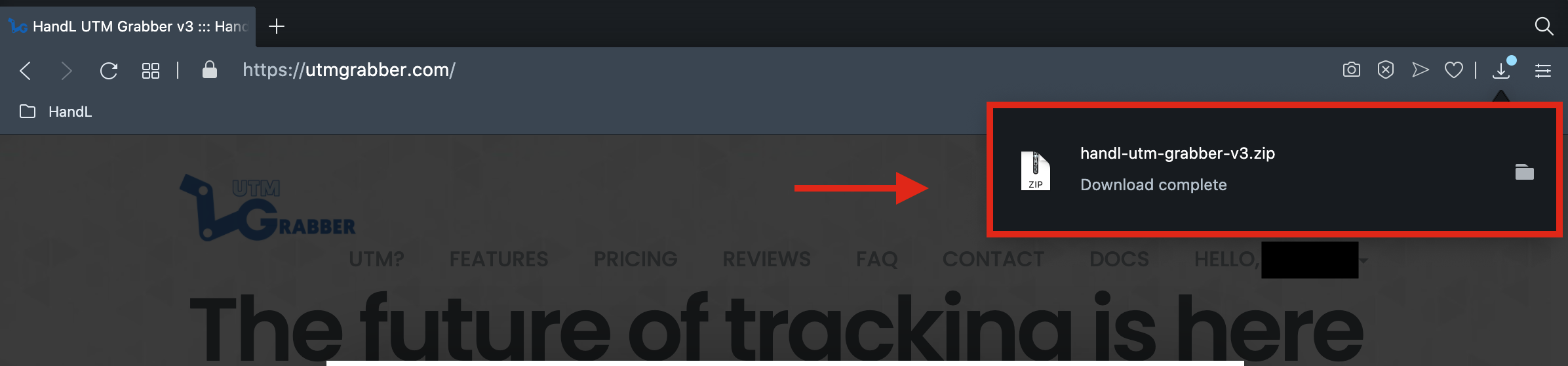
6. Now You Have just Downloaded HandL UTM Grabber/ Tracker V3 zipfile
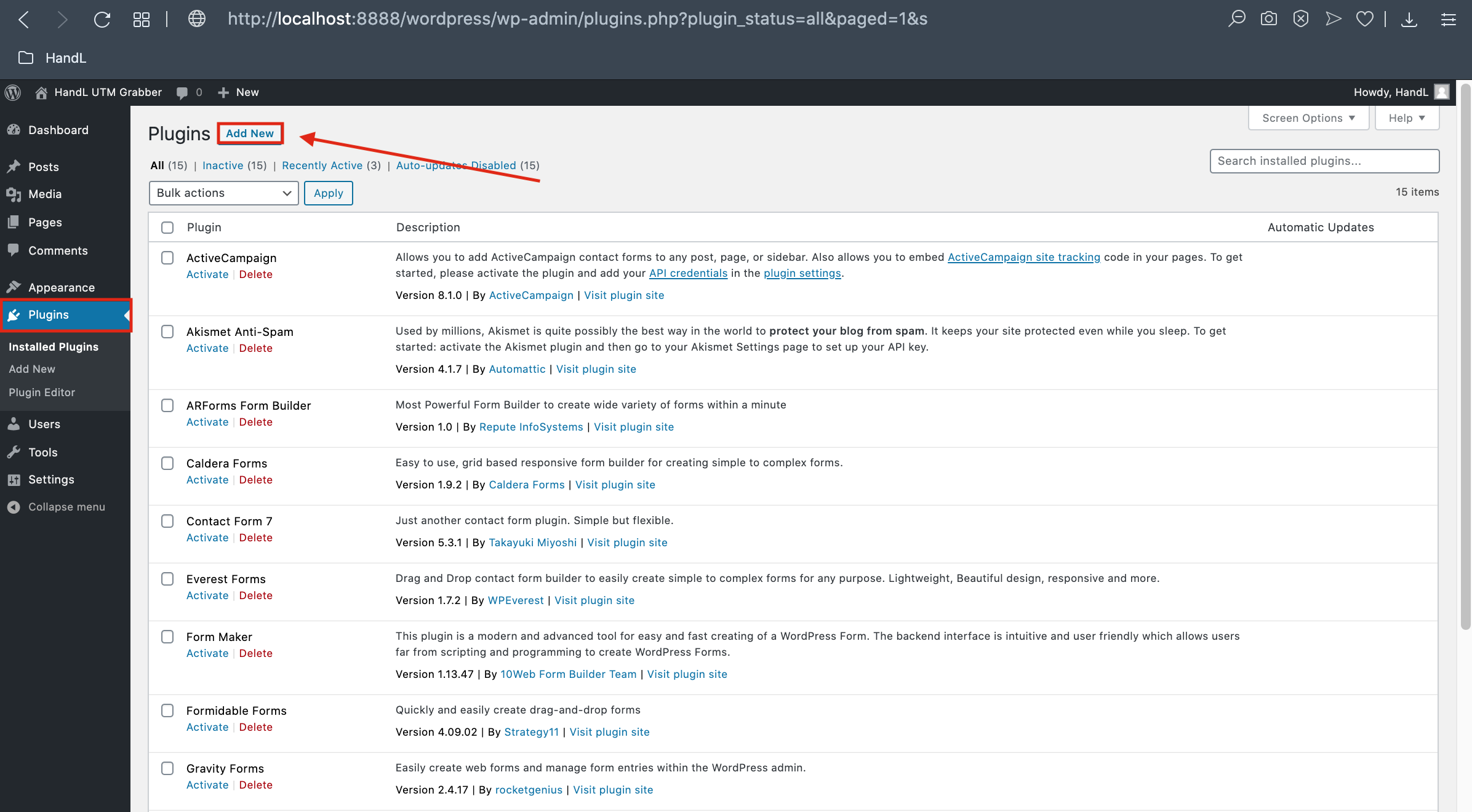
7. Go back your Wordpress Plugin page and click 'Add New' button
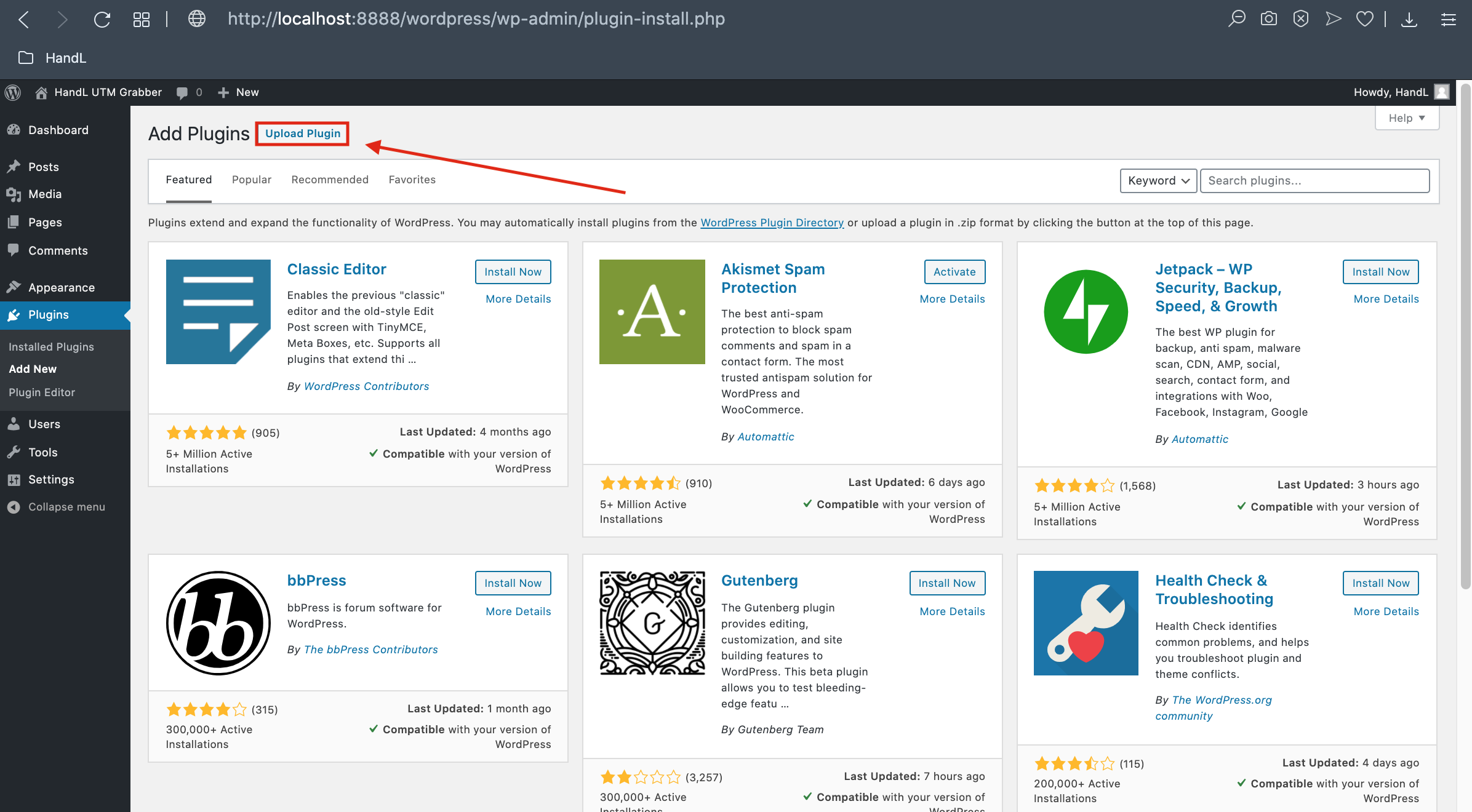
8. Click the 'Upload Plugin' Button
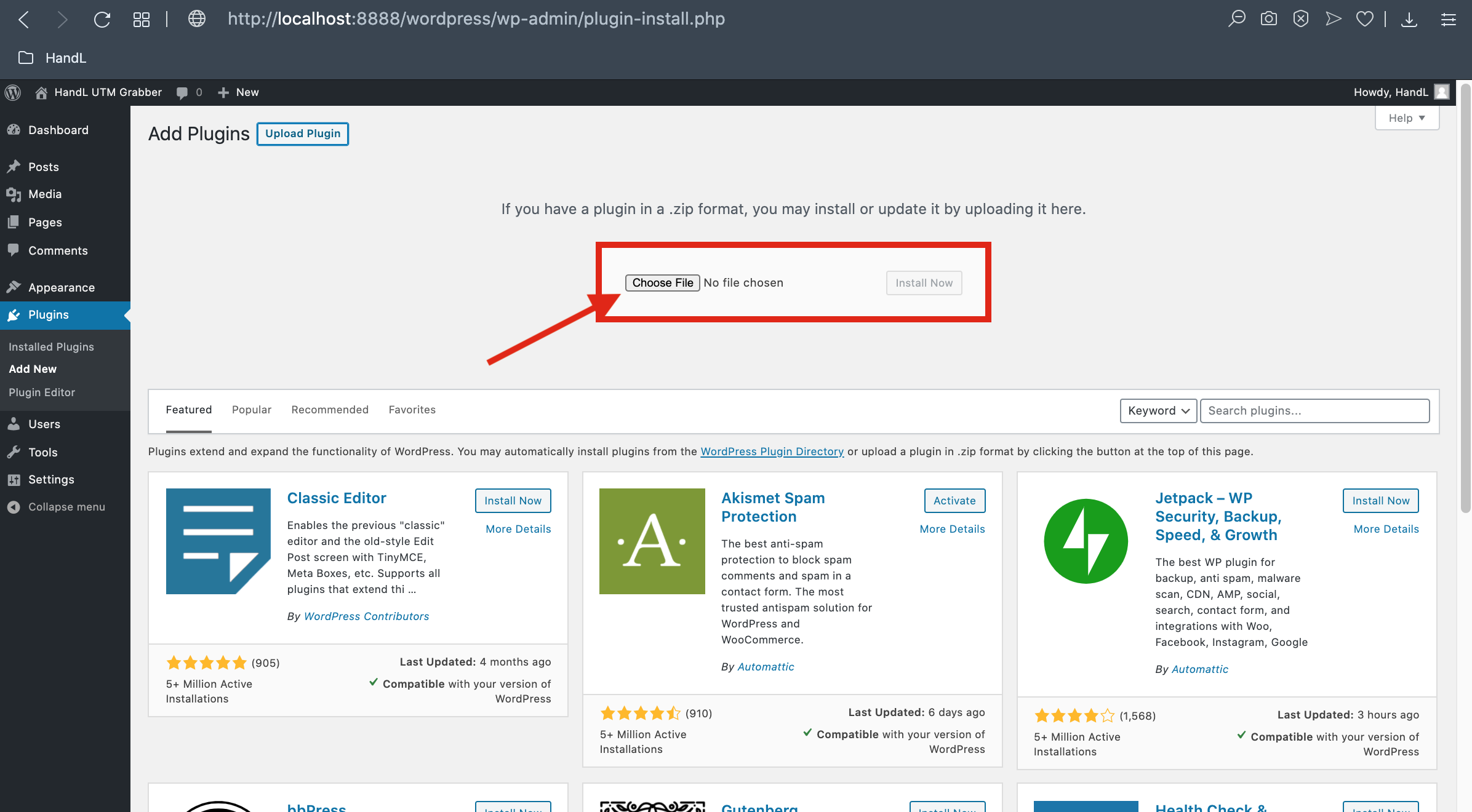
9. Click 'Choose File' Button and Select Your Downloaded ZIP file.
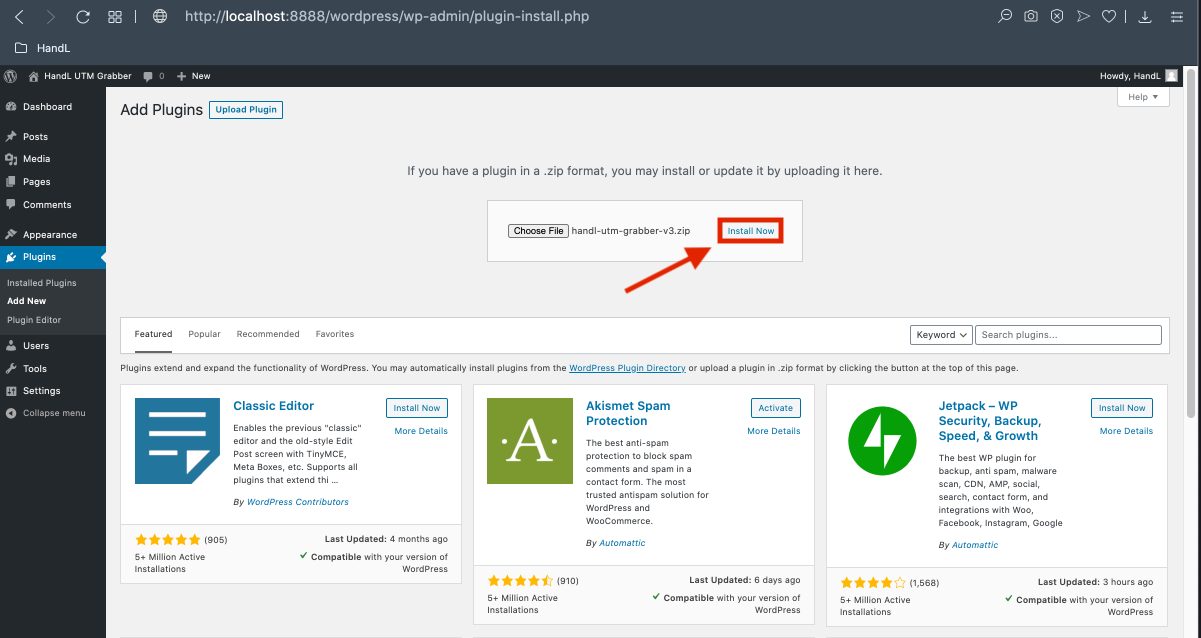
10. Click the 'Install' Button
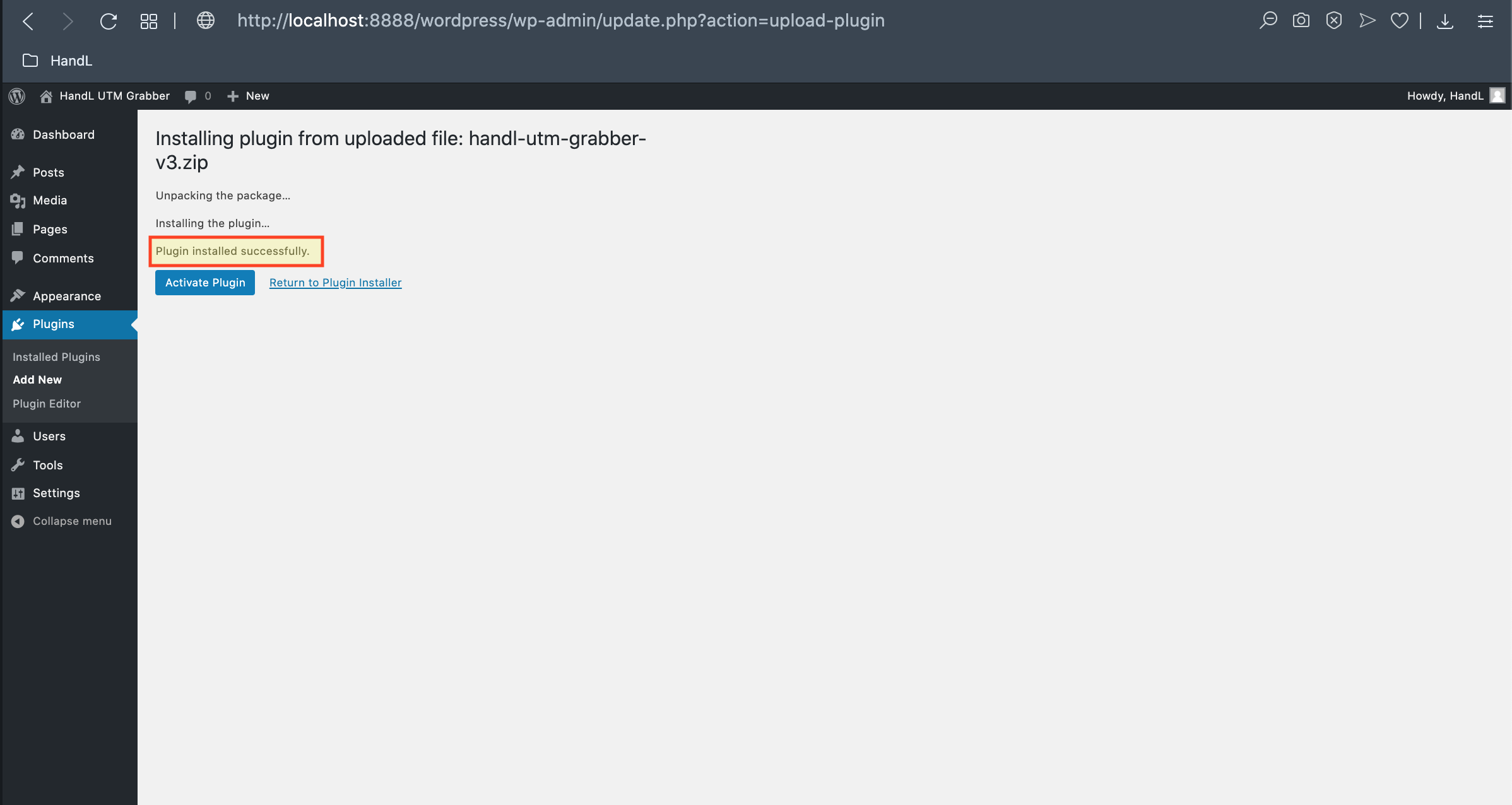
10. Congratulations! The plugin installed successfully
How to Activate HandL UTM Grabber/Tracker V3
UTM attribution overview
This guide explains How to Activate HandL UTM Grabber/Tracker V3. It helps you configure HandL UTM Grabber correctly so campaign attribution works reliably across WordPress and keep the marketing context needed for accurate reporting across forms, bookings, signups, and sales.
How To Install and activate HandL UTM Grabber/Tracker V3 plugin
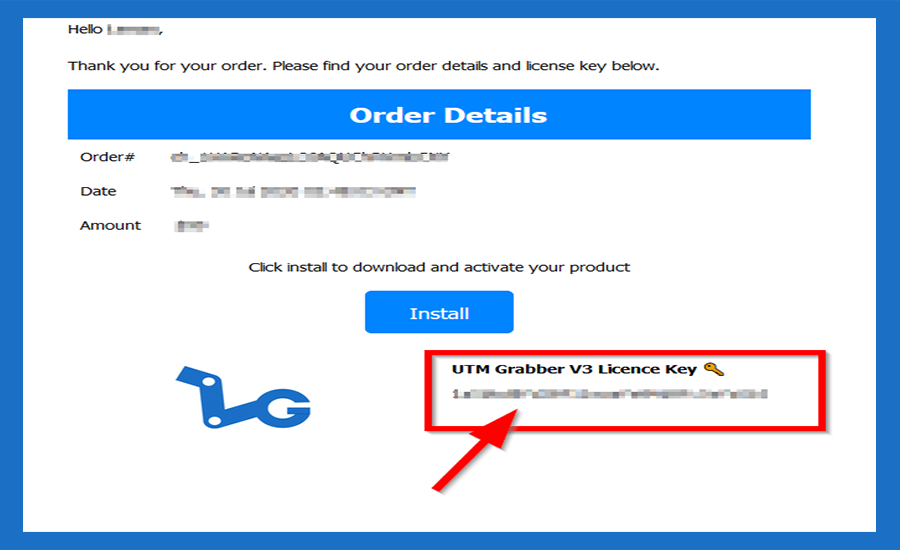
16. Please refer to your email address for the licence key
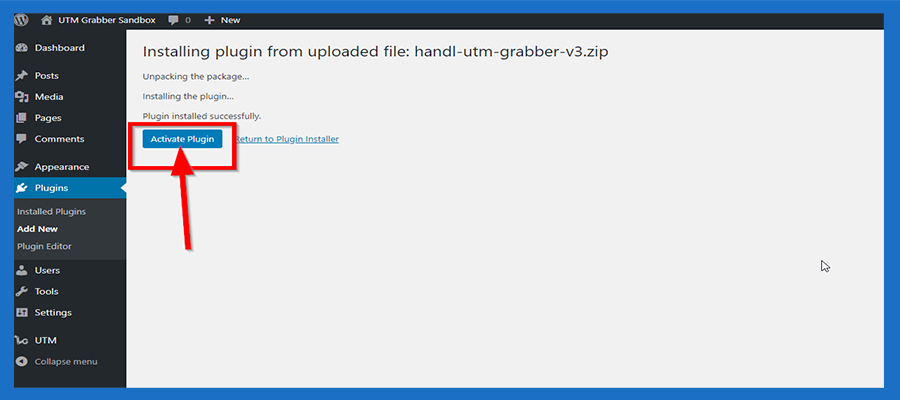
17. Go back Wordpress plugin activate page and Click the 'Activate Plugin' Button
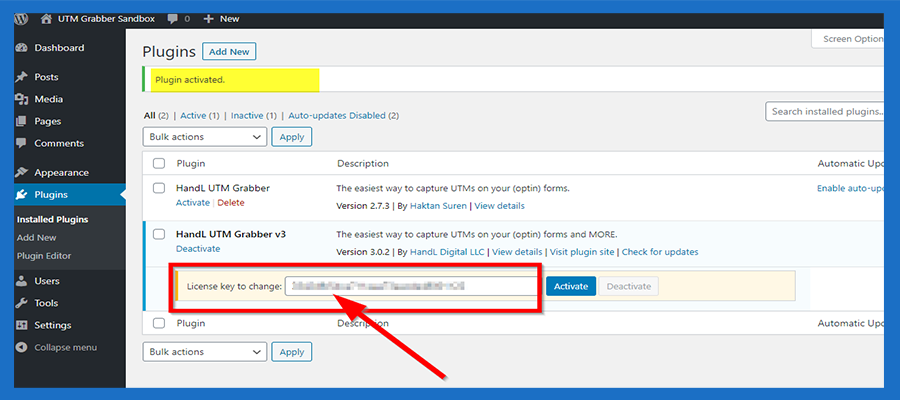
18. Just paste your licence key to the box
19. And then click the 'Activate' Button
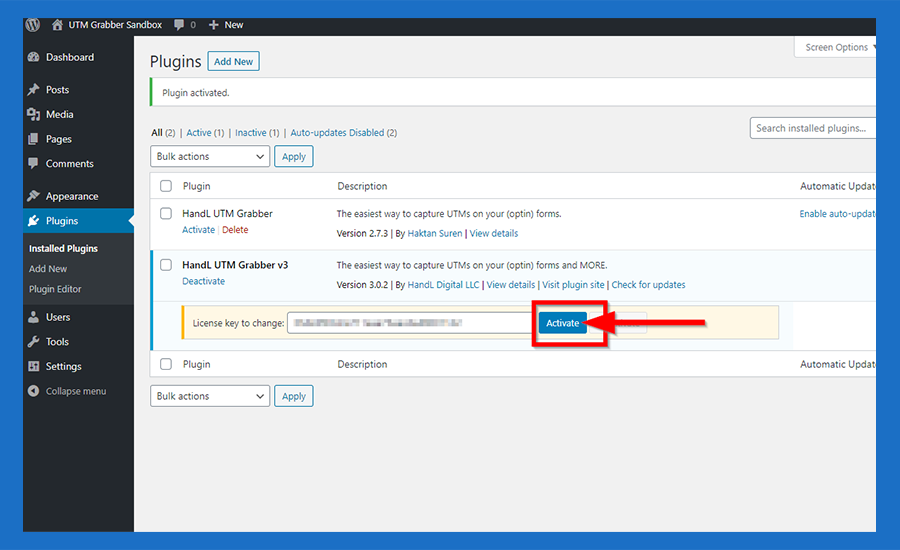
20. Congratulations!
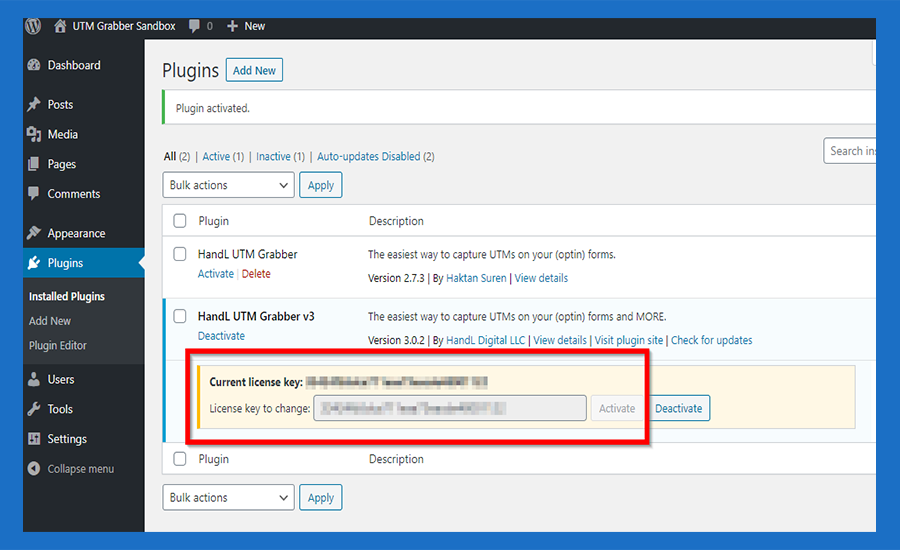
Where is my license key?
Where is UTM Grabber V3 license key?
UTM attribution overview
This guide explains Where is UTM Grabber V3 license key?. It helps you configure HandL UTM Grabber correctly so campaign attribution works reliably across WordPress and keep the marketing context needed for accurate reporting across forms, bookings, signups, and sales.
Please Refer to Your Email for the License Key
After successfully purchasing UTM Grabber V3, you will receive an email containing your order details and license key.
Alternatively,
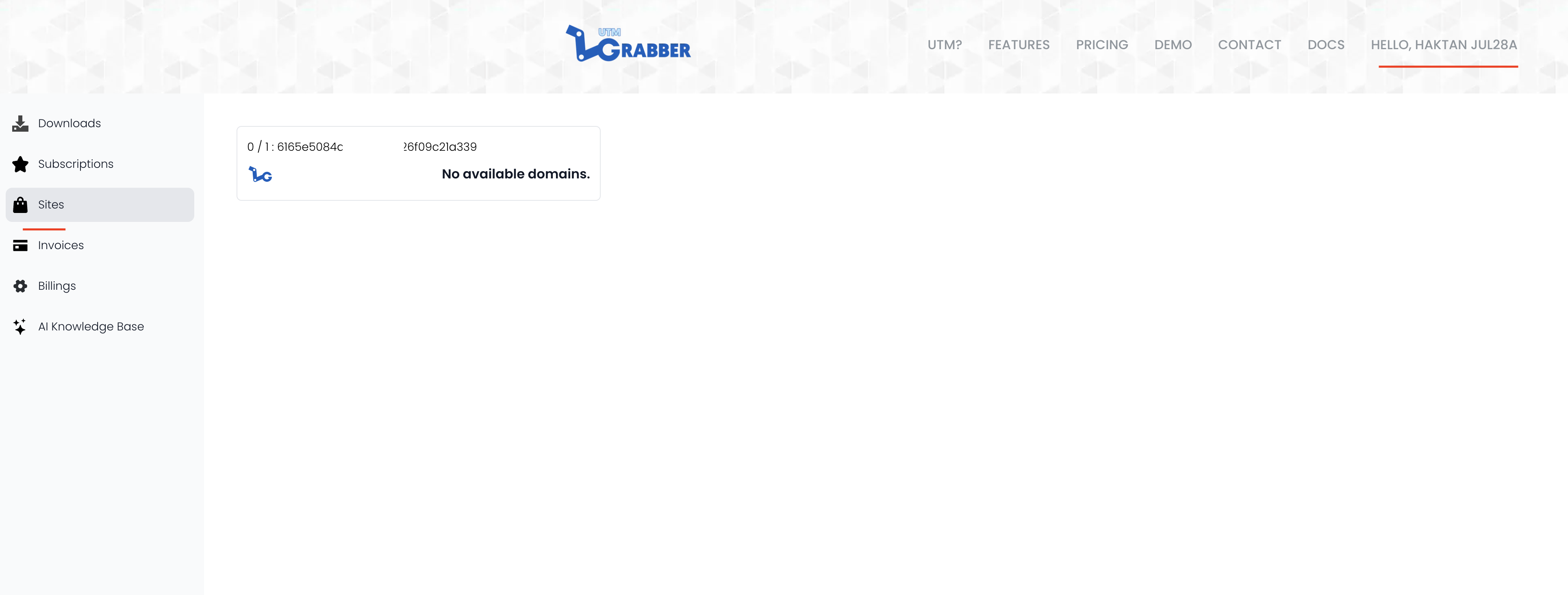
you can log in to your account and retrieve the license key by clicking on the Sites under My Account.
How to de-activate/reactivate license key on a new domain?
De-Activating And Re-Activating The License for HandL UTM Grabber
UTM attribution overview
This guide explains De-Activating And Re-Activating The License for HandL UTM Grabber. It helps you configure HandL UTM Grabber correctly so campaign attribution works reliably across WordPress and keep the marketing context needed for accurate reporting across forms, bookings, signups, and sales.
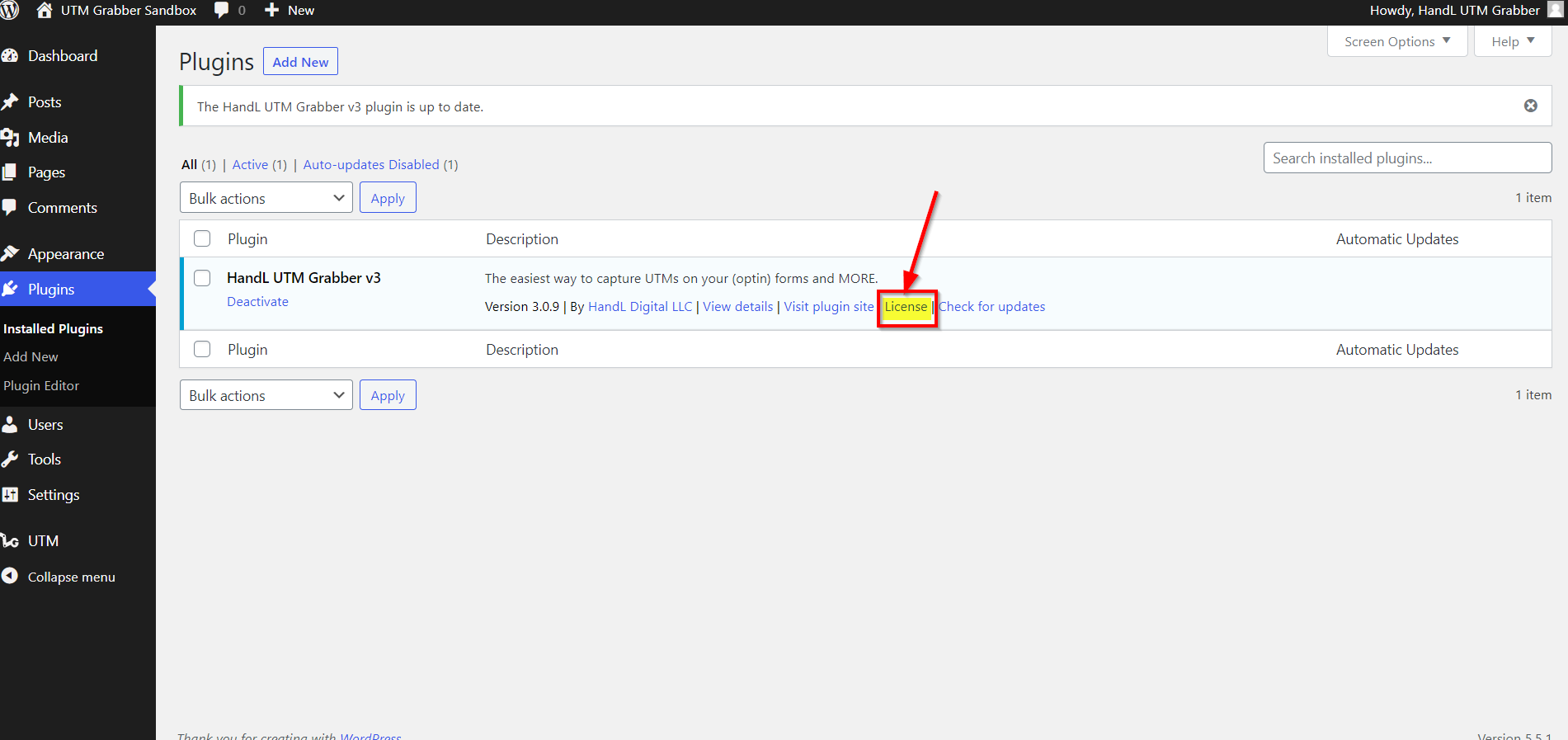
Click the license link as shown below
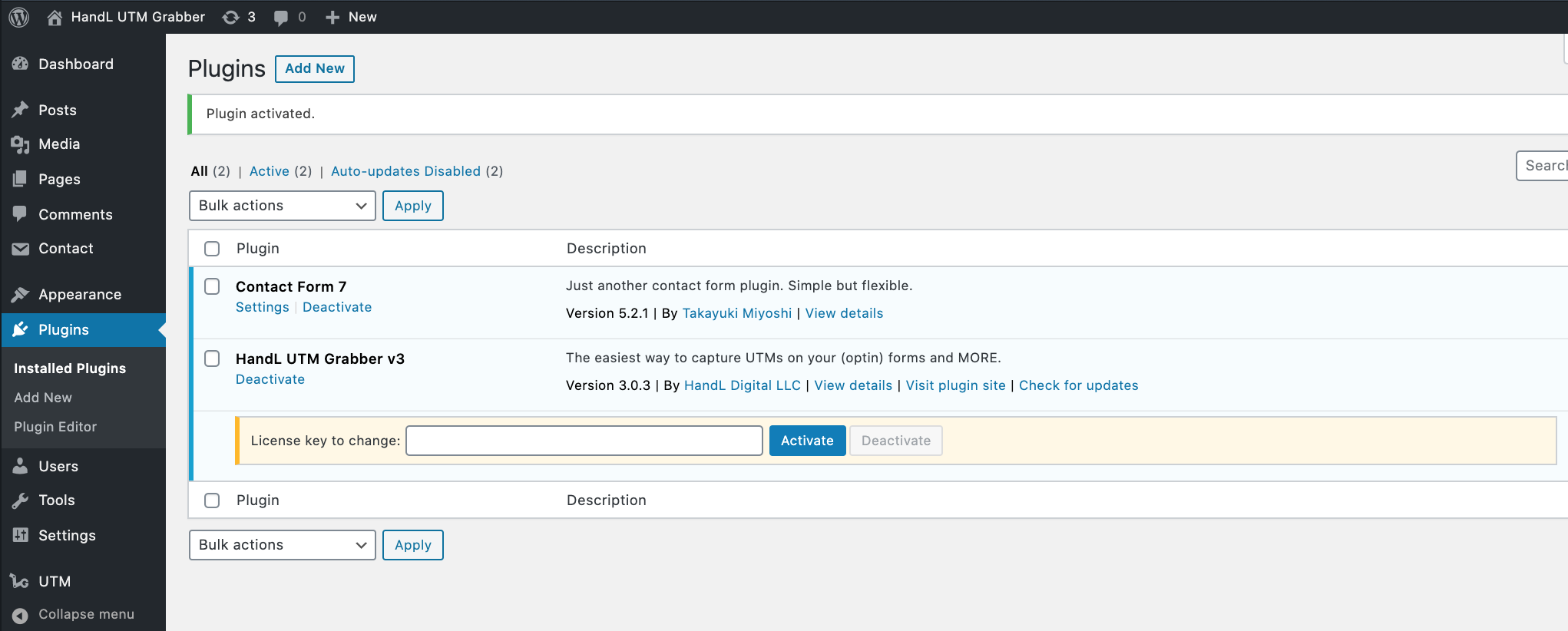
1.Click 'Deactivate' Button on your Active Licence
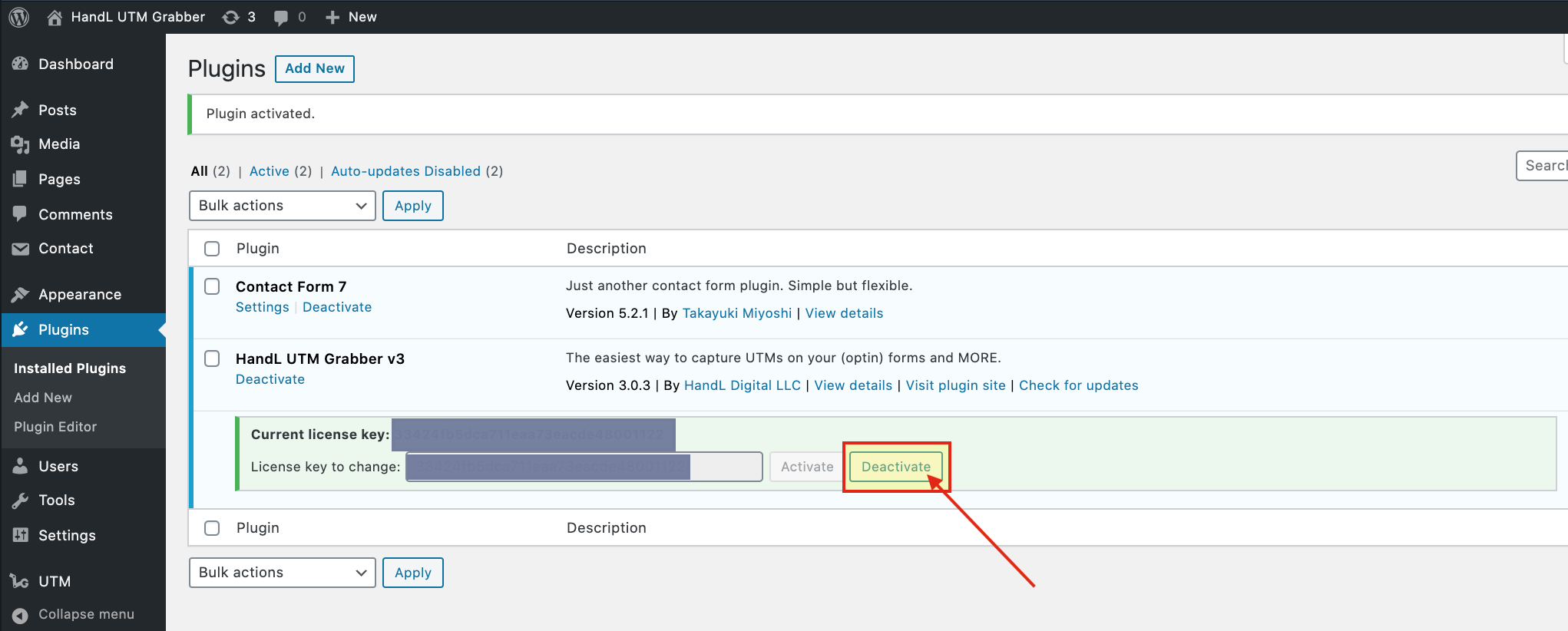
2.It is Deactivated so If you want to Reactivate it paste your Licence Key to the blank
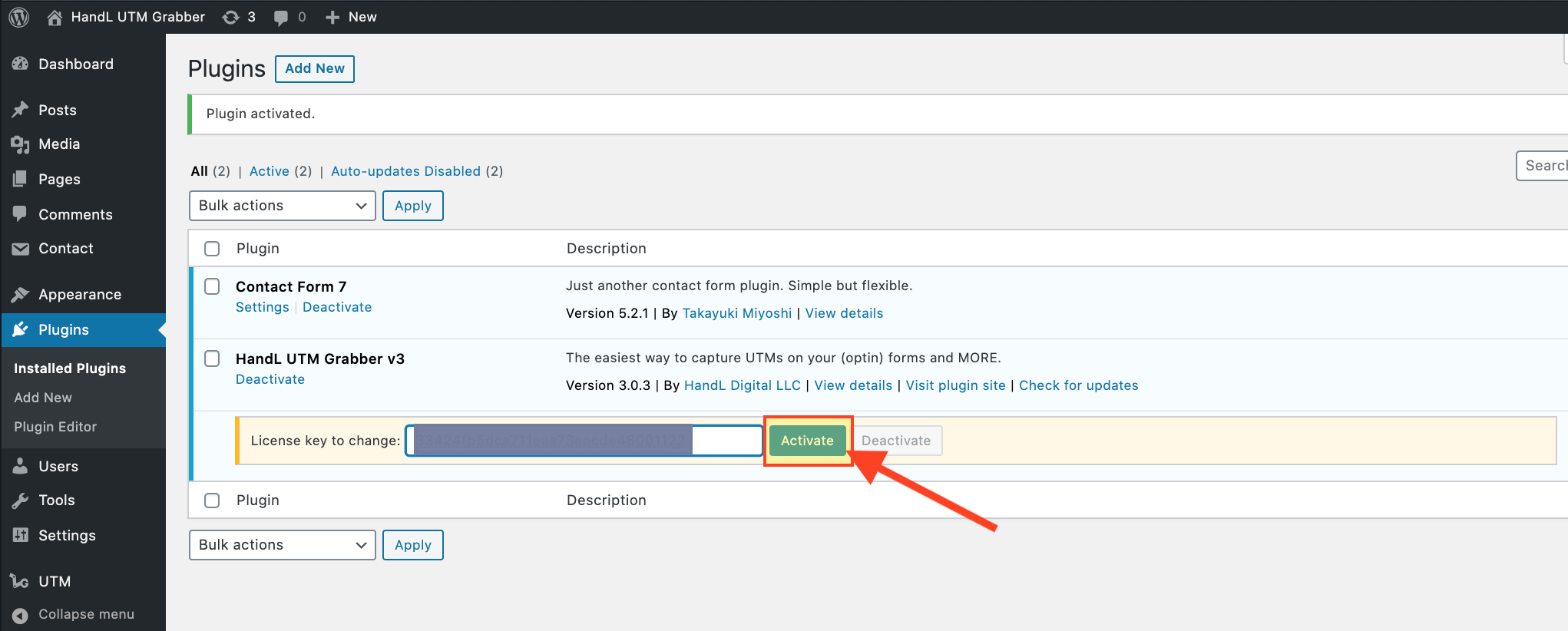
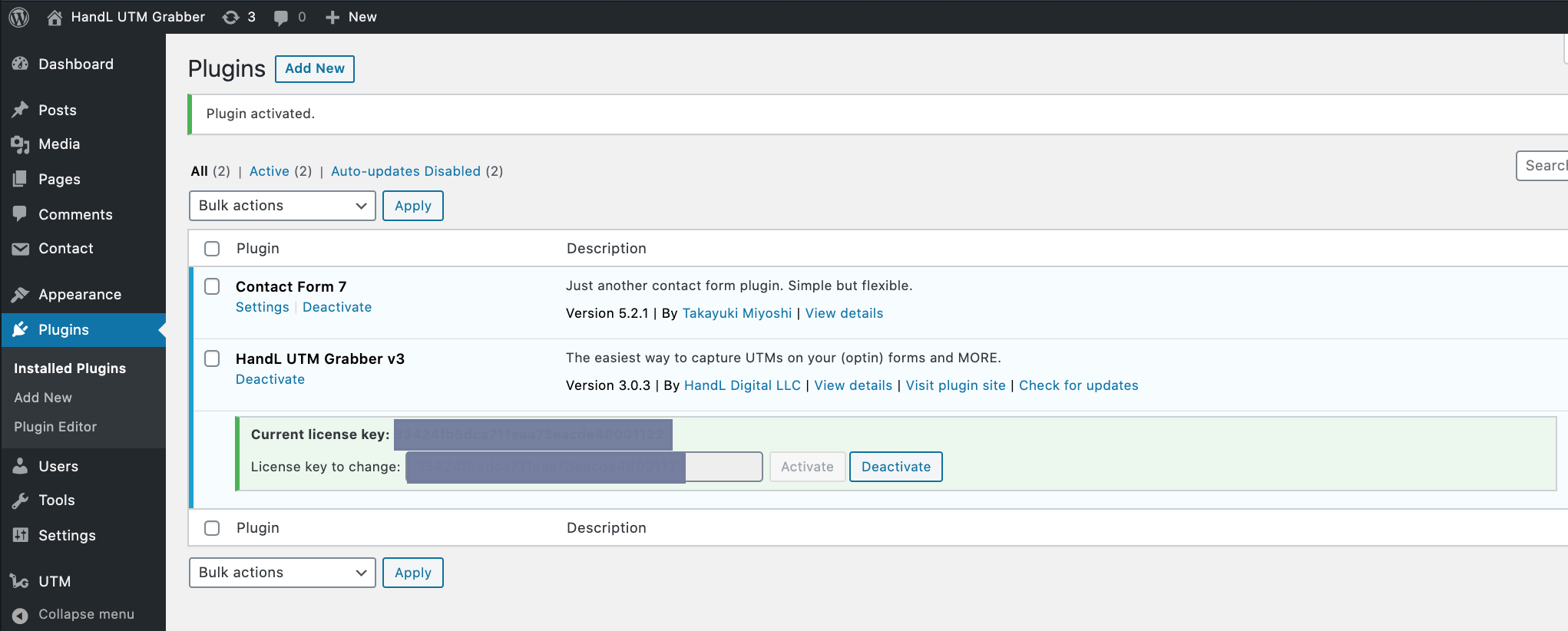
3.After Paste your Licence Key Click 'Activate' Button
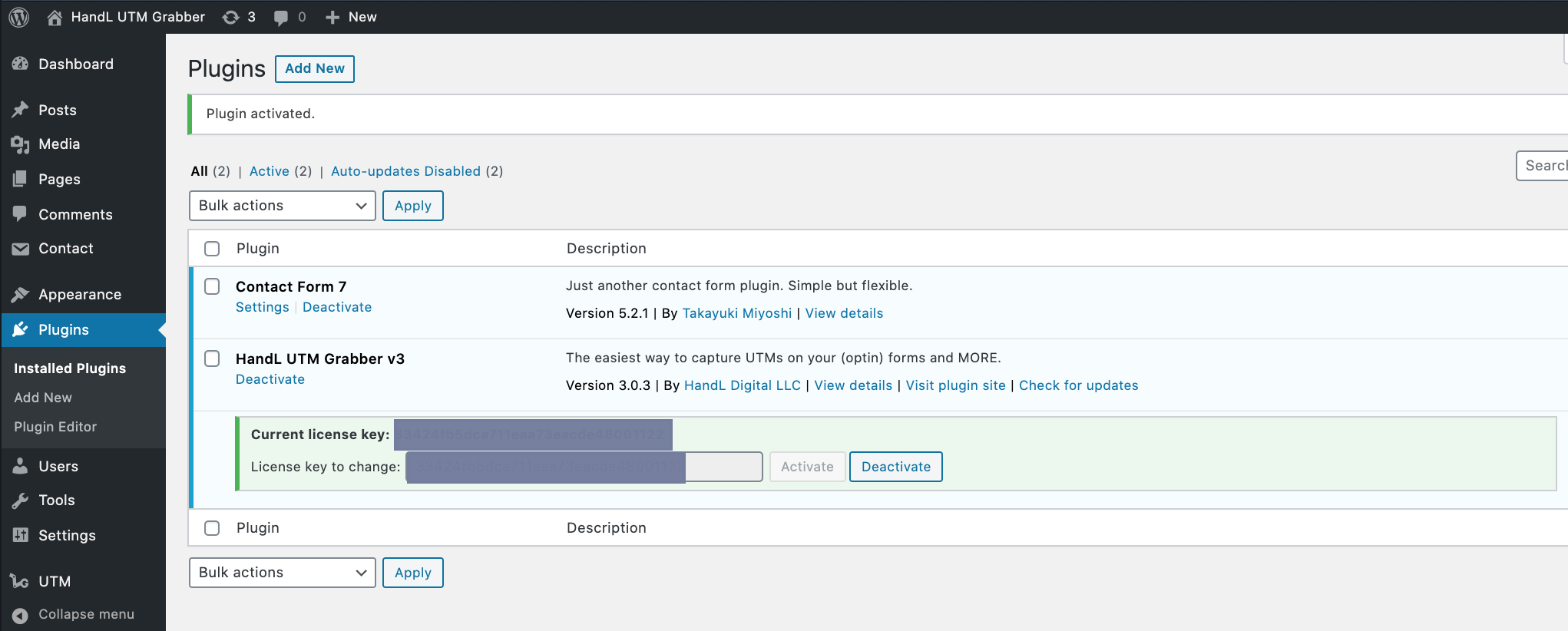
4.Great! You Reactivated Your Licence.
How to activate license on a new domain?
Activating The License for HandL UTM Grabber
UTM attribution overview
This guide explains Activating The License for HandL UTM Grabber. It helps you configure HandL UTM Grabber correctly so campaign attribution works reliably across WordPress and keep the marketing context needed for accurate reporting across forms, bookings, signups, and sales.
1.Activate The Plugin From Plugins Section
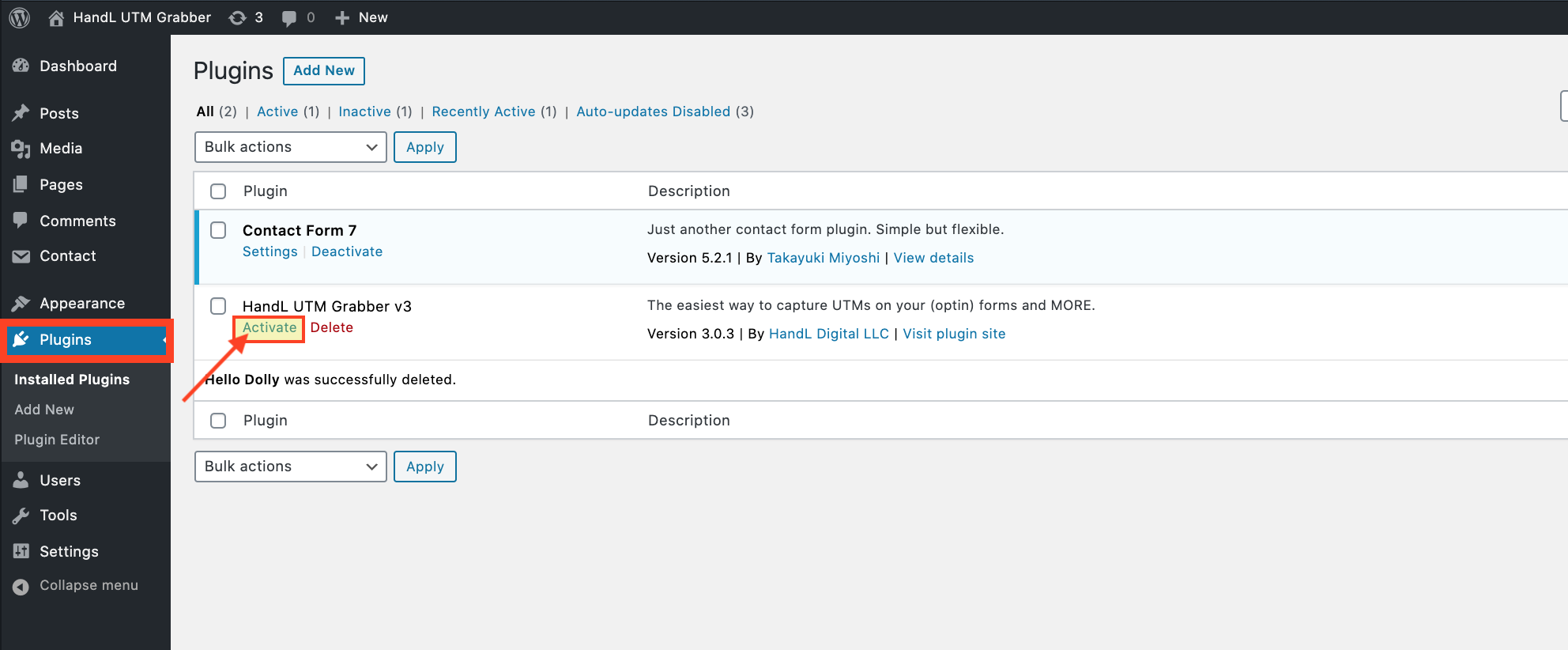
2.Copy your Licence key from your email.
3.Paste The Licence Key
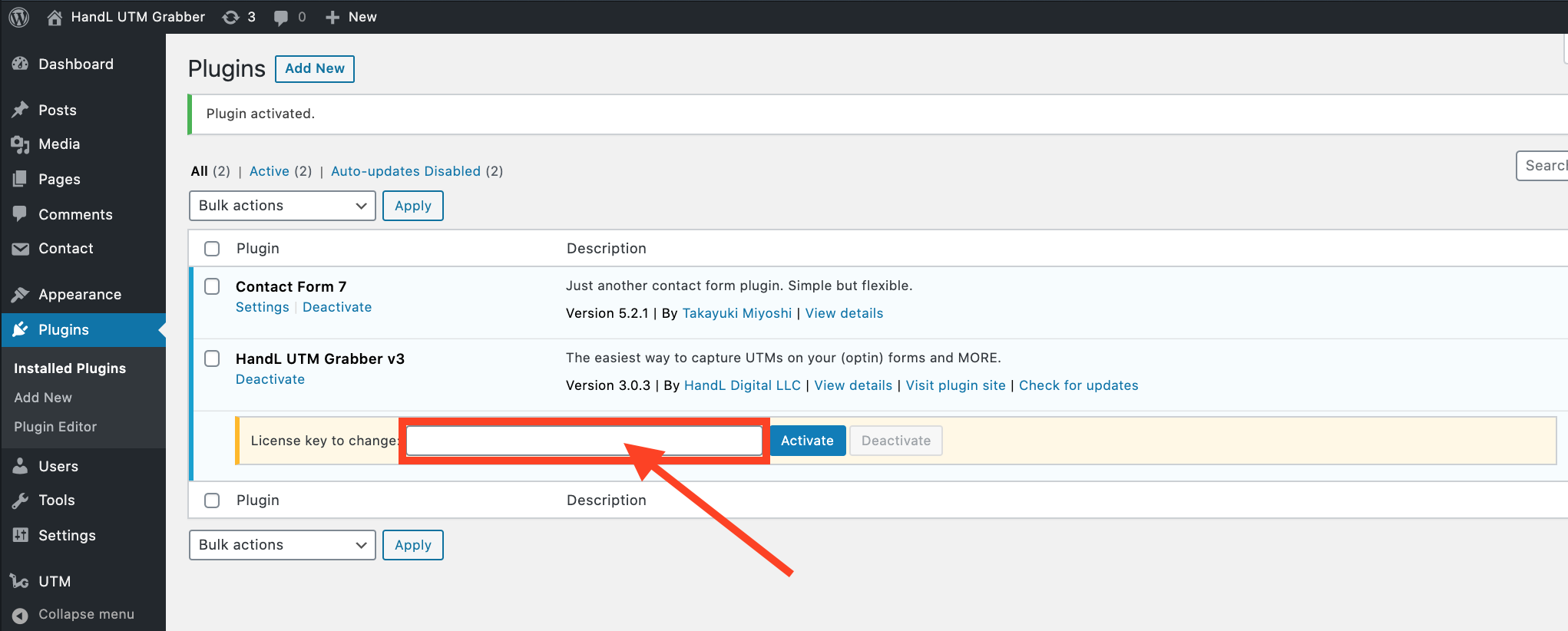
4.Click 'Activate' button after paste the key
5.Great! You Activated Your Licence.
How to Reset Your Password?
How to Reset Password for HandL UTM Grabber
UTM attribution overview
This guide explains How to Reset Password for HandL UTM Grabber. It helps you configure HandL UTM Grabber correctly so campaign attribution works reliably across WordPress and keep the marketing context needed for accurate reporting across forms, bookings, signups, and sales.
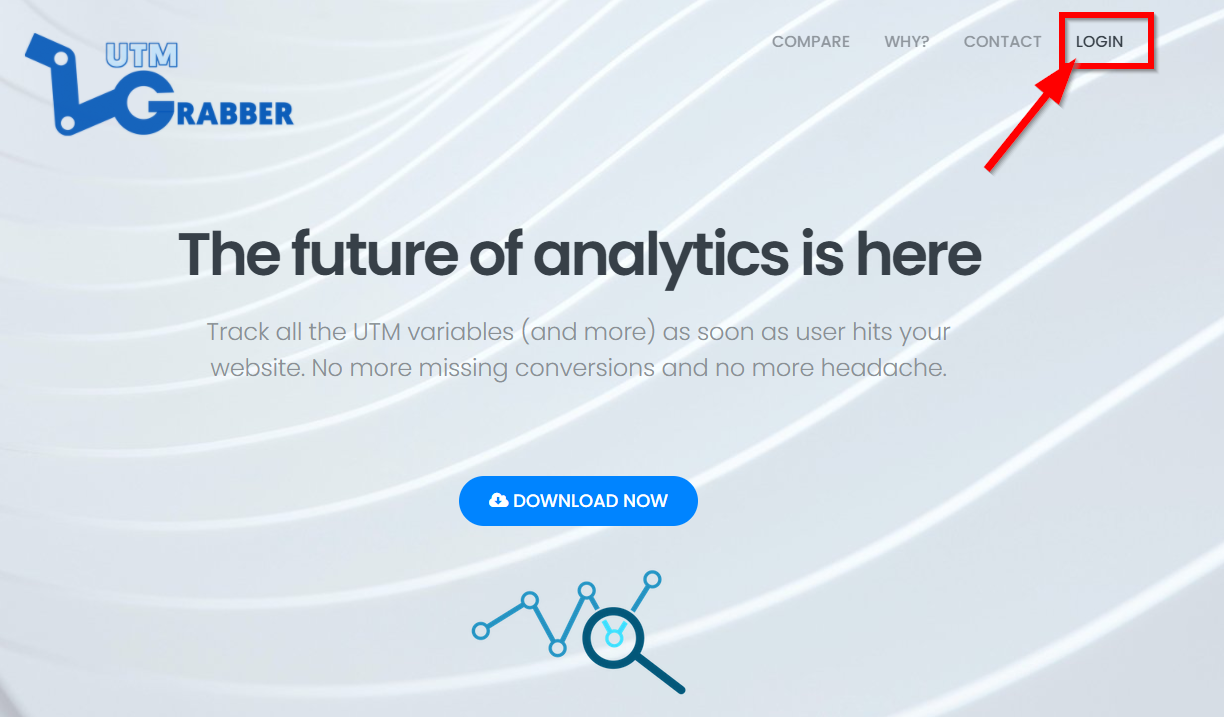
1. Click LOGIN
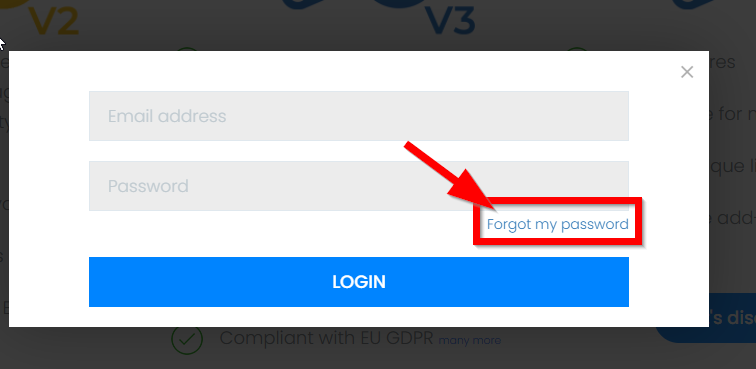
2.Click 'Forgot my password'
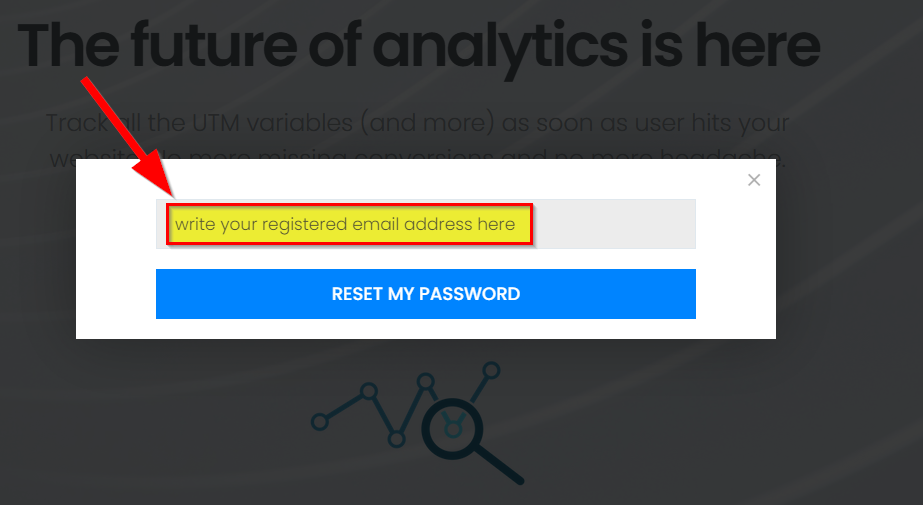
3. Write your registered email address and Click 'Reset my password' Button
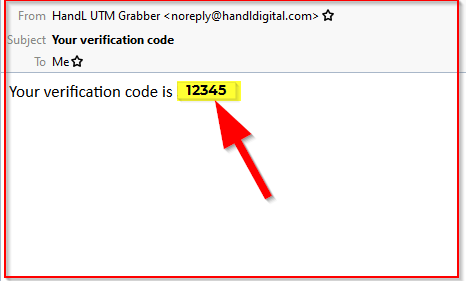
4. Please Check your email address to have your verification code
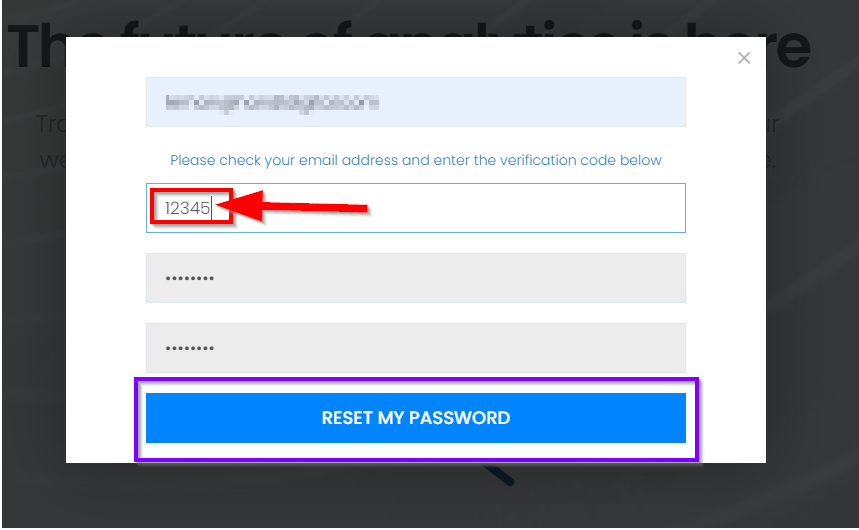
5.Write the verification code and set a newpassword then click the 'Reset My Password' button
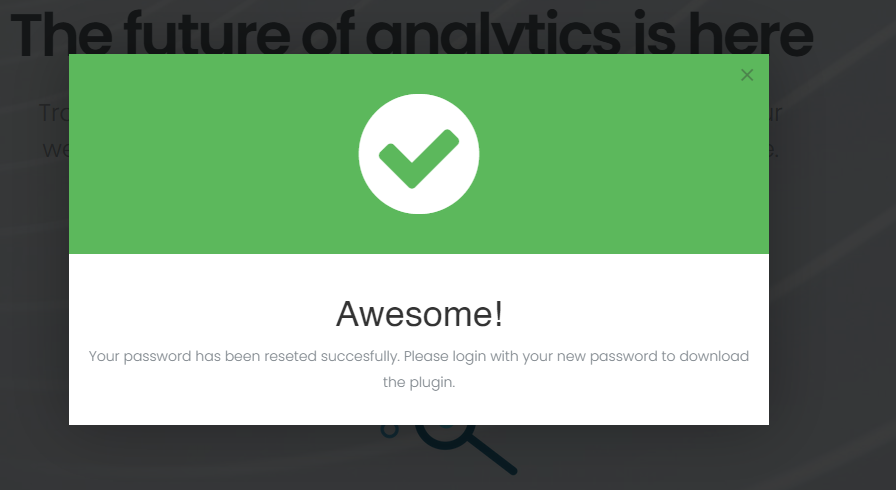
6. 🥳 Awesome! Your password has been reseted successfully.
Please login with your newpassword to download the plugin.
How to cancel my membership? - HandL UTM Grabber Guide
UTM attribution overview
This guide explains How to cancel my membership? - HandL UTM Grabber Guide. It helps you configure HandL UTM Grabber correctly so campaign attribution works reliably across WordPress and keep the marketing context needed for accurate reporting across forms, bookings, signups, and sales.
Login to your account at utmgrabber.com
After loging in, click your name uppper right corner of the screen and click "My Downlads"
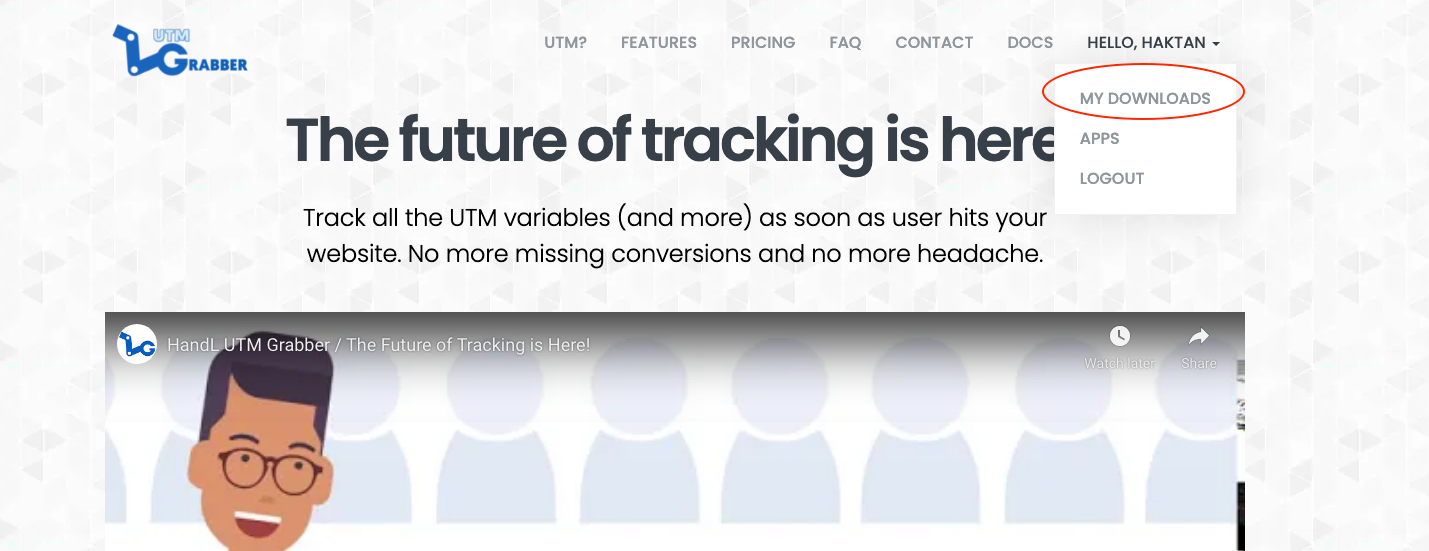
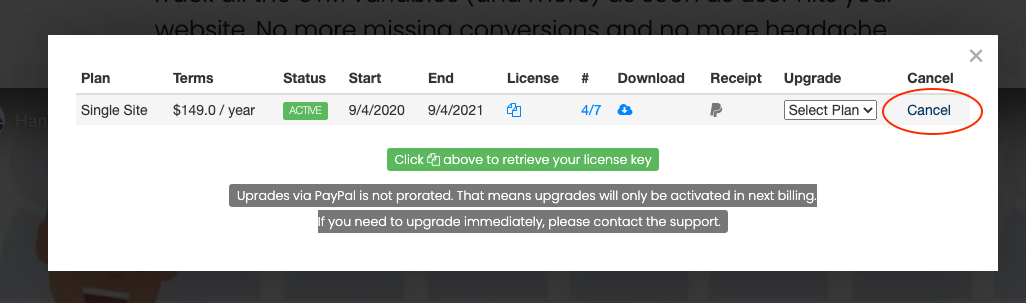
Find the Plan you want to cancel
Simply click "Cancel" and navigate through the flow.
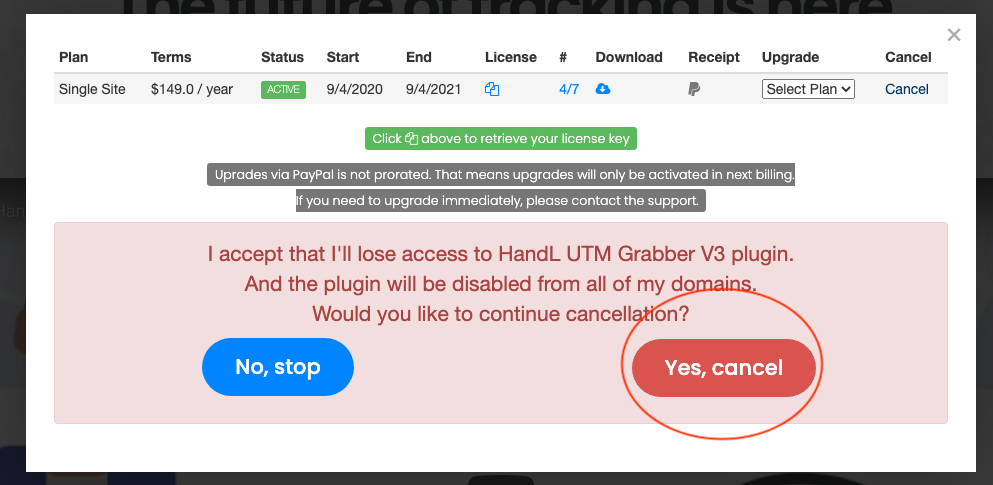
If you have trouble canceling your account or need help, please have a chat with us!
How to upgrade my plan? - HandL UTM Grabber Guide
UTM attribution overview
This guide explains How to upgrade my plan? - HandL UTM Grabber Guide. It helps you configure HandL UTM Grabber correctly so campaign attribution works reliably across WordPress and keep the marketing context needed for accurate reporting across forms, bookings, signups, and sales.
Login to your account on utmgrabber.com
Click your name and My Downloads
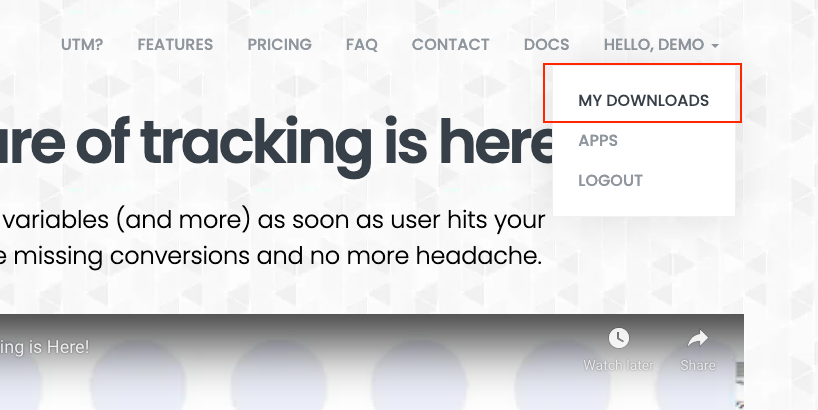
Select the plan that you are interested in upgrading to
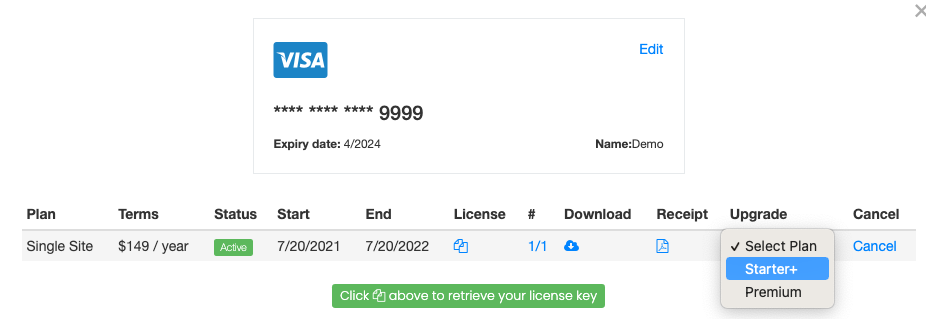
You will get a prorated upgrade fee for your review.
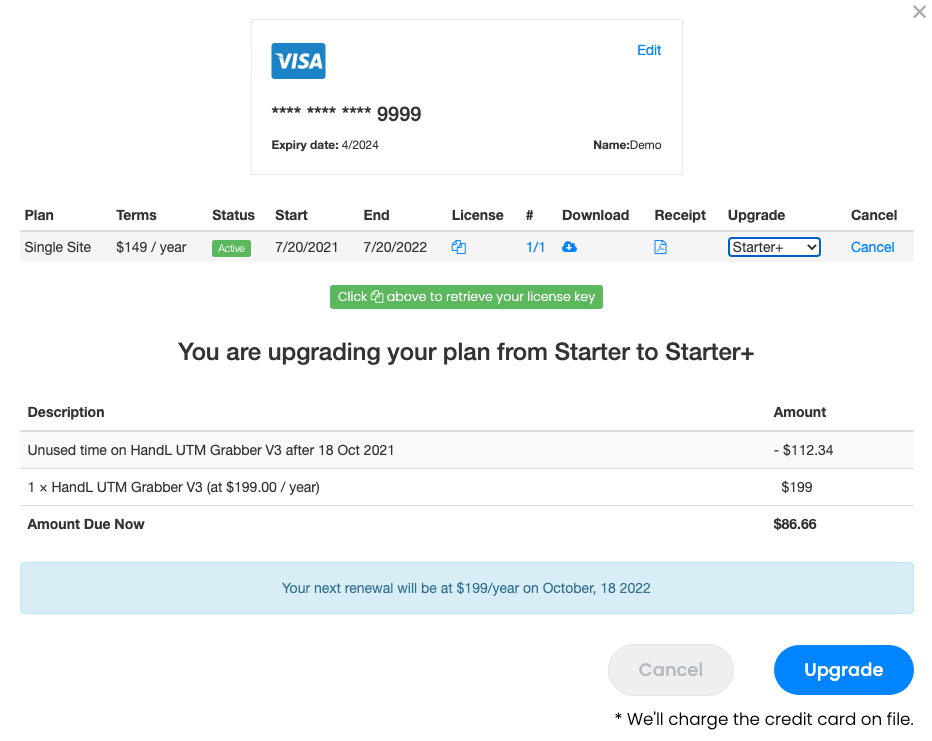
This process is similar for PayPal however, upgrades are not prorated in PayPal, that means your upgraded plan will start in next billing period. If you need your plan upgraded effective immidiately, please chat with us.
How to downgrade my plan? for HandL UTM Grabber
UTM attribution overview
This guide explains How to downgrade my plan? for HandL UTM Grabber. It helps you configure HandL UTM Grabber correctly so campaign attribution works reliably across WordPress and keep the marketing context needed for accurate reporting across forms, bookings, signups, and sales.
Important Information Before You Downgrade
- Downgrades are scheduled: Your plan change will take effect at the end of your current billing period. You'll keep full access to your current plan until then.
- No refunds or credits: Since you've already paid for your current billing period, there are no refunds or credits issued. You simply switch to the lower plan when your next billing cycle begins.
- You can cancel anytime: Changed your mind? You can cancel a scheduled downgrade before it takes effect.
How to Downgrade
Step 1: Login to your account on utmgrabber.com
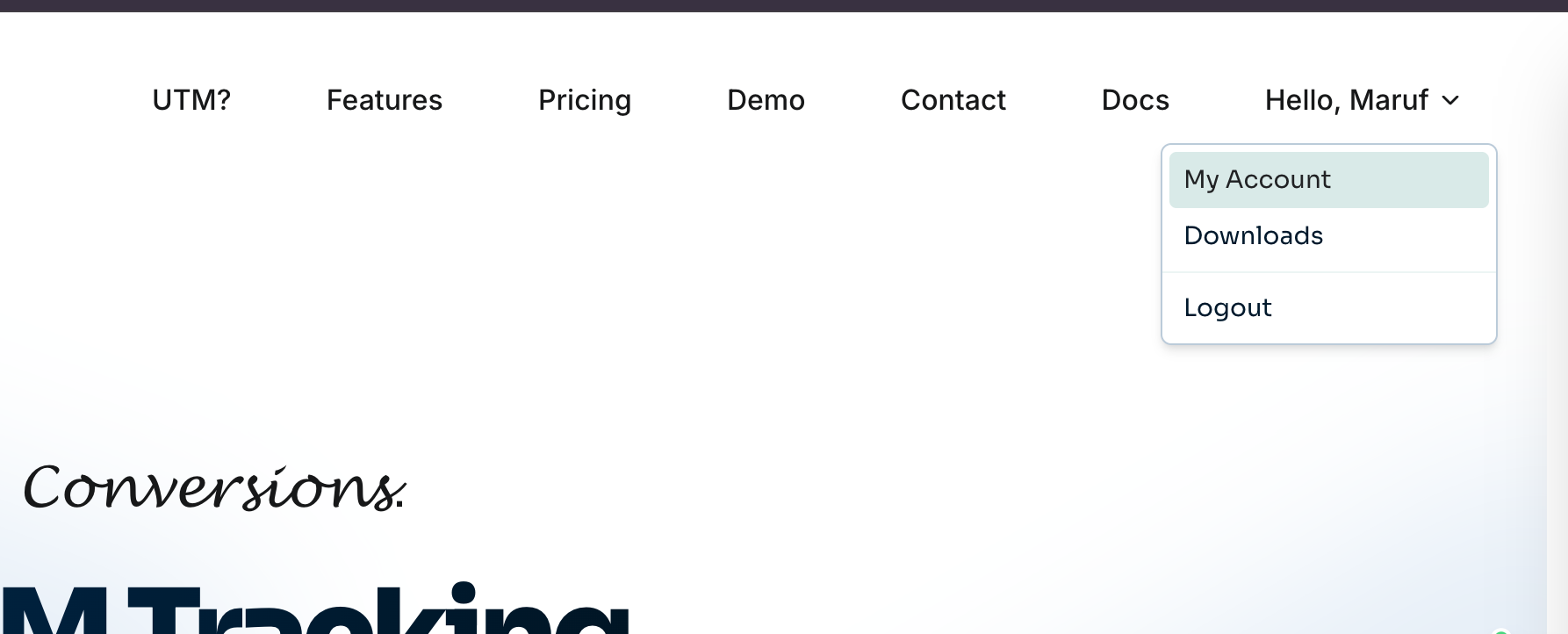
Click your name and select My Account
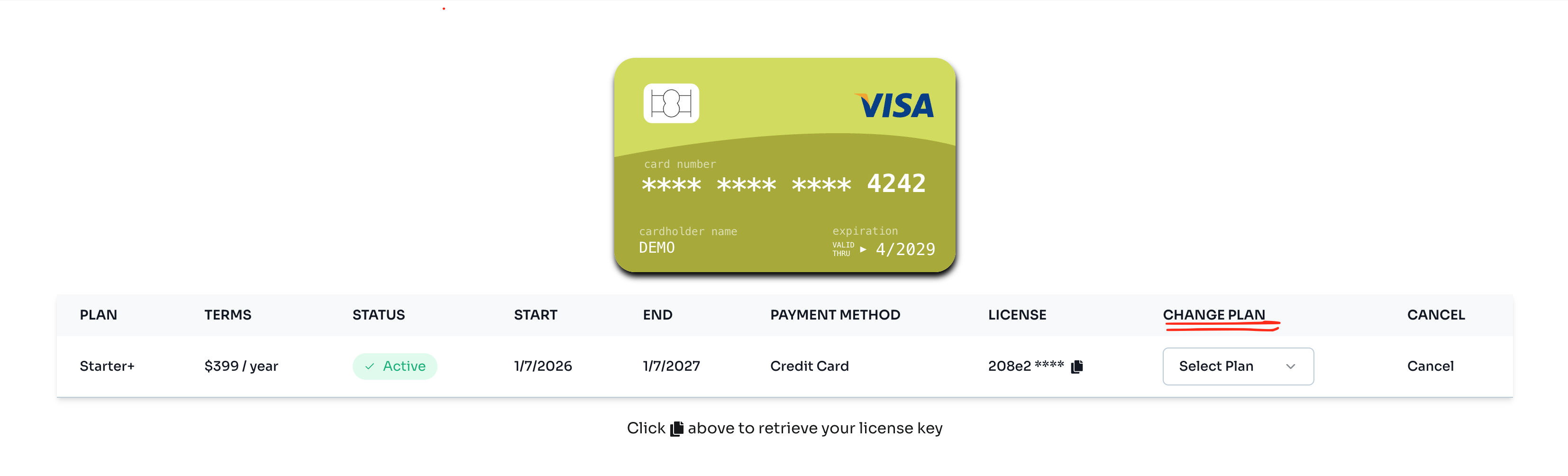
Step 2: Find the "Change Plan" dropdown
Locate your current subscription and click on the Change Plan dropdown menu.
Step 3: Select the plan you want to downgrade to
The dropdown shows available options grouped by "Upgrade to" and "Downgrade to". Select a plan from the Downgrade to section.
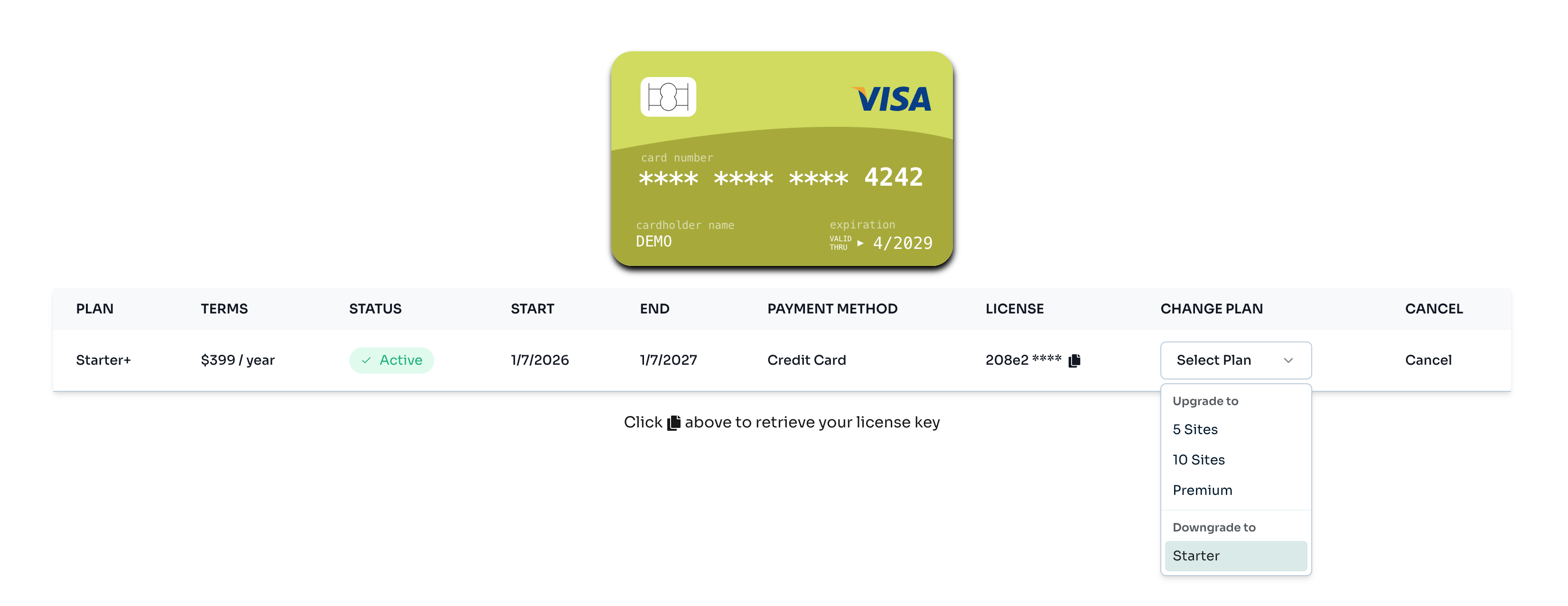
Step 4: Review and confirm your downgrade
You'll see a confirmation modal showing:
- Your current plan and the plan you're switching to
- The date when the change will take effect
- Confirmation that you'll keep your current plan until then
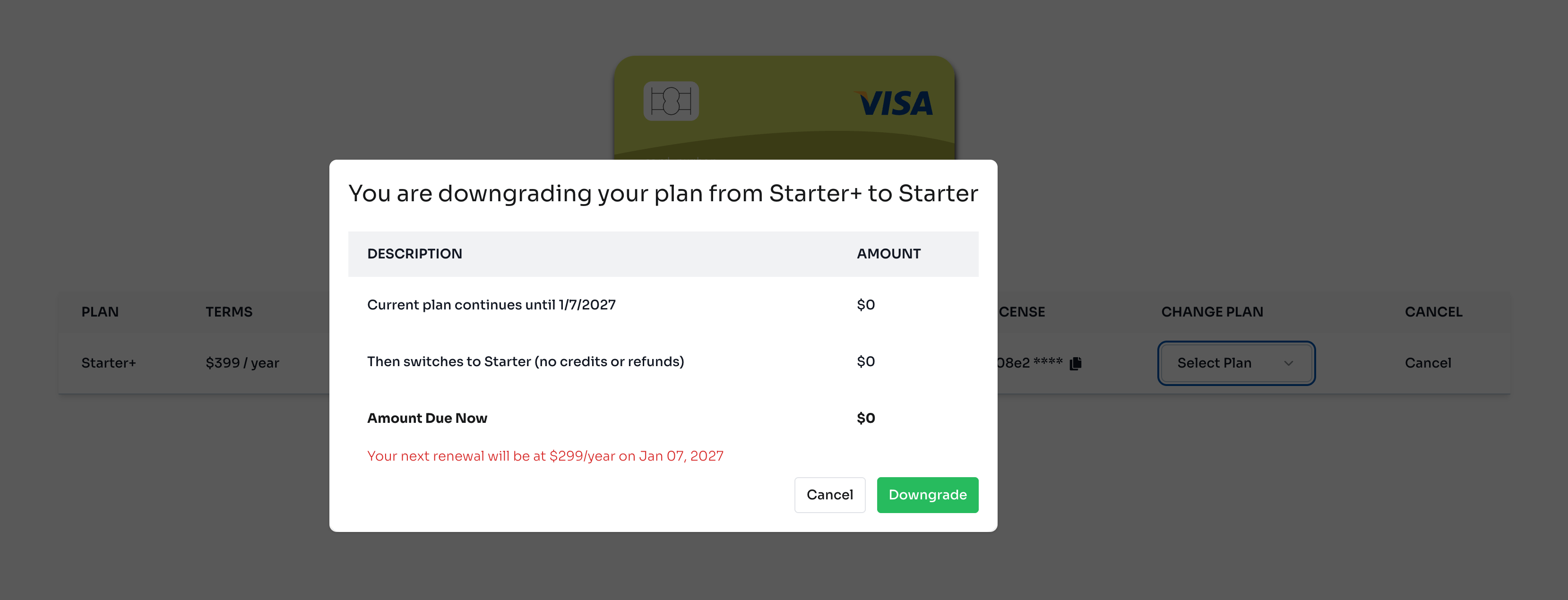
Click the Downgrade button to schedule your plan change.
Step 5: Confirmation
After confirming, you'll see a scheduled change notice on your subscription showing when your plan will switch.
How to Cancel a Scheduled Downgrade
Changed your mind? You can cancel a scheduled downgrade at any time before it takes effect.
Step 1: Find the scheduled change notice
On your Subscriptions page, you'll see an alert showing your scheduled plan change.
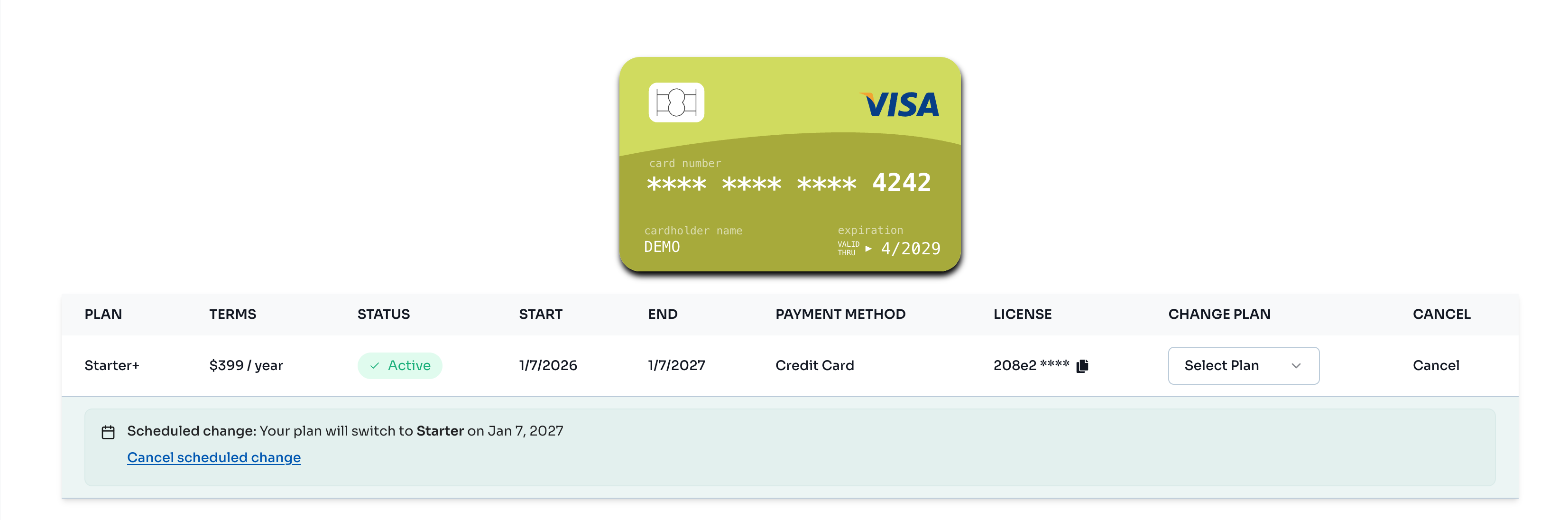
Step 2: Click "Cancel scheduled change"
Click the Cancel scheduled change link in the alert.
Step 3: Confirm cancellation
A confirmation dialog will appear. Click Cancel Scheduled Change to confirm.
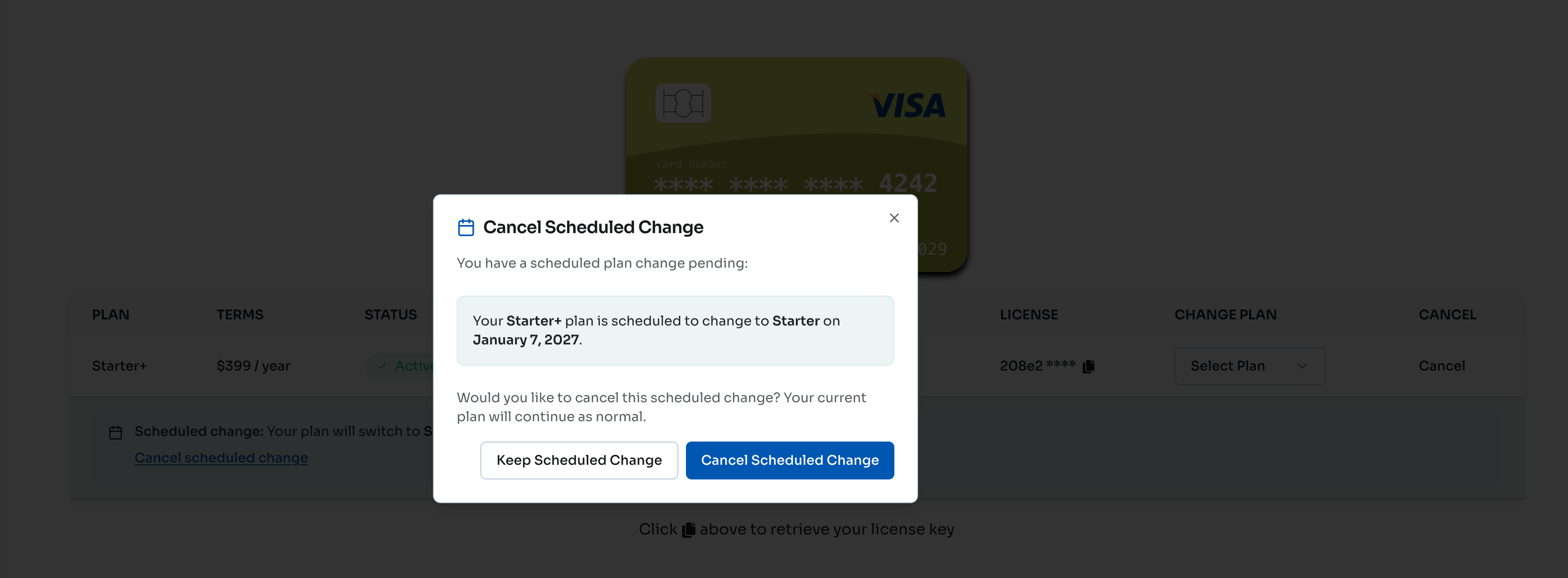
Your subscription will continue on your current plan as normal.
PayPal Users
Downgrades are not available for PayPal subscriptions through the self-service portal.
If you're a PayPal subscriber and need to downgrade your plan, please chat with us or contact support. We'll be happy to assist you with your plan change.
Frequently Asked Questions
Q: When does my downgrade take effect? A: Your downgrade is scheduled to take effect at the end of your current billing period. You'll keep full access to your current plan until then.
Q: Will I get a refund for the remaining time on my current plan? A: No. Since you've already paid for your current billing period, there are no refunds or credits. You'll continue to have access to your current plan features until the billing period ends.
Q: Can I upgrade again after scheduling a downgrade? A: You'll need to cancel the scheduled downgrade first before making any other plan changes. Simply click "Cancel scheduled change" and then you can upgrade or make other changes.
Q: What happens to my sites/tracking if I downgrade to a plan with fewer sites? A: Please ensure you're within the site limits of your new plan before the downgrade takes effect. Contact support if you need assistance.
I need invoice - HandL UTM Grabber Guide
UTM attribution overview
This guide explains I need invoice - HandL UTM Grabber Guide. It helps you configure HandL UTM Grabber correctly so campaign attribution works reliably across WordPress and keep the marketing context needed for accurate reporting across forms, bookings, signups, and sales.
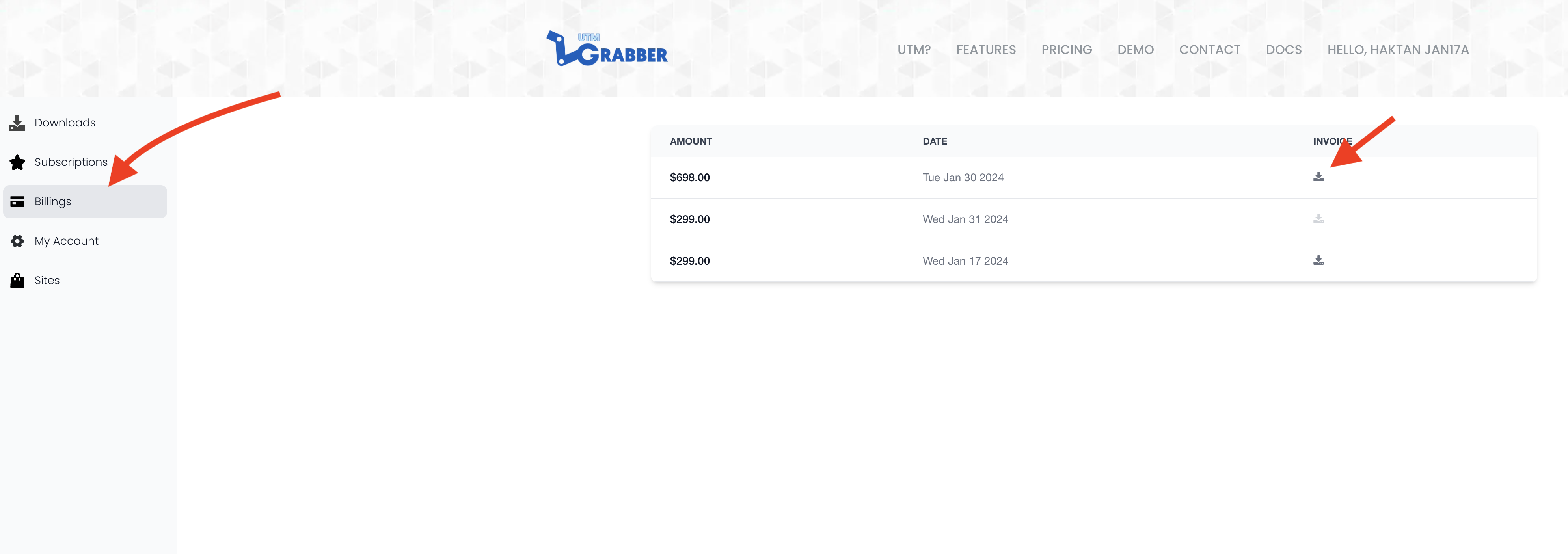
You can download your invoice by logging into utmgrabber.com and navigating to 'Billings'.
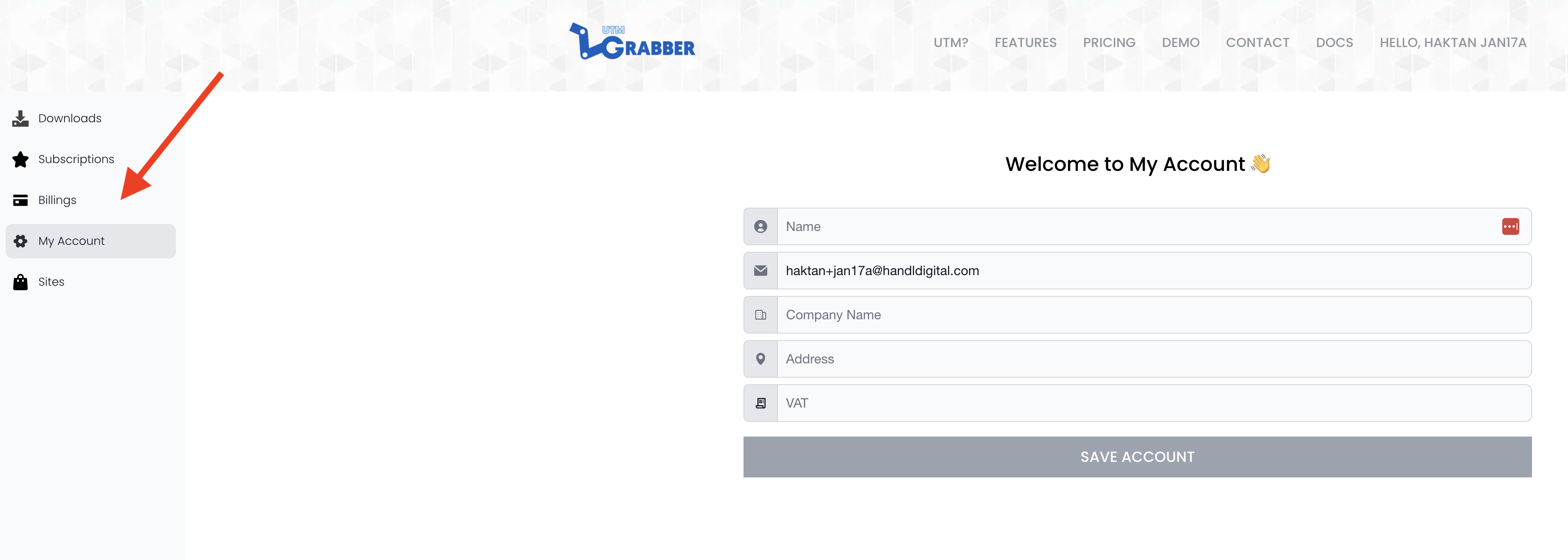
If you need to include a new billing address, VAT, or any additional information, please fill out the necessary details on the 'My Account' page before generating your invoice.
How to update HandL UTM Grabber v3 plugin?
UTM attribution overview
This guide explains How to update HandL UTM Grabber v3 plugin?. It helps you configure HandL UTM Grabber correctly so campaign attribution works reliably across WordPress and keep the marketing context needed for accurate reporting across forms, bookings, signups, and sales.
Method 1 (Easiest): From your WordPress plugin
Find "HandL UTM Grabber v3" in the menu and click "Check for Updates"


It will ask you to confirm, confirm the new changes and updates will be applied automatically.

Method 2: From My Account Menu at utmgrabber.com
Login to your account at utmgrabber.com
Click your name at the top right of your screen and click "My Downloads"
And click download button, it will download the latest version of zip file for the plugin. You can upload the zip file to your WP via Plugin upload in WP

How to change credit card on file? - HandL UTM Grabber Guide
UTM attribution overview
This guide explains How to change credit card on file? - HandL UTM Grabber Guide. It helps you configure HandL UTM Grabber correctly so campaign attribution works reliably across WordPress and keep the marketing context needed for accurate reporting across forms, bookings, signups, and sales.
You can manage your license and billing information at utmgrabber.com
Login to your account and got to My My Account
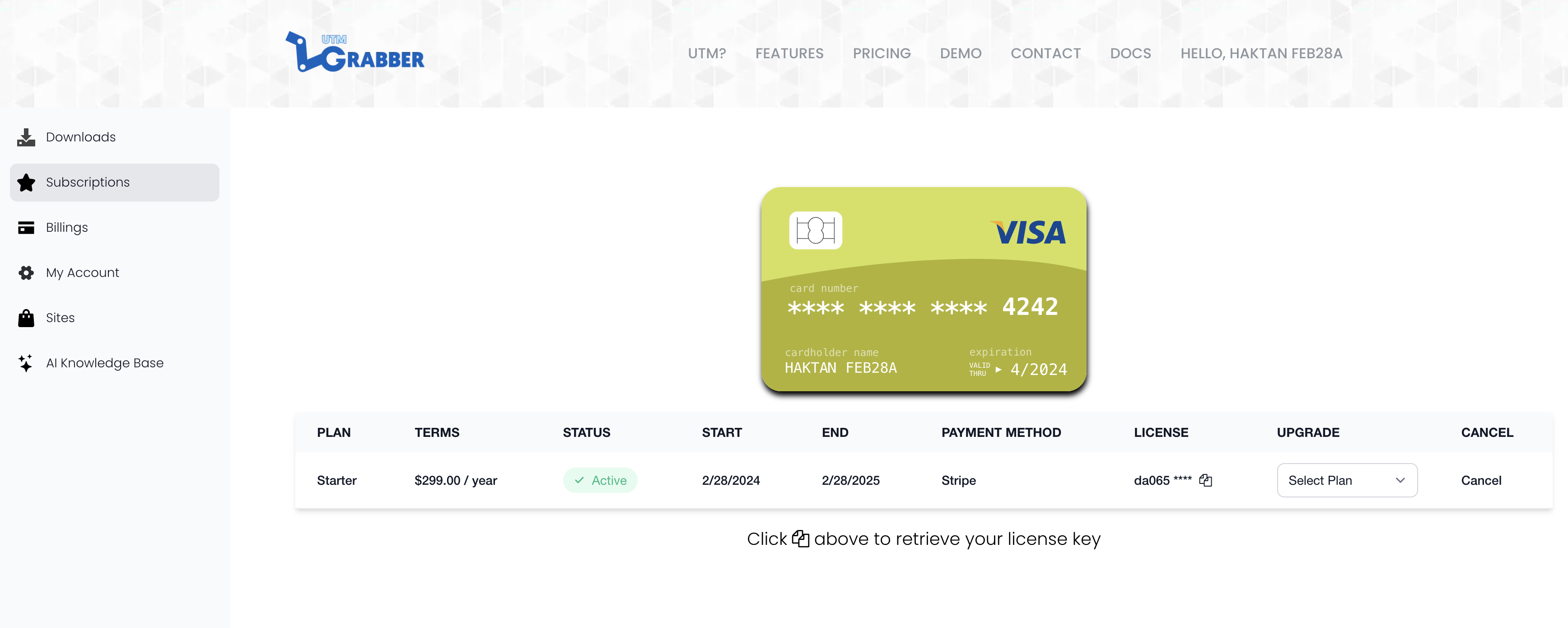
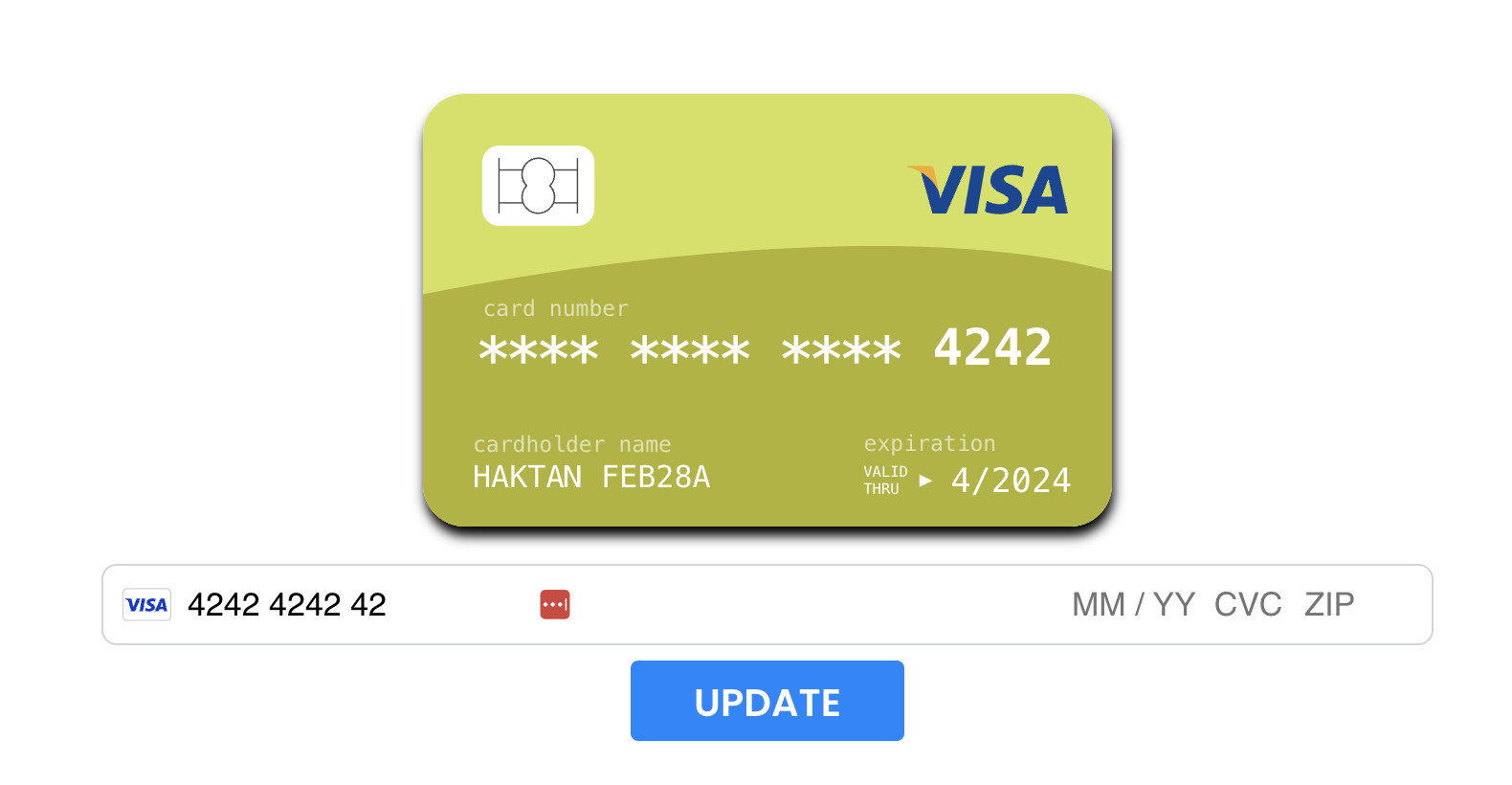
Click on the credit card graphic
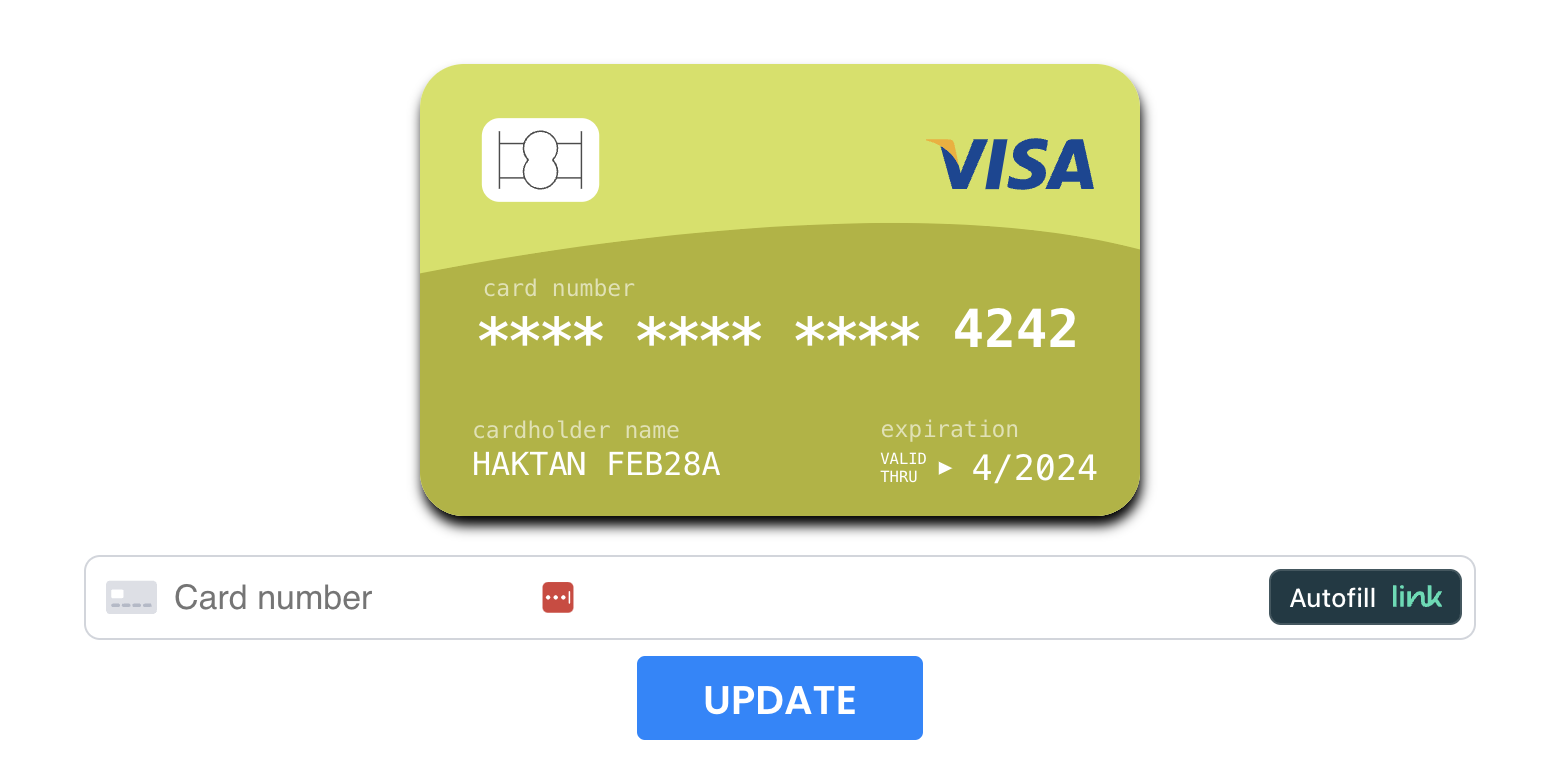
Update with the new information
That's it!
Which sites are my licenses being used on? for HandL UTM Grabber
UTM attribution overview
This guide explains Which sites are my licenses being used on? for HandL UTM Grabber. It helps you configure HandL UTM Grabber correctly so campaign attribution works reliably across WordPress and keep the marketing context needed for accurate reporting across forms, bookings, signups, and sales.
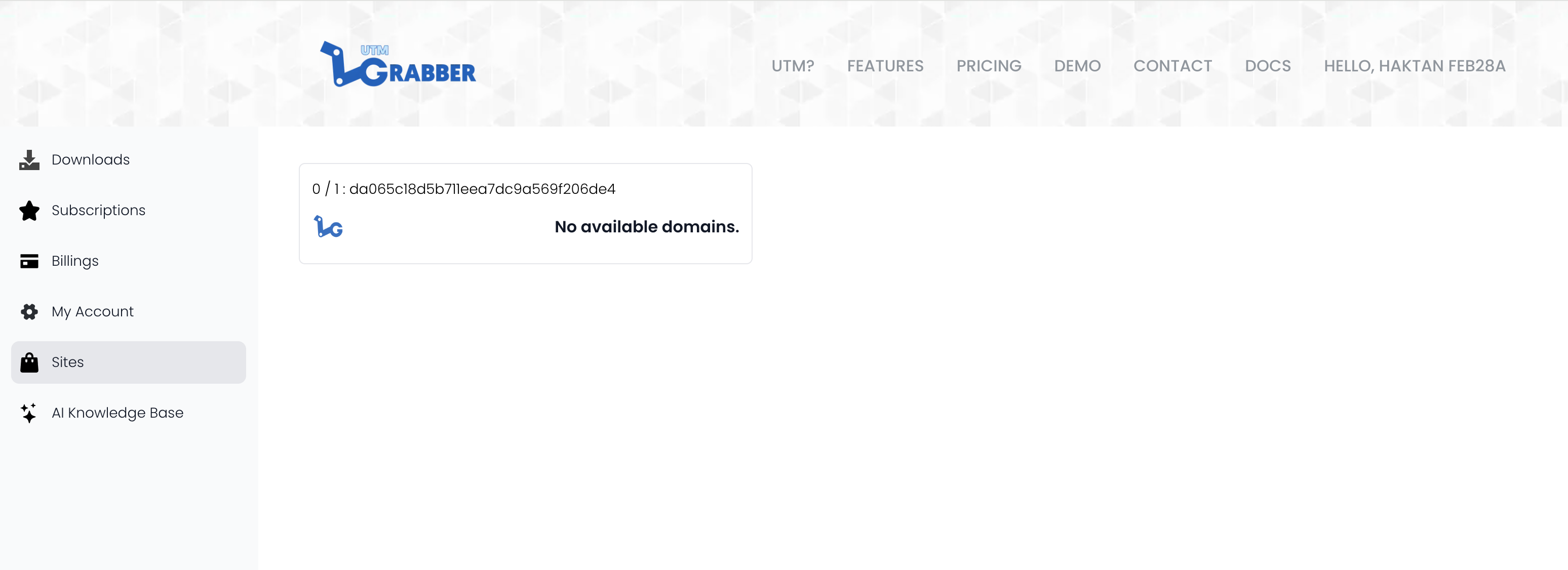
Please log in at utmgrabber.com and click on "My Account" > "Sites."
The domain names will be listed there.
Update Name and Email on Your Account - HandL UTM Grabber Guide
UTM attribution overview
This guide explains Update Name and Email on Your Account - HandL UTM Grabber Guide. It helps you configure HandL UTM Grabber correctly so campaign attribution works reliably across WordPress and keep the marketing context needed for accurate reporting across forms, bookings, signups, and sales.
Log in to your account at utmgrabber.com.
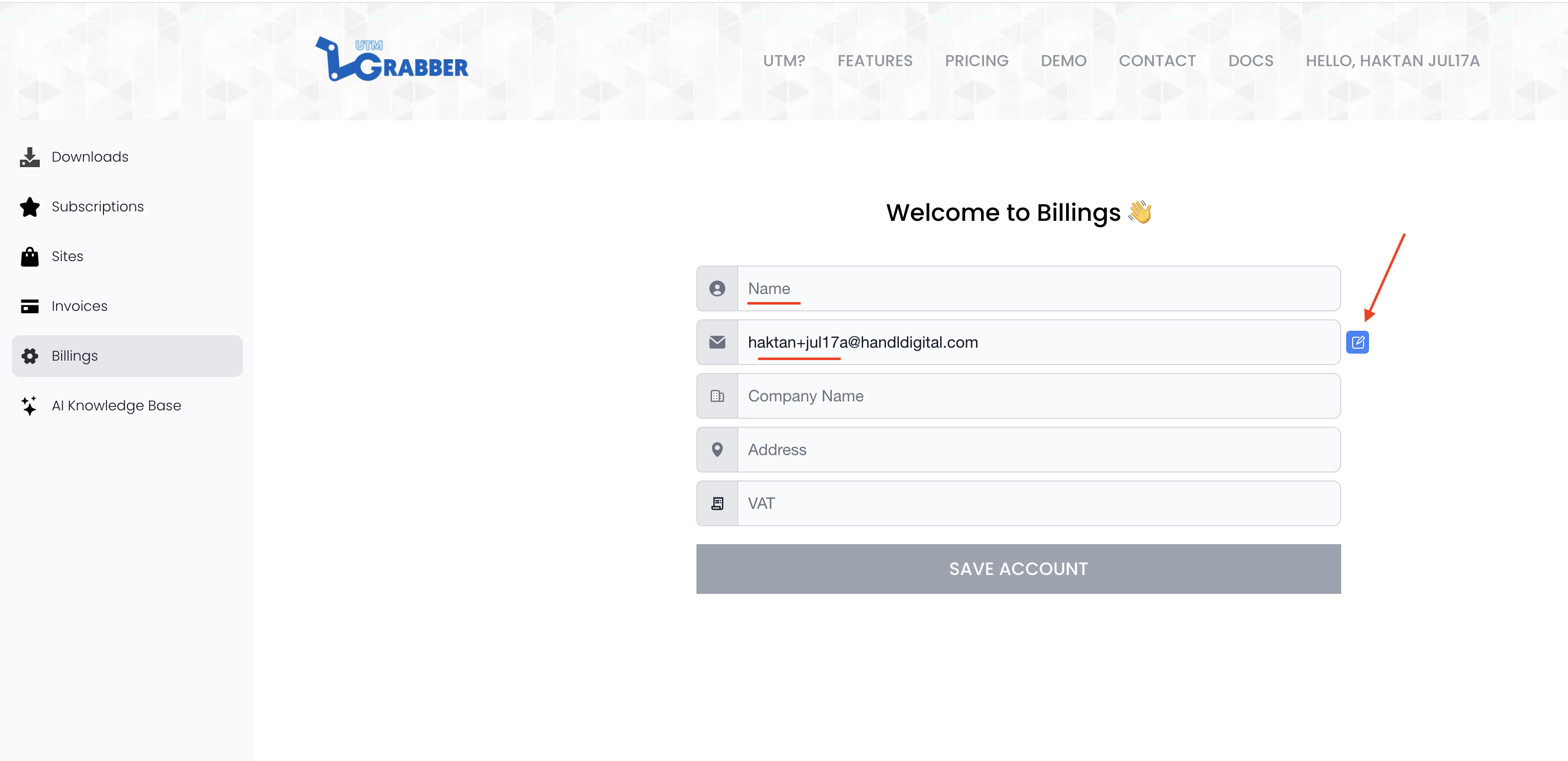
Click My Account > Billings.
Update your email and name there. Your changes should reflect immediately, but sometimes it may take until your next renewal. If the changes are not in effect right away, let us know via chat, and we can help you.
Performance Overview - is UTM Grabber really slow?
UTM attribution overview
This guide explains Performance Overview - is UTM Grabber really slow?. It helps you configure HandL UTM Grabber correctly so campaign attribution works reliably across WordPress and keep the marketing context needed for accurate reporting across forms, bookings, signups, and sales.
Impact on Website Performance
Ensuring that plugins do not hinder website performance is crucial for user experience and SEO rankings. The UTM Grabber plugin has been meticulously optimized to ensure it operates efficiently with minimal impact on your site's performance.
Performance Testing
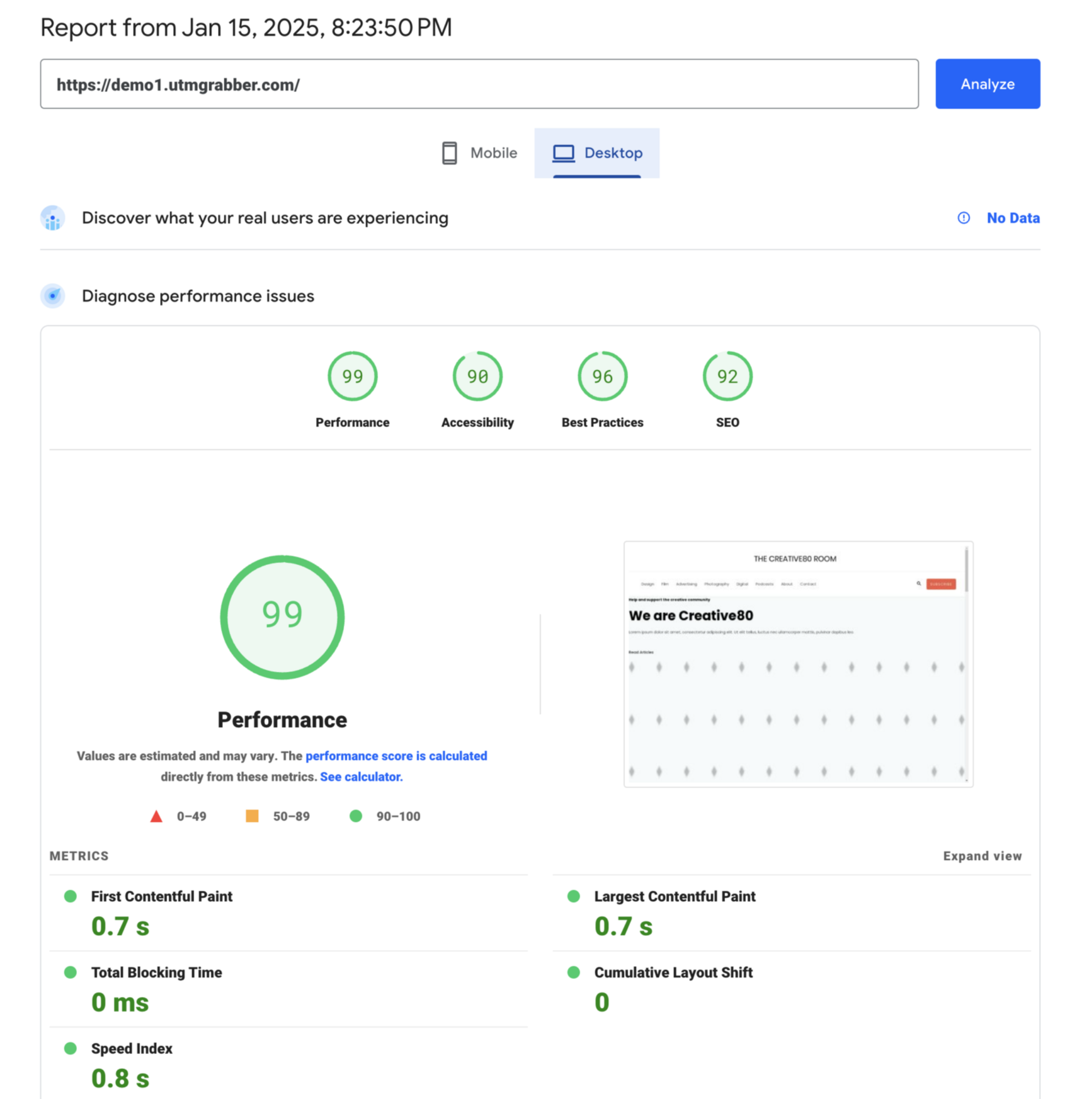
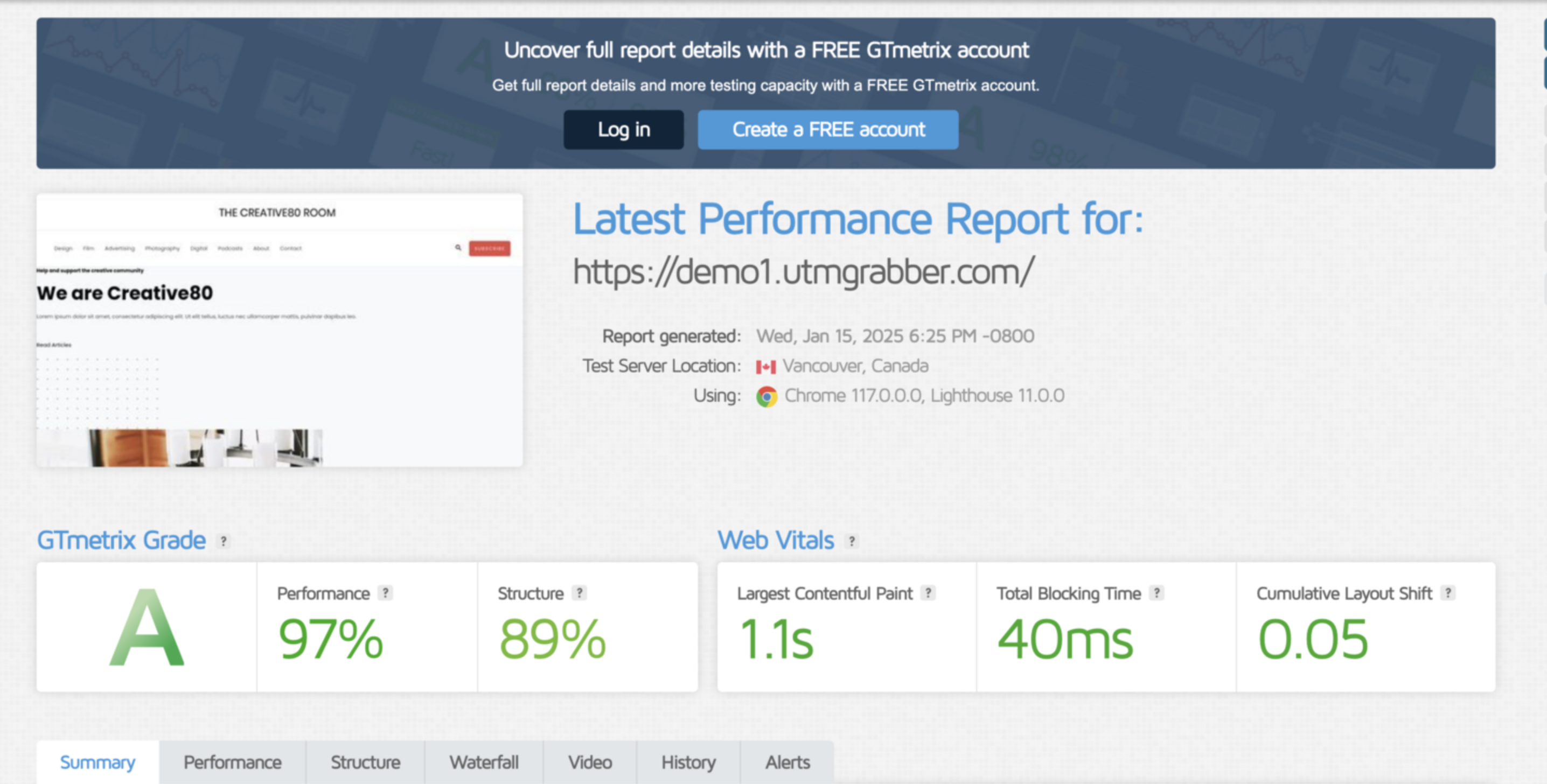
To validate the efficiency of UTM Grabber, we conducted performance tests using two industry-standard tools: Google's PageSpeed Insights and GTmetrix. Here are the results:
- PageSpeed Insights: Achieved an 'A' score, indicating optimal speed and performance.
- GTmetrix: Also received an 'A' rating, signifying high performance and efficiency.
https://pagespeed.web.dev/analysis/https-demo1-utmgrabber-com/zje14pdxz1?form_factor=desktop
https://gtmetrix.com/reports/demo1.utmgrabber.com/o4RxJIPk/
Lightweight Design
The UTM Grabber's lightweight design is a hallmark of its performance capabilities. Specifically, the plugin only requires 66.46ms to load, underscoring its efficiency and negligible impact on page load times.
Conclusion on Performance
The performance evaluation clearly demonstrates that UTM Grabber is a highly efficient plugin that seamlessly integrates with WordPress sites without affecting their speed. Its exceptional performance metrics assure users that their site's PageSpeed and GTmetrix scores remain high, even with the plugin active.
How to Submit Feature Requests for HandL UTM Grabber
UTM attribution overview
This guide explains How to Submit Feature Requests for HandL UTM Grabber. It helps you configure HandL UTM Grabber correctly so campaign attribution works reliably across WordPress and keep the marketing context needed for accurate reporting across forms, bookings, signups, and sales.
Have an idea for a new feature or an integration you'd like HandL UTM Grabber to support? In V3, you can submit feature requests directly from the plugin — no need to leave your WordPress dashboard.
Steps
1. Locate the Popup Button
On any HandL UTM Grabber V3 admin page, look for the blue circular button in the bottom-right corner of the screen.
2. Open the Quick Links Menu
Click the blue button to open the quick links popover. You'll see three options:
- Get Support — Opens the UTM Grabber support page
- Knowledge Base — Opens the documentation at docs.utmgrabber.com
- Suggest a Feature — Opens the feature request form
3. Click "Suggest a Feature"
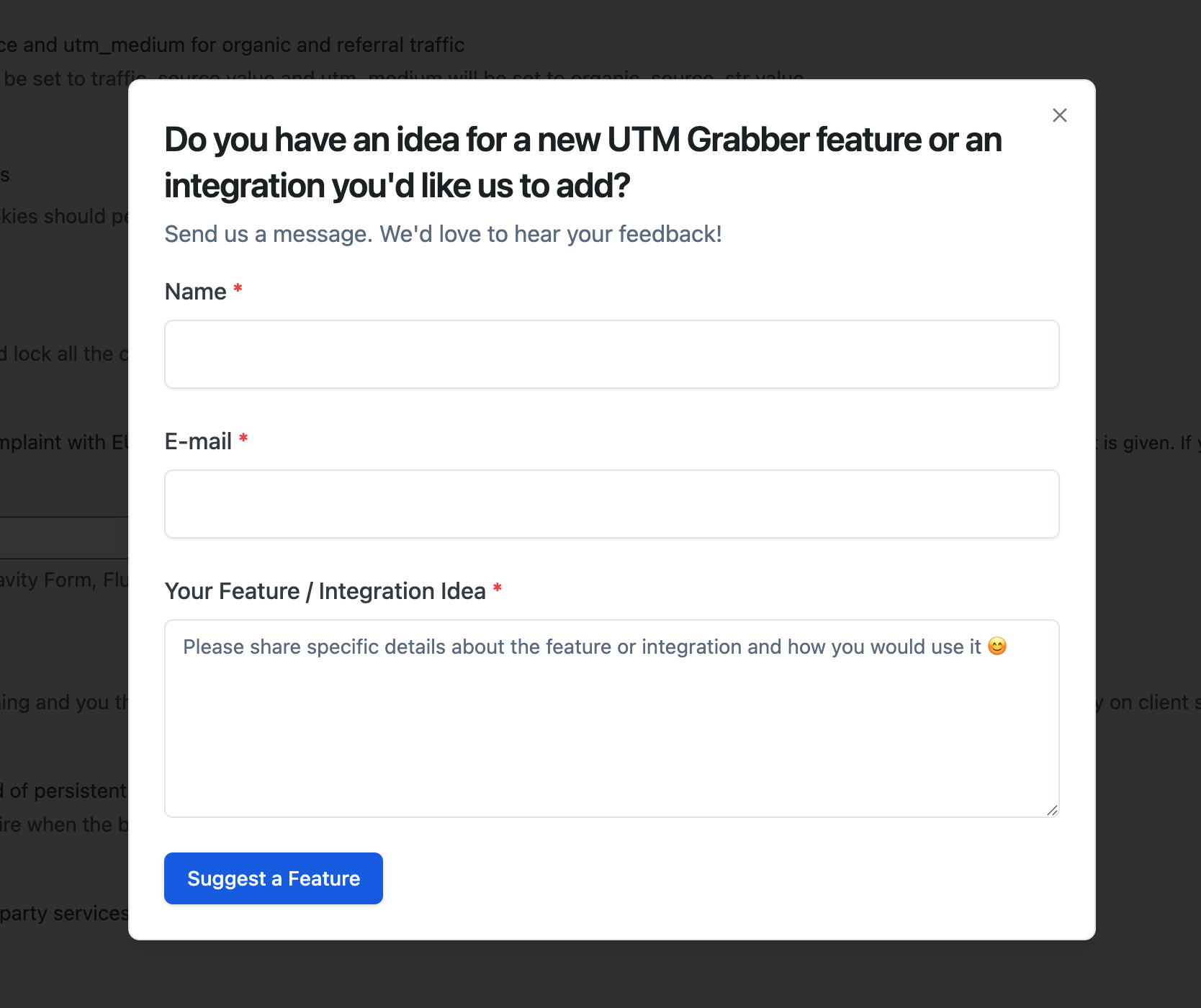
This opens the feature request dialog where you can share your idea.
4. Fill Out the Form
The form has three fields:
| Field | Required | Description |
|---|---|---|
| Name | Yes | Your name (pre-filled from your WordPress profile) |
| Yes | Your email address (pre-filled from your WordPress profile) | |
| Your Feature / Integration Idea | Yes | A description of the feature or integration you'd like (minimum 10 characters) |
Tip: Be as specific as possible about what you need and how you would use it. This helps us prioritize and design the feature correctly.
5. Submit
Click "Suggest a Feature" to send your request. You'll see a confirmation message once it's submitted successfully.
FAQ
Q: Where do feature requests go? A: They go directly to the HandL UTM Grabber team for review. We read every suggestion and may follow up with you via email.
Q: Can I submit multiple feature requests? A: Absolutely. Click the popup button and select "Suggest a Feature" any time you have a new idea.