# Contact Form 7 UTM Tracking Integration
Set up Contact Form 7 with HandL UTM Grabber to capture UTM parameters, GCLID, FBCLID, referrer, and landing page data in hidden fields for lead attribution.
# Contact Form 7 One Click Integration (Recommended)
Use One Click Integrations to add every HandL hidden tracking field to your Contact Form 7 forms automatically. The full guide is below.
## UTM attribution overview
This guide explains One Click Integrations with HandL UTM Grabber. It helps you capture UTM source, medium, campaign, term, content, click IDs, referrer, and landing page data and keep the marketing context needed for accurate reporting across forms, bookings, signups, and sales.
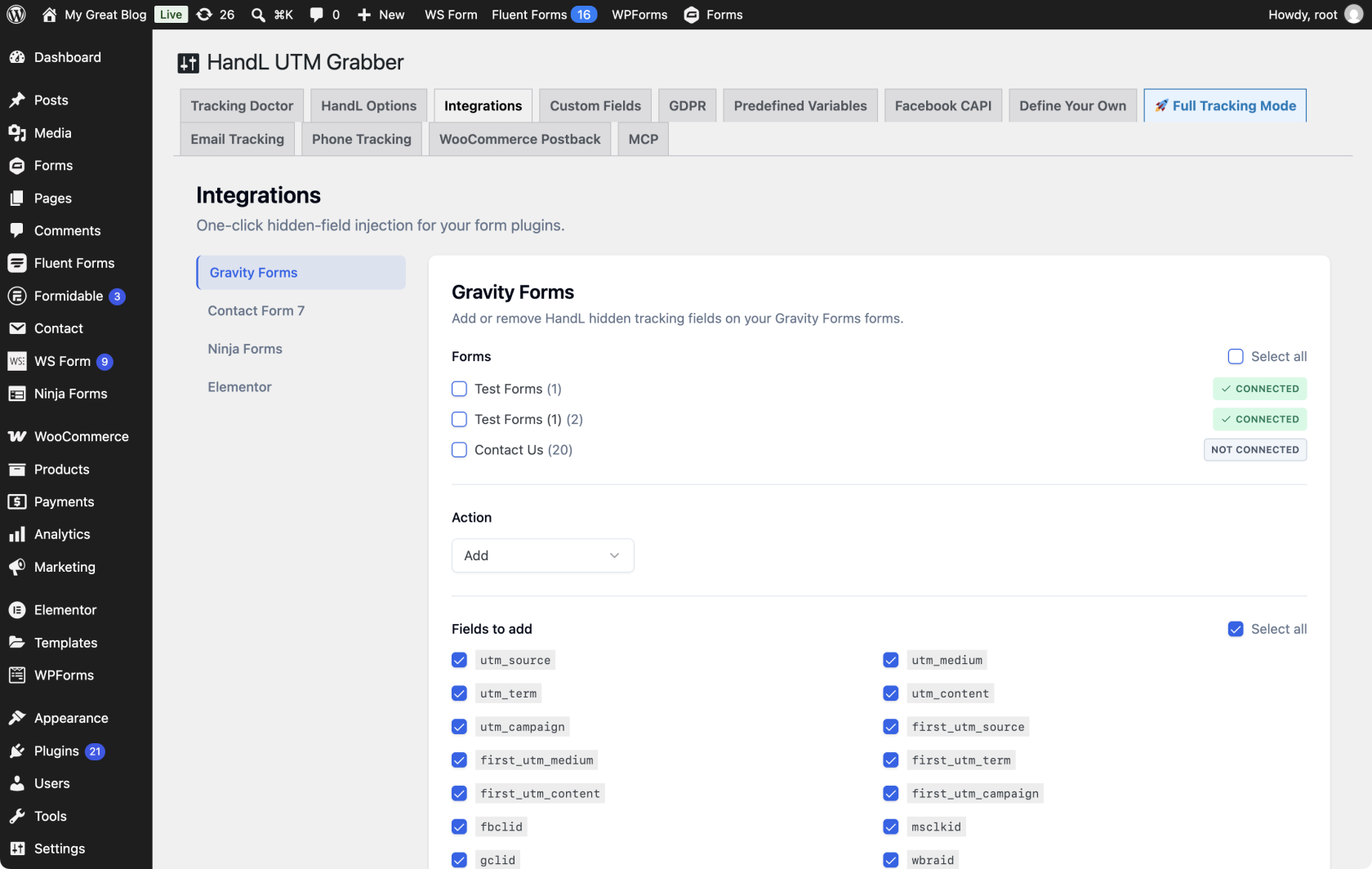
#### **1. Open the Integrations tab**
[](https://docs.utmgrabber.com/uploads/images/gallery/2026-08/1-open-the-integrations-tab.png)
Use One Click Integrations with Gravity Forms, Contact Form 7, Ninja Forms, or Elementor. Other form plugins use the manual hidden field method in [Native WP Shortcodes](https://docs.utmgrabber.com/books/101-getting-started-for-handl-utm-grabber-v3/page/native-wp-shortcodes).
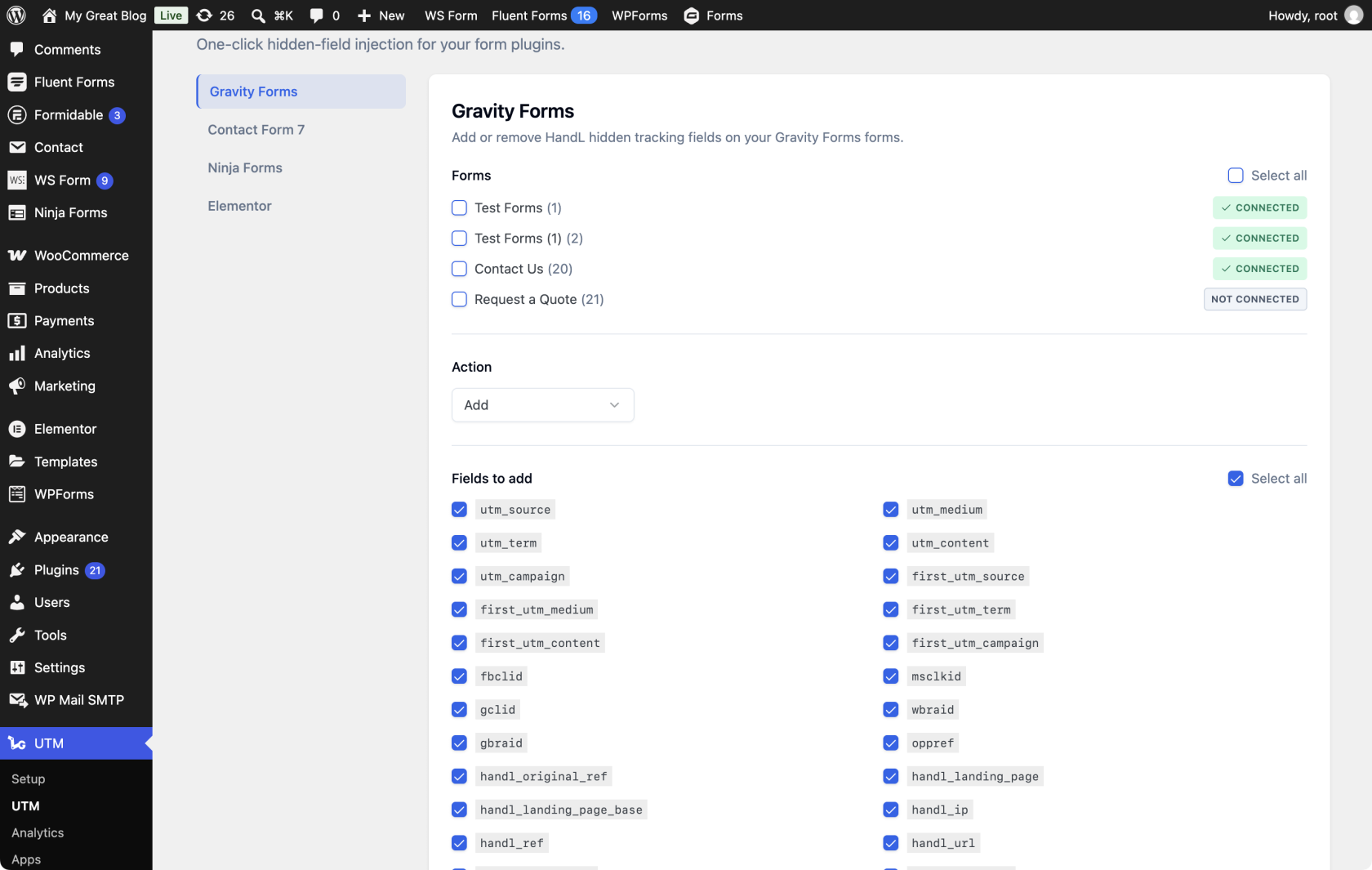
#### **2. Find your form plugin**
[](https://docs.utmgrabber.com/uploads/images/gallery/2026-08/2-find-your-form-plugin.png)
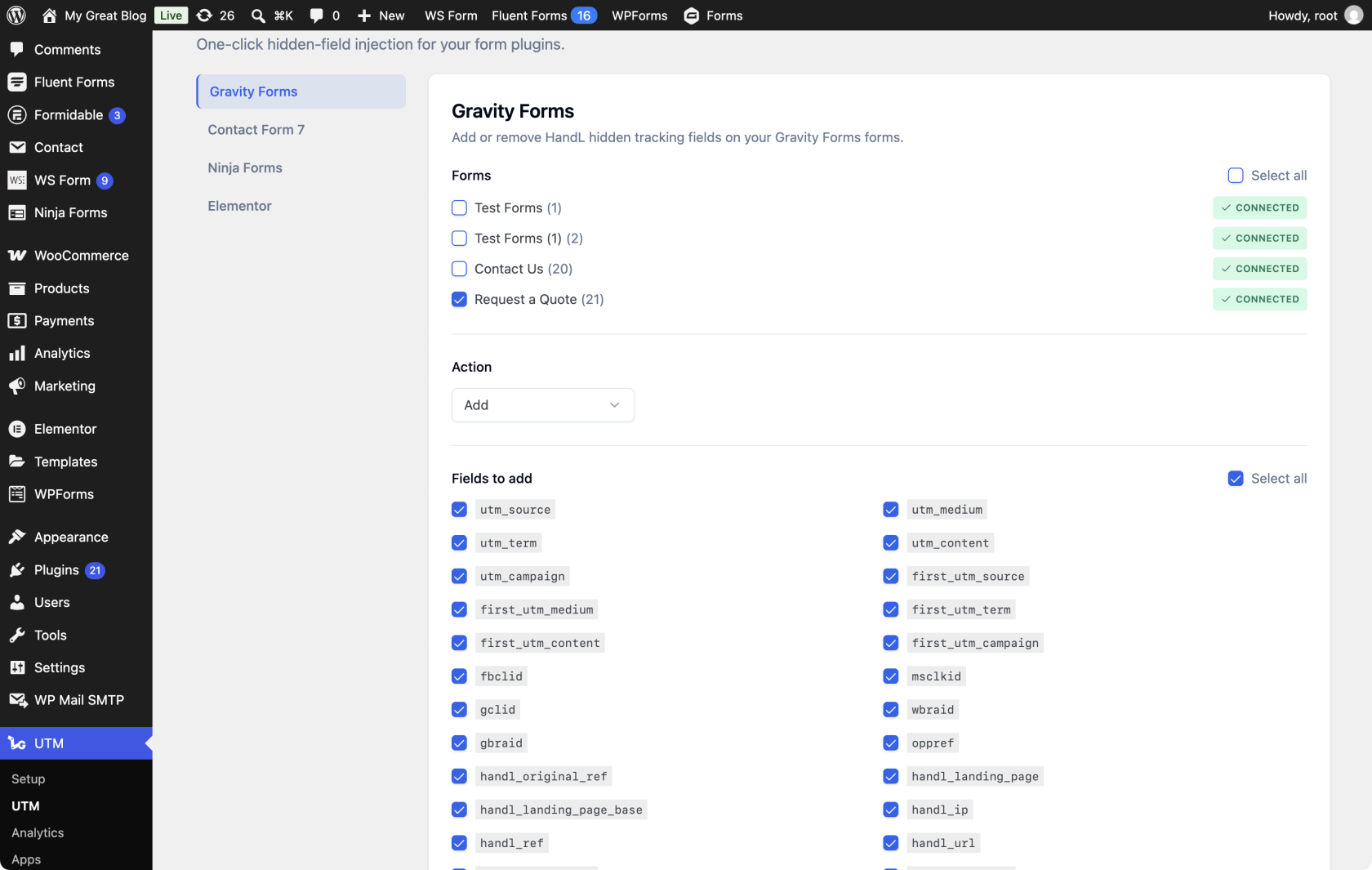
Open a plugin panel to see its forms. Each form shows Connected, Not connected, or N new field(s) available.
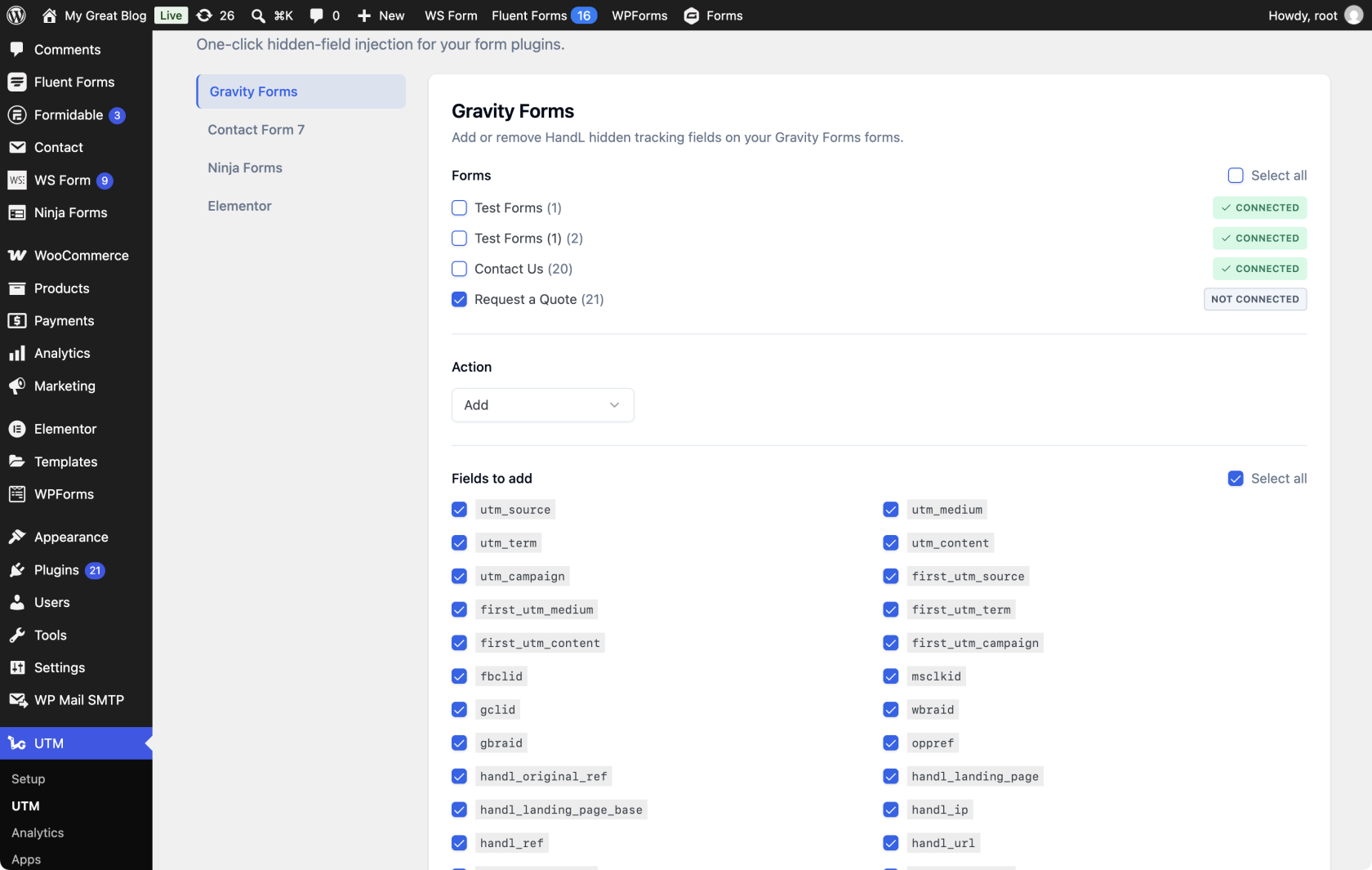
#### **3. Select your forms**
[](https://docs.utmgrabber.com/uploads/images/gallery/2026-08/3-select-your-forms.png)
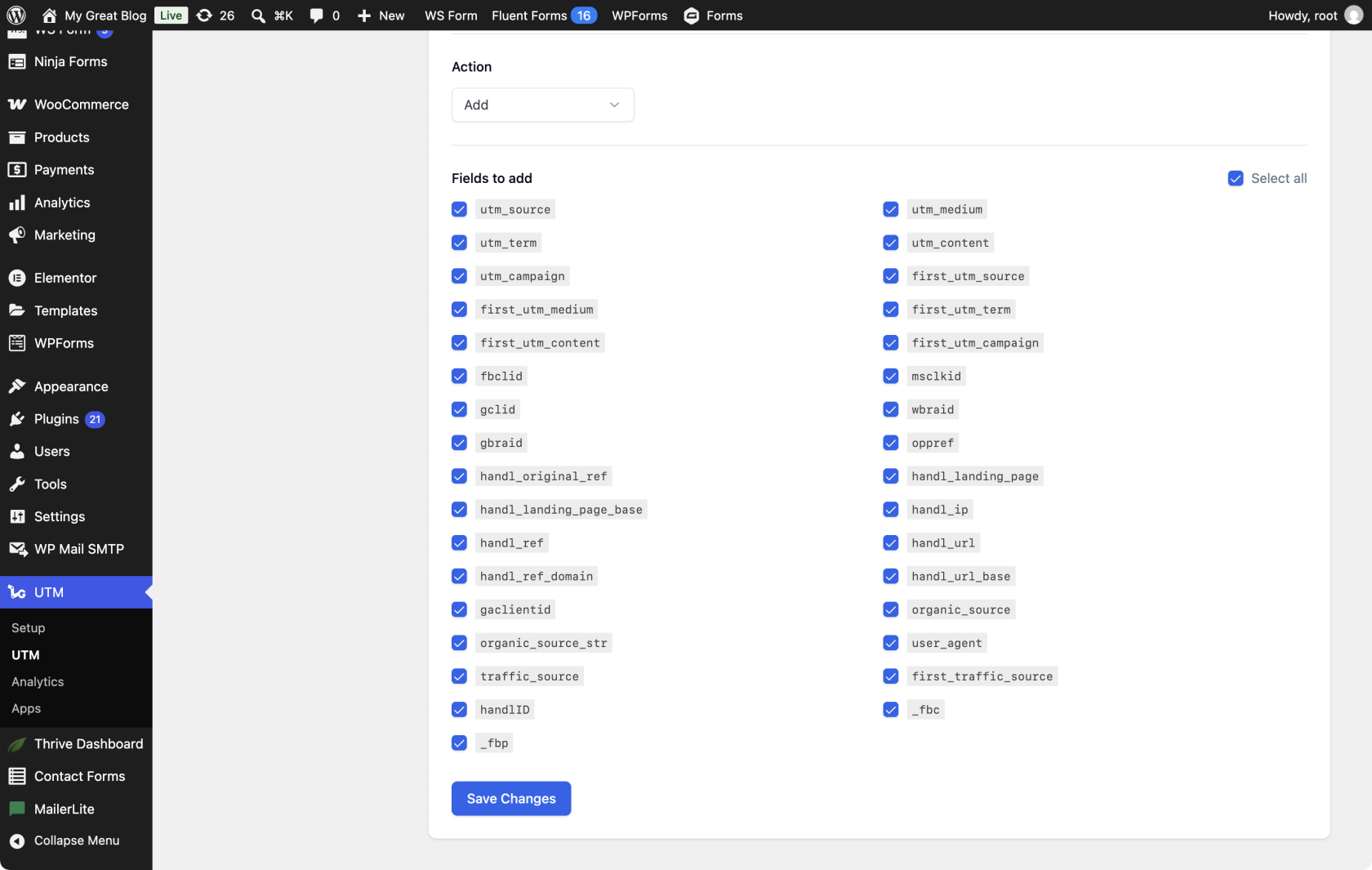
#### **4. Click Save Changes**
[](https://docs.utmgrabber.com/uploads/images/gallery/2026-08/4-click-save-changes.png)
Keep Add selected, choose the tracking fields you need, and click Save Changes. The field list includes HandL tracking parameters and any fields from the Custom Fields tab. If your license is inactive, Save Changes is disabled and an alert asks you to activate it.
Choose Remove only when you intend to remove every HandL field from the selected forms, including fields you added manually. Remove hides the field list before you save.
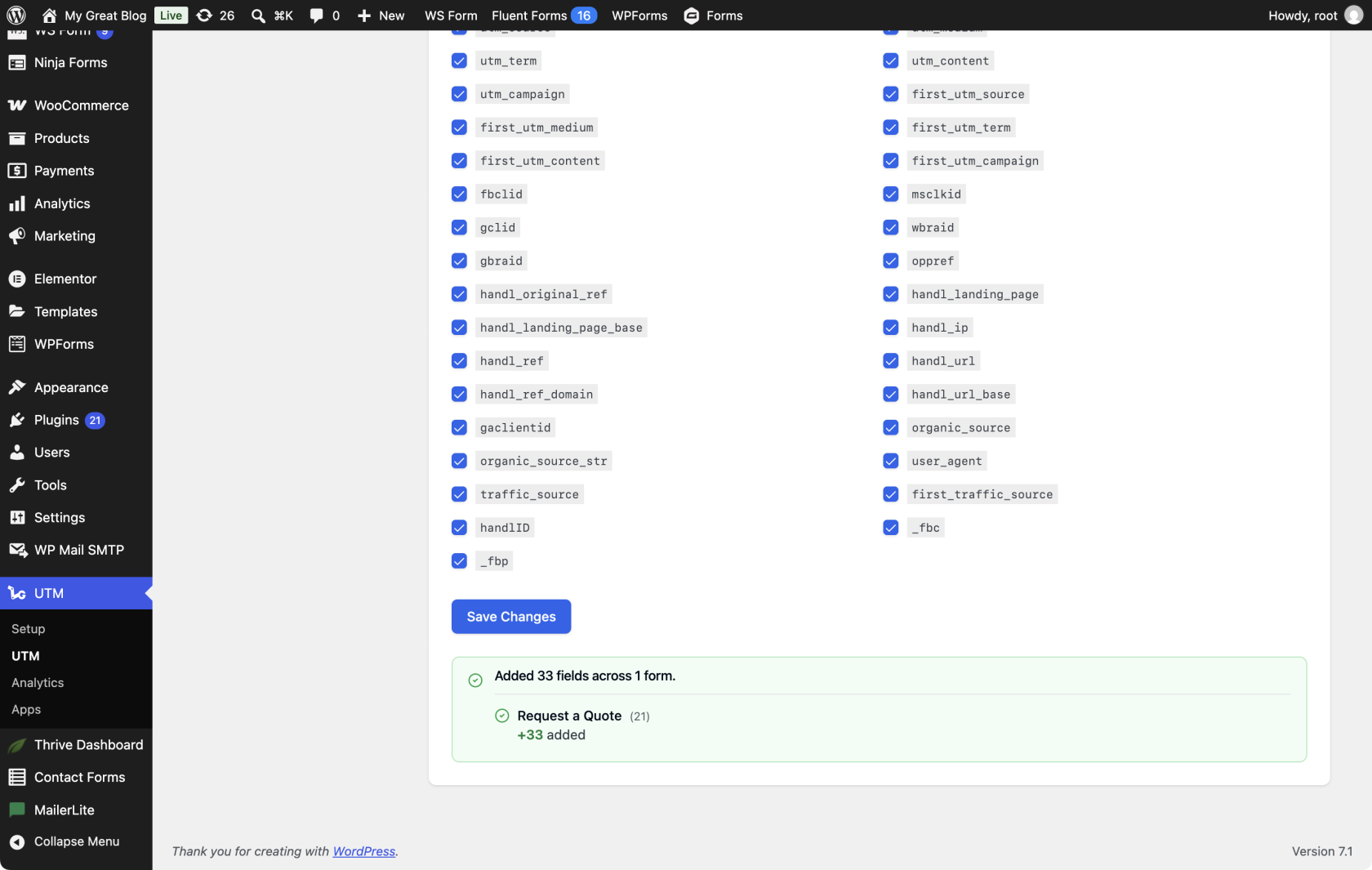
#### **5. Check the confirmation message**
[](https://docs.utmgrabber.com/uploads/images/gallery/2026-08/5-check-the-confirmation-message.png)
Review the green confirmation message. It summarizes added, existing, removed, unchanged, or failed fields for each form. The status badges refresh without a page reload.
#### **6. Your forms are now connected**
[](https://docs.utmgrabber.com/uploads/images/gallery/2026-08/6-your-forms-are-now-connected.png)
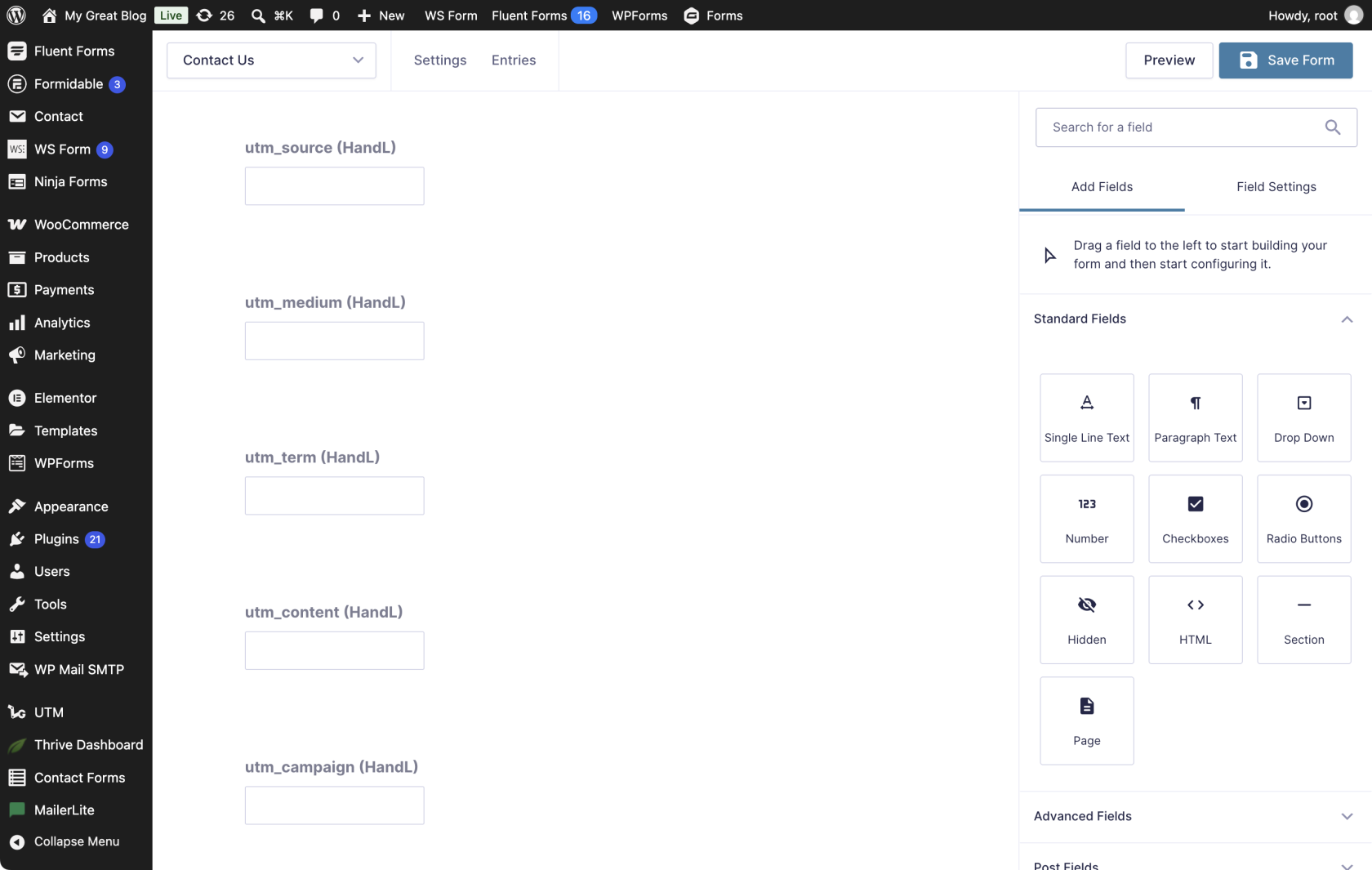
#### **7. Tracking fields added to your form**
[](https://docs.utmgrabber.com/uploads/images/gallery/2026-08/7-tracking-fields-added-to-your-form.png)
Open the form builder to verify the hidden fields. Each field uses its tracking parameter and the HandL label, such as "utm\_source (HandL)".
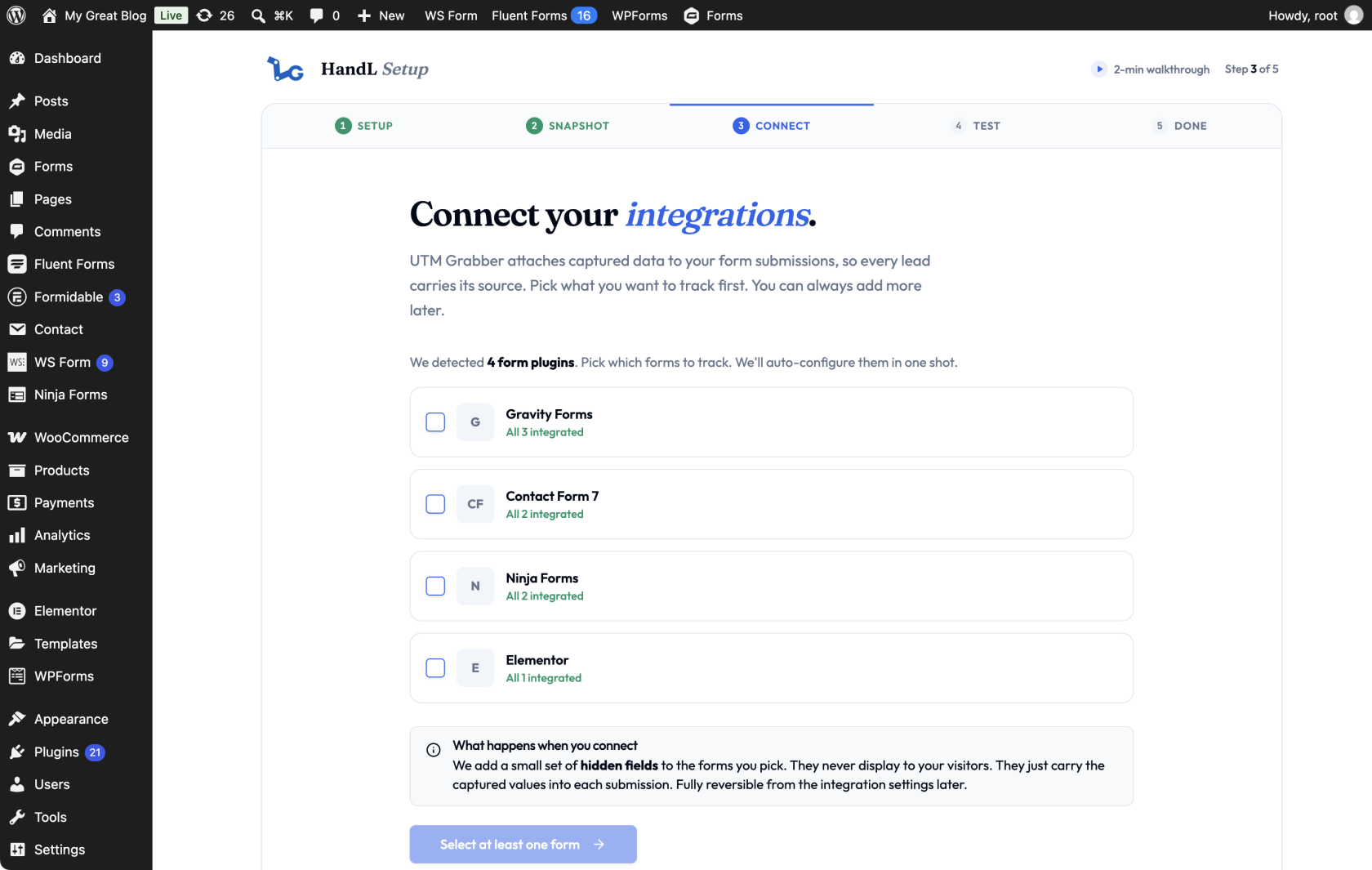
#### **8. Connect from the Setup wizard**
[](https://docs.utmgrabber.com/uploads/images/gallery/2026-08/8-connect-step-in-the-setup-wizard.png)
You can also select forms in the Connect your integrations step of the Setup wizard. Select at least one form to enable the next step.
**Use this process for any supported form plugin shown in the Integrations tab. For other form plugins or manual setup, see [Native WP Shortcodes](https://docs.utmgrabber.com/books/101-getting-started-for-handl-utm-grabber-v3/page/native-wp-shortcodes).**
# Contact Form 7 Native Integration for Collecting UTMs with HandL UTM Grabber
## UTM attribution overview
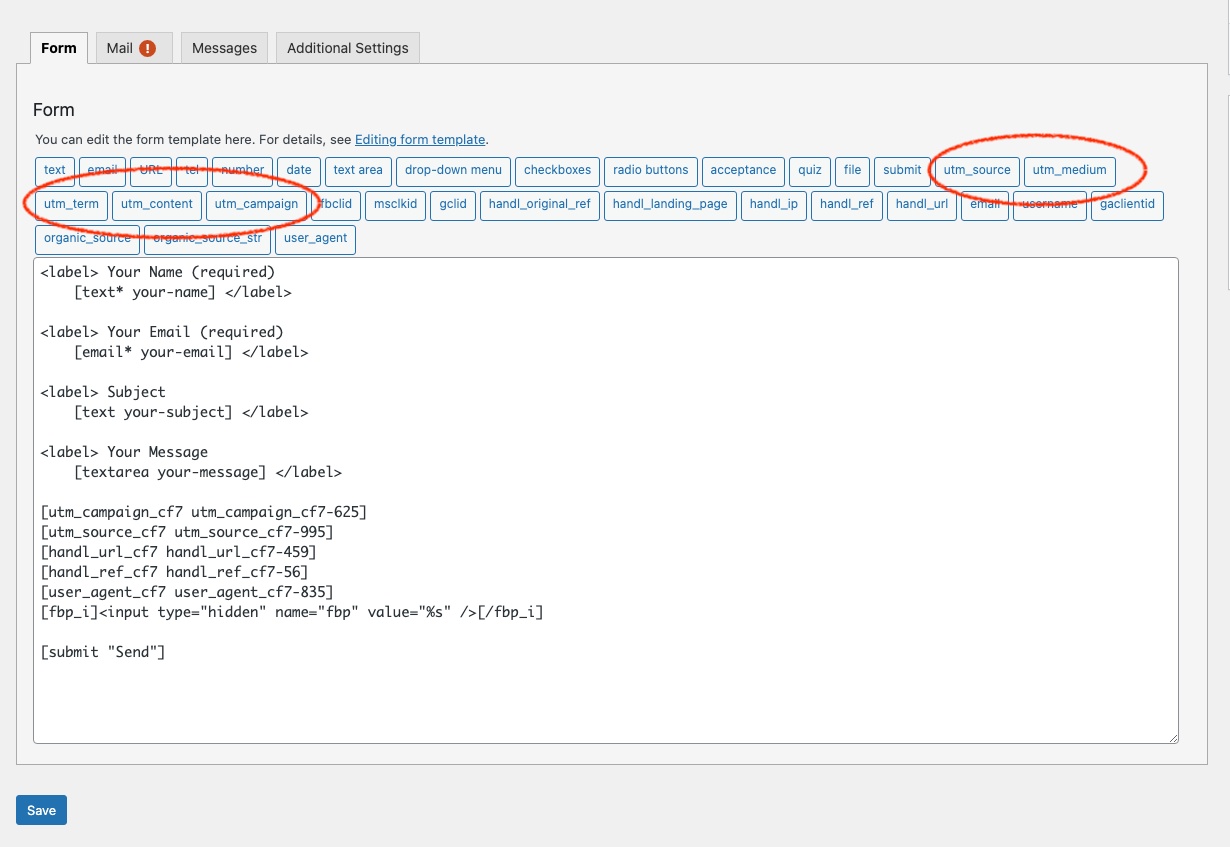
This guide explains Contact Form 7 Native Integration for Collecting UTMs with HandL UTM Grabber. It helps you capture UTM source, medium, campaign, term, content, click IDs, referrer, and landing page data and keep the marketing context needed for accurate reporting across forms, bookings, signups, and sales.
[](https://docs.utmgrabber.com/uploads/images/gallery/2022-03/image-1646855720625.png)
# Contact Form 7 UTM Tracking with HandL UTM Grabber
## UTM attribution overview
This guide explains Contact Form 7 UTM Tracking with HandL UTM Grabber. It helps you capture UTM source, medium, campaign, term, content, click IDs, referrer, and landing page data and keep the marketing context needed for accurate reporting across forms, bookings, signups, and sales.
## Overview
HandL UTM Grabber provides seamless integration with Contact Form 7 to capture UTM parameters and other tracking data from your form submissions. This integration allows you to automatically capture UTM parameters, GCLID, and other tracking data when users submit your forms.
## Features
- Automatically capture UTM parameters (utm\_source, utm\_medium, utm\_term, utm\_content, utm\_campaign)
- Capture Google Ads GCLID
- Easy one-click insertion of tracking fields
- Support for email notifications with UTM data
- Zapier integration for advanced automation
## Setup Instructions
### 1. Adding UTM Fields to Your Form
There are two ways to add UTM tracking fields to your Contact Form 7 form:
#### Method 1: Using the Tag Generator (Recommended)
1. Edit your Contact Form 7 form
2. Click the "UTM Fields (HandL) 🎯" button in the form editor [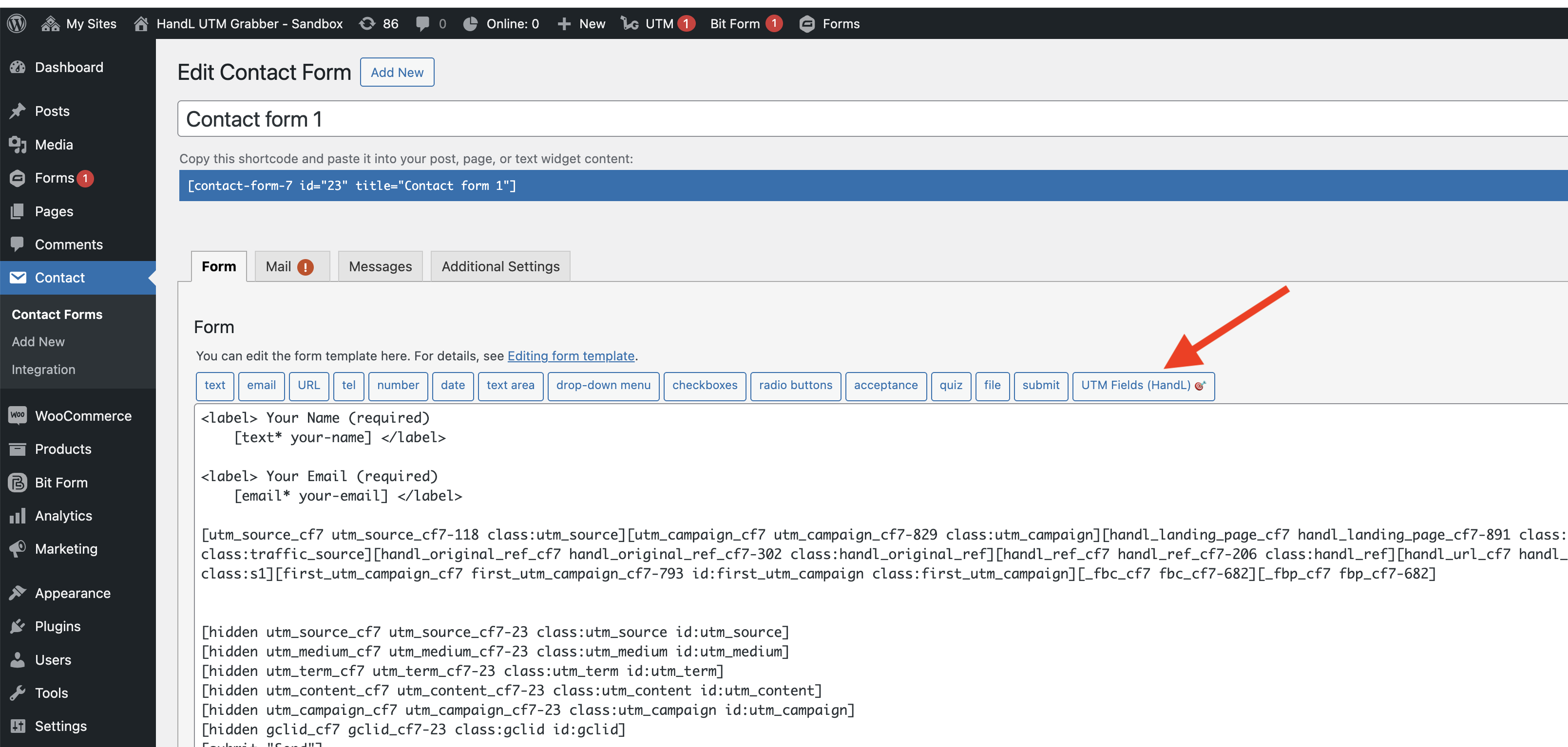](https://docs.utmgrabber.com/uploads/images/gallery/2025-05/image-1748289112134.png)
3. Click "Insert UTM Fields" to automatically add all tracking fields [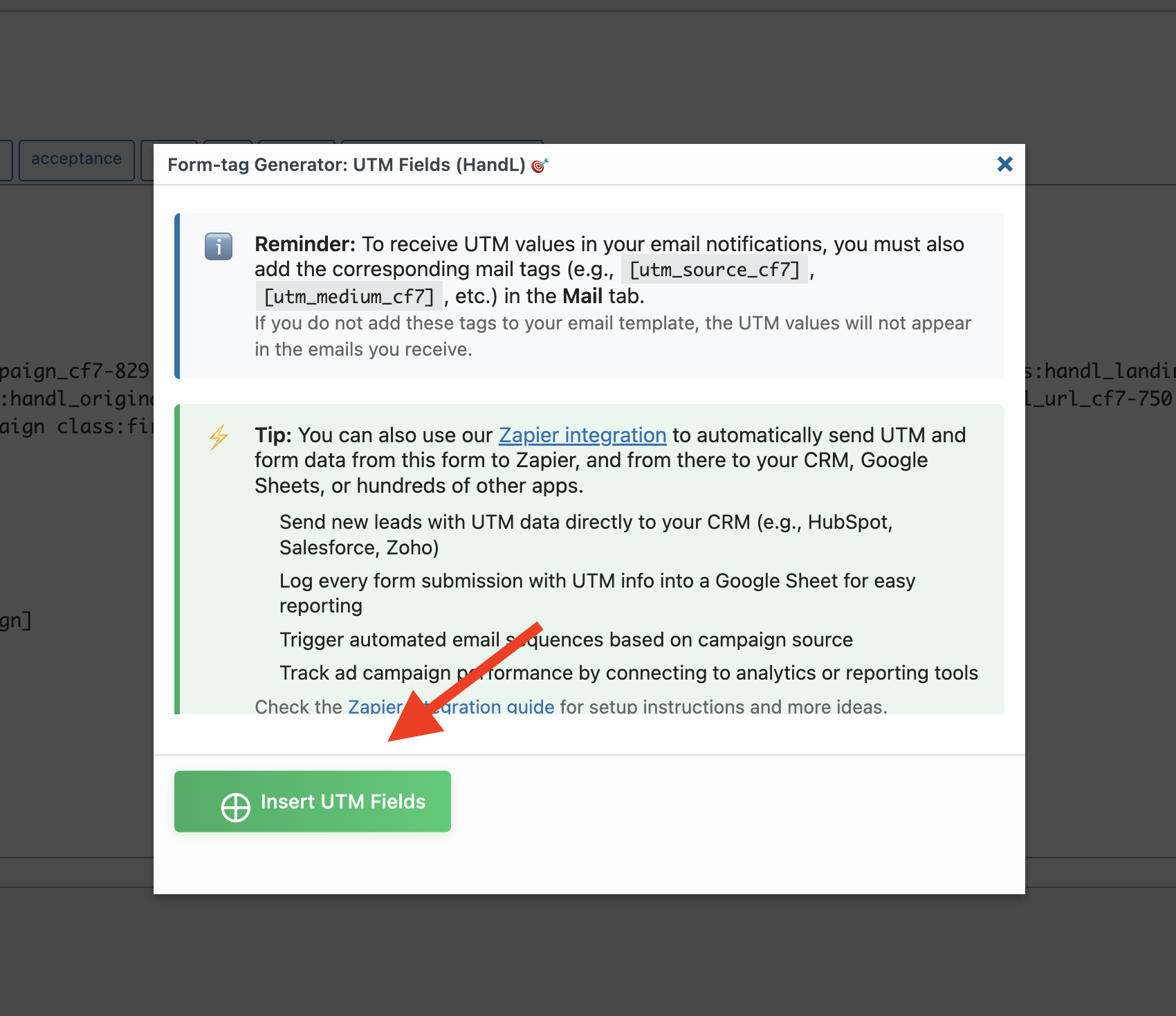](https://docs.utmgrabber.com/uploads/images/gallery/2025-05/image-1748289142958.png)
4. The following hidden fields will be added to your form: [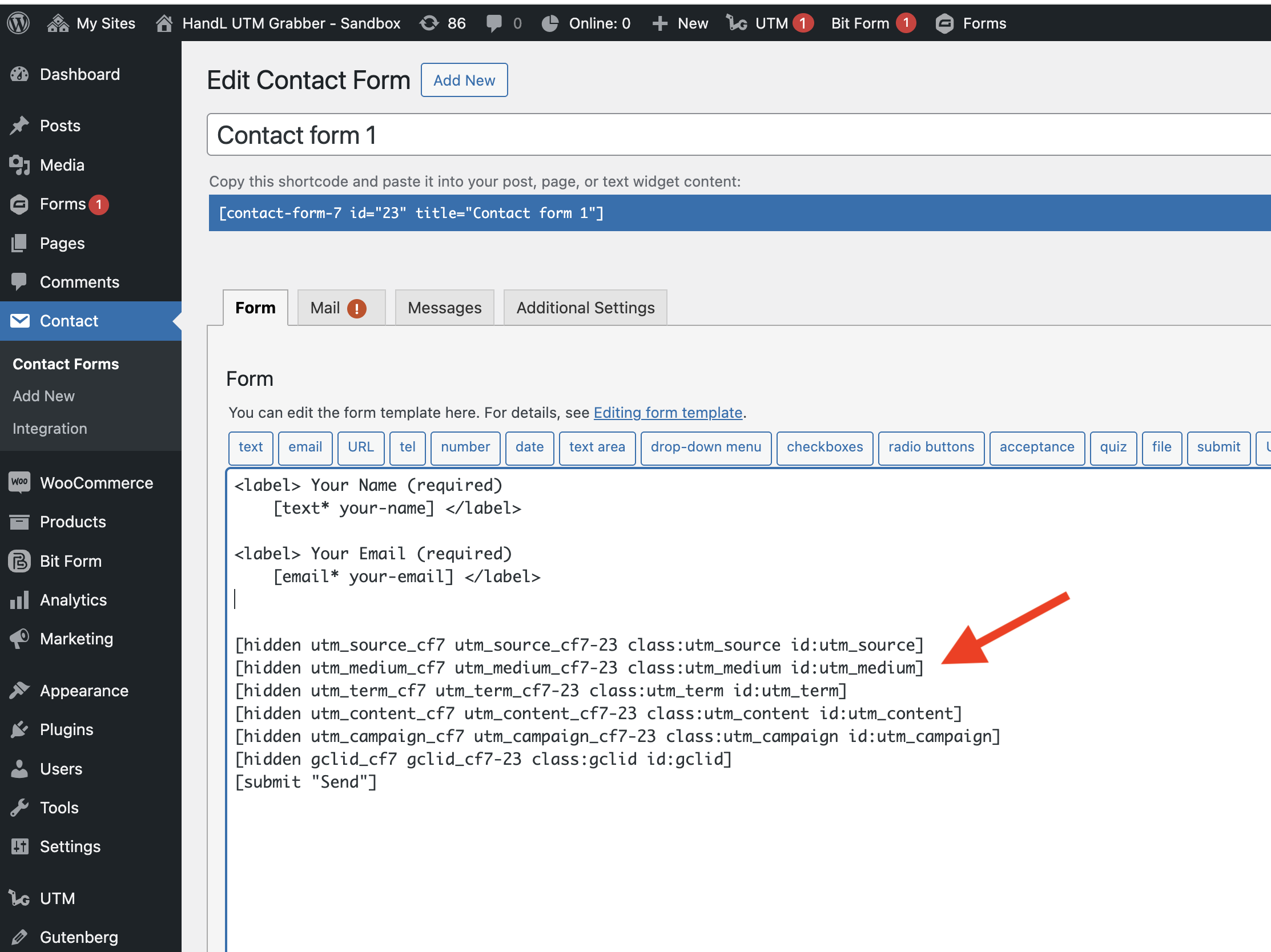](https://docs.utmgrabber.com/uploads/images/gallery/2025-05/image-1748289185252.png)
```
[hidden utm_source_cf7 utm_source_cf7-{formid} class:utm_source id:utm_source]
[hidden utm_medium_cf7 utm_medium_cf7-{formid} class:utm_medium id:utm_medium]
[hidden utm_term_cf7 utm_term_cf7-{formid} class:utm_term id:utm_term]
[hidden utm_content_cf7 utm_content_cf7-{formid} class:utm_content id:utm_content]
[hidden utm_campaign_cf7 utm_campaign_cf7-{formid} class:utm_campaign id:utm_campaign]
[hidden gclid_cf7 gclid_cf7-{formid} class:gclid id:gclid]
```
#### Method 2: Manual Addition
You can manually add the tracking fields to your form by copying and pasting the field tags shown above. Replace {form\_id} with your actual form ID.
### 2. Configuring Email Notifications
To receive UTM data in your email notifications:
1. Go to the "Mail" tab in your Contact Form 7 form settings [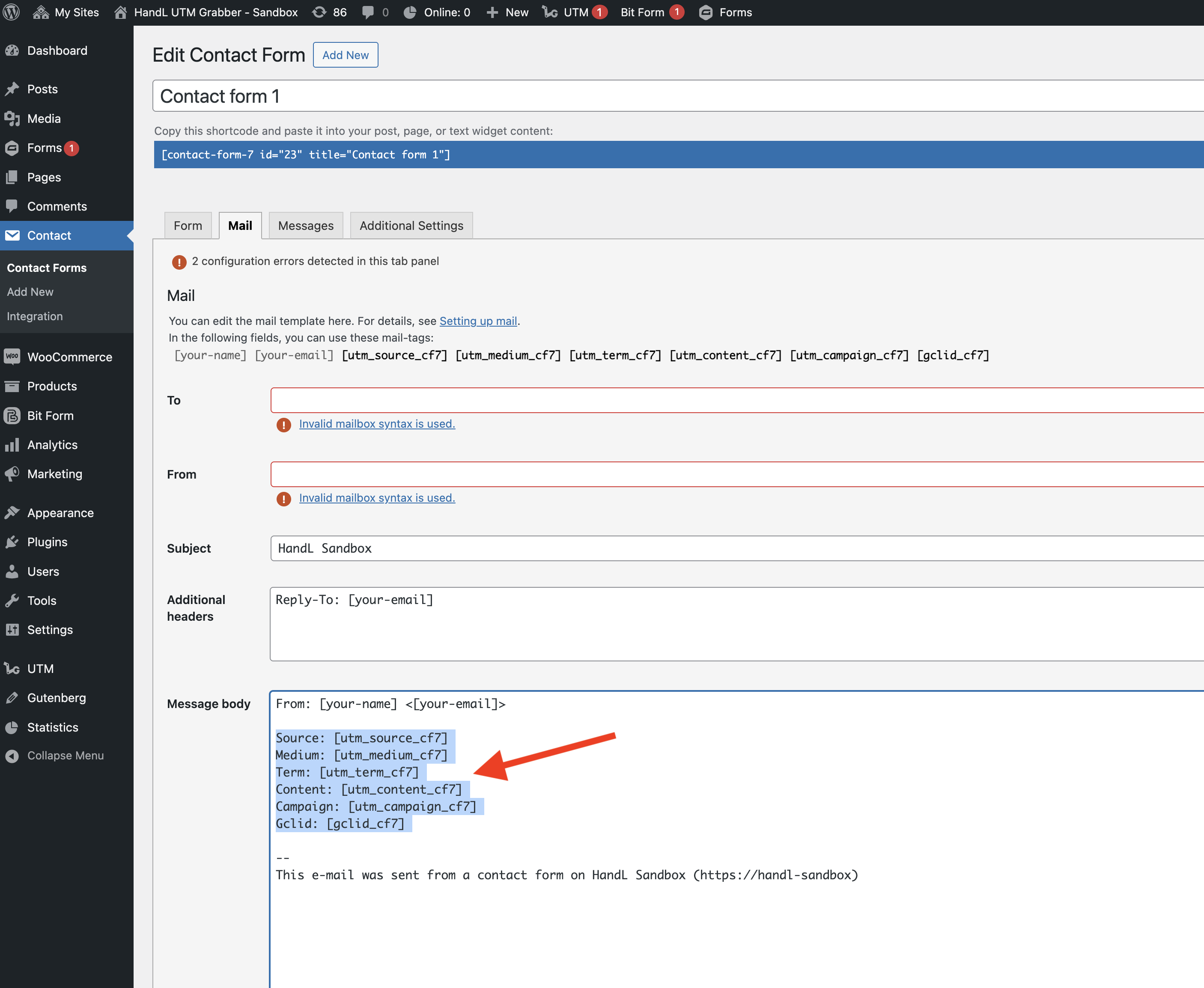](https://docs.utmgrabber.com/uploads/images/gallery/2025-05/image-1748289306137.png)
2. Add the following mail tags to your email template:
```
Source: [utm_source_cf7]
Medium: [utm_medium_cf7]
Term: [utm_term_cf7]
Content: [utm_content_cf7]
Campaign: [utm_campaign_cf7]
Gclid: [gclid_cf7]
```
### 3. Advanced Integration with Zapier
For advanced automation and CRM integration:
1. Set up a Zapier account if you haven't already
2. Create a new Zap using Contact Form 7 as the trigger
3. Configure the Zap to send form submissions (including UTM data) to:
- Your CRM (HubSpot, Salesforce, Zoho, etc.)
- Google Sheets for reporting
- Email marketing platforms
- Analytics tools
- Other apps in the Zapier ecosystem
## Best Practices
1. Always include UTM fields in email notifications: Make sure to add the UTM mail tags to your email template to receive tracking data.
2. Test your form: After setting up, test your form by:
- Submitting the form with UTM parameters in the URL
- Checking if the UTM data appears in your email notifications
- Verifying the data in your CRM or other integration platforms
1. Use Zapier for advanced tracking: Consider using the Zapier integration for:
- Automated lead scoring based on UTM parameters
- Campaign performance tracking
- Custom reporting in Google Sheets
- Multi-step automation workflows
## Troubleshooting
If UTM data is not being captured:
1. Verify that the UTM fields are properly added to your form
2. Check if the mail tags are correctly added to your email template
3. Ensure that UTM parameters are present in the URL when testing
4. Check your site's caching settings, as some caching plugins might strip UTM parameters
## Support
For additional help:
- Visit our documentation site
- Check the [Zapier integration guide](https://docs.utmgrabber.com/books/zapier-integration/chapter/zapier-for-contact-form-7)
- Contact our support team for personalized assistance
## Premium Features
Upgrade to HandL UTM Grabber V3 to access additional features:
- Organic traffic tracking
- Google Ads ValueTrack parameters
- Facebook Ads tracking
- First/Last touch attribution
- Custom cookie duration
- GDPR compliance
- And more!
# Contact Form 7 to Zapier Video Tutorial - HandL UTM Grabber Guide
## UTM attribution overview
This guide explains Contact Form 7 to Zapier Video Tutorial - HandL UTM Grabber Guide. It helps you send UTM and click ID data into automations, webhooks, reports, and connected tools and keep the marketing context needed for accurate reporting across forms, bookings, signups, and sales.
### *Please watch the related Video Tutorial below*
#### *and click right to the video and open link in new tab*
[](http://www.youtube.com/watch?v=tD5jjl71548 "Contact Form 7 to Zapier Video Tutorial")
# Contact Form 7 UTM Tracking Video Tutorial with HandL UTM Grabber
## UTM attribution overview
This guide explains Contact Form 7 UTM Tracking Video Tutorial with HandL UTM Grabber. It helps you capture UTM source, medium, campaign, term, content, click IDs, referrer, and landing page data and keep the marketing context needed for accurate reporting across forms, bookings, signups, and sales.
### *Please watch the related Video Tutorial below*
#### *and click right to the video and open link in new tab*
[](http://www.youtube.com/watch?v=0iGiXhbfBuI "Contact Form 7 UTM Tracking")
#### **--->Code Snippets<---**
```
[utm_campaign_i][/utm_campaign_i]
[utm_source_i][/utm_source_i]
[utm_medium_i][/utm_medium_i]
[utm_term_i][/utm_term_i]
[utm_content_i][/utm_content_i]
[gclid_i][/gclid_i]
```
#### **--->Code Snippets<---**
```
Campaign Name:
[utm_campaign]
Campaign Source:
[utm_source]
Campaign Medium:
[utm_medium]
Campaign Term:
[utm_term]
Campaign Content:
[utm_content]
Gclid:
[gclid]
```
# Contact Form 7 Integromat UTM Tracking Integration- Video Tutorial
## UTM attribution overview
This guide explains Contact Form 7 Integromat UTM Tracking Integration- Video Tutorial with HandL UTM Grabber. It helps you send UTM and click ID data into automations, webhooks, reports, and connected tools and keep the marketing context needed for accurate reporting across forms, bookings, signups, and sales.
### *Please watch the related Video Tutorial below*
#### *and click right to the video and open link in new tab*
[](http://www.youtube.com/watch?v=yY1YNK3gknk "Contact Form 7 Integromat Integration")
# Contact Form 7 to Facebook Conversion API (FB CAPI) - v3.1 - HandL UTM Grabber Guide
## UTM attribution overview
This guide explains Contact Form 7 to Facebook Conversion API (FB CAPI) - v3.1 - HandL UTM Grabber Guide. It helps you send UTM and click ID data into automations, webhooks, reports, and connected tools and keep the marketing context needed for accurate reporting across forms, bookings, signups, and sales.
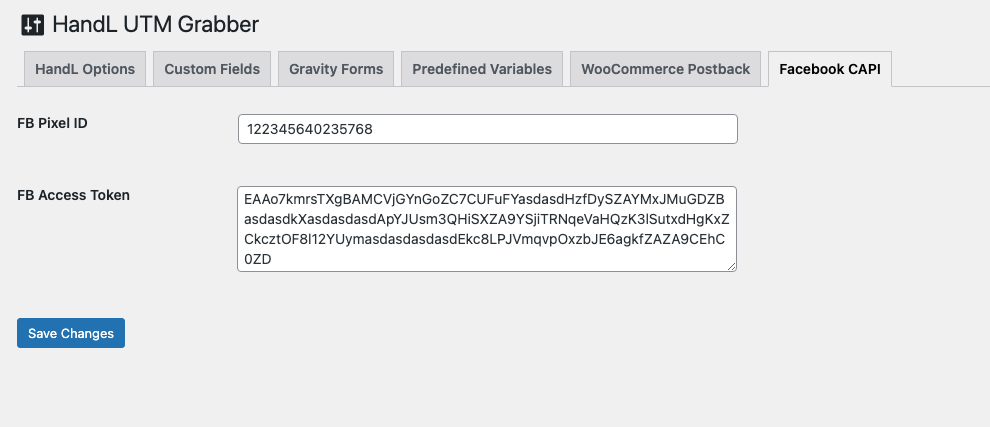
#### Click the Facebook CAPI menu in UTM and enter the Facebook pixel ID and access token
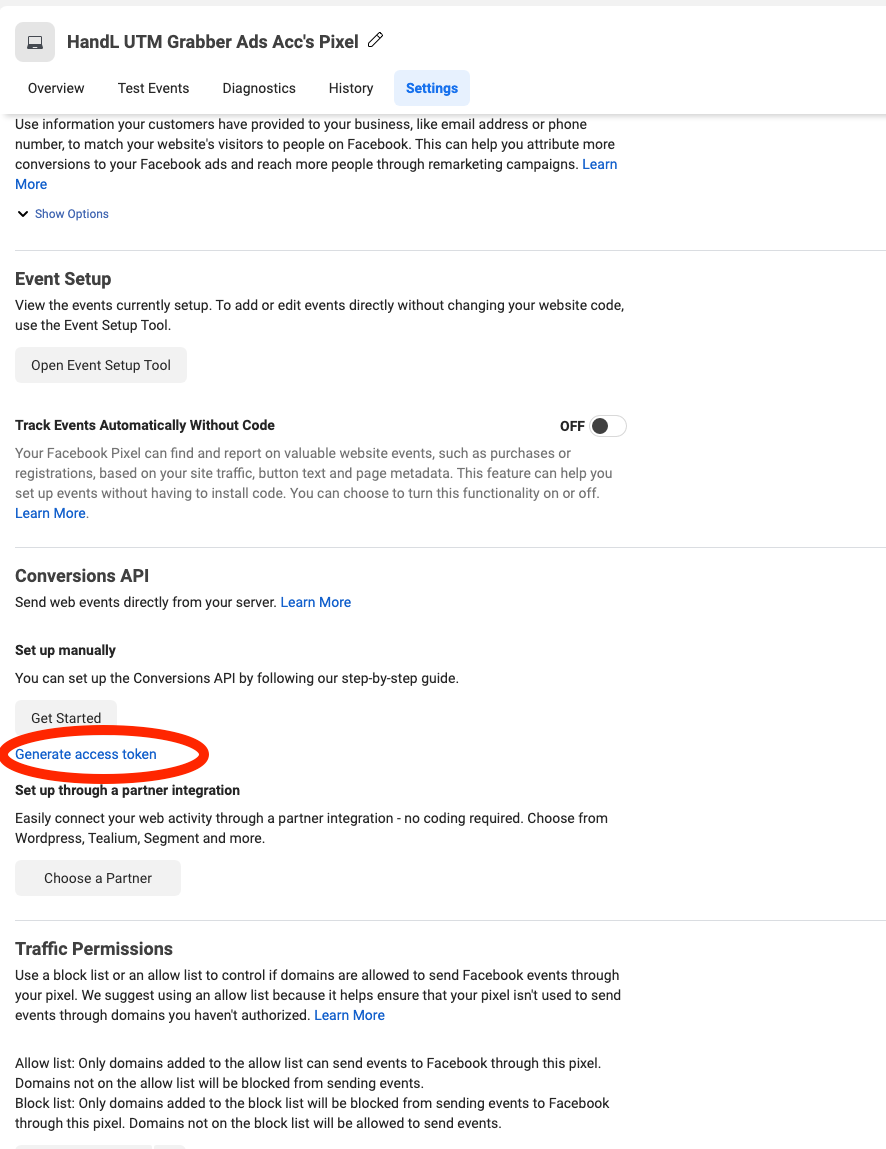
How to generate an Access Token: Go to your pixel, click "Settings," scroll down to the Conversion API section, and click "Generate Access Token."
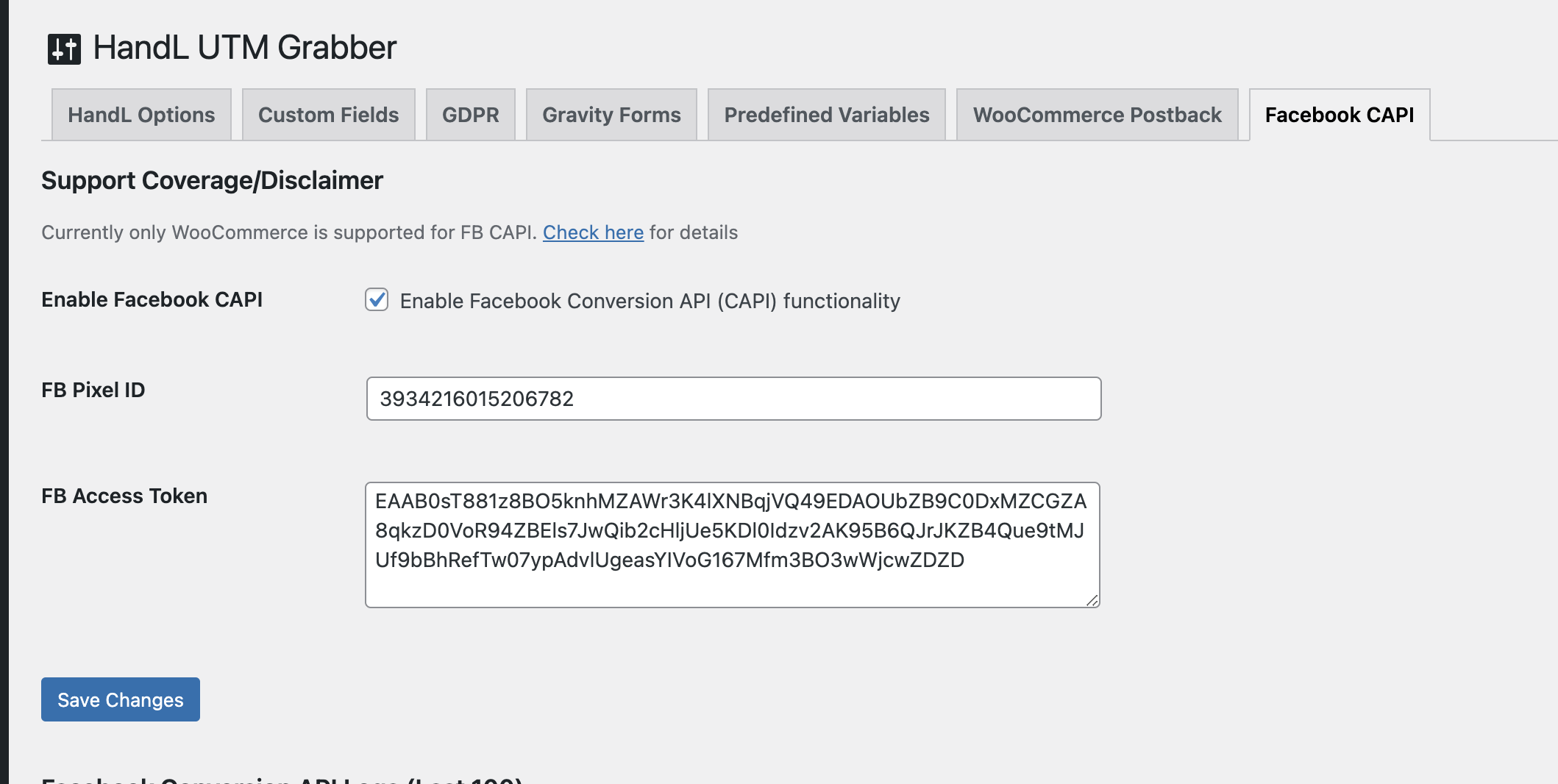
Once you have set everything up, keep monitoring your events and watch your event match increases to the high 8-9s.

When you are ready, enable the feature by checking the "Enable Facebook Conversion API (CAPI)" functionality.
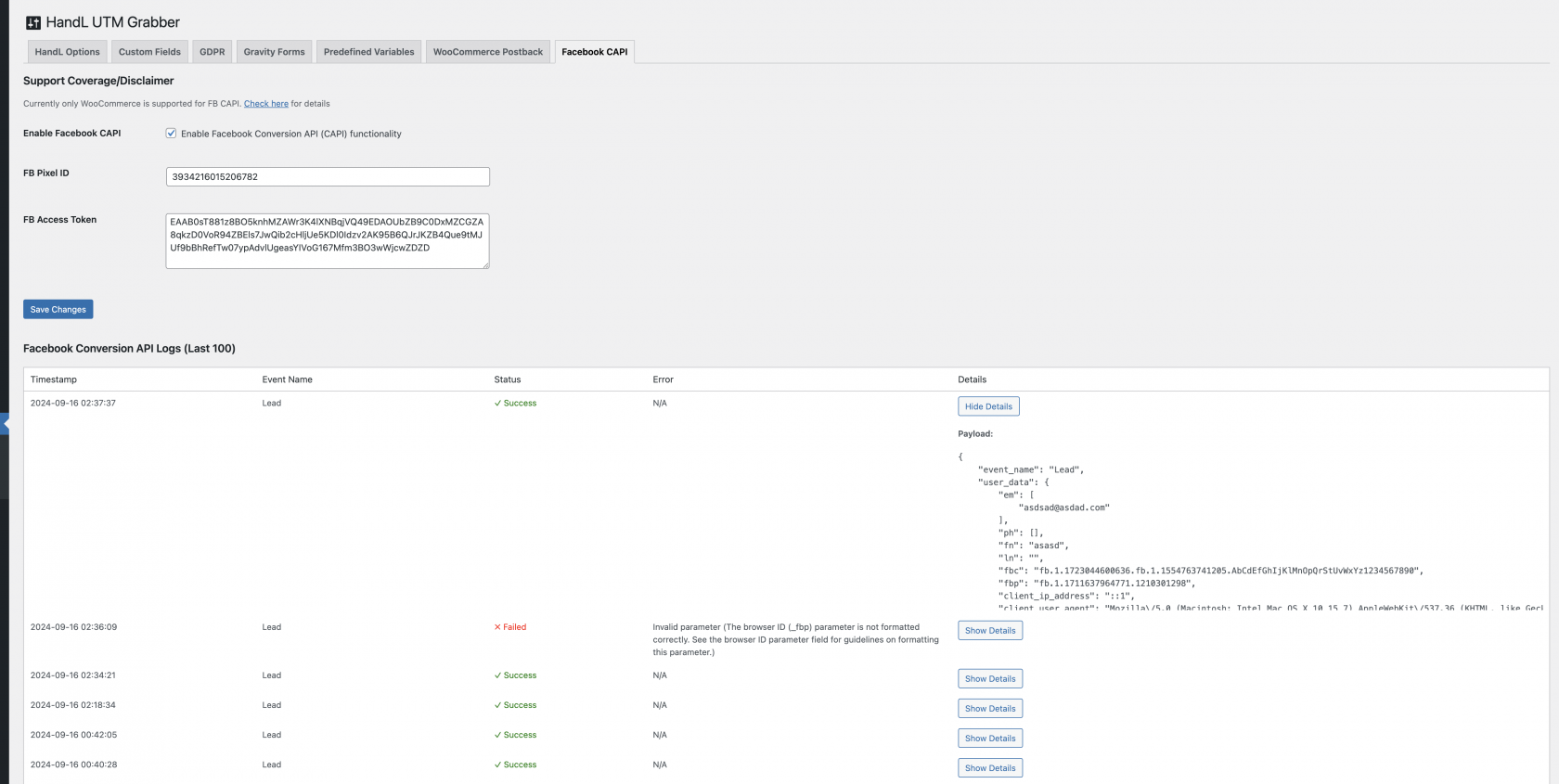
After that, as soon as one of your forms is submitted, the Lead event will be sent to Facebook as well.
You can check the events in the Facebook Conversion API Logs after they are sent. If there is any failure, it will be reported there, detailing what went wrong.
[](https://docs.utmgrabber.com/uploads/images/gallery/2024-09/image-1726455157375.png)
# Contact Form 7 UTM Tracking (Legacy) with HandL UTM Grabber
## UTM attribution overview
This guide explains Contact Form 7 UTM Tracking (Legacy) with HandL UTM Grabber. It helps you capture UTM source, medium, campaign, term, content, click IDs, referrer, and landing page data and keep the marketing context needed for accurate reporting across forms, bookings, signups, and sales.
#### **1.Click Contact And Add New**
[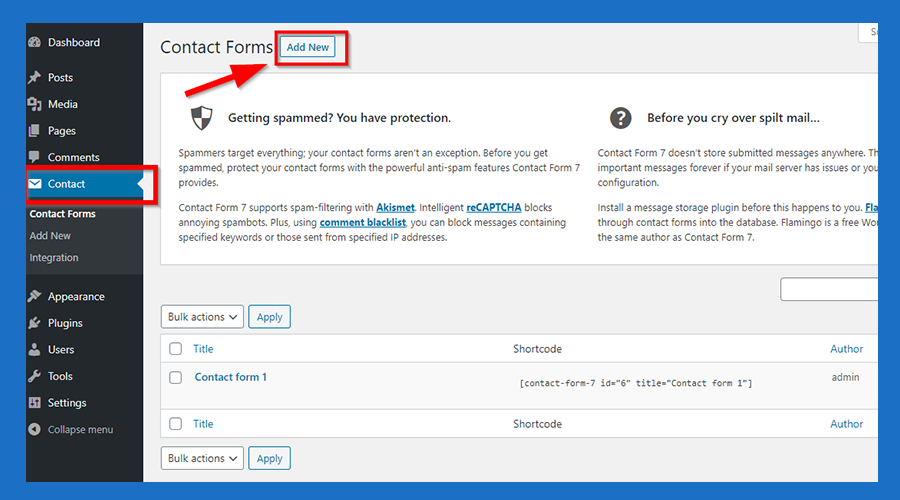](https://docs.utmgrabber.com/uploads/images/gallery/2020-08/WKQ1-click-contact-and-add-new-button.png)
#### **2.Paste The Code Shown Below to the Form Section Like that**
[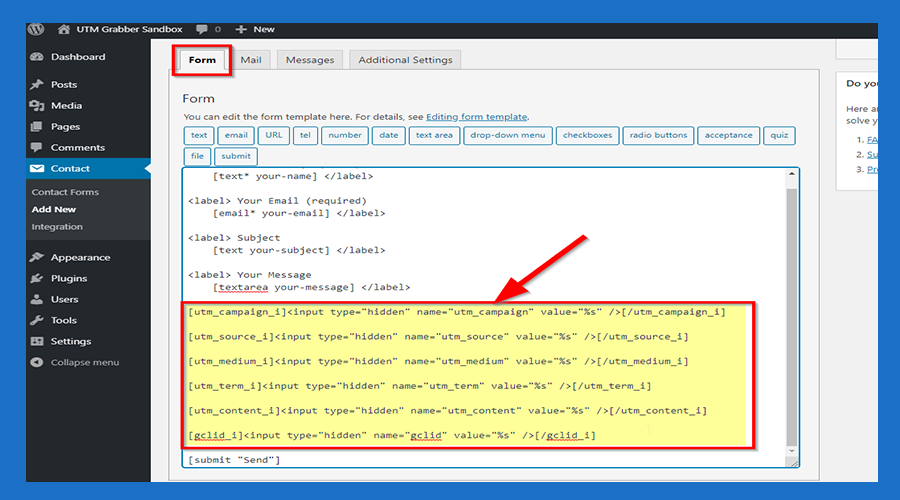](https://docs.utmgrabber.com/uploads/images/gallery/2020-08/2-click-form-section-and-paste-the-code-below.png)
#### **--->Code Snippets<---**
```
[utm_campaign_i][/utm_campaign_i]
[utm_source_i][/utm_source_i]
[utm_medium_i][/utm_medium_i]
[utm_term_i][/utm_term_i]
[utm_content_i][/utm_content_i]
[gclid_i][/gclid_i]
```
#### **3.Paste The Code Shown Below to the Mail Section Like that**
[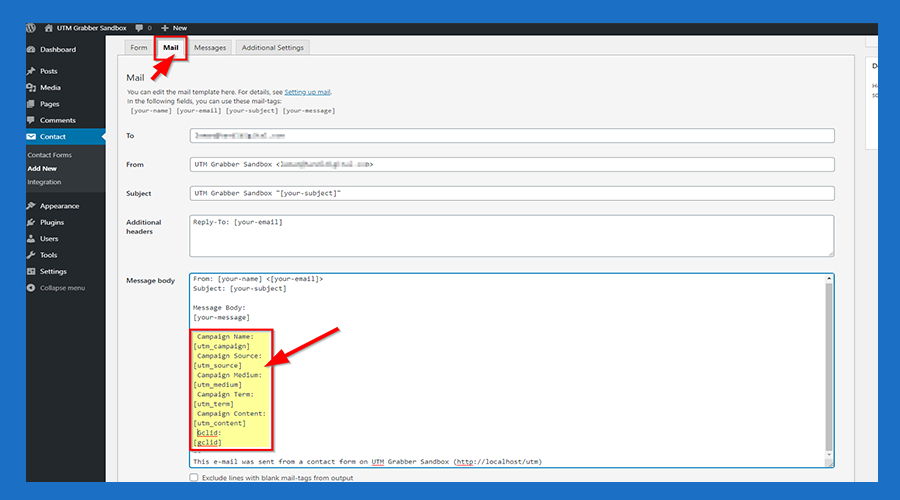](https://docs.utmgrabber.com/uploads/images/gallery/2020-08/3-click-mail-section-and-paste-the-code-below.png)
#### **--->Code Snippets<---**
```
Campaign Name:
[utm_campaign]
Campaign Source:
[utm_source]
Campaign Medium:
[utm_medium]
Campaign Term:
[utm_term]
Campaign Content:
[utm_content]
Gclid:
[gclid]
```
#### **4.Click the 'Save' Button**
[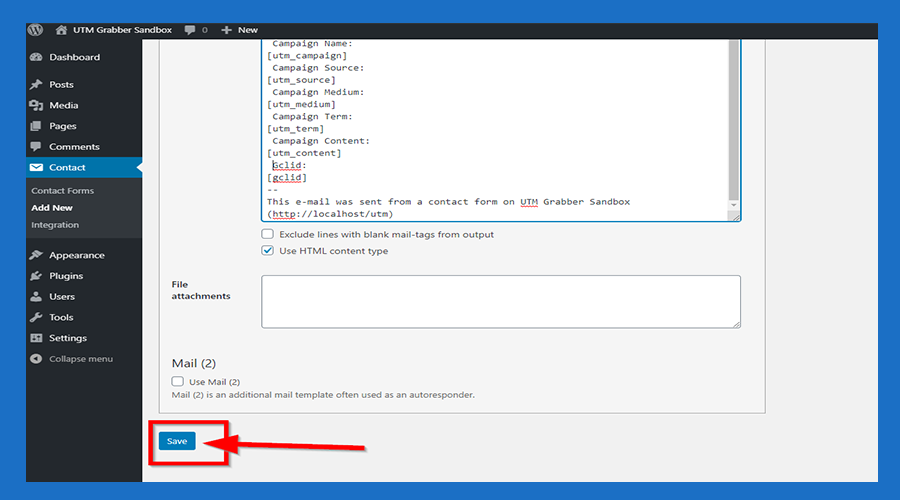](https://docs.utmgrabber.com/uploads/images/gallery/2020-08/4-click-the-save-button.png)
#### **5.Copy the Shortcode**
[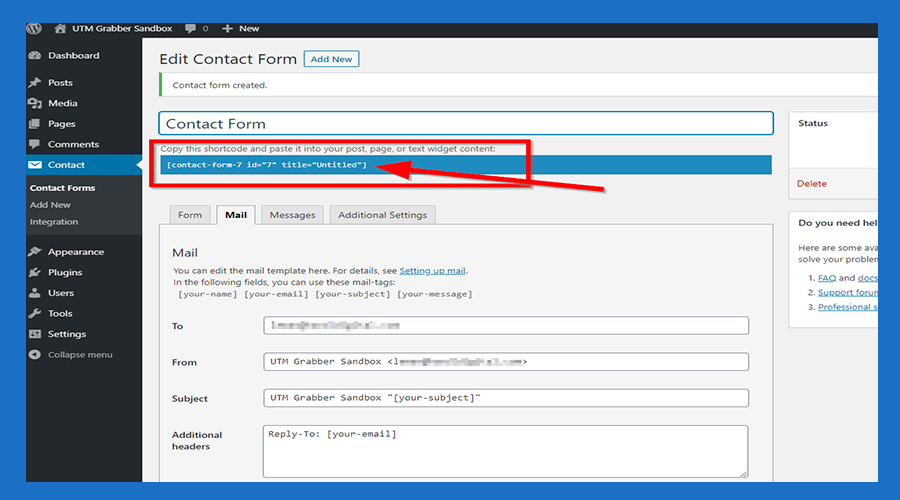](https://docs.utmgrabber.com/uploads/images/gallery/2020-08/5-copy-the-shortcode.png)
#### **6.Click 'Pages' and then click the 'Add New' button**
[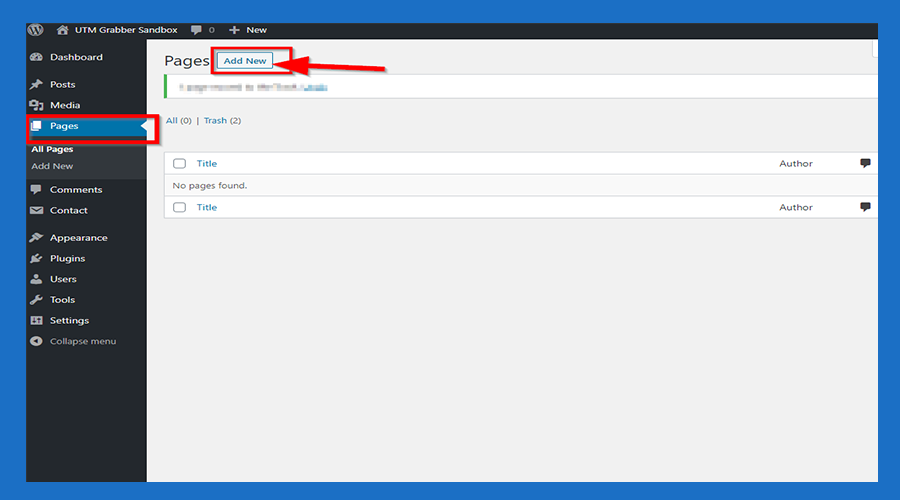](https://docs.utmgrabber.com/uploads/images/gallery/2020-08/6-click-pages-and-add-new.png)
#### **7.Paste the code you copied**
[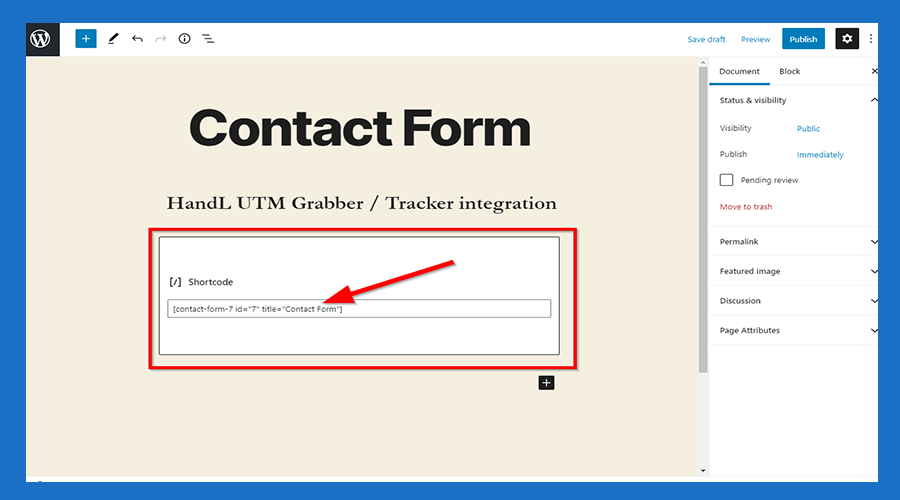](https://docs.utmgrabber.com/uploads/images/gallery/2020-08/7-paste-the-code-you-copied-from-the-contact-form.png)
#### **8.Click the 'Publish' Button**
[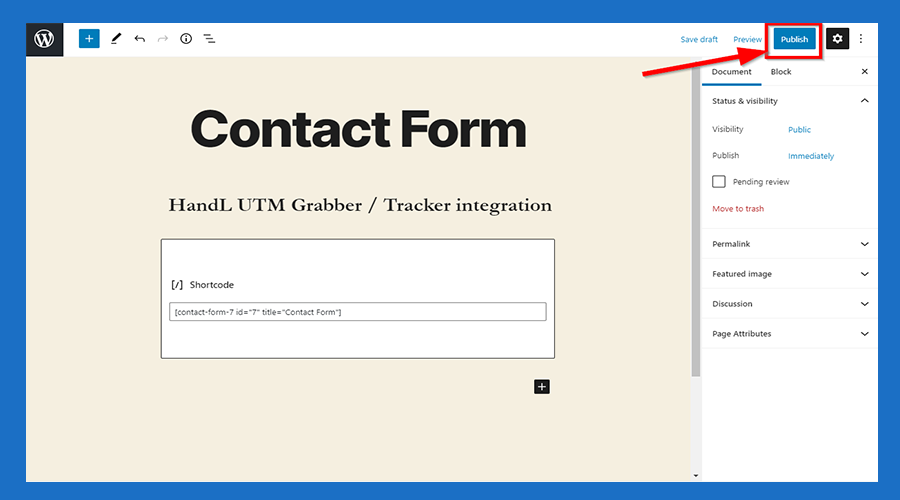](https://docs.utmgrabber.com/uploads/images/gallery/2020-08/8-click-the-publish-button.png)
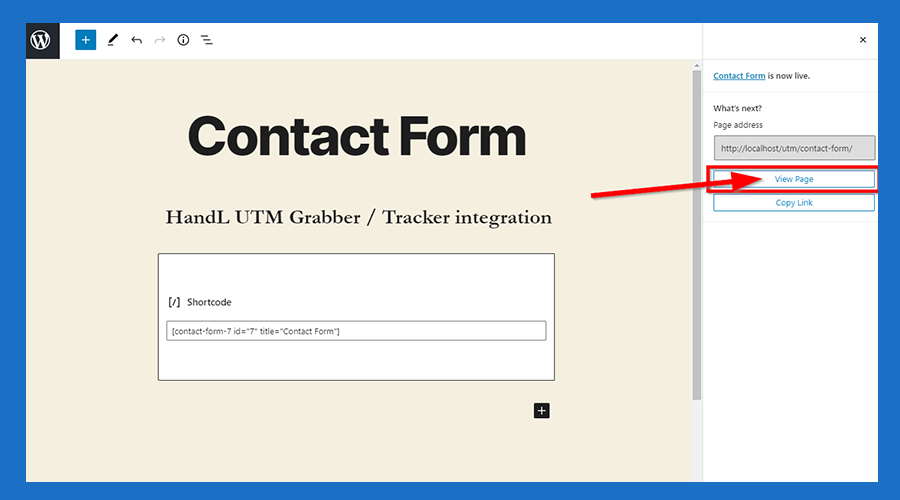
#### **9.Click 'View Page' Button**
[](https://docs.utmgrabber.com/uploads/images/gallery/2020-08/9-click-view-page-button.png)
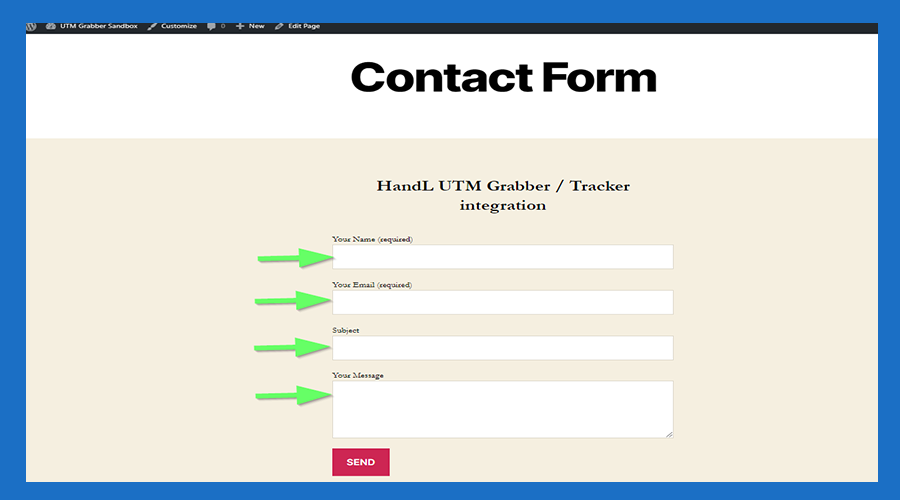
#### **10.Now You are Ready to roll**
[](https://docs.utmgrabber.com/uploads/images/gallery/2020-08/10-now-you-are-ready-to-roll.png)
[](http://www.youtube.com/watch?v=A4zkZx6ToiY "HandL UTM Grabber UTM Tracking")