# Heyflow UTM Tracking Integration
Capture UTM parameters in Heyflow funnels with HandL UTM Grabber so source, medium, campaign, click ID, referrer, and landing page data follow every lead.
# How to Track UTMs in Heyflow
## UTM attribution overview
This guide explains How to Track UTMs in Heyflow with HandL UTM Grabber. It helps you capture UTM source, medium, campaign, term, content, click IDs, referrer, and landing page data and keep the marketing context needed for accurate reporting across forms, bookings, signups, and sales.
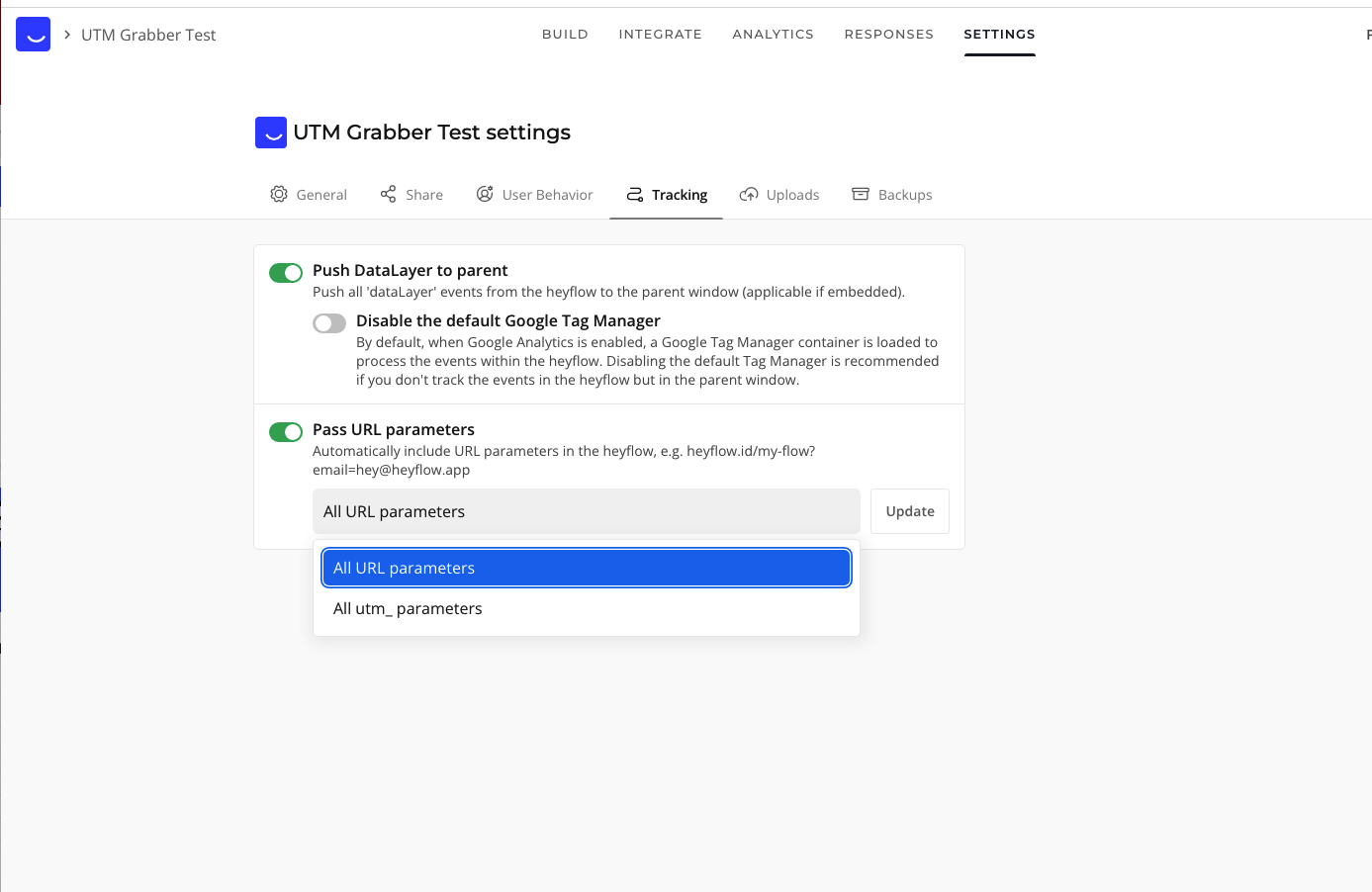
We are going to implement as it is recommended here...
https://www.heyflow.help/en/articles/5508707-url-parameter-tracking
You can either let Heyflow pick all the parameters or you can just allow the ones that start with utm\_. We recommend "All URL parameters" because our plugin tracks more than utms
[](https://docs.utmgrabber.com/uploads/images/gallery/2023-01/image-1673061343940.png)
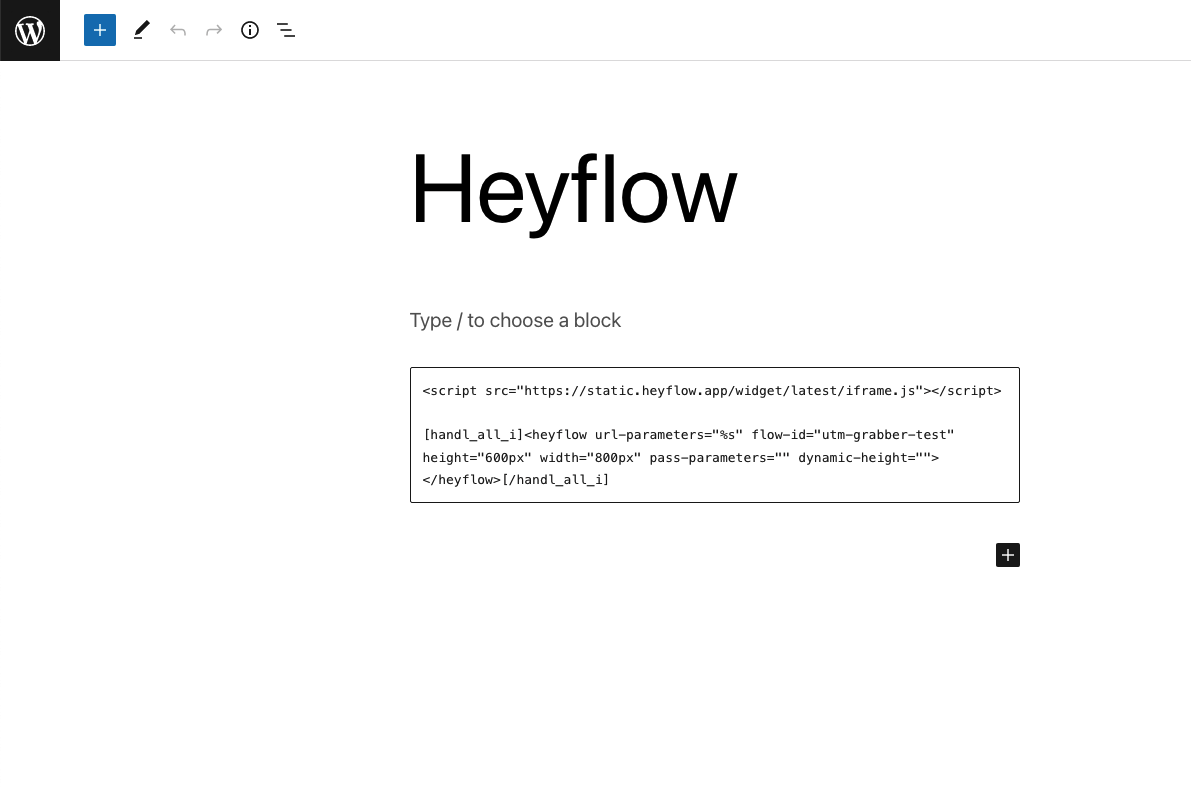
After that go to Integrations > Embed select WordPress and generate the embed code. It will look like this.
```
```
Simply wrap around the code with `[handl_all_i]` and add `url-parameters="%s"`
```
[handl_all_i][/handl_all_i]
```
Embed it in your page...
[](https://docs.utmgrabber.com/uploads/images/gallery/2023-01/image-1673061490870.png)
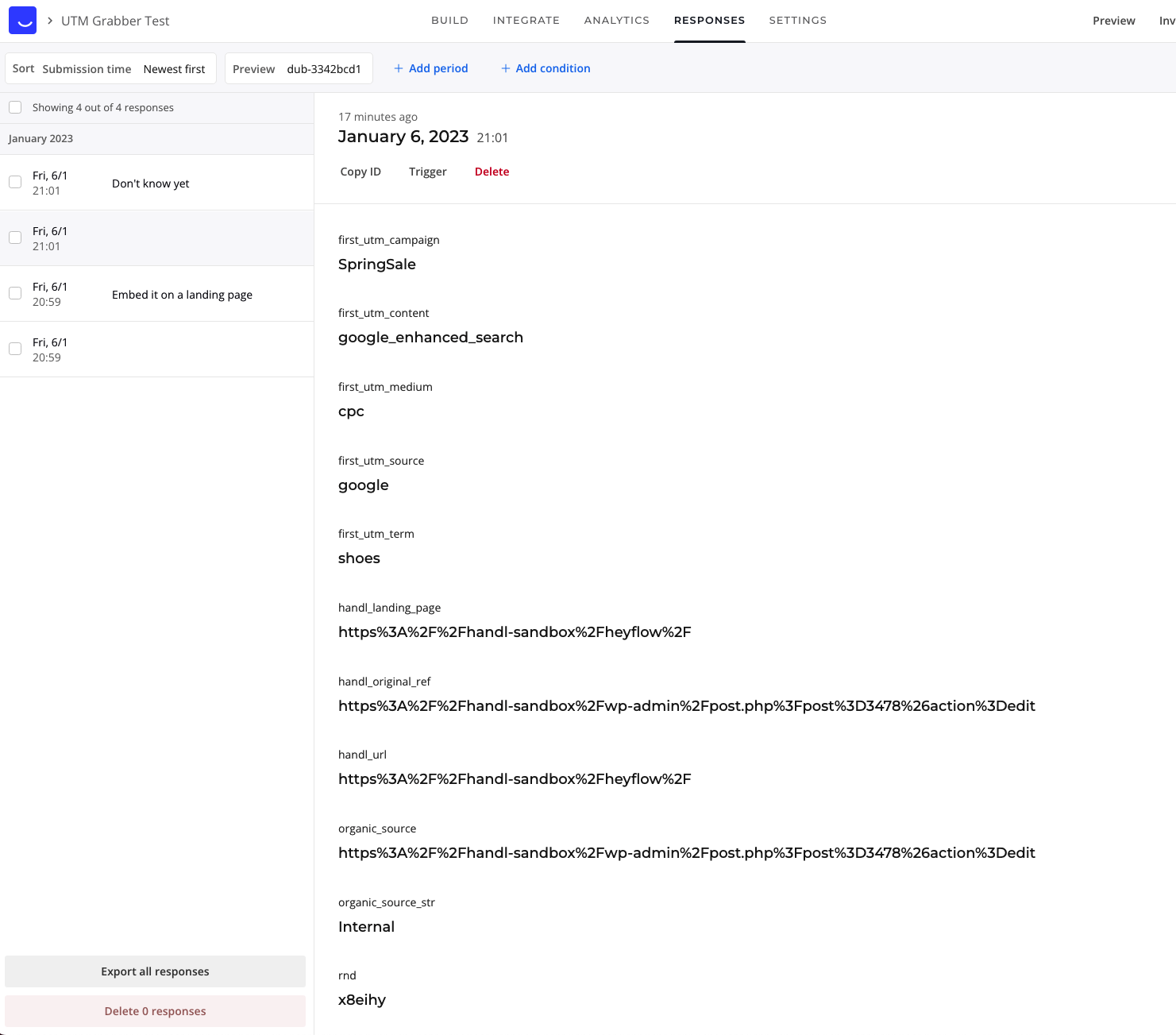
Test it and check the responses in Heyflow
If everything went well, you should see all the parameters collected in Responses
[](https://docs.utmgrabber.com/uploads/images/gallery/2023-01/image-1673061569386.png)
# Send Heyflow UTMs via Zapier or Webhook
## UTM attribution overview
This walkthrough covers sending full UTM Grabber data from Heyflow to Zapier, Make, or your own webhook. Handy when you need gclid, fbclid, first-touch fields, or custom params alongside the lead or order.
For the primary setup, see [the main Heyflow guide](https://docs.utmgrabber.com/books/heyflow/page/track-utms-in-heyflow).
### When a webhook makes sense
Native fields in Heyflow often stop at basic UTMs. A webhook lets you push everything UTM Grabber stores without trimming values or losing click IDs.
### Thank-you page script
Paste this on your confirmation page. Swap in your Zapier or Make hook URL.
```
```
Full pattern explained in [Triggering Zapier on Thank you Page](https://docs.utmgrabber.com/books/zapier-integration/page/triggering-zapier-on-thank-you-page).
### Quick Zapier / Make checklist
1. Create a Catch Hook trigger and copy the URL
2. Run a test conversion with UTMs in the landing URL
3. Confirm gclid, utm\_source, and email (if present) show up in the payload
4. Map fields into your CRM or spreadsheet
Parameter reference: [Native WP Shortcodes](https://docs.utmgrabber.com/books/102-getting-started-for-handl-utm-grabber-v3/page/native-wp-shortcodes).
Make users: see [Make Integromat integration](https://docs.utmgrabber.com/books/makecomintegromat-utm-tracking-integration).