Mailchimp for WordPress UTM Tracking Integration
Capture UTM parameters in Mailchimp for WordPress forms with HandL UTM Grabber and send campaign source, medium, click ID, and referrer data to your email list.
- MailChimp for WordPress UTM Tracking Integration
- Send Mailchimp for WordPress UTMs via Zapier or Webhook
MailChimp for WordPress UTM Tracking Integration
UTM attribution overview
This guide explains MailChimp for WordPress UTM Tracking Integration with HandL UTM Grabber. It helps you pass lead attribution into your CRM, email platform, or marketing automation workflow and keep the marketing context needed for accurate reporting across forms, bookings, signups, and sales.
1-)Go to "fields and MERGE tags" from setting on Mailchimp
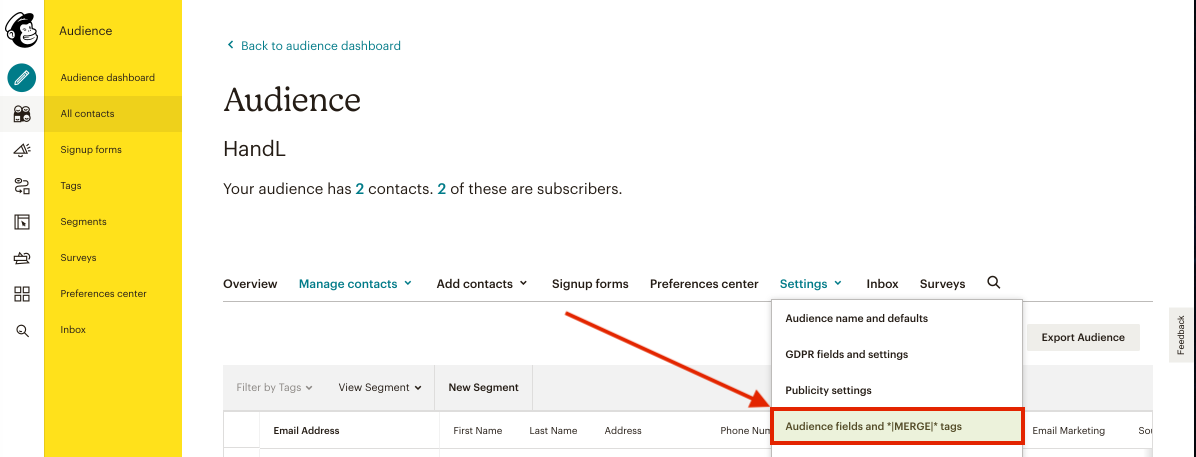
2-)Click on the "Add A Field" button
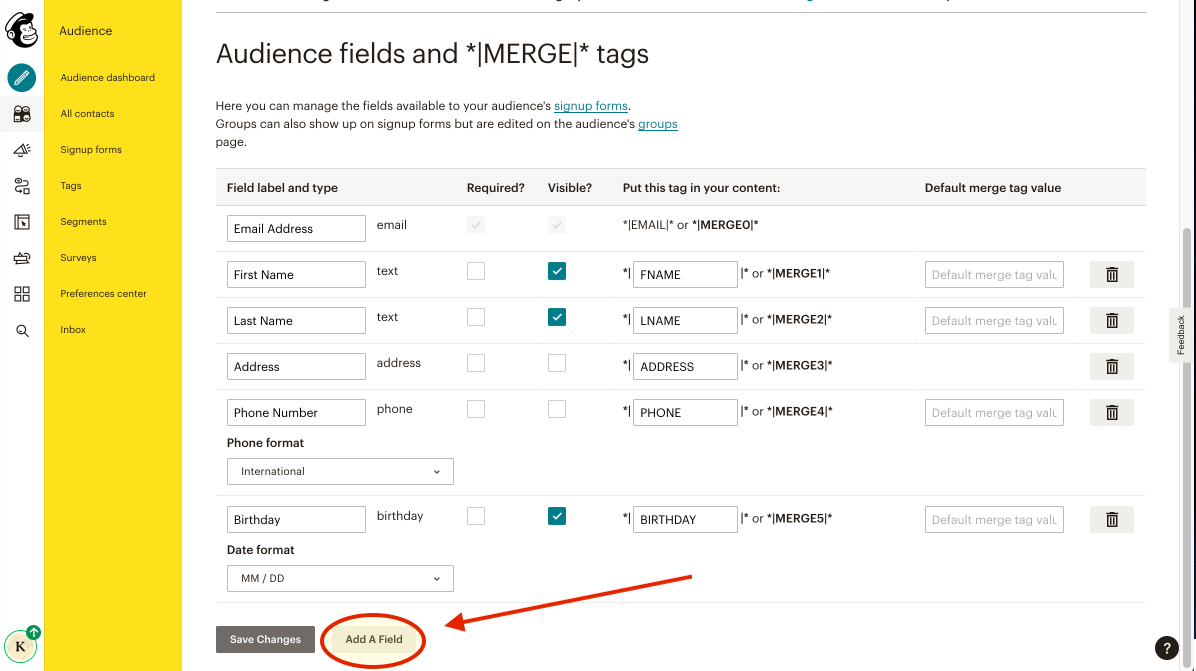
3-)Add a Text Field
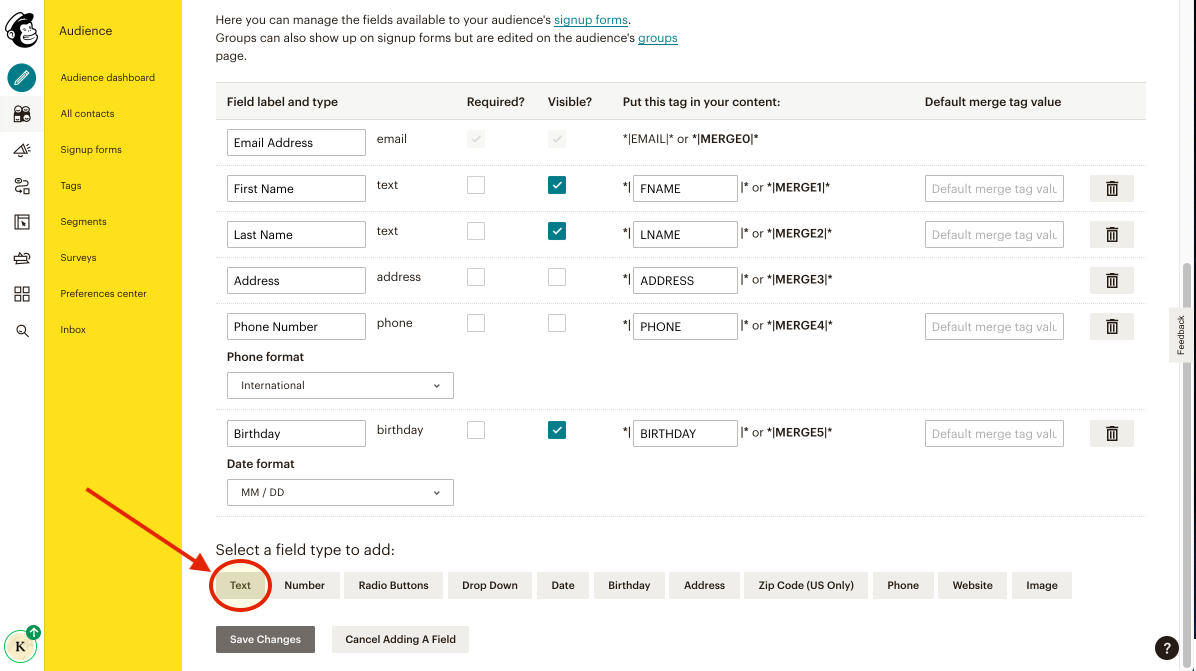
4-)Write your parameter name to the text blank
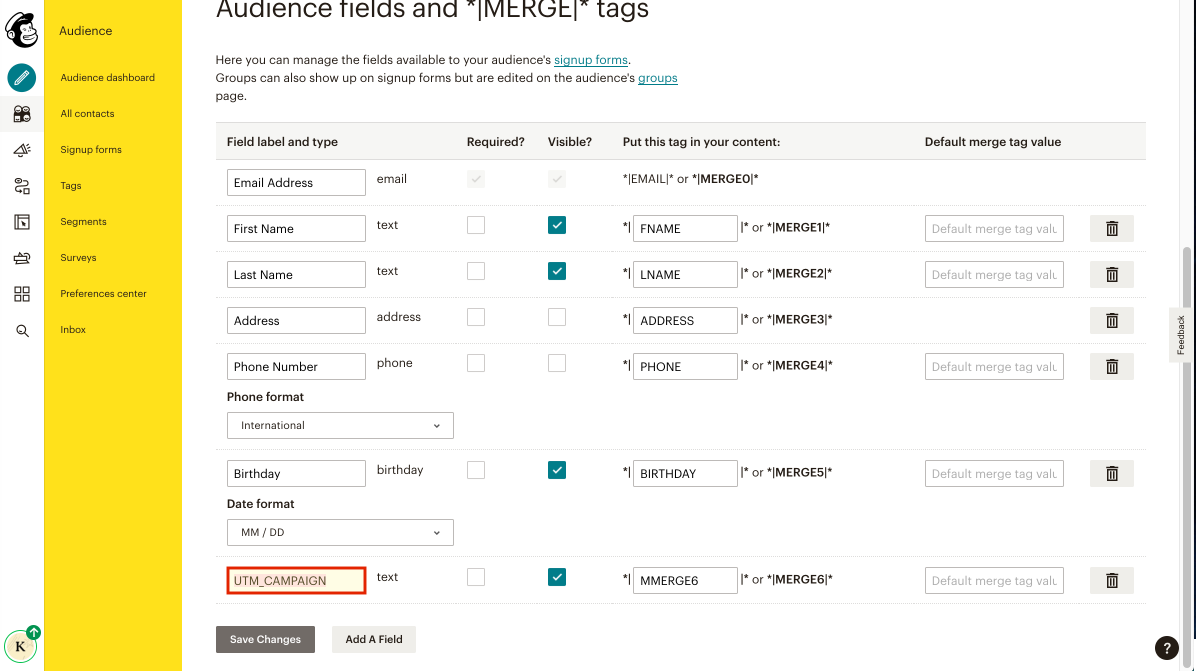
5-)Add your all parameters like that
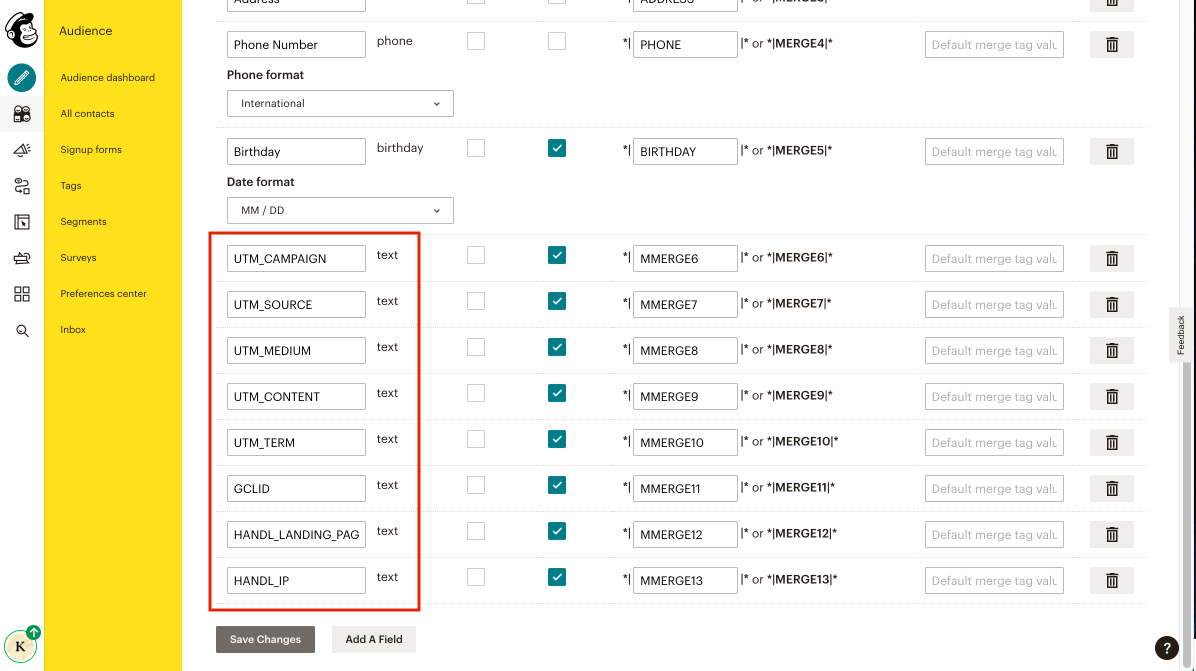
6-)Go to MC4WP plugin and write your parameters code into it.Then click on save changes and copy the form shortcode below the page

Parameters Code Example
<p>
  <input type="hidden" name="MMERGE6" value="" id="utm_campaign">
  <input type="hidden" name="MMERGE7" value="" id="utm_source">
  <input type="hidden" name="MMERGE8" value="" id="utm_medium">
  <input type="hidden" name="MMERGE9" value="" id="utm_content">
  <input type="hidden" name="MMERGE10" value="" id="utm_term">
  <input type="hidden" name="MMERGE11" value="" id="gclid">
  <input type="hidden" name="MMERGE12" value="" id="handl_landing_page">
  <input type="hidden" name="MMERGE13" value="" id="handl_ip">
    </p>
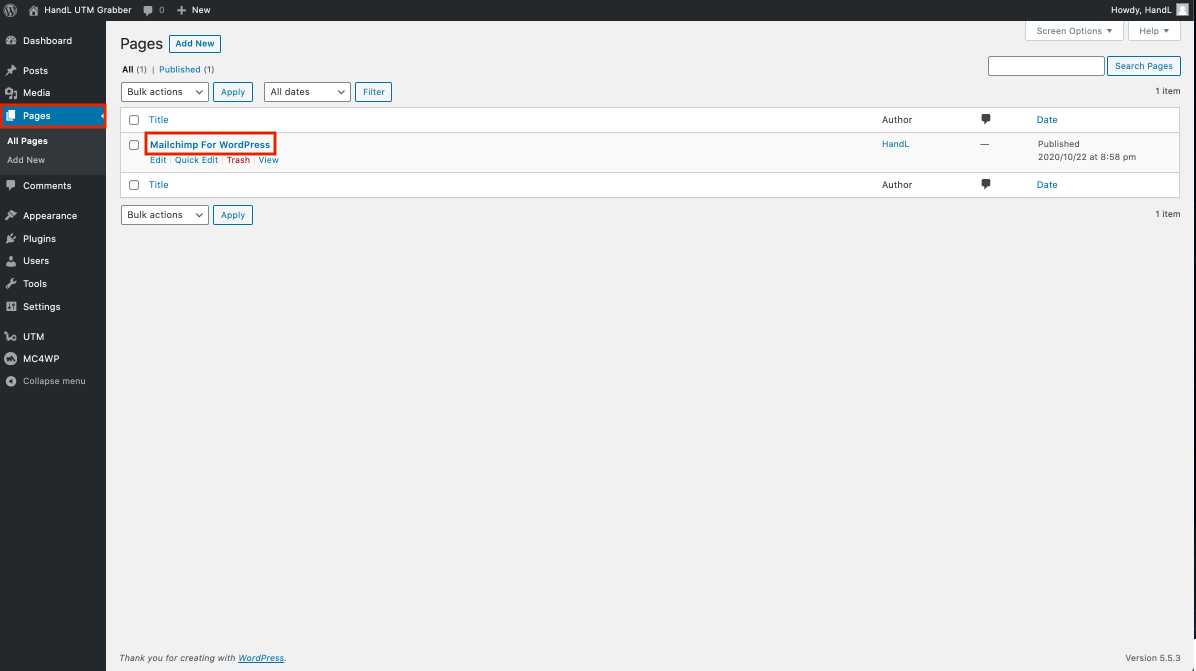
7-)Go to your pages section and open your page
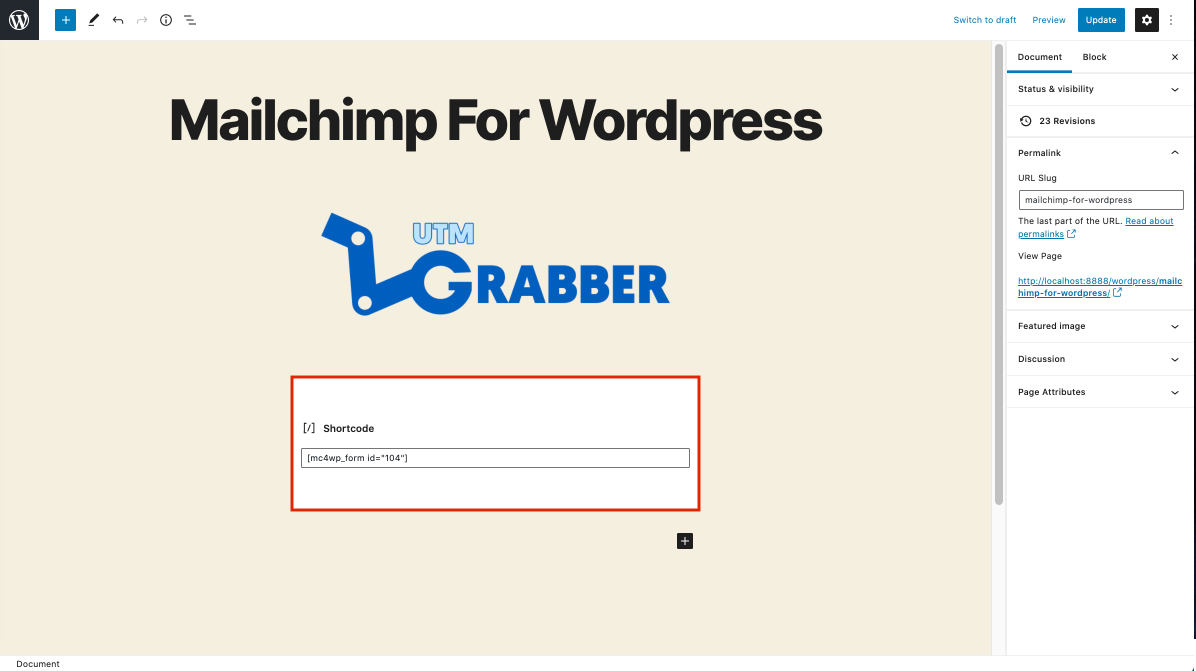
8-)Paste your form shortcode here
9-)Go to campaign URL builder and copy the URL that it generated
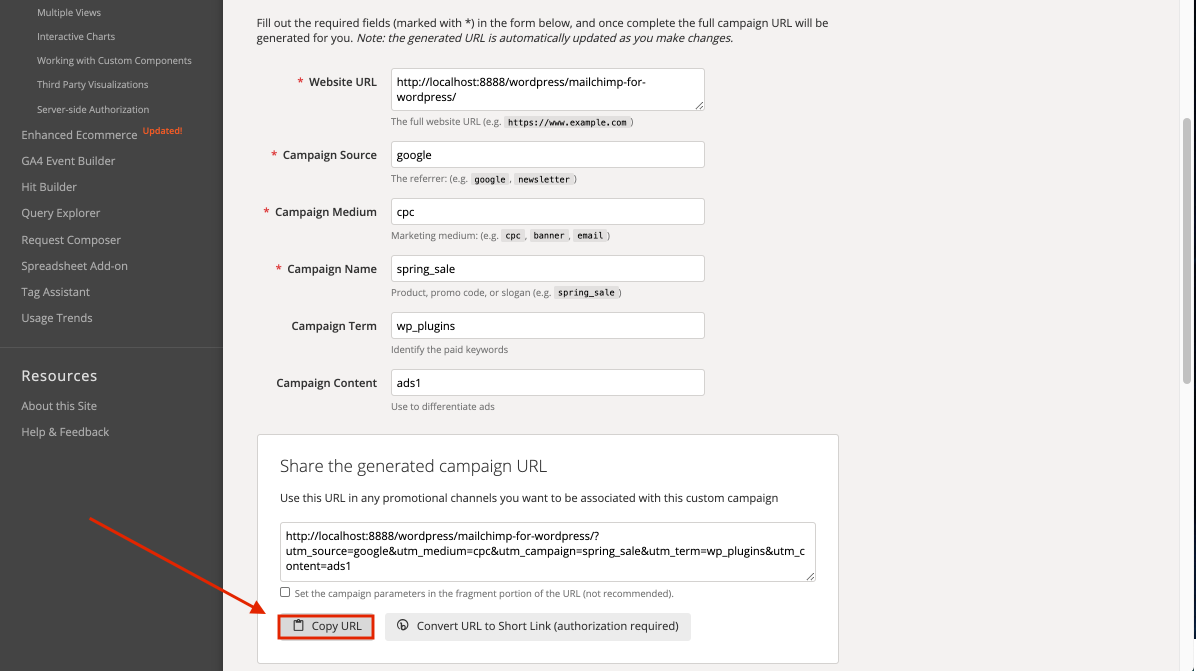
10-)Paste the URL that you copied
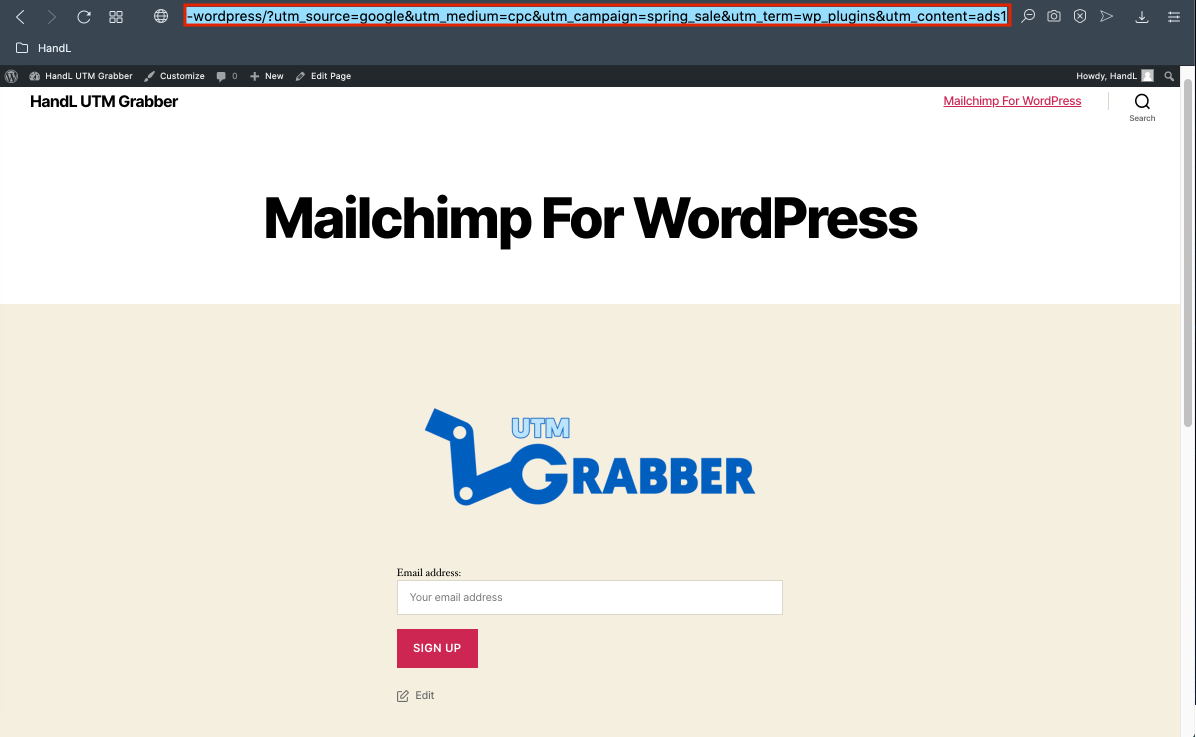
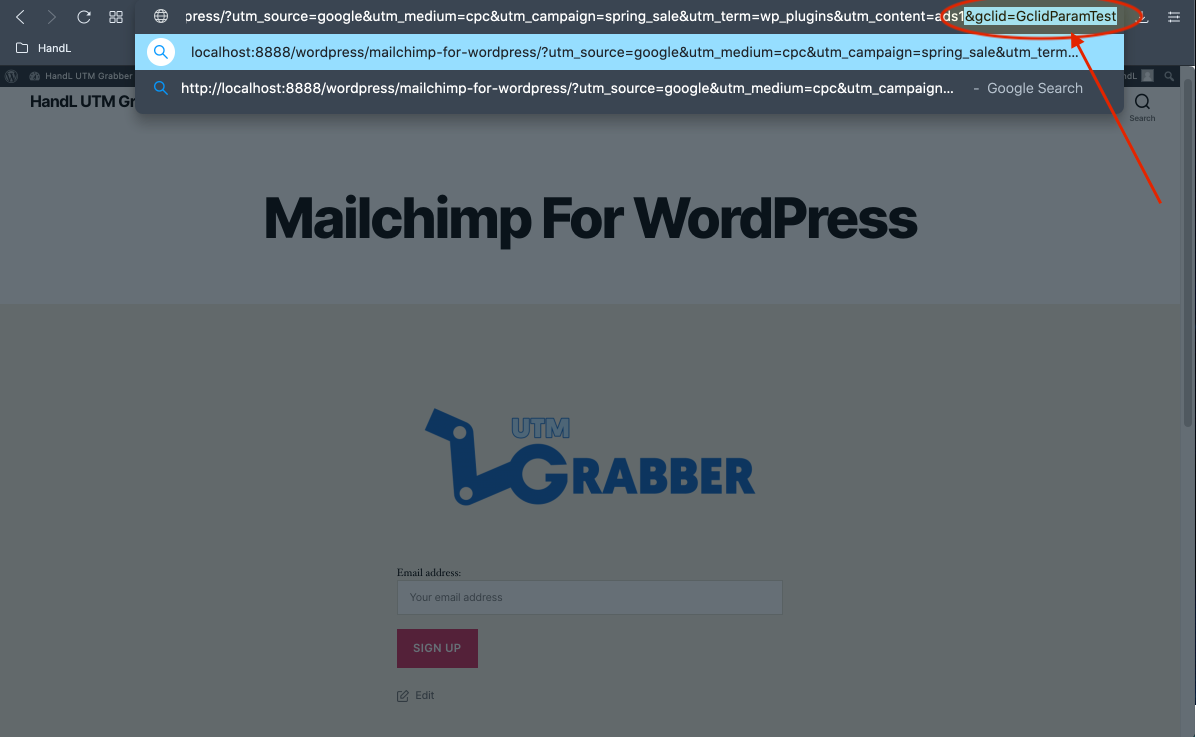
11-)Write the gclid parameter at the end of the URL Then send the form
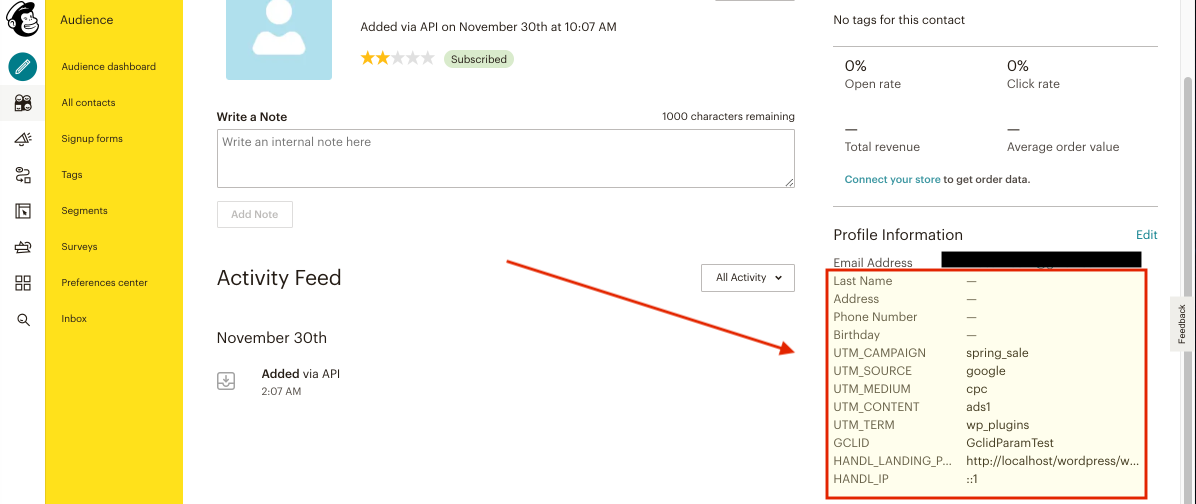
12-)Here is your result on Mailchimp
Send Mailchimp for WordPress UTMs via Zapier or Webhook
UTM attribution overview
This walkthrough covers sending full UTM Grabber data from Mailchimp for WordPress to Zapier, Make, or your own webhook. Handy when you need gclid, fbclid, first-touch fields, or custom params alongside the lead or order.
For the primary setup, see the main Mailchimp for WordPress guide.
When a webhook makes sense
Native fields in Mailchimp for WordPress often stop at basic UTMs. A webhook lets you push everything UTM Grabber stores without trimming values or losing click IDs.
Thank-you page script
Paste this on your confirmation page. Swap in your Zapier or Make hook URL.
<script>
var qvars = {};
window.location.href.replace(/[?&]+([^=&]+)=([^&]*)/gi, function(m, key, value) {
    qvars[key] = decodeURIComponent(value.replace(/\+/g, ' '));
});
qvars = Object.assign({}, (typeof handl_utm !== 'undefined' ? handl_utm : {}), qvars);
setTimeout(function() {
    var data = new URLSearchParams(qvars).toString();
    var xmlHttp = new XMLHttpRequest();
    xmlHttp.open('GET', 'https://hooks.zapier.com/hooks/catch/YOUR_ID/YOUR_KEY/?' + data, true);
    xmlHttp.send(null);
}, 1000);
</script>
Full pattern explained in Triggering Zapier on Thank you Page.
Quick Zapier / Make checklist
- Create a Catch Hook trigger and copy the URL
- Run a test conversion with UTMs in the landing URL
- Confirm gclid, utm_source, and email (if present) show up in the payload
- Map fields into your CRM or spreadsheet
Parameter reference: Native WP Shortcodes.
Make users: see Make Integromat integration.