# Mailchimp For Wordpress Integration

HandL UTM Grabber / Tracker   
How to collect and track UTM variables via MailChimp step by step

# MailChimp for WordPress Integration

#### **1-)Go to "fields and MERGE tags" from setting on Mailchimp**

[![MC4WP 1-)Go to fields and MERGE tags from setting on Mailchimp.png](https://docs.utmgrabber.com/uploads/images/gallery/2020-11/scaled-1680-/mc4wp-1-go-to-fields-and-merge-tags-from-setting-on-mailchimp.png)](https://docs.utmgrabber.com/uploads/images/gallery/2020-11/mc4wp-1-go-to-fields-and-merge-tags-from-setting-on-mailchimp.png)

#### **2-)Click on the "Add A Field" button**

[![MC4WP 2-)Click on the %22Add A Field%22 button.png](https://docs.utmgrabber.com/uploads/images/gallery/2020-11/scaled-1680-/mc4wp-2-click-on-the-22add-a-field22-button.png)](https://docs.utmgrabber.com/uploads/images/gallery/2020-11/mc4wp-2-click-on-the-22add-a-field22-button.png)

#### **3-)Add a Text Field**

[![MC4WP 3-)Add a Text Field.png](https://docs.utmgrabber.com/uploads/images/gallery/2020-11/scaled-1680-/mc4wp-3-add-a-text-field.png)](https://docs.utmgrabber.com/uploads/images/gallery/2020-11/mc4wp-3-add-a-text-field.png)

#### **4-)Write your parameter name to the text blank**

[![MC4WP 4-)Write your parameter name to the text blank.png](https://docs.utmgrabber.com/uploads/images/gallery/2020-11/scaled-1680-/mc4wp-4-write-your-parameter-name-to-the-text-blank.png)](https://docs.utmgrabber.com/uploads/images/gallery/2020-11/mc4wp-4-write-your-parameter-name-to-the-text-blank.png)

#### **5-)Add your all parameters like that**

[![MC4WP 5-)Add your all parameters like that.png](https://docs.utmgrabber.com/uploads/images/gallery/2020-11/scaled-1680-/mc4wp-5-add-your-all-parameters-like-that.png)](https://docs.utmgrabber.com/uploads/images/gallery/2020-11/mc4wp-5-add-your-all-parameters-like-that.png)

#### **6-)Go to MC4WP plugin and write your parameters code into it.Then click on save changes and copy the form shortcode below the page**

[![MC4WP 6-)Go to MC4WP plugin and write your parameters code into it Then click on save changes and copy the form shortcode below the page.png](https://docs.utmgrabber.com/uploads/images/gallery/2020-11/scaled-1680-/mc4wp-6-go-to-mc4wp-plugin-and-write-your-parameters-code-into-it-then-click-on-save-changes-and-copy-the-form-shortcode-below-the-page.png)](https://docs.utmgrabber.com/uploads/images/gallery/2020-11/mc4wp-6-go-to-mc4wp-plugin-and-write-your-parameters-code-into-it-then-click-on-save-changes-and-copy-)

#### Parameters Code Example

```
<p>
  <input type="hidden" name="MMERGE6" value="" id="utm_campaign">
  <input type="hidden" name="MMERGE7" value="" id="utm_source">
  <input type="hidden" name="MMERGE8" value="" id="utm_medium">
  <input type="hidden" name="MMERGE9" value="" id="utm_content">
  <input type="hidden" name="MMERGE10" value="" id="utm_term"> 
  <input type="hidden" name="MMERGE11" value="" id="gclid">
  <input type="hidden" name="MMERGE12" value="" id="handl_landing_page"> 
  <input type="hidden" name="MMERGE13" value="" id="handl_ip">
    </p>

```

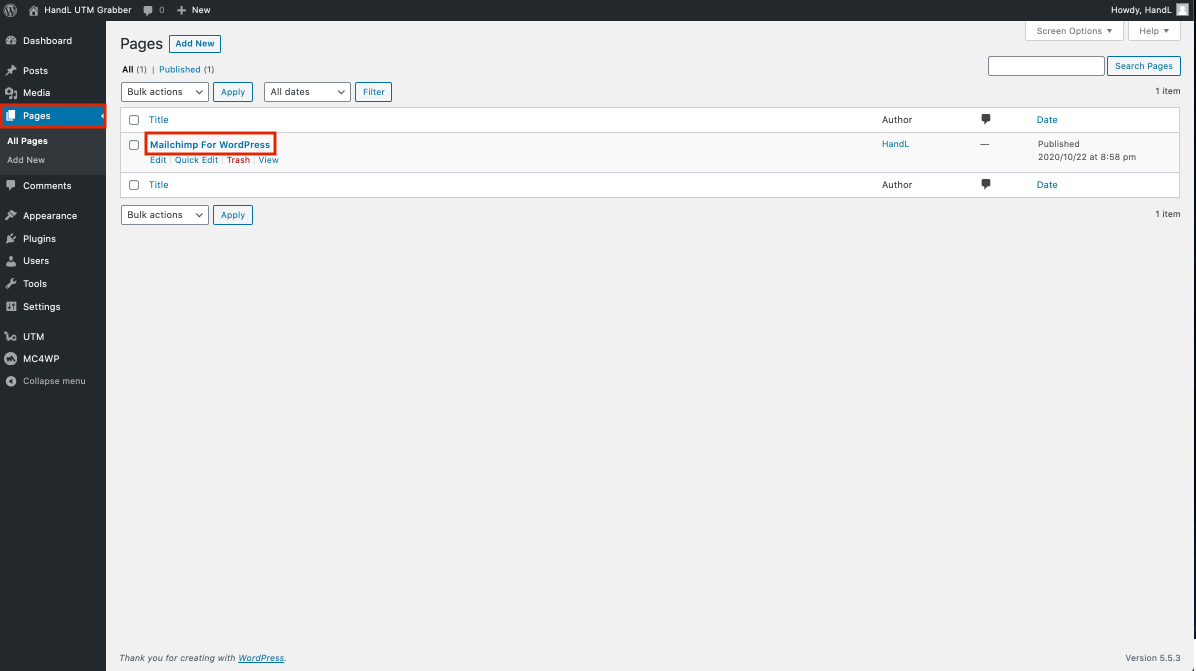
#### **7-)Go to your pages section and open your page**

[![MC4WP 7-)Go to your pages section and open your page.png](https://docs.utmgrabber.com/uploads/images/gallery/2020-11/scaled-1680-/mc4wp-7-go-to-your-pages-section-and-open-your-page.png)](https://docs.utmgrabber.com/uploads/images/gallery/2020-11/mc4wp-7-go-to-your-pages-section-and-open-your-page.png)
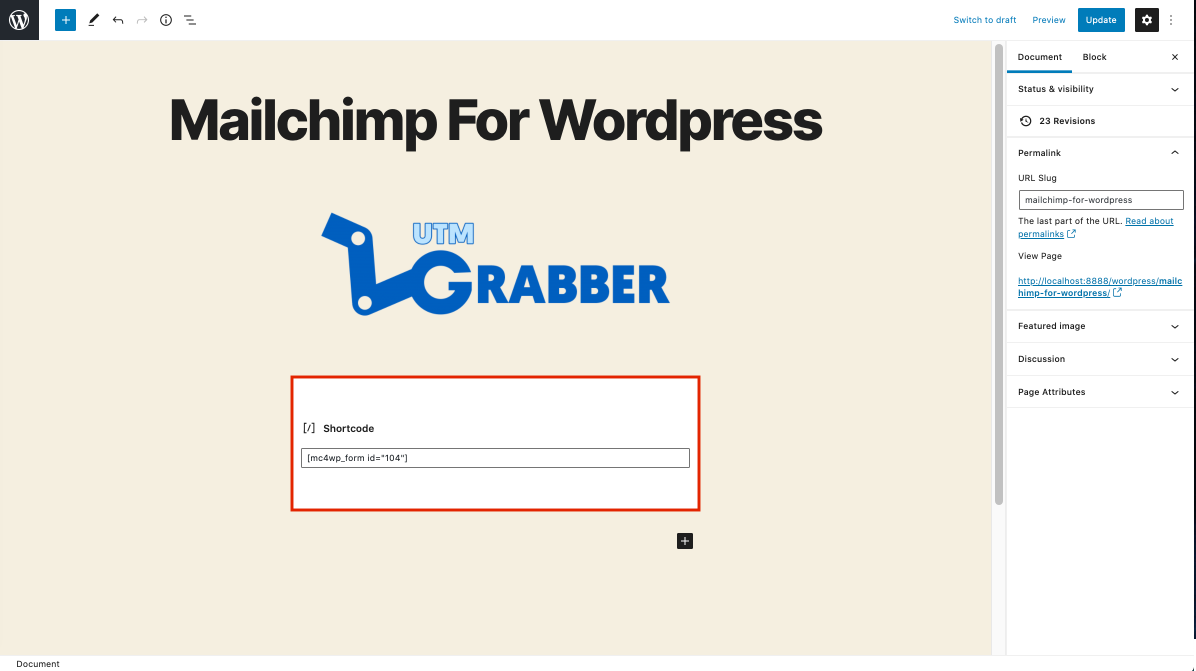
#### **8-)Paste your form shortcode here**

[![MC4WP 8-)Paste your form shortcode here.png](https://docs.utmgrabber.com/uploads/images/gallery/2020-11/scaled-1680-/mc4wp-8-paste-your-form-shortcode-here.png)](https://docs.utmgrabber.com/uploads/images/gallery/2020-11/mc4wp-8-paste-your-form-shortcode-here.png)
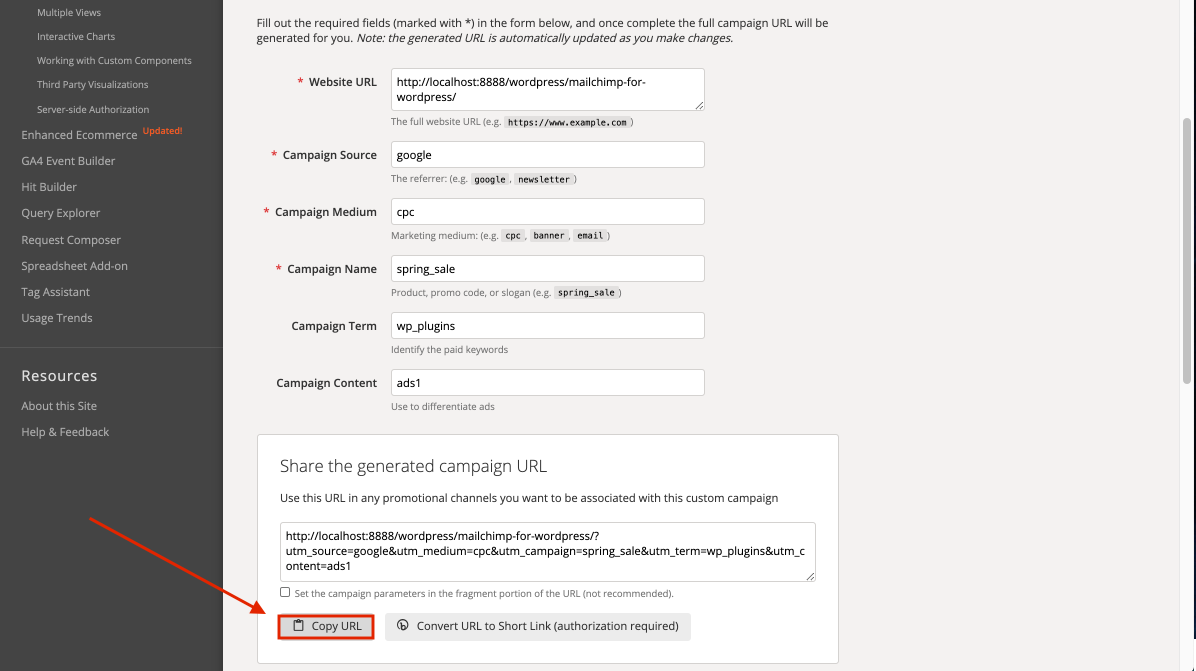
#### **9-)Go to campaign URL builder and copy the URL that it generated**

[![MC4WP 9-)Go to campaign URL builder and copy the URL that it generated.png](https://docs.utmgrabber.com/uploads/images/gallery/2020-11/scaled-1680-/mc4wp-9-go-to-campaign-url-builder-and-copy-the-url-that-it-generated.png)](https://docs.utmgrabber.com/uploads/images/gallery/2020-11/mc4wp-9-go-to-campaign-url-builder-and-copy-the-url-that-it-generated.png)
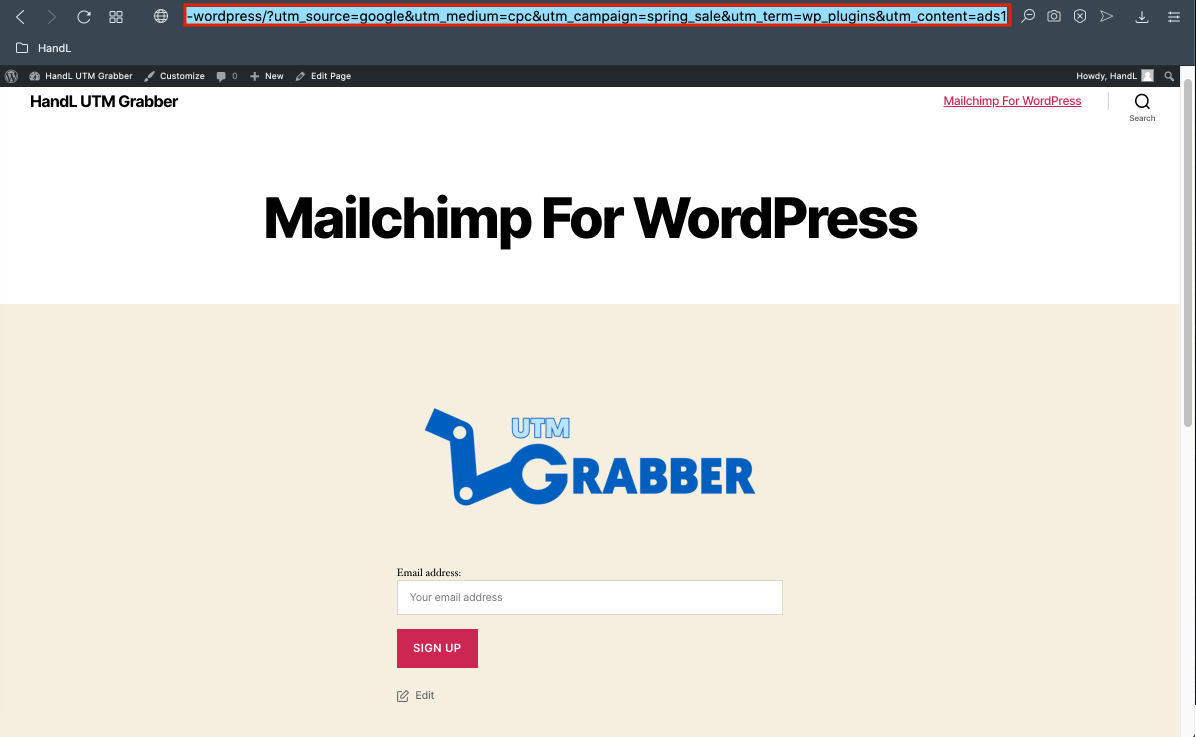
#### **10-)Paste the URL that you copied**

[![MC4WP 10-)Paste the URL that you copied.png](https://docs.utmgrabber.com/uploads/images/gallery/2020-11/scaled-1680-/mc4wp-10-paste-the-url-that-you-copied.png)](https://docs.utmgrabber.com/uploads/images/gallery/2020-11/mc4wp-10-paste-the-url-that-you-copied.png)
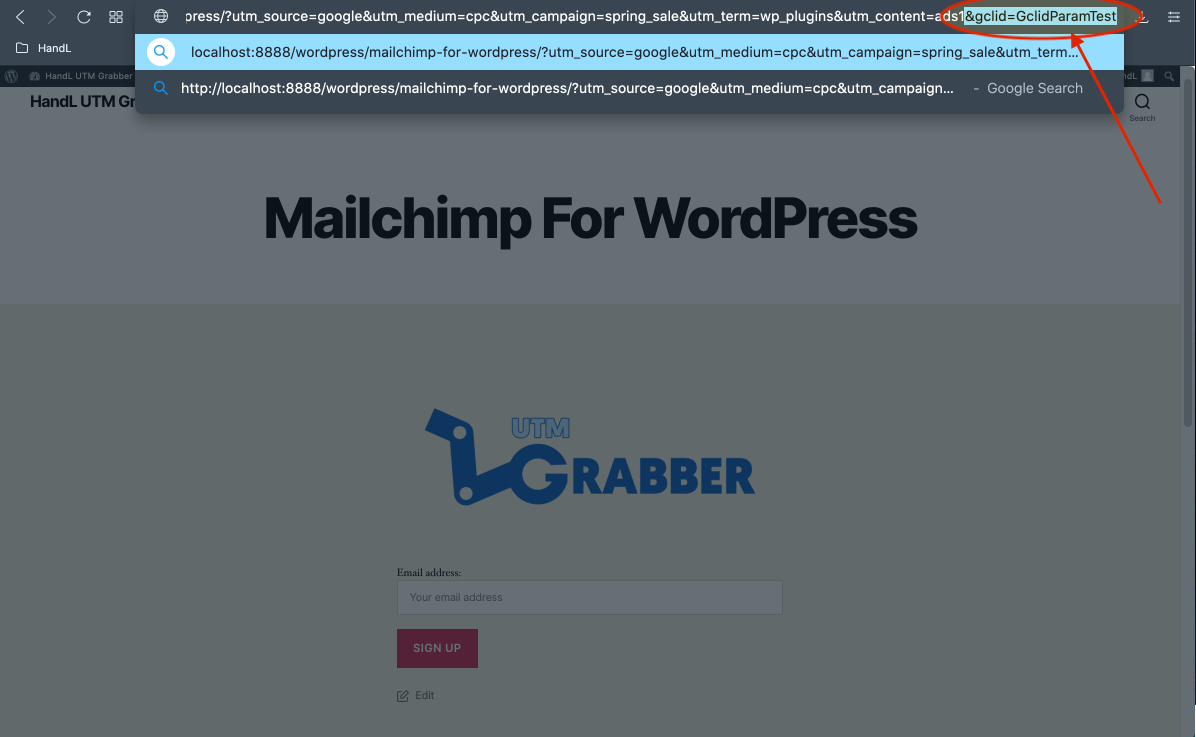
#### **11-)Write the gclid parameter at the end of the URL Then send the form**

[![MC4WP 11-)Write the gclid parameter at the end of the URL Then send the form.png](https://docs.utmgrabber.com/uploads/images/gallery/2020-11/scaled-1680-/mc4wp-11-write-the-gclid-parameter-at-the-end-of-the-url-then-send-the-form.png)](https://docs.utmgrabber.com/uploads/images/gallery/2020-11/mc4wp-11-write-the-gclid-parameter-at-the-end-of-the-url-then-send-the-form.png)
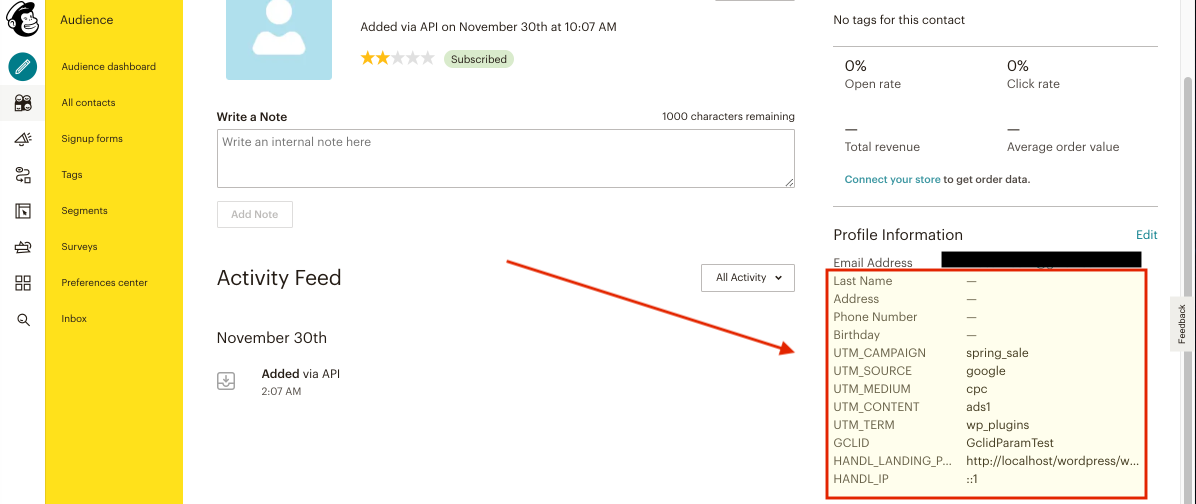
#### **12-)Here is your result on Mailchimp**

[![MC4WP 12-)Here is your result on Mailchimp.png](https://docs.utmgrabber.com/uploads/images/gallery/2020-11/scaled-1680-/mc4wp-12-here-is-your-result-on-mailchimp.png)](https://docs.utmgrabber.com/uploads/images/gallery/2020-11/mc4wp-12-here-is-your-result-on-mailchimp.png)