Saleskick
Capture and pass UTM Grabber attribution data into Saleskick embedded forms, then forward it to your CRM via Saleskick automations.
Track UTMs in Saleskick
UTM attribution overview
This guide explains how to track UTMs and full HandL attribution data in Saleskick with HandL UTM Grabber V3. It helps you capture UTM source, medium, campaign, term, content, click IDs, referrer, landing page data, and first-touch fields, then pass them into the Saleskick iframe so they appear on submissions and in automations.
Prerequisites
- HandL UTM Grabber V3 installed and active on your WordPress site
- A Saleskick form embed code from Saleskick > Integrations > Embed
- UTM Grabber loaded on the same page before the Saleskick script runs (the plugin does this automatically on WordPress)
How it works
Saleskick ships a JavaScript embed that opens your form in a modal iframe. By default that iframe URL does not include your stored attribution cookies. The adapted embed below:
- Reads tracked parameters from the global
handl_utmobject (UTM Grabber V3) - Waits until
first_handlIDis available so first-touch data is included - Merges those values with any parameters already in the page URL
- Appends the merged query string to the Saleskick iframe
srcbefore the form loads
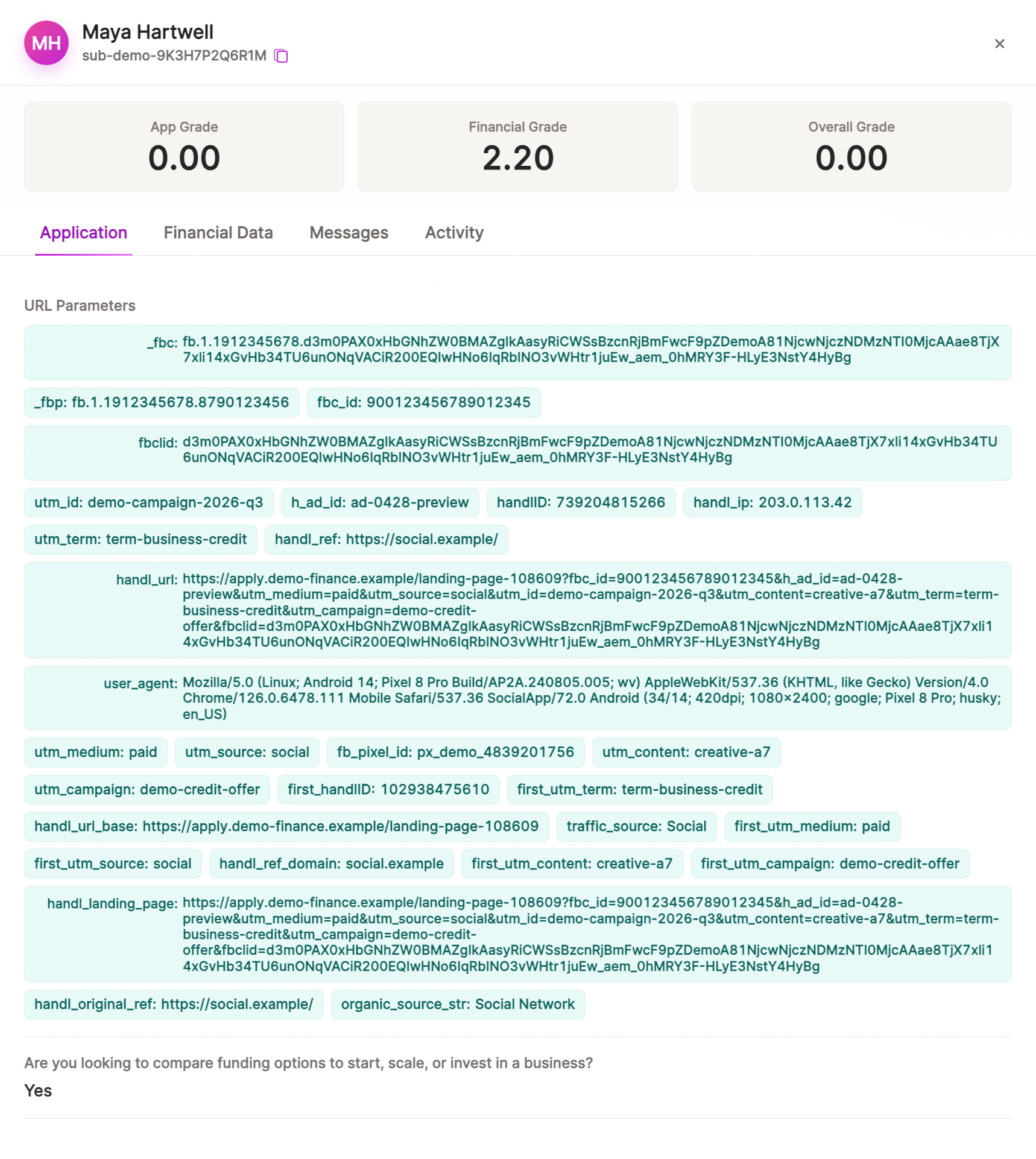
After a visitor submits, Saleskick stores the parameters under Application > URL Parameters in the submission detail view. The same data is exposed to automations as {{submission.shareQueryParams}} for webhooks and CRM integrations.
Step 1 — Paste the adapted embed code
Replace your default Saleskick embed with the code below. Update the constants at the top (FORM_SRC, button text, colors, etc.) to match your form.
Important: This version uses handl_utm (UTM Grabber V3). Do not use window.HandL.getAll() — that API belongs to a different tracking platform.
<script>
(function () {
  const FORM_SRC = "https://app.saleskick.com/form-YOUR-FORM-ID/your-form-slug";

  function saleskickUrlWithUtmGrabberData() {
    const url = new URL(FORM_SRC);
    const params = typeof getAllHandLUTMParams === "function"
      ? getAllHandLUTMParams()
      : {};

    Object.entries(params).forEach(function ([key, value]) {
      if (value) url.searchParams.set(key, value);
    });

    return url.toString();
  }

  const iframe = document.createElement("iframe");
  iframe.src = saleskickUrlWithUtmGrabberData();

  // rest of Saleskick code...
})();
</script>
The full production embed from Saleskick may include additional modal styling and mobile responsive behavior. When adapting your own copy, only change the attribution block: replace any window.HandL / HandL.getAll() references with handl_utm as shown above.
Step 2 — Test with UTMs in the landing URL
Visit your landing page with test UTMs, for example:
https://yoursite.com/landing-page?utm_source=fb&utm_medium=paid&utm_campaign=testOpen the browser console and look for [Saleskick UTM Grabber] log messages. Submit a test lead through the Saleskick form.
Step 3 — Verify parameters in Saleskick
Open the submission in Saleskick and go to the Application tab. Under URL Parameters you should see values such as:
utm_source,utm_medium,utm_campaign,utm_term,utm_contentfbclid,gclid, or other click IDs when presenthandlID,first_handlID,handl_ref,handl_landing_page,handl_urltraffic_source,organic_source_str,user_agent
If parameters are missing, confirm UTM Grabber is active, cookies are not blocked, and the page was loaded with UTMs before opening the Saleskick modal.
Next step
See Send Saleskick UTMs via Automation or Webhook to forward shareQueryParams to your CRM or backend.
Send Saleskick UTMs via Automation or Webhook
UTM attribution overview
This walkthrough covers sending full UTM Grabber data from Saleskick to your backend using Saleskick automations. Use this when you need gclid, fbclid, first-touch fields, or custom HandL params alongside the lead record in your CRM.
For the primary embed setup, see Track UTMs in Saleskick.
When an automation webhook makes sense
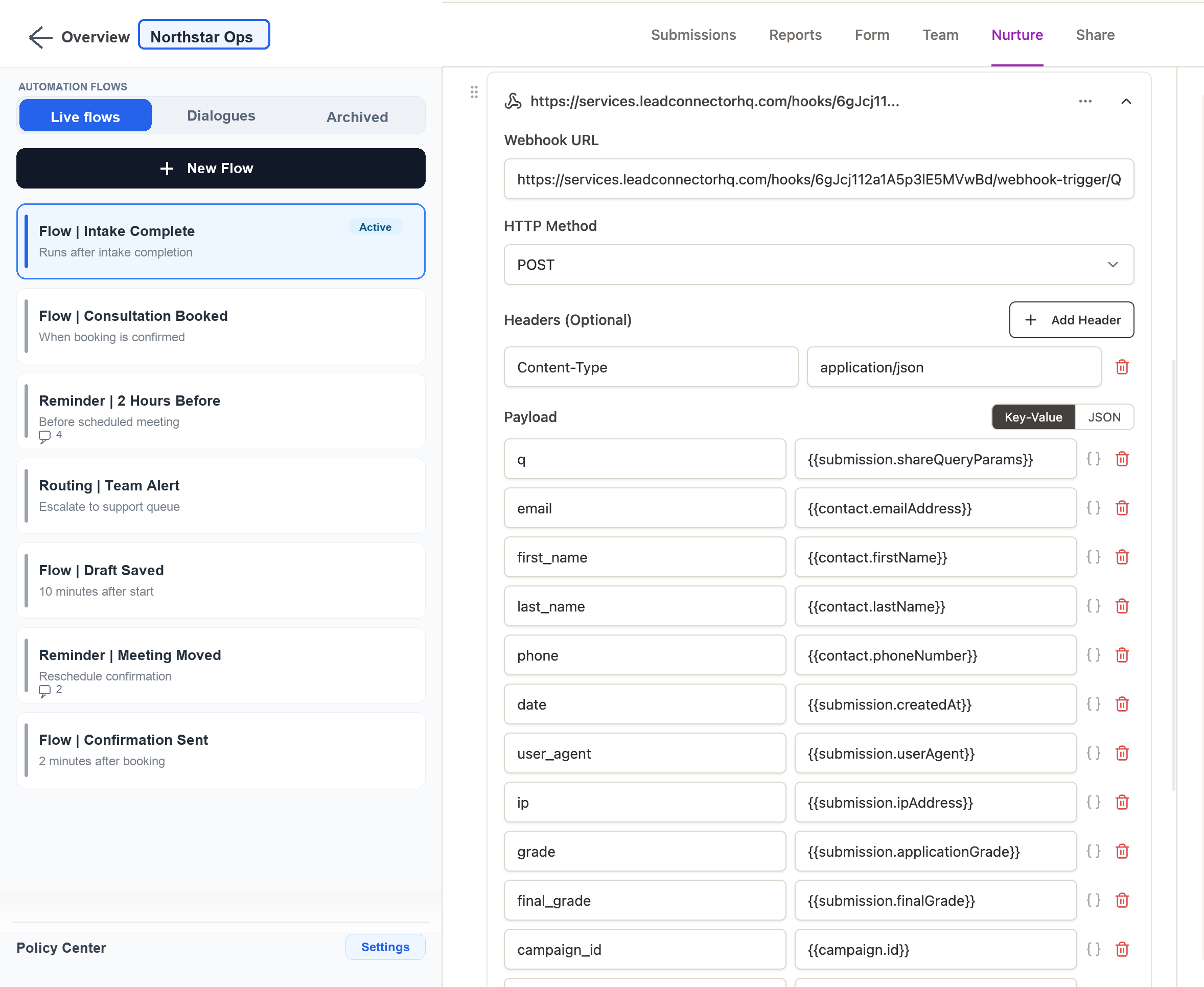
Saleskick stores all URL parameters captured at submission time. Automations expose them as a single query string via {{submission.shareQueryParams}}, so you can POST the full attribution payload to Zapier, Make, or your own API without manually mapping every field in Saleskick.
Automation setup
In Saleskick, create an automation triggered on form submission. Add an HTTP Request action configured as follows:
- Method: POST
- Header:
Content-Type: application/json - Payload (key-value):
| Key | Value |
|---|---|
q |
{{submission.shareQueryParams}} |
email |
{{contact.emailAddress}} |
first_name |
{{contact.firstName}} |
last_name |
{{contact.lastName}} |
phone |
{{contact.phoneNumber}} |
date |
{{submission.createdAt}} |
The q field contains the full query string of tracked parameters (for example utm_source=fb&utm_medium=paid&handlID=1353780194080&first_handlID=5698995462407). Your backend can parse it with parse_str() in PHP, URLSearchParams in JavaScript, or equivalent.
Backend parsing example (PHP)
$params = [];
parse_str($request->input('q', ''), $params);

$utmSource = $params['utm_source'] ?? null;
$handlId   = $params['handlID'] ?? null;
$fbclid    = $params['fbclid'] ?? null;
Quick checklist
- Confirm URL Parameters appear on test submissions in Saleskick (Application tab)
- Create the automation with
qmapped to{{submission.shareQueryParams}} - Submit a test lead with UTMs in the landing URL
- Verify your endpoint receives
utm_source,handlID, and contact fields - Map parsed values into your CRM or spreadsheet
Parameter reference: HandL param definitions.