SureForms UTM Tracking Integration
Set up SureForms with HandL UTM Grabber to capture UTM parameters, GCLID, FBCLID, referrer, and landing page data in hidden fields for lead attribution.
SureForms UTM Tracking with UTM Grabber
UTM attribution overview
This guide explains SureForms UTM Tracking with UTM Grabber. It helps you capture UTM source, medium, campaign, term, content, click IDs, referrer, and landing page data and keep the marketing context needed for accurate reporting across forms, bookings, signups, and sales.
Introduction
This guide will help you set up UTM tracking in the SureForms WordPress plugin using UTM Grabber. By following these steps, you can capture UTM parameters in your form submissions.
Steps to Track UTMs
1. Add Hidden Fields
Edit Your Form: Choose the form you want to track UTMs for.
Add Hidden Fields
Add Fields: Insert several new fields for each UTM parameter you want to track, such as utm_campaign, utm_medium, organic_source, etc.
Make Fields Hidden:
Add the class screen-reader-text to these fields to ensure they remain hidden. Alternatively, you can create your own CSS class with display:none; to achieve the same effect.
2. Configure Default Values
Set Default Value: For each hidden field, use the "Default Value" setting to specify that the value should be retrieved from a cookie. Assign Parameter Names: Ensure that the parameter names correspond to the UTM parameters you wish to track, such as: utm_campaign utm_medium utm_source utm_content utm_term
3. Example Field Setup
Here is an example setup for the utm_campaign:
Field Name: UTM Campaign Type: Hidden Class: hidden-field or screen-reader-text Default Value: Cookie Value Parameter Name: utm_campaign Repeat similar steps for each UTM parameter you want to track.
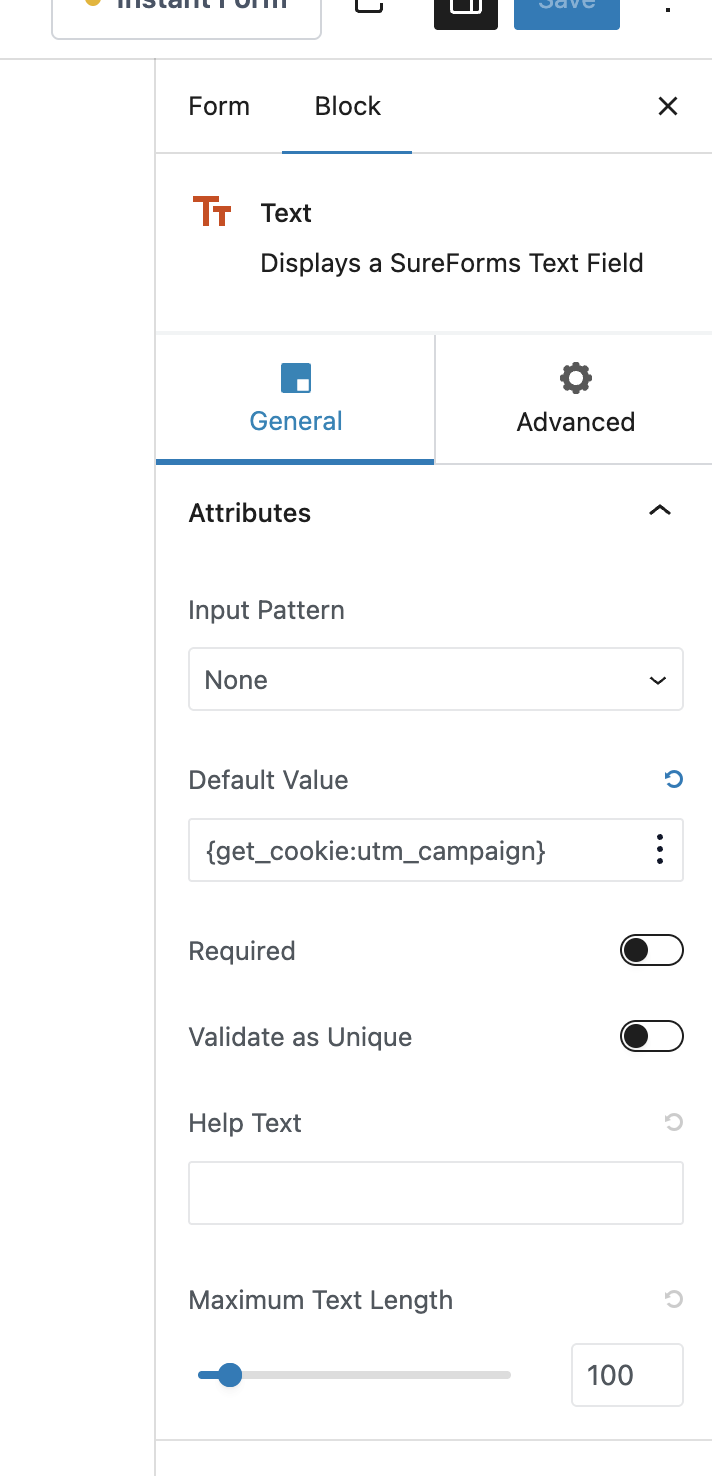
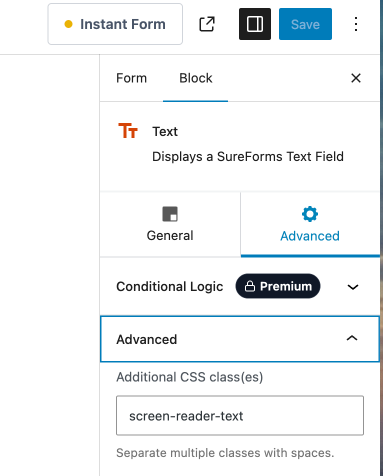
Verification Once you have completed the setup, test your form by visiting a URL with UTM parameters and submitting the form. You should see the UTM values captured in your form entries.
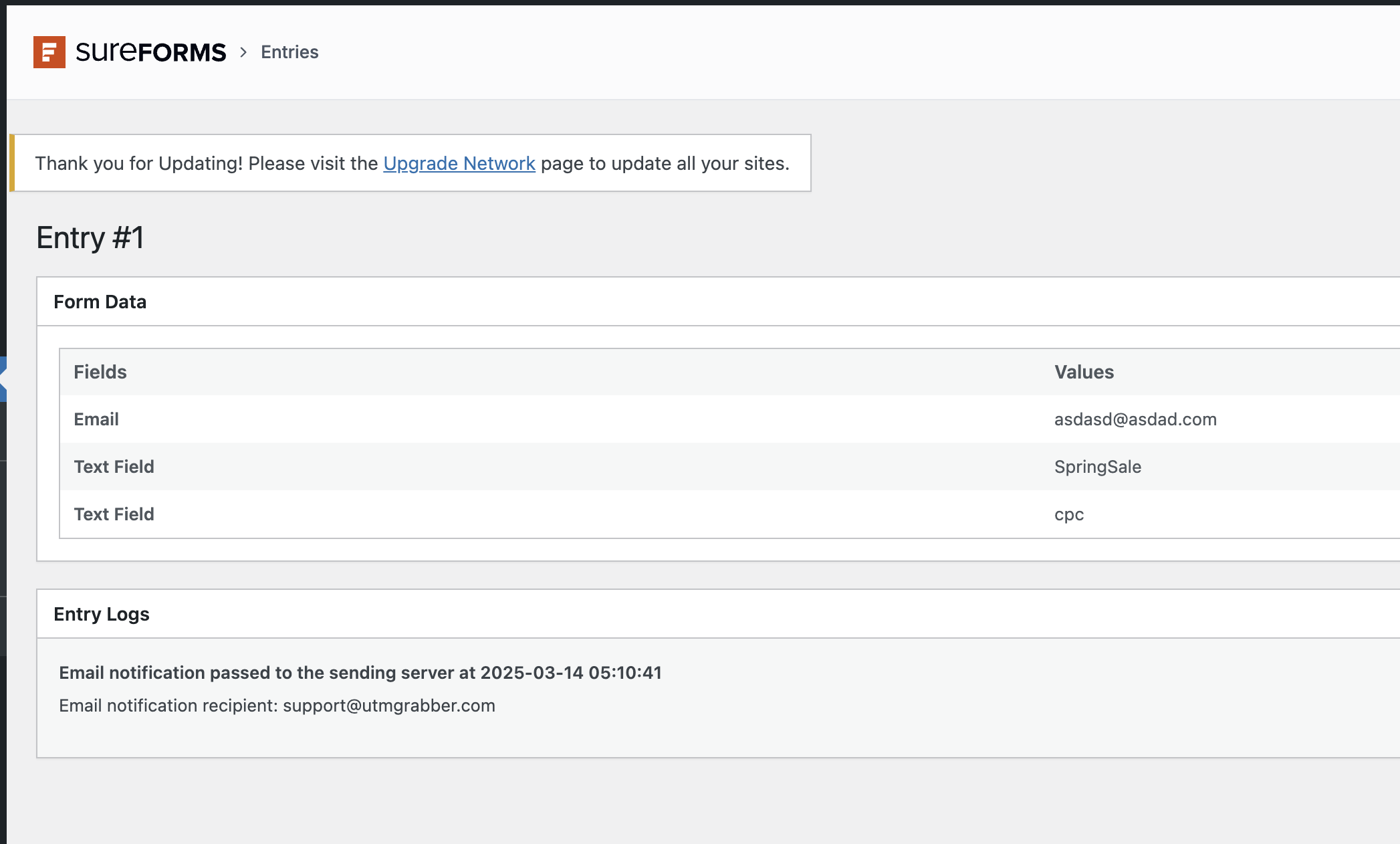
Conclusion You've successfully set up UTM tracking in your SureForms using UTM Grabber. This will help you monitor and analyze the effectiveness of your marketing campaigns efficiently.
Send SureForms UTMs via Zapier or Webhook
UTM attribution overview
This walkthrough covers sending full UTM Grabber data from SureForms to Zapier, Make, or your own webhook. Handy when you need gclid, fbclid, first-touch fields, or custom params alongside the lead or order.
For the primary setup, see the main SureForms guide.
When a webhook makes sense
Native fields in SureForms often stop at basic UTMs. A webhook lets you push everything UTM Grabber stores without trimming values or losing click IDs.
Thank-you page script
Paste this on your confirmation page. Swap in your Zapier or Make hook URL.
<script>
var qvars = {};
window.location.href.replace(/[?&]+([^=&]+)=([^&]*)/gi, function(m, key, value) {
    qvars[key] = decodeURIComponent(value.replace(/\+/g, ' '));
});
qvars = Object.assign({}, (typeof handl_utm !== 'undefined' ? handl_utm : {}), qvars);
setTimeout(function() {
    var data = new URLSearchParams(qvars).toString();
    var xmlHttp = new XMLHttpRequest();
    xmlHttp.open('GET', 'https://hooks.zapier.com/hooks/catch/YOUR_ID/YOUR_KEY/?' + data, true);
    xmlHttp.send(null);
}, 1000);
</script>
Full pattern explained in Triggering Zapier on Thank you Page.
Quick Zapier / Make checklist
- Create a Catch Hook trigger and copy the URL
- Run a test conversion with UTMs in the landing URL
- Confirm gclid, utm_source, and email (if present) show up in the payload
- Map fields into your CRM or spreadsheet
Parameter reference: Native WP Shortcodes.
Make users: see Make Integromat integration.