WPForms UTM Tracking Integration
Set up WPForms with HandL UTM Grabber to capture UTM parameters, GCLID, FBCLID, referrer, and landing page data in hidden fields for lead attribution.
WPForms UTM Tracking Integration
UTM attribution overview
This guide explains WPForms UTM Tracking Integration with HandL UTM Grabber. It helps you capture UTM source, medium, campaign, term, content, click IDs, referrer, and landing page data and keep the marketing context needed for accurate reporting across forms, bookings, signups, and sales.
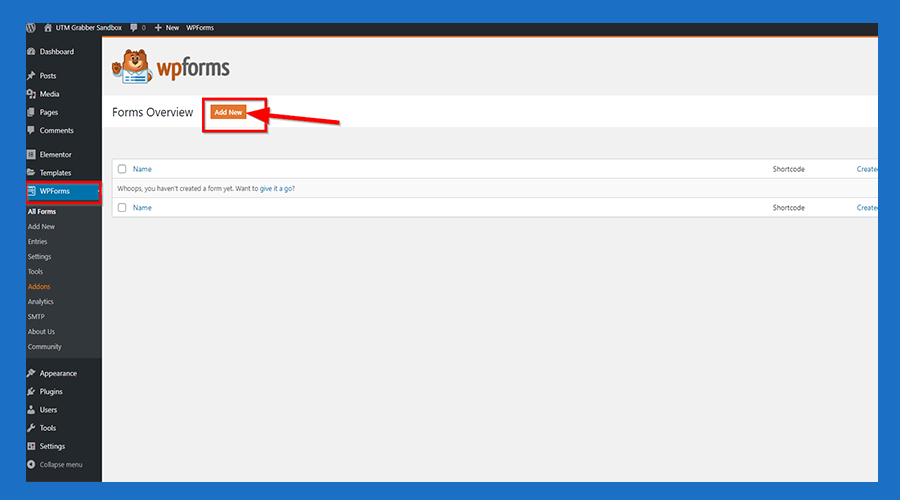
1. Select WPForms from the left manu and then click 'Add New'
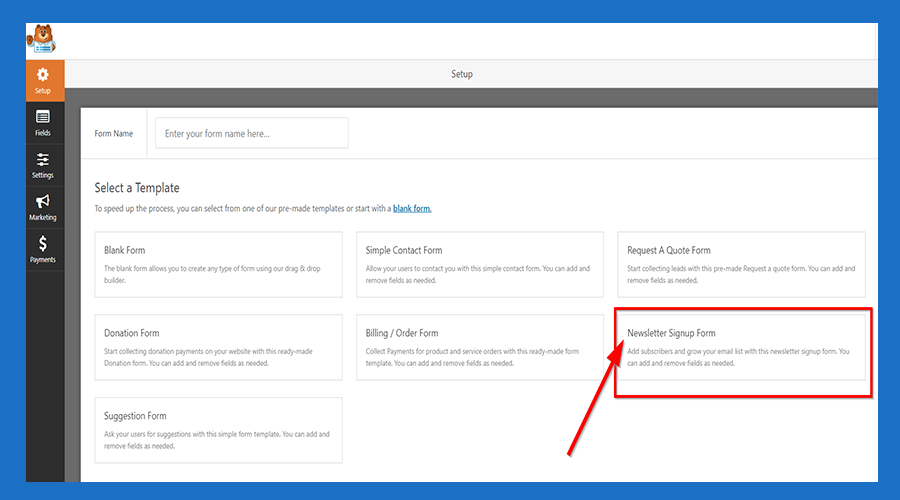
2. Click 'Newsletter Sign Up Form'
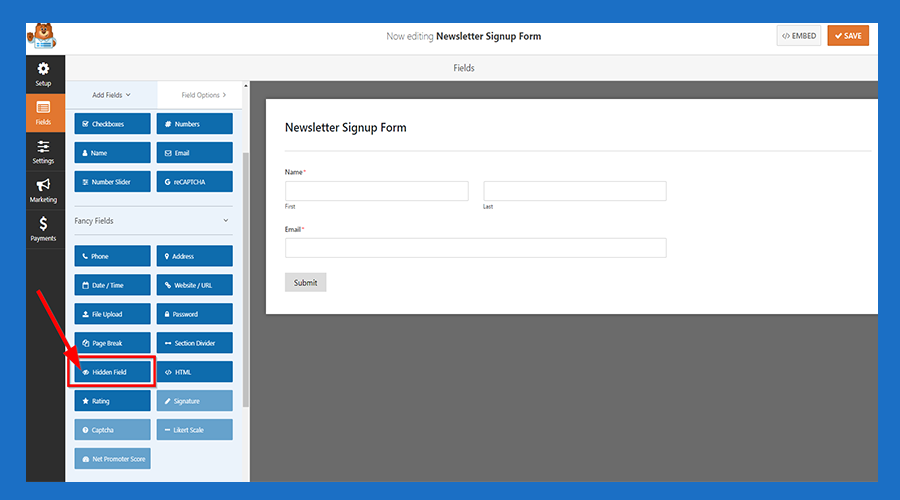
3. Click 'Hidden Field' Button
4. Hidden Field shows at the bottom of the form
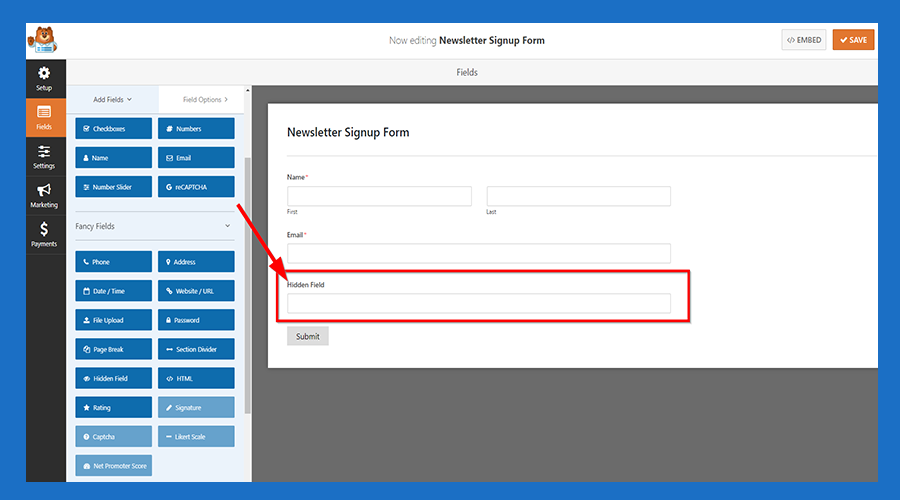
5. Click 'Hidden Field' and then a menu shows at the left side the form
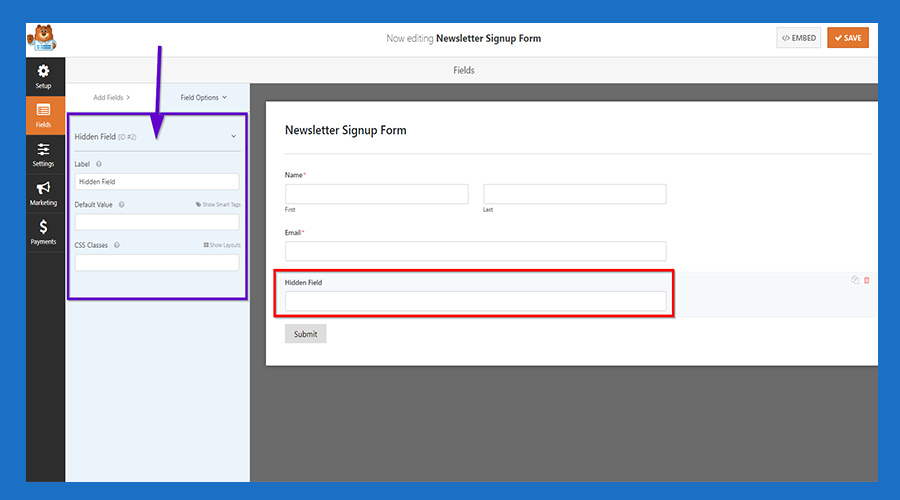
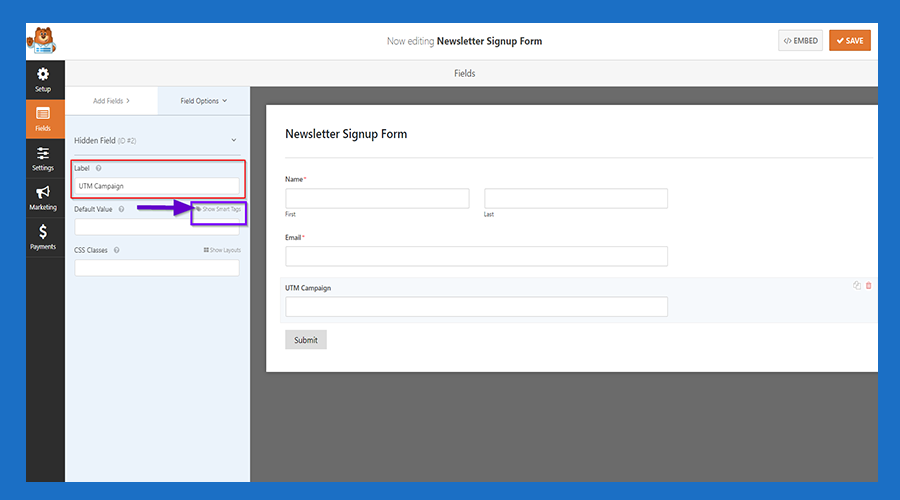
6. Give a name for your Hidden Field and then Click the 'Show Smart Tag'
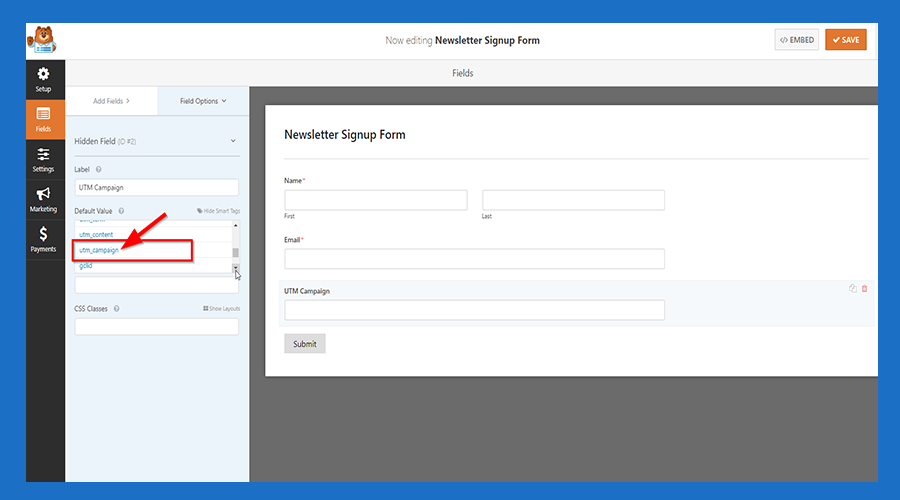
7.Scroll Down the menu and choose your value from the list
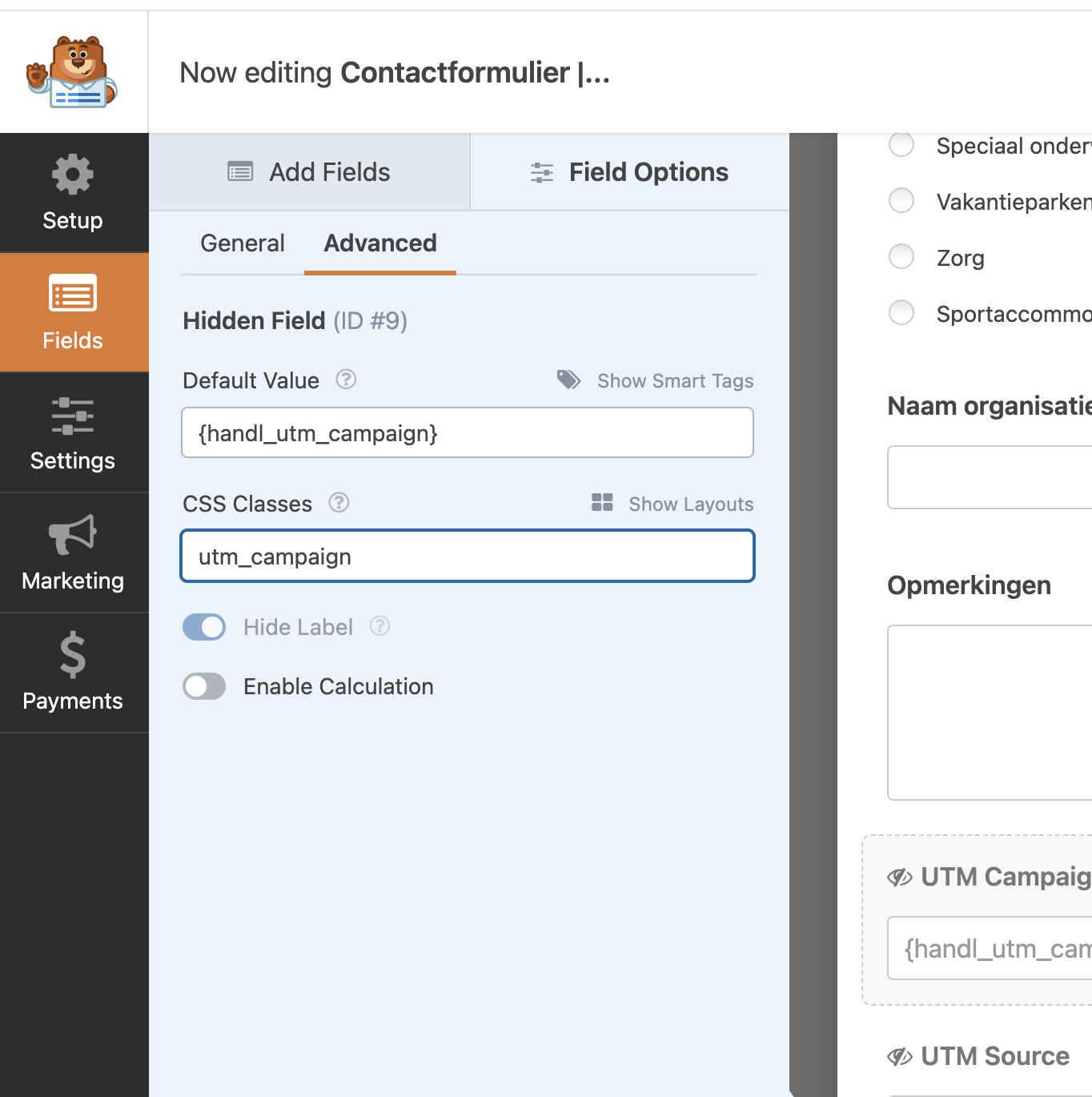
7.5.Add Class Variable After The Name
If you are adding utm_campaign, add the class variable as utm_campaign as well. This will enable client-side tracking to function properly, which is particularly helpful if caching is enabled on your site.
8. Save it and Now You are Ready

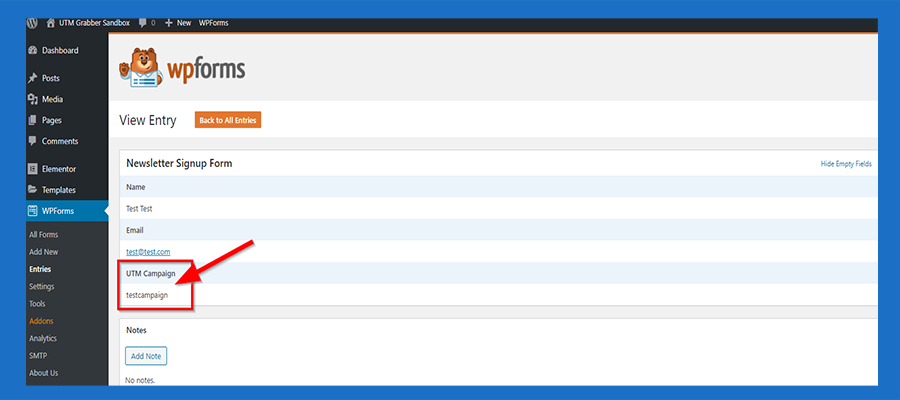
9. You can see your populated UTM Fields under entries
Track first (utm) attributions in WPForms with HandL UTM Grabber
UTM attribution overview
This guide explains Track first (utm) attributions in WPForms with HandL UTM Grabber. It helps you capture UTM source, medium, campaign, term, content, click IDs, referrer, and landing page data and keep the marketing context needed for accurate reporting across forms, bookings, signups, and sales.
First attributions paramaters are not showing up in smart tags in WP Form? or you want to include more custom parameters in WP Forms? follow this tutorial...
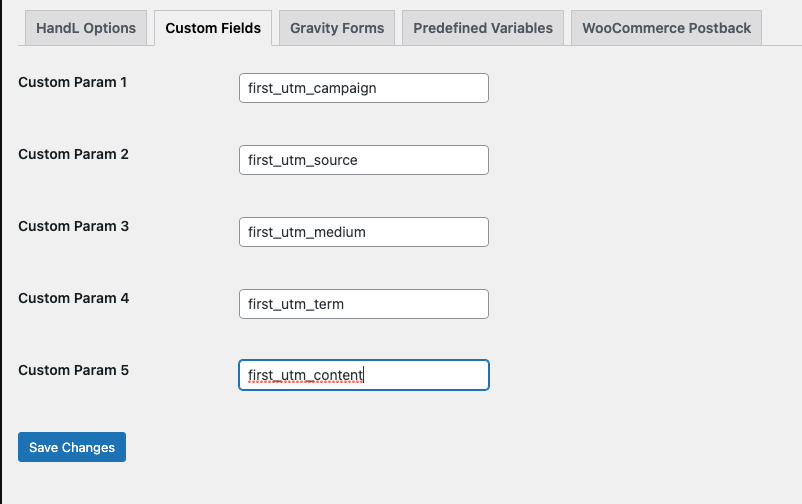
First add all the first attribution parameters as custom parameters
They will show in Smart Tags
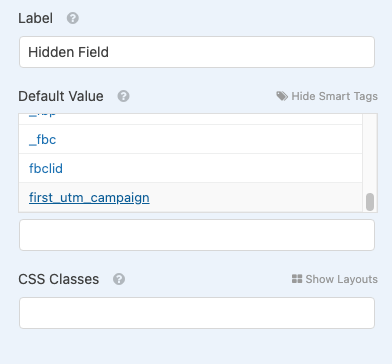
From here, you can use them just like any other parameters.