# Zoho Forms UTM Tracking Integration
Set up Zoho Forms with HandL UTM Grabber to capture UTM parameters, GCLID, FBCLID, referrer, and landing page data in hidden fields for lead attribution.
# Zoho Form: Embed forms using JavaScript - HandL UTM Grabber Guide
## UTM attribution overview
This guide explains Zoho Form: Embed forms using JavaScript - HandL UTM Grabber Guide. It helps you pass lead attribution into your CRM, email platform, or marketing automation workflow and keep the marketing context needed for accurate reporting across forms, bookings, signups, and sales.
##### We are showing JavaScript method here but this can be implemented similarly to iframe as well. We prefered JavaScript because Zoho Forms are responsive only when JavaScript method is used.
##### Let's get started...
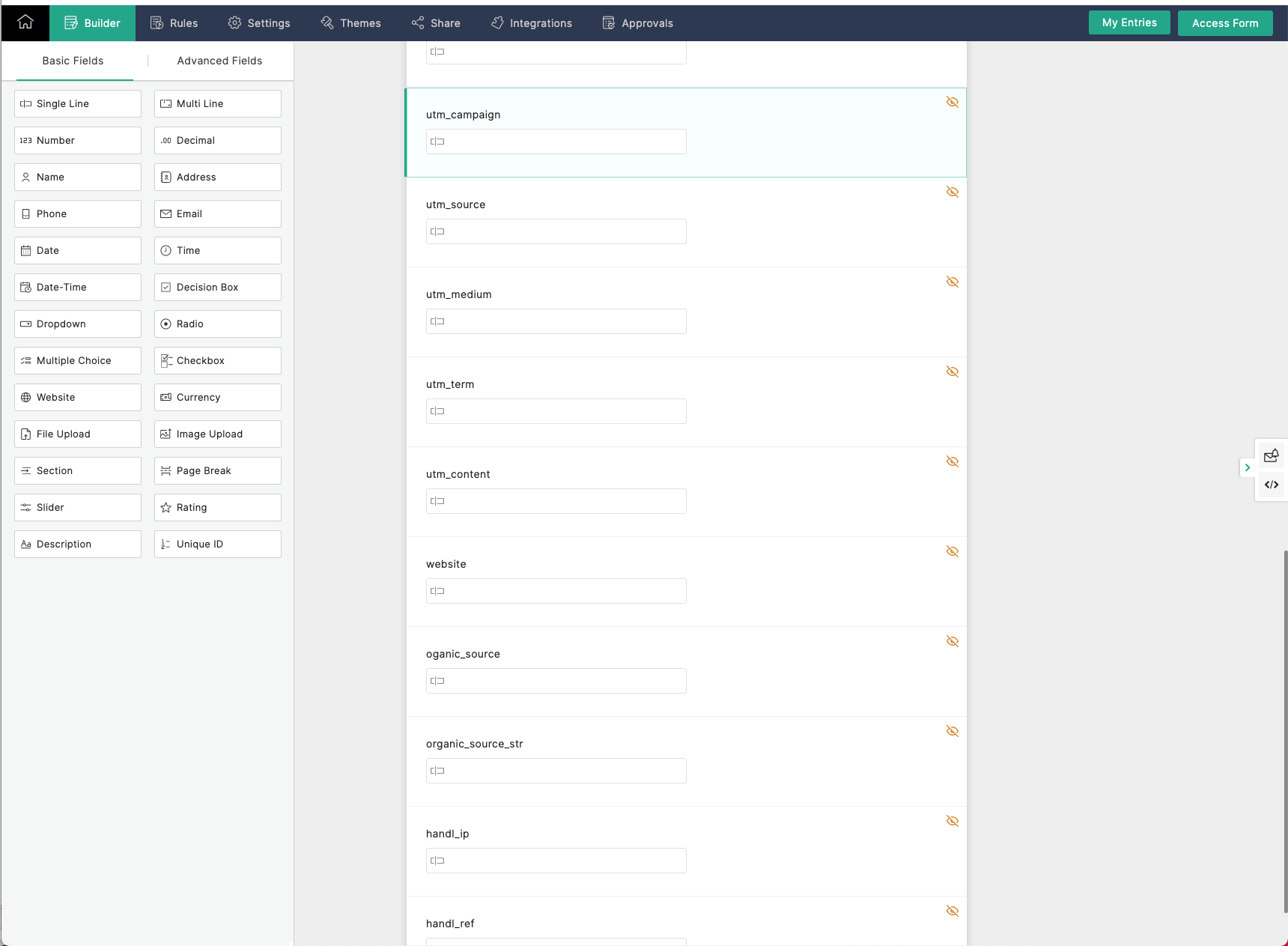
##### All the UTM fields are automatically added to your forms by Zoho, so you do not need to anything there. However, if you would like to add other custom parameters such as gclid, referrer url, IP ( you can find the full list here [Native WP Shortcodes](https://docs.utmgrabber.com/books/101-getting-started-for-handl-utm-grabber-v3/page/native-wp-shortcodes) ). You need to create cutom fields in Zoho.
[](https://docs.utmgrabber.com/uploads/images/gallery/2021-10/image-1633928912831.png)
##### Luckily Zoho has nice documentation about this (this may NOT needed), [see here](https://www.zoho.com/forms/help/share/embed.html). Scroll down to `B. Include URL Parameters` section.
##### Go ahead and make sure the names are exactly matching with our parameter name (e.g. for parameter `handl_url`, use custom arguments as `handl_url`)
##### After you added all the custom parameters.
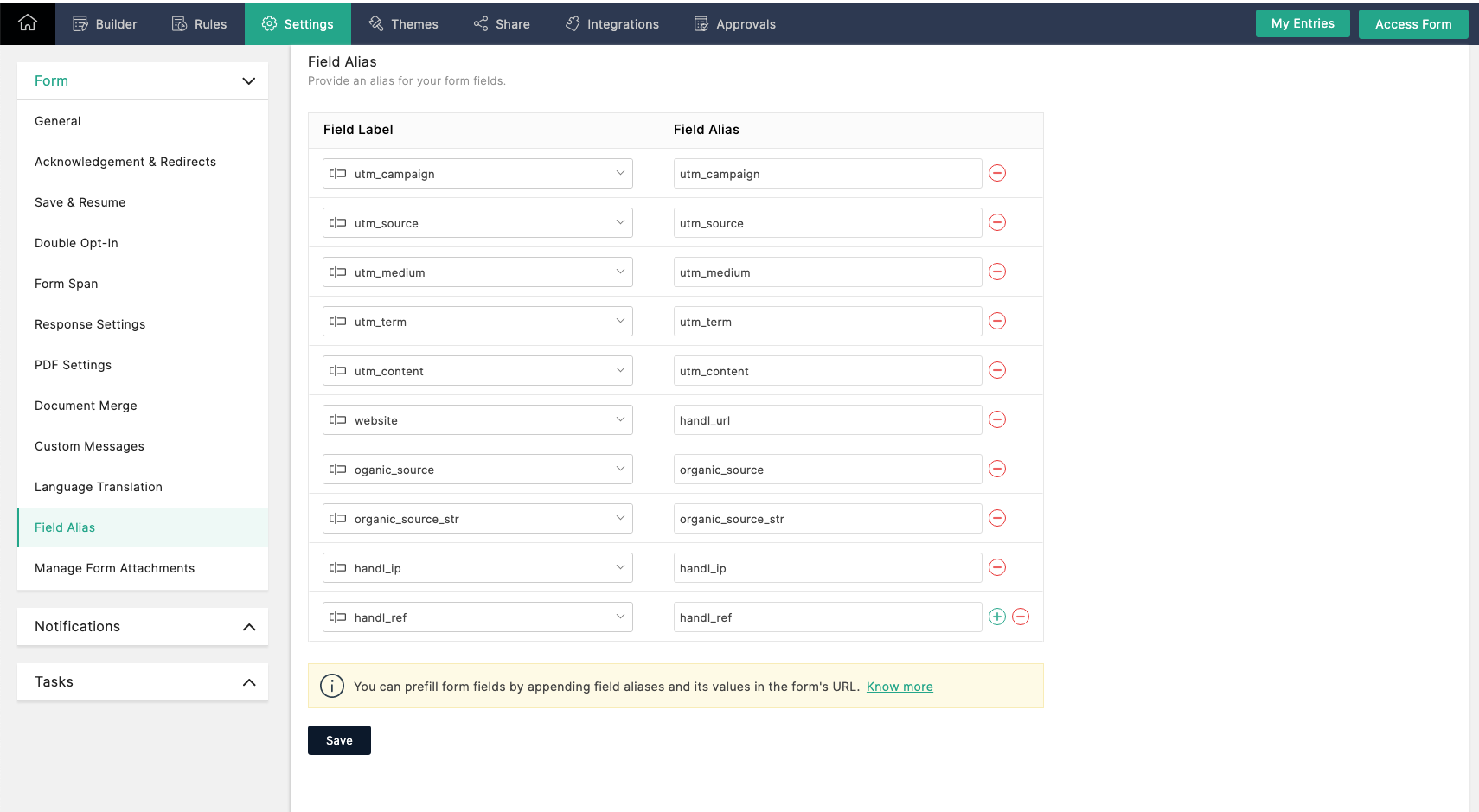
##### You need to add custom alias as it is [shown here](https://www.zoho.com/forms/help/settings/field-alias.html). Again, please make sure the names are exactly matching with our parameter name.
[](https://docs.utmgrabber.com/uploads/images/gallery/2021-10/image-1633928939130.png)
##### After that, grab your JavaScript code which will look like this.
```
```
##### and simply add one line code there just like shown below
```
```
##### Notice we just added `f.classList.add('utm-src')` the above form. Now you should be set collecting all the UTMs and custom parameters in your Zoho Forms.
# Send Zoho Forms UTMs via Zapier or Webhook
## UTM attribution overview
This walkthrough covers sending full UTM Grabber data from Zoho Forms to Zapier, Make, or your own webhook. Handy when you need gclid, fbclid, first-touch fields, or custom params alongside the lead or order.
For the primary setup, see [the main Zoho Forms guide](https://docs.utmgrabber.com/books/zoho-forms-integration/page/zoho-form-embed-forms-using-javascript).
### When a webhook makes sense
Native fields in Zoho Forms often stop at basic UTMs. A webhook lets you push everything UTM Grabber stores without trimming values or losing click IDs.
### Thank-you page script
Paste this on your confirmation page. Swap in your Zapier or Make hook URL.
```
```
Full pattern explained in [Triggering Zapier on Thank you Page](https://docs.utmgrabber.com/books/zapier-integration/page/triggering-zapier-on-thank-you-page).
### Quick Zapier / Make checklist
1. Create a Catch Hook trigger and copy the URL
2. Run a test conversion with UTMs in the landing URL
3. Confirm gclid, utm\_source, and email (if present) show up in the payload
4. Map fields into your CRM or spreadsheet
Parameter reference: [Native WP Shortcodes](https://docs.utmgrabber.com/books/102-getting-started-for-handl-utm-grabber-v3/page/native-wp-shortcodes).
Make users: see [Make Integromat integration](https://docs.utmgrabber.com/books/makecomintegromat-utm-tracking-integration).