'Enabling GDPR' documentation with screenshots for UTM Tracking Consent
UTM attribution overview
This guide explains 'Enablinghow GDPR'to documentationcollect withand screenshotsrespect forcookie UTM Tracking Consentconsent with HandL UTM Grabber.Grabber, It helpsso you respectstay consent choicescompliant while preservingkeeping the UTM parameters foryou compliant WordPress attribution and keep the marketing context neededneed for accurate reportingWordPress attribution across forms, bookings, signups,signups and sales.
Everything lives under 1.ClickUTM UTM,> checkGDPR.
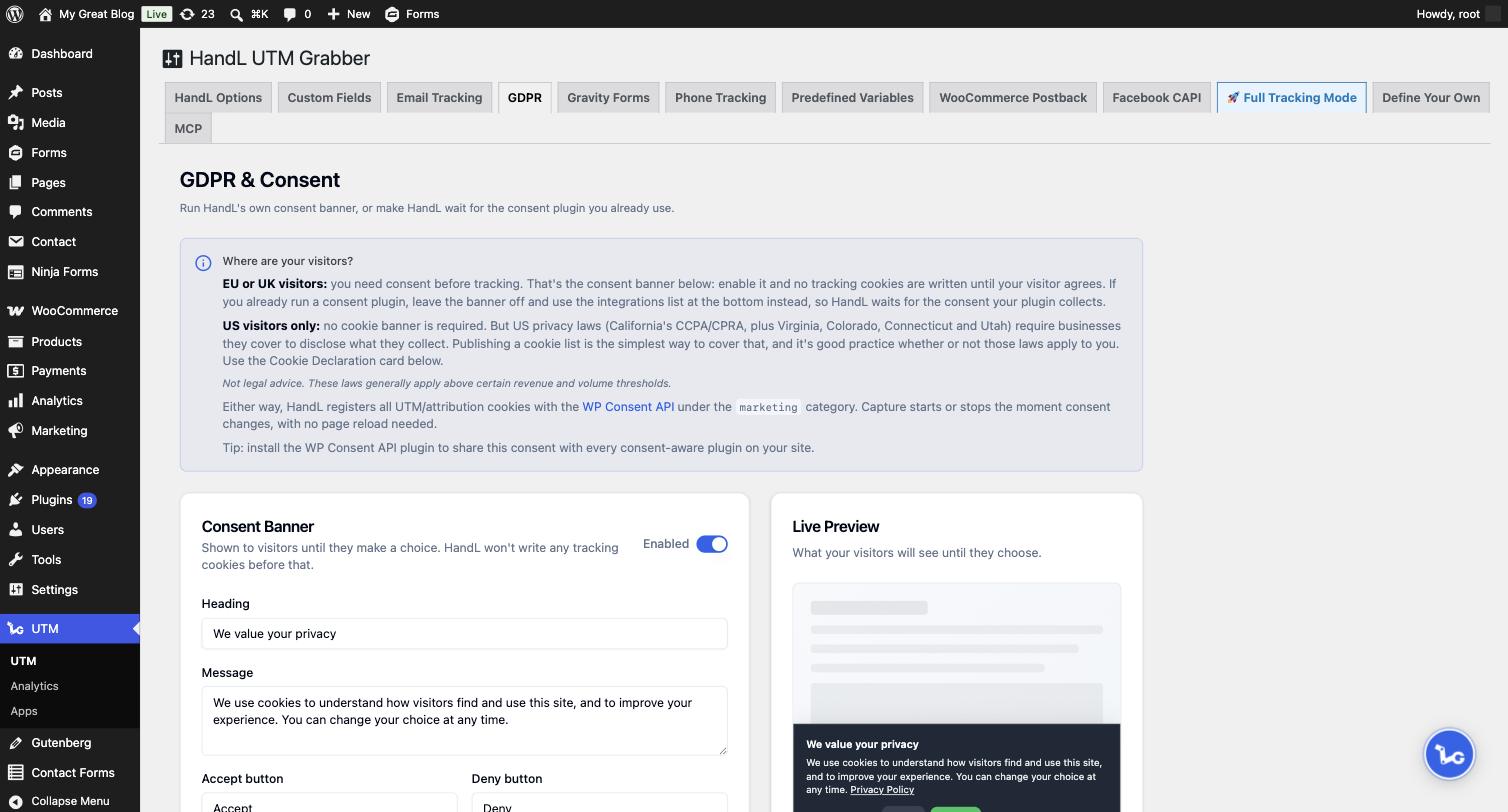
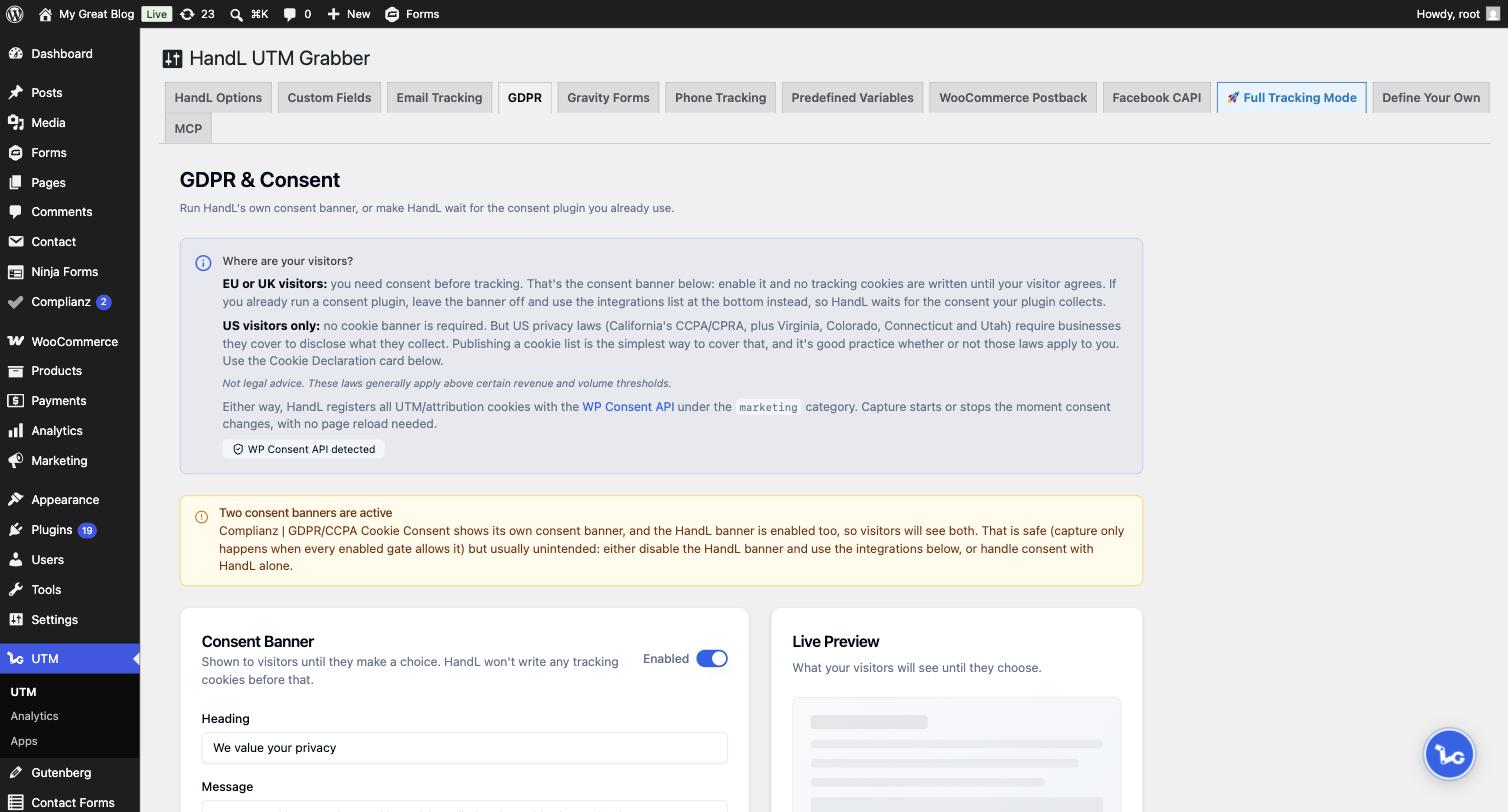
The panel at the top of the tab points you to the right setup:
- EU or UK visitors: you need consent before tracking. Use the consent banner below. It can collect consent just for HandL, or act as the consent tool for your whole site through the WP Consent API.
- Already using a consent plugin: leave the banner off and tell HandL to wait for it.
- US visitors only: no cookie banner is required, but you do need to disclose the cookies you set. See Publishing your cookie list for that.
1. Turn on the consent banner
2. Customize the wording and the look
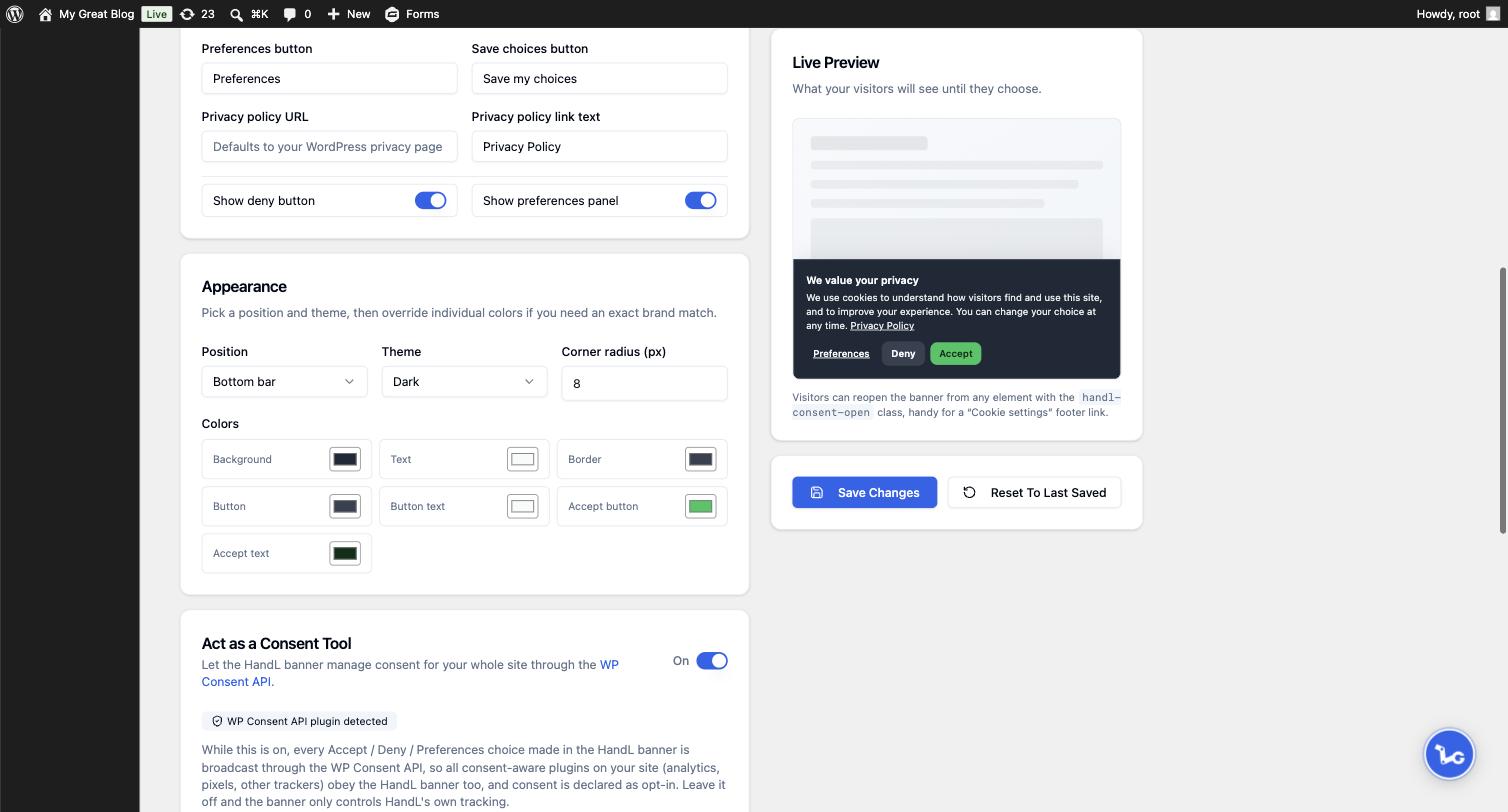
Change the heading, message, button labels and the privacy policy link to match your site. Under Appearance you can set:
- Position: bottom bar, bottom left, bottom right or centered modal
- Theme: light or dark
- Corner radius and individual colors, if you need an exact brand match
The Live Preview on the right updates as you type, so you can see the result before saving.
3. What your visitors see
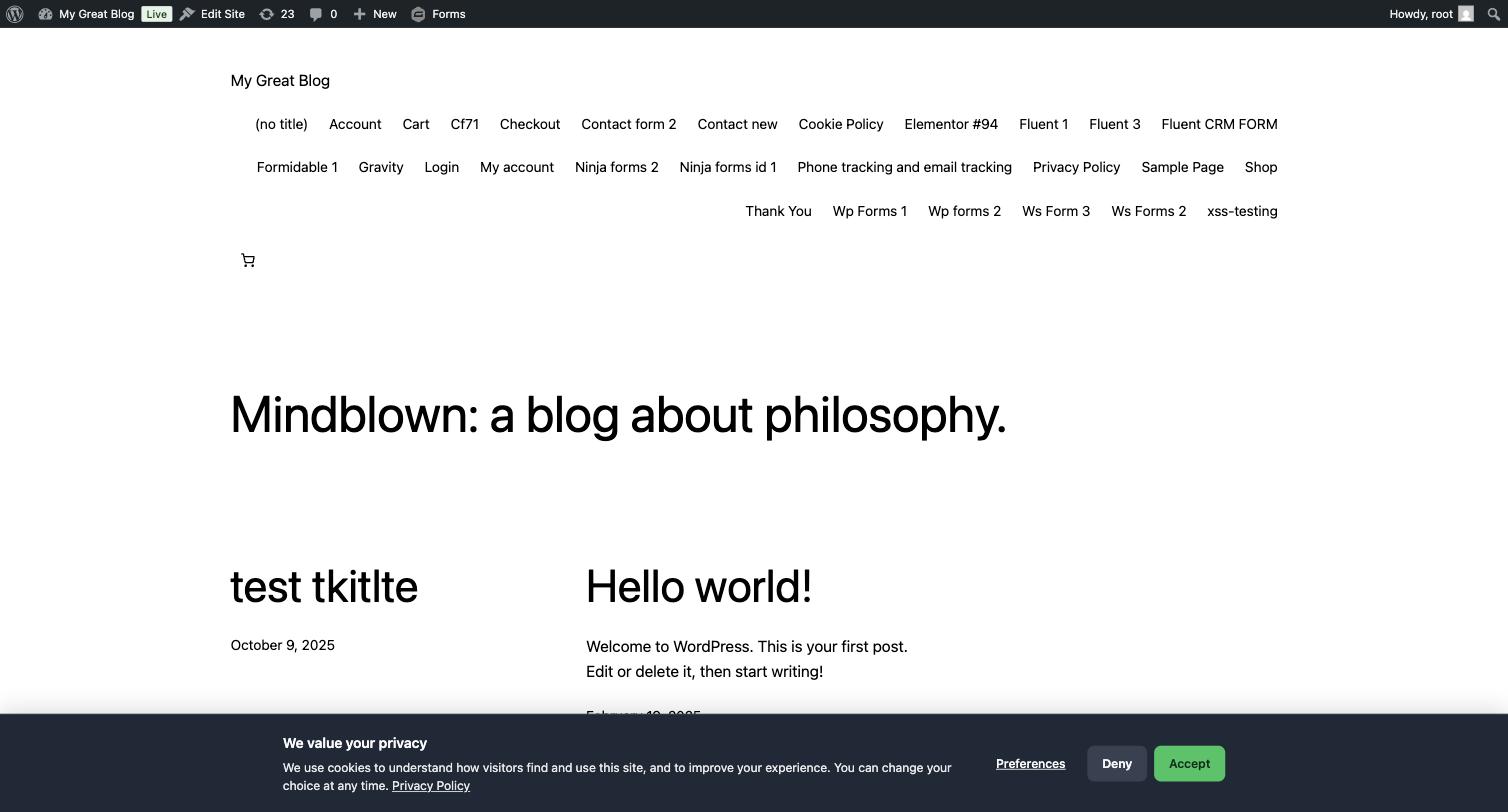
Preferences lets them choose per category. Essential is always on, Statistics and Marketing can be turned off.
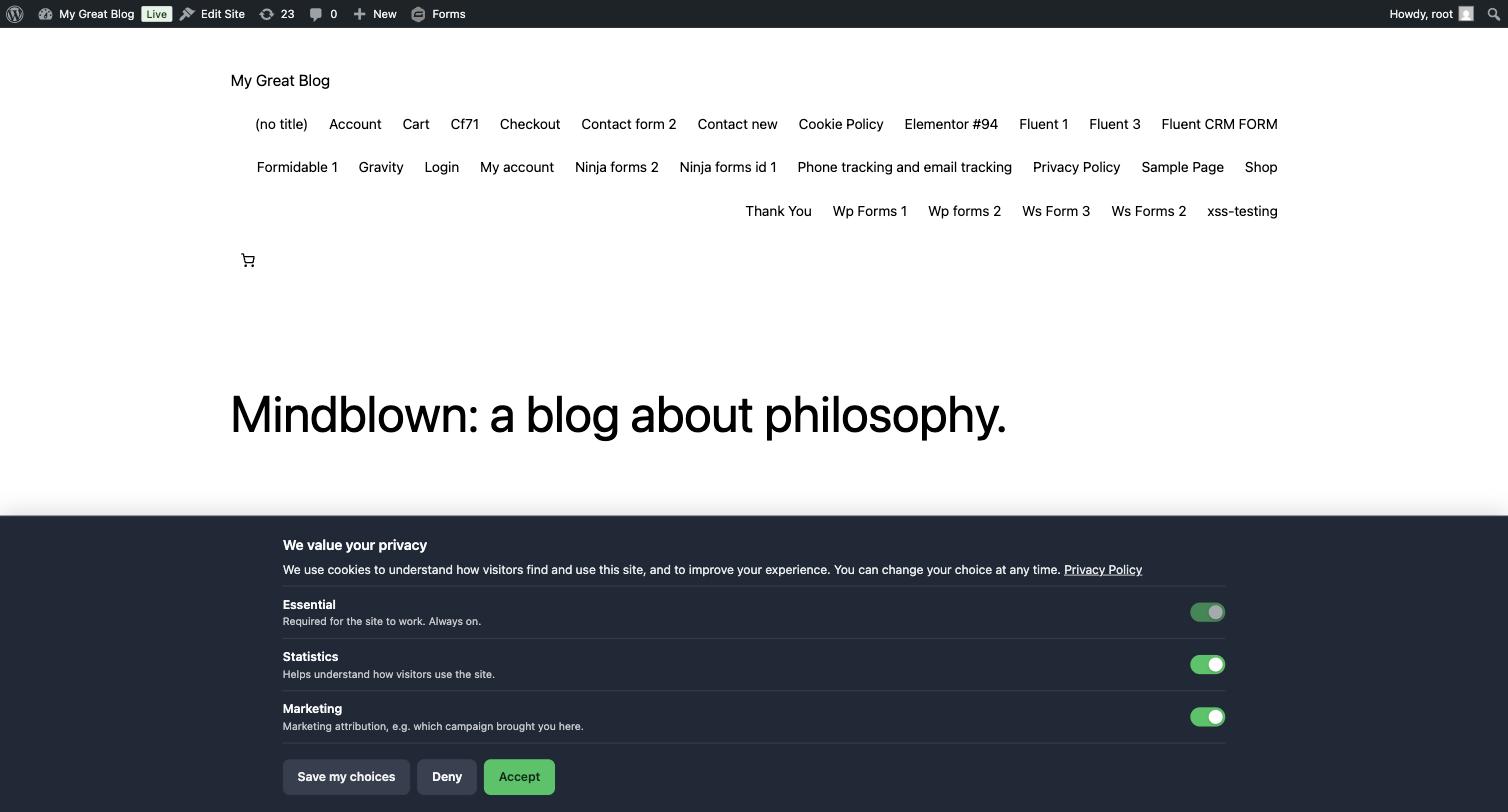
If a visitor denies, any tracking cookies already set are removed. If they accept later, capture starts immediately with no page reload.
Letting visitors change their mind: add the class handl-consent-open to any link or button and it reopens the banner. A "Cookie settings" link in your footer is the usual place:
<a href="#" class="handl-consent-open">Cookie settings</a>
4. Let HandL manage consent for your whole site
By default the banner controls HandL's own tracking. Turn on Act as a Consent Tool and the same banner becomes the consent tool for your whole site, so every consent aware plugin you run follows the choice your visitor makes in it.
It needs the free WP Consent API plugin, the WordPress standard for sharing consent between plugins. Install and activate it and the switch becomes available.
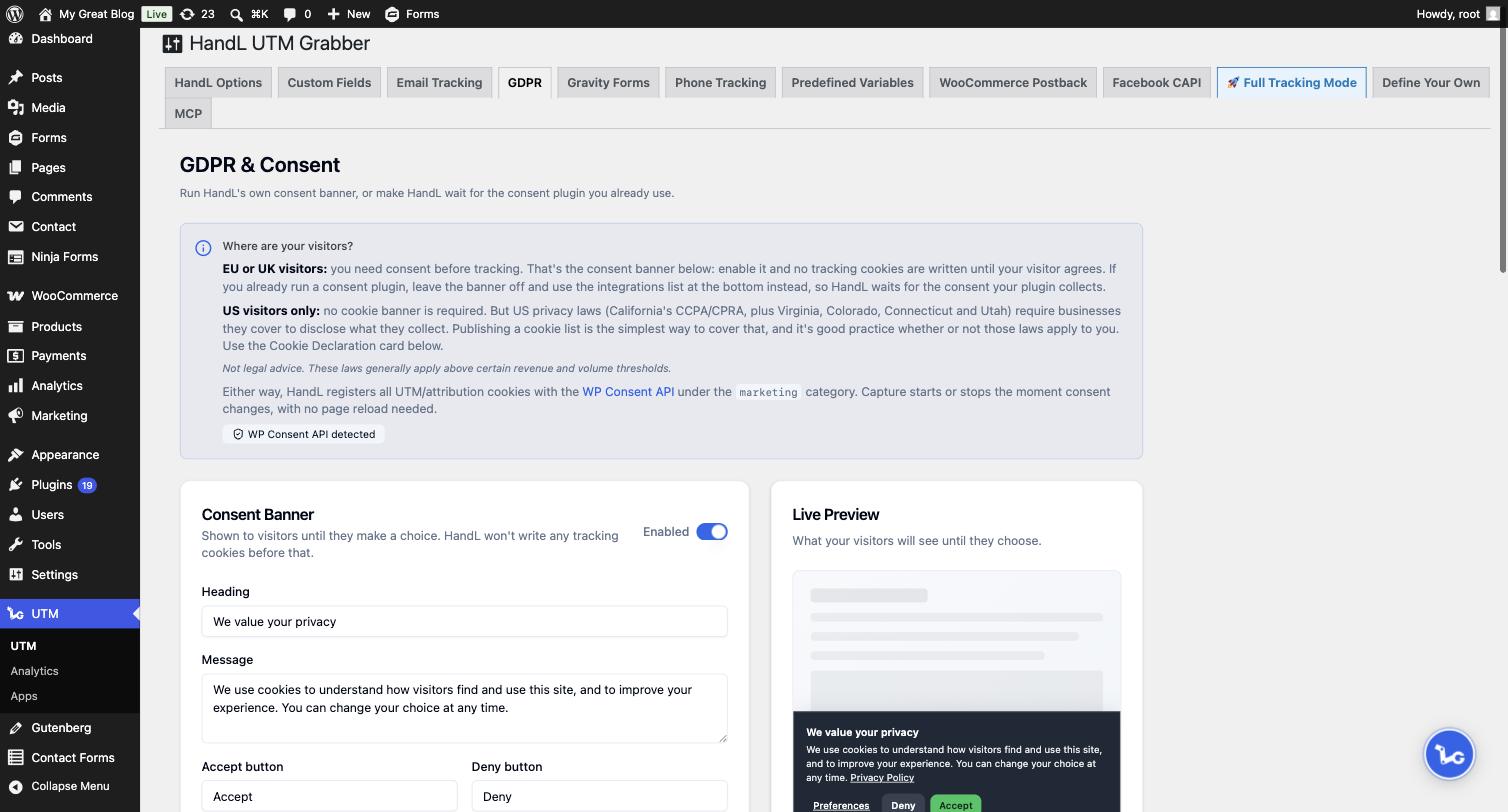
For sites whose tracking comes from WordPress plugins, this can replace a dedicated consent plugin entirely. Third party scripts and embeds are a different matter, since they never ask the API. See Using HandL UTM Grabber as your site's consent tool for what this mode reaches, what it does not, and which setup to pick.
Already using another consent plugin?
Leave the HandL banner off and use Consent Plugin Integrations at the bottom of the tab instead. Turn on the switch next to your plugin and HandL waits for the consent that plugin collects, so your visitors only ever see one banner.
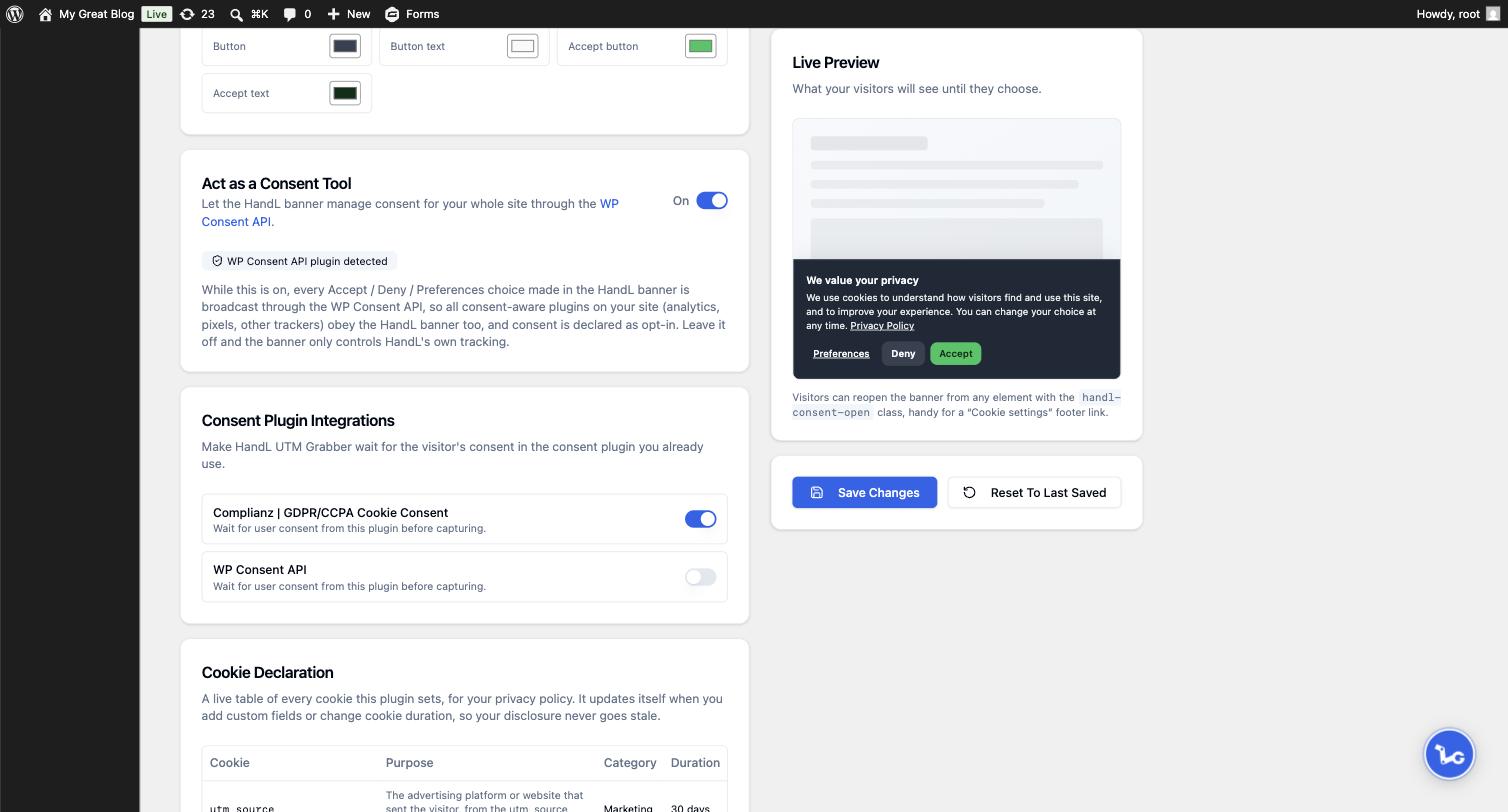
Supported plugins appear in this list automatically when they are active, including Cookiebot, Complianz, Borlabs, CookieYes, Real Cookie Banner, WPConsent, Cookie Notice by dFactory and the WP Consent API.
If you enable the HandL banner while another consent plugin is also showing its own banner, the GDPR tab warns you, since your visitors would see two.
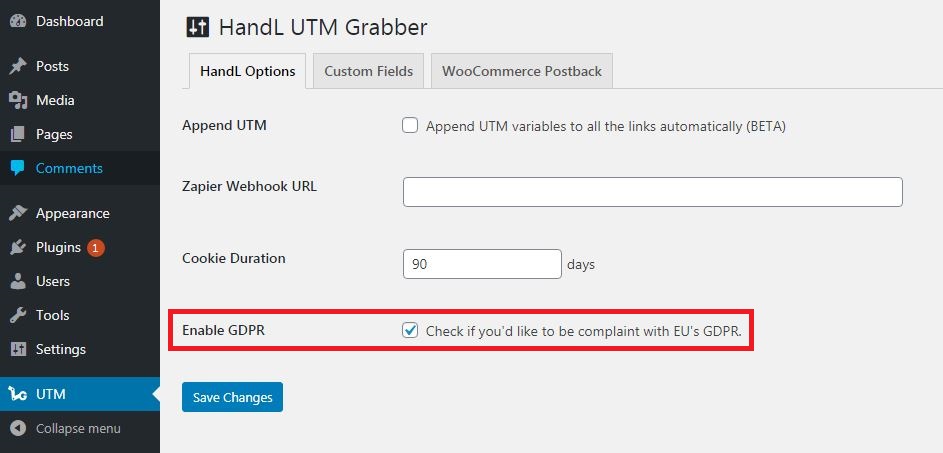
The old Enable
GDPR"GDPRboxcheckboxinon the HandL Options tab still works andsave changes
You can seecontrols thecookiesamealertsetting.below after refreshing the page