
HubSpot Contact Sync
UTM attribution overview
This guide explains how to send UTM data from your WordPress forms to HubSpot contacts with HandL UTM Grabber. It helps you capture UTM source, medium, campaign, term, content, click IDs, referrer, and landing page data and keep the marketing context needed for accurate reporting across forms, bookings, signups, and sales.
HubSpot Contact Sync connects your WordPress site to your HubSpot account. When someone submits one of your WordPress forms, HandL UTM Grabber looks up their email in HubSpot. If the contact exists, it adds where they came from. If not, it creates the contact first. You do not need Zapier, a HubSpot form, or any custom code.
Which guide do you need? Use this guide when your forms are built with a WordPress form plugin: Gravity Forms, Contact Form 7, Ninja Forms, Elementor, WPForms, Fluent Forms, or Formidable Forms. If your forms are HubSpot's own forms embedded on your site, use How to Track UTMs in Hubspot Form instead.
Before you start. You need HandL UTM Grabber v3 with an active license, at least one of the form plugins above with a form that has an email field, and a HubSpot user who is allowed to connect apps to your HubSpot account.
1. Open HubSpot Contact Sync and connect your account
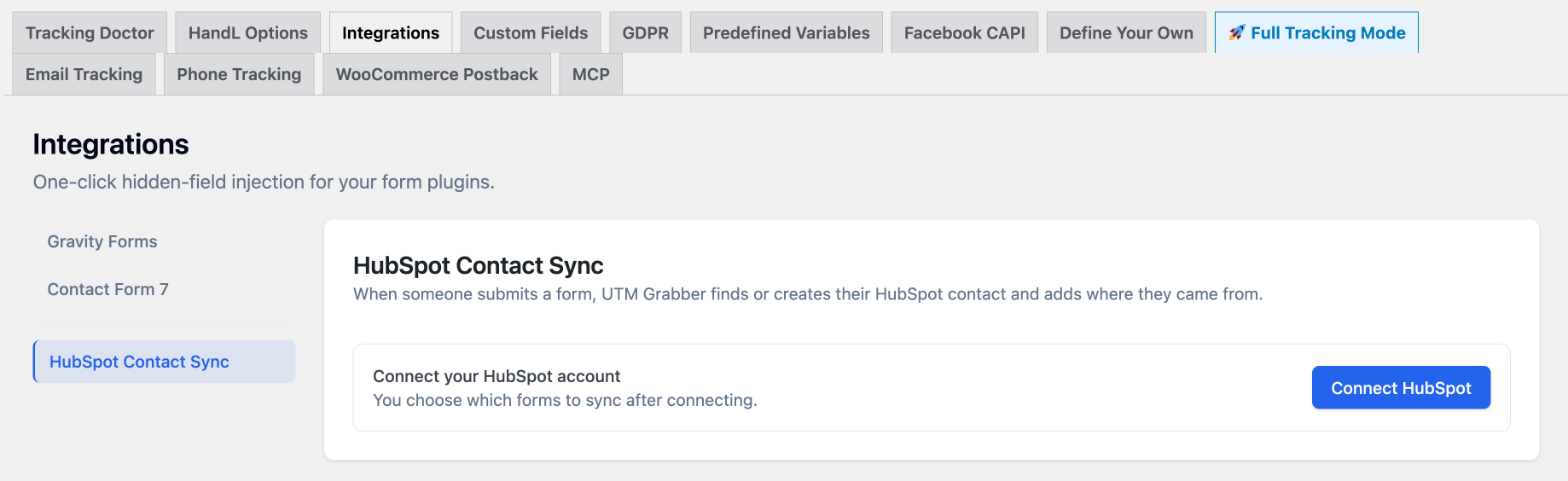
In WordPress, go to UTM, open the Integrations tab, and click HubSpot Contact Sync in the list on the left. Click Connect HubSpot. HubSpot opens and asks which account to connect. Choose your account and approve the connection. HandL UTM Grabber asks for access to contacts and contact properties only.
You are sent back to WordPress when you are done. The card now shows Connected to HubSpot with your HubSpot account under it.
2. Choose where each tracked value is stored
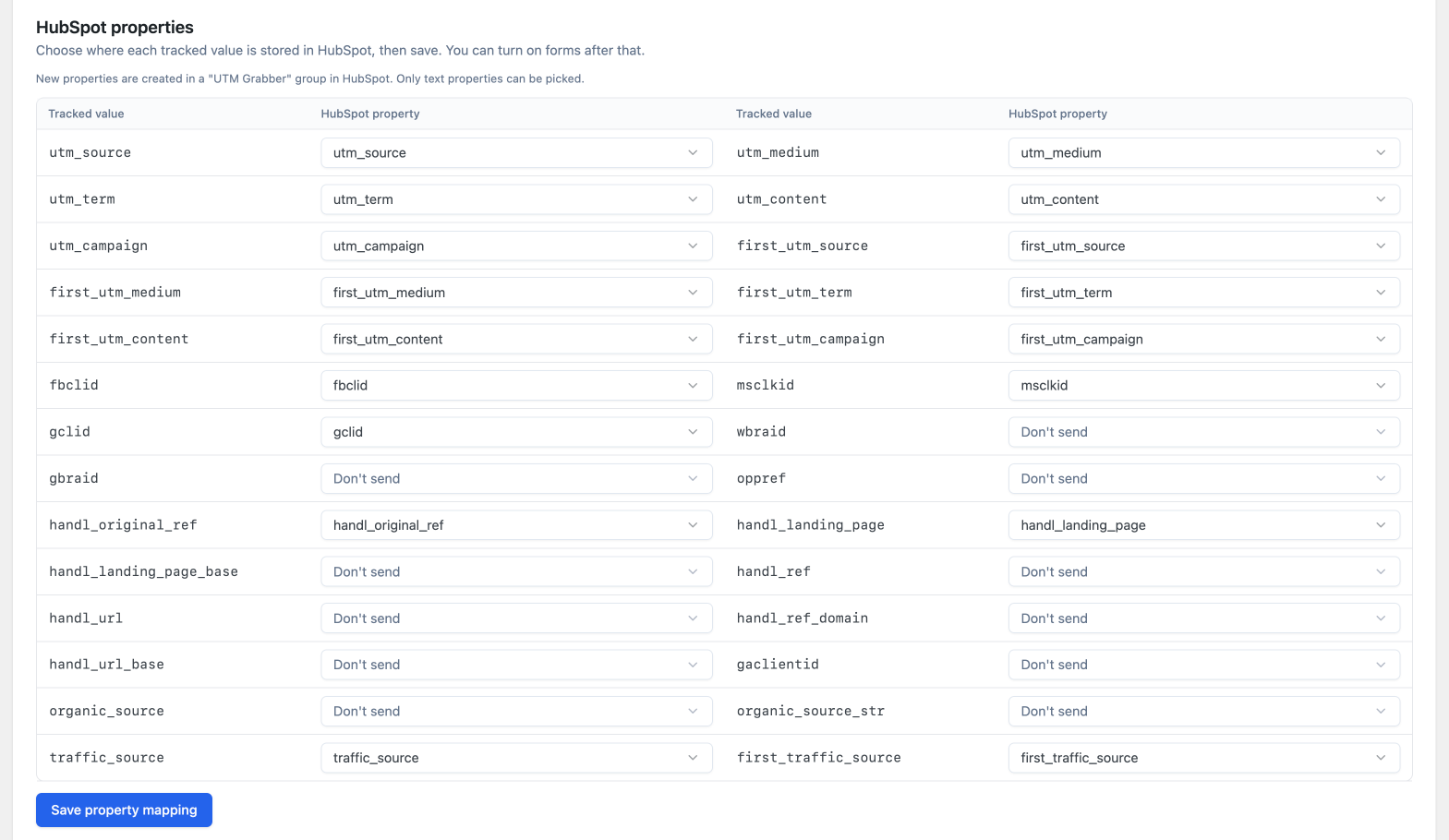
Under HubSpot properties, every tracked value has a dropdown. Pick one of three options for each:
- A HubSpot property. The value is saved to that contact property. Only text properties are listed. If HubSpot already has a text property with the same name, it is selected for you.
- Create new property. HandL UTM Grabber creates a text property with that name in a "UTM Grabber" group in HubSpot. This is the default for UTM values, first touch UTM values, click IDs, the original referrer, the landing page, and the traffic source.
- Don't send. The value stays in WordPress.
Custom parameters you added under Custom Fields are listed too. They start as Don't send, so pick a property for each one you want in HubSpot.
Click Save property mapping. You can change the mapping later with Edit mapping.
3. Turn on a form and choose its fields
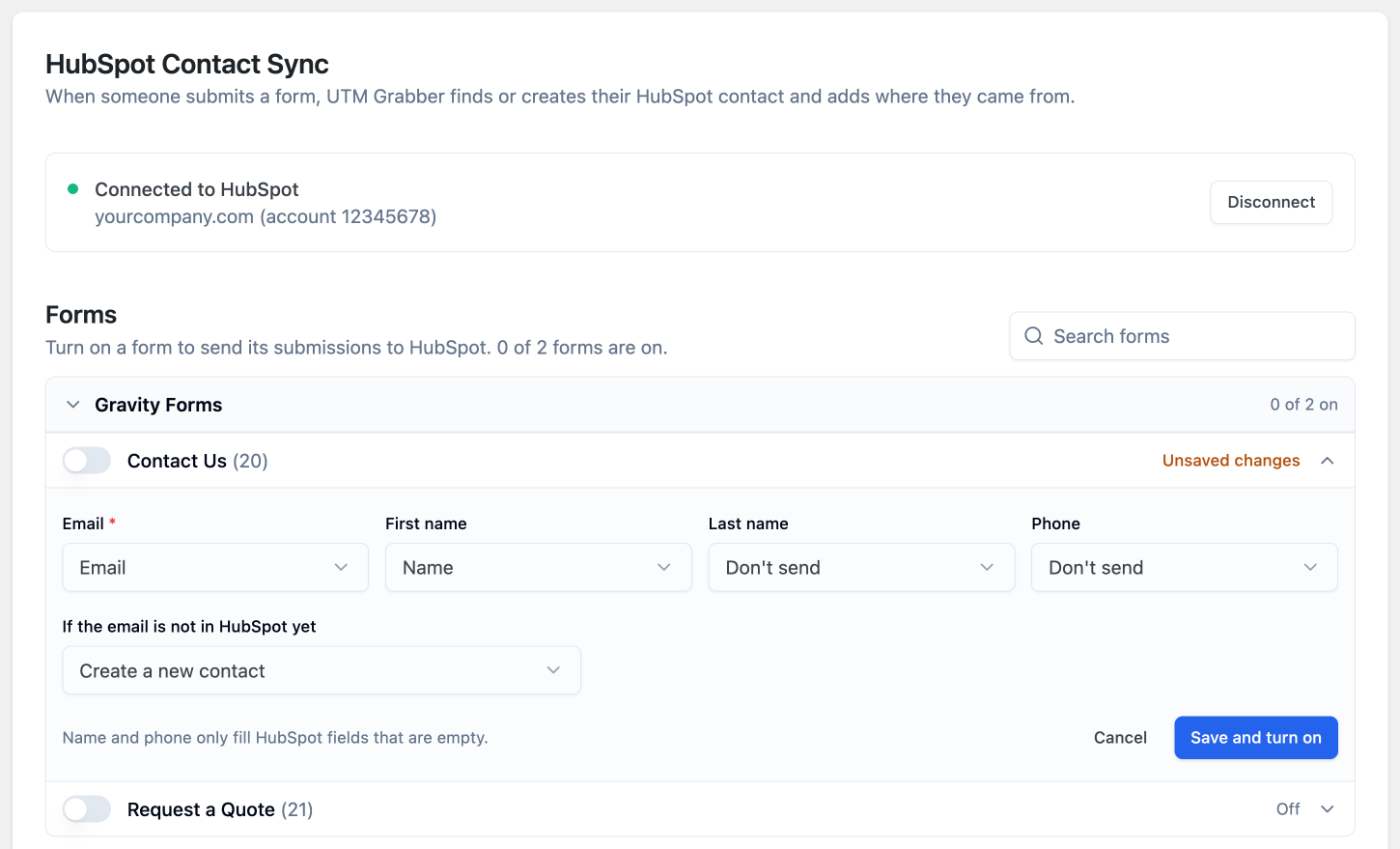
Under Forms, your forms are grouped by form plugin. Turn on the switch next to a form. The form opens so you can tell HandL UTM Grabber which of its fields is which:
- Email is required. It is how the contact is found in HubSpot.
- First name, Last name, and Phone are optional. They only fill HubSpot fields that are empty, so they never overwrite what you already have.
- If the email is not in HubSpot yet decides what happens to new people. Create a new contact adds them to HubSpot. Skip it, only update existing contacts leaves them out.
Click Save and turn on. The form now shows Syncing. Repeat for every form you want to send to HubSpot.
4. Send a test lead and check the Sync log
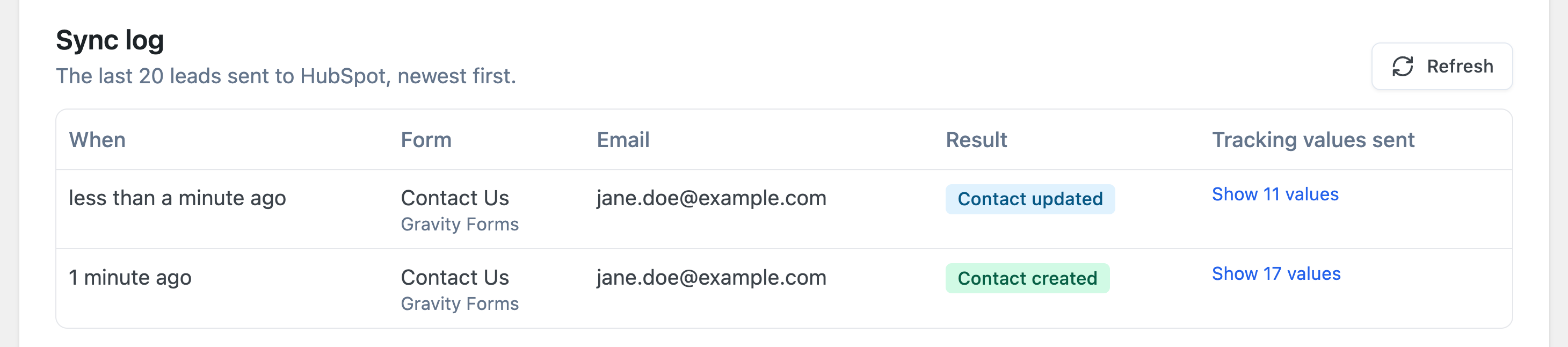
Open a page that has the form, add UTM parameters to the address (for example ?utm_source=google&utm_medium=cpc&utm_campaign=spring_sale), and submit the form. Leads are sent in the background, so the result shows in the Sync log within a few minutes. Click Refresh to update it.
The Sync log keeps the last 20 leads. Each one shows a result:
- Contact created. The email was new, so a contact was added with the tracking values.
- Contact updated. The email was already in HubSpot and the tracking values were added to it.
- No matching contact. The form is set to only update existing contacts and nobody with that email was found.
- Failed. The lead could not be sent. The reason is shown under the result.
Click Show values on a row to see exactly which tracking values were sent.
5. Check the contact in HubSpot
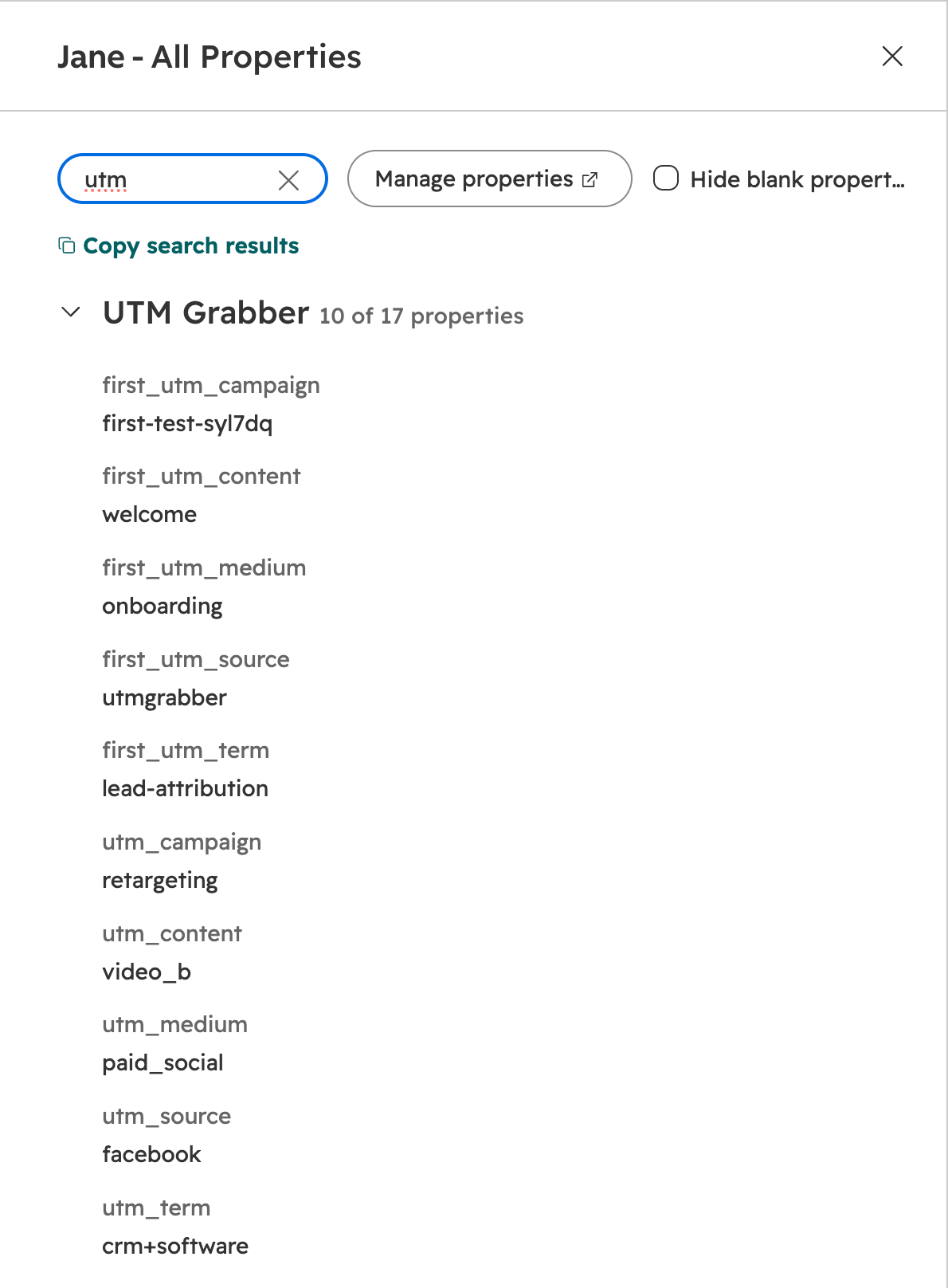
In HubSpot, open the contact and click View all properties. Search for "utm" or scroll to the UTM Grabber group. The properties hold the values from the visit that led to the form submission.
How values are updated
When the same person submits a form again, HandL UTM Grabber updates the same contact:
- First touch values (the ones that start with
first_) are written once and then left alone, so you always keep where the person first came from. - All other tracking values are replaced with the latest ones, so you can see what brought them back.
- First name, last name, and phone are only filled when the HubSpot field is empty.
The tracking values come from the form's hidden tracking fields. If the form has none, they come from the visitor's tracking cookies. IP address, user agent, and browser IDs are never sent to HubSpot.
If a lead does not arrive
A lead that cannot be sent is tried again after 1, 5, 15, 30, and 60 minutes. If it still cannot be sent, it shows as Failed in the Sync log.
- Email field missing. The email field you chose was empty, or it was removed from the form. Open the form under Forms and choose the email field again.
- Invalid email. The submitted value is not a valid email address, so no contact can be matched.
- No matching contact. The form only updates existing contacts. HandL UTM Grabber keeps looking for the contact for about two hours before it gives up, which gives other tools time to create it. Switch the form to Create a new contact if you want new people added.
- Reconnect HubSpot. HubSpot stopped accepting the connection, for example because the app was removed in HubSpot. Click Reconnect HubSpot. Leads that came in meanwhile are sent after you reconnect.
- Syncing is paused. Your HandL UTM Grabber license is not active. Renew the license to start syncing again.
- A form is not listed. Only forms from active form plugins are shown. Activate the form plugin, create the form, and reload the page.
Disconnect
Click Disconnect on the connection card. New form submissions stop going to HubSpot. Your form settings and property mapping are kept, so you can reconnect later without setting them up again. The contacts and properties already in HubSpot are not changed.
Here we only illustrated the UTM parameters. You can send all the other tracking parameters the same way. See the full list in Native WP Shortcodes.