HandL GCLID Reporter
GCLID Reporter
GCLID, short for Google Click Identifier, is a unique and hihglyhighly encrypted tracking parameter that Google uses internally to transfer information between your Google Ads account and your Google Analytics account. As you know, GCLID is not directly available in Google Ads, so it isn't possible to associate GCLID data with the users/campaign/location in Google Ads.
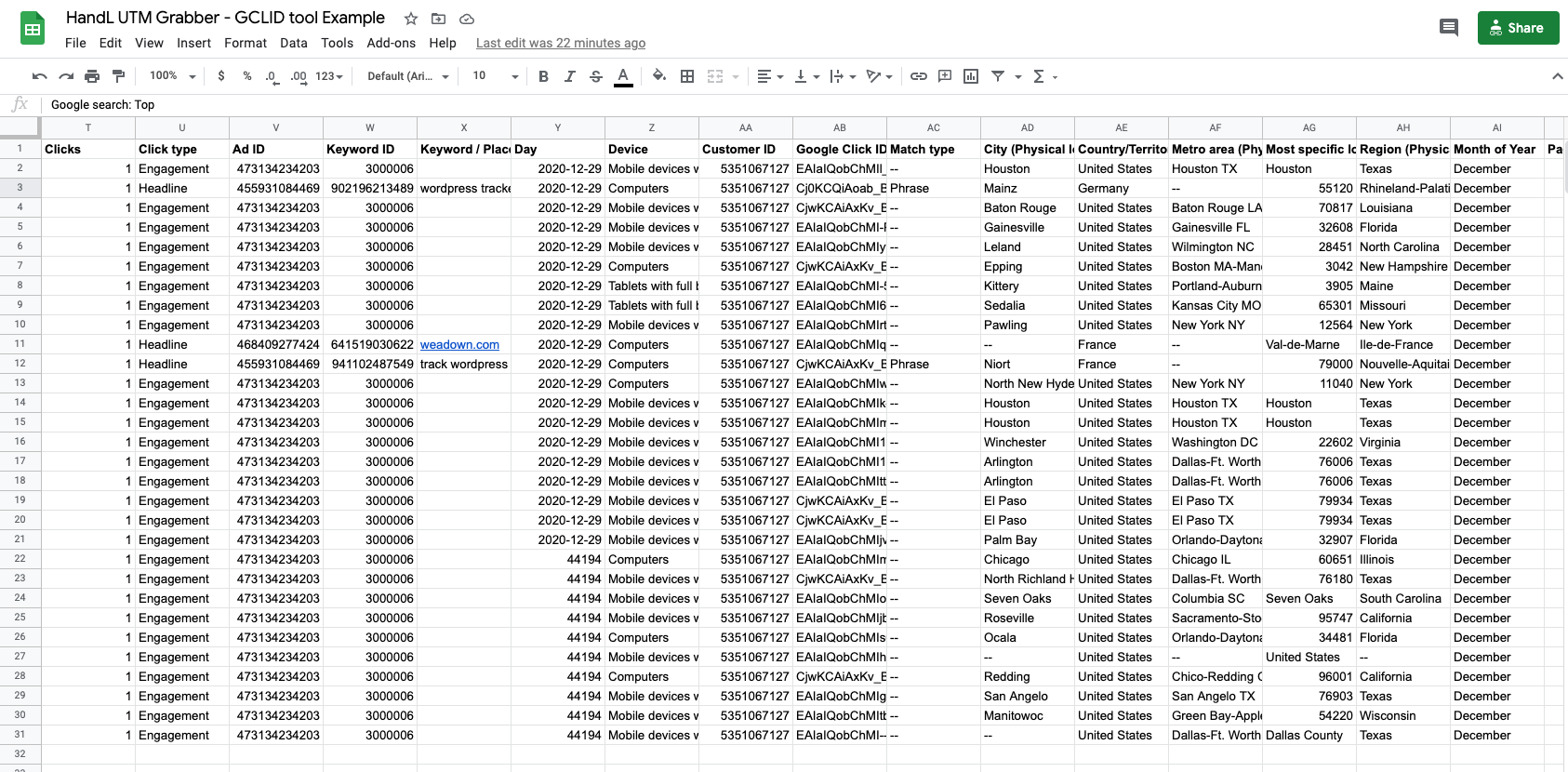
HandL UTM Grabber allows tracking GCLID throughout the conversion. With the GCLID collected and GCLID reporter,Reporter, now you can create daily reportreports associating every single GCLID to your campaign, adsad groups and even to the level of adsad creativecreatives. You can also see which location each GCLID is associated,associated with, and if itit's isa search ads,ad, you can see the exact (or phrase) keywords used for the corresponding GCLID value. In addition to that, you'll see the placement, click type (engagement or headline), device, adsad network and more.
See a Sample Report
SeeClick below to view a sample report (It opens in Google Spreadsheet):
Temporarily,
this tool is available to ALL paid subscribers completely for FREE. No IFs and BUTs.
How to useUse it?
GCLID Reporter
Step 1: Go to Appsthe section
GCLID Reporter Page
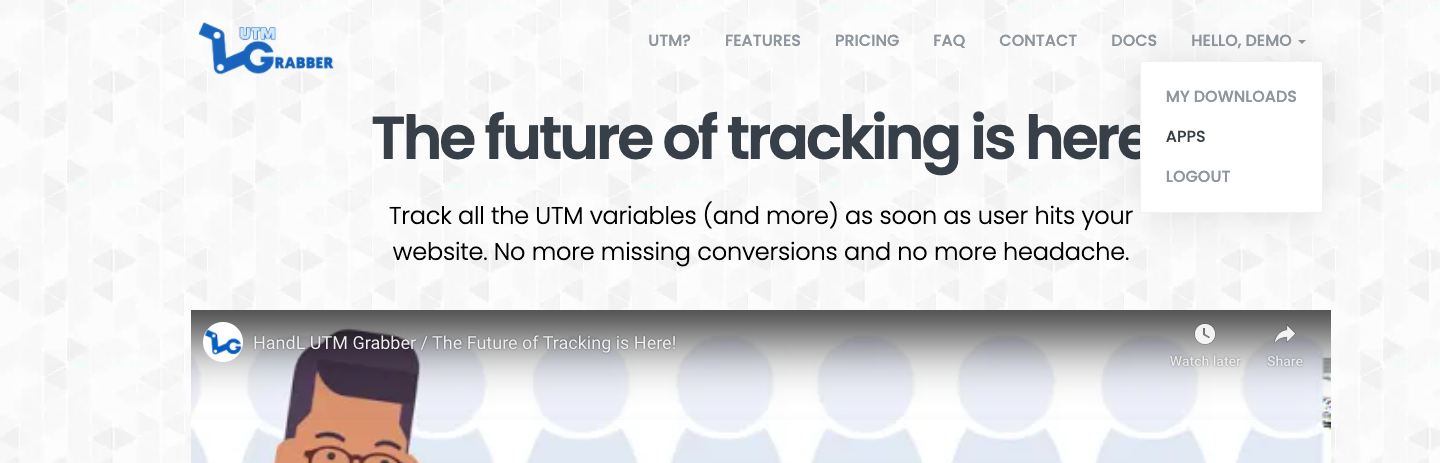
Login to utmgrabber.com and clicknavigate to the (GCLID Reporter page).
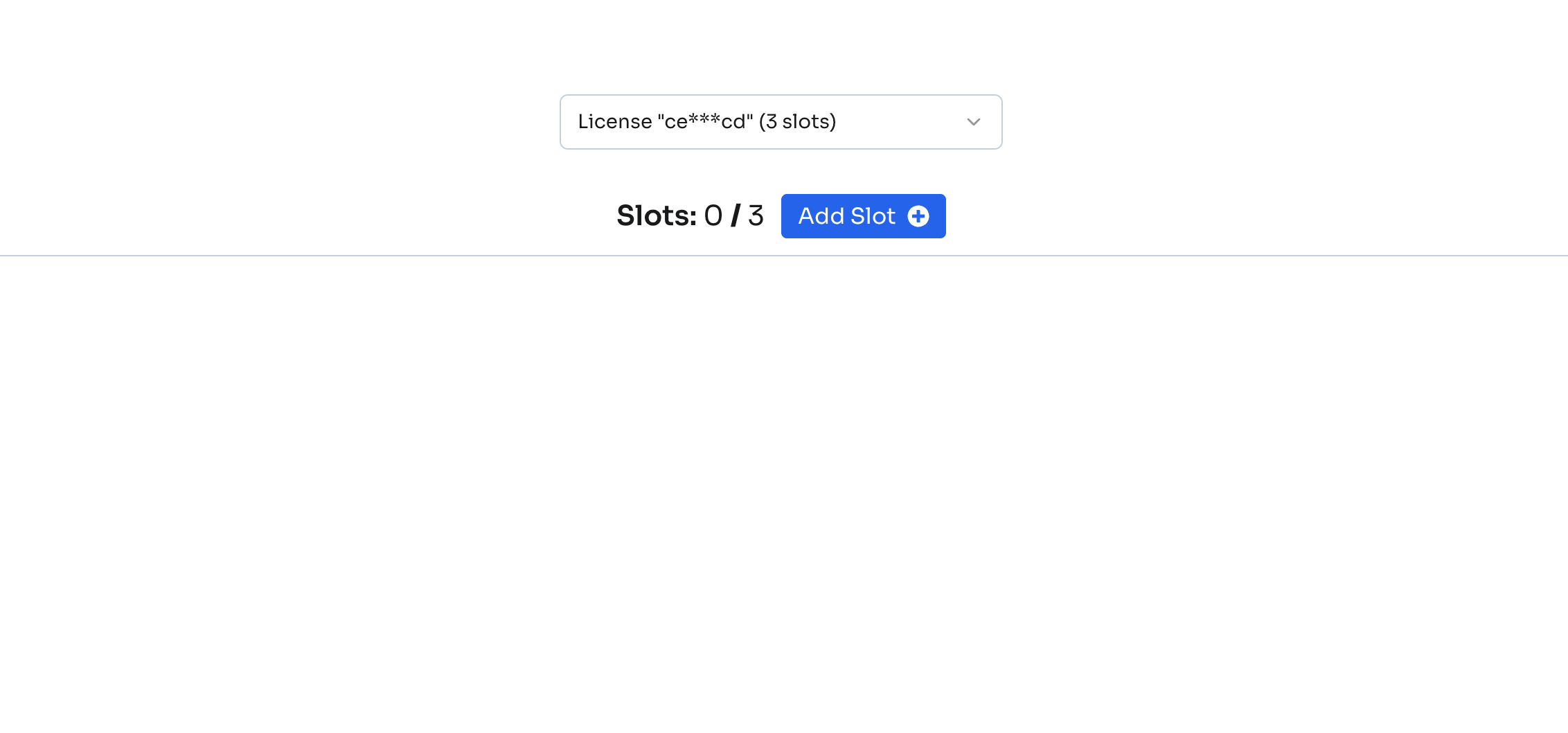
You'll see your namelicense information with the number of available slots for connecting Google Ads accounts.
Step 2: Add a Slot and select Apps from the menu.
Authorize with Google
Click the Add Slot button to connect a Google Ads account. You'll see the "Authorize with Google" button appear.
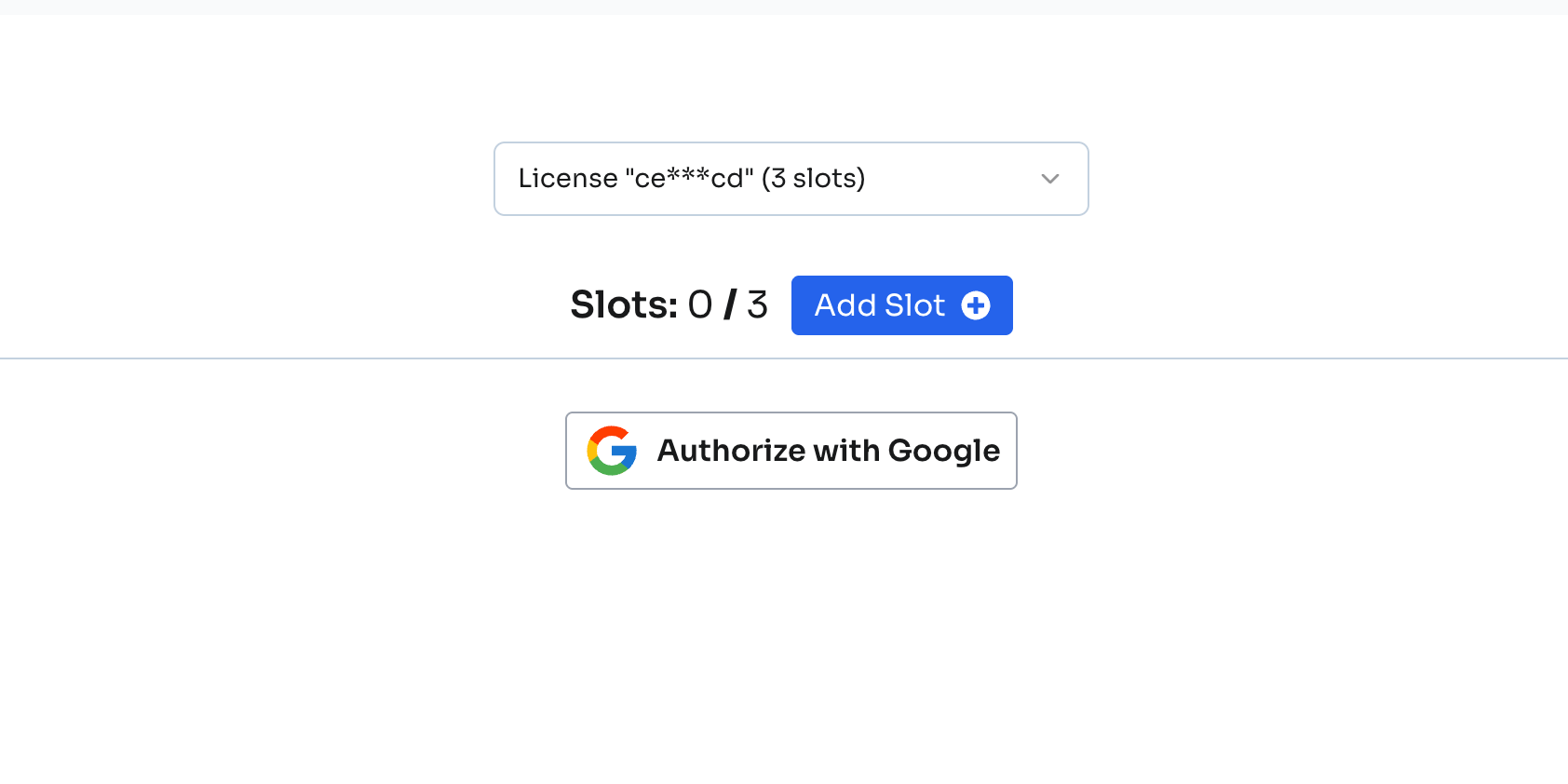 Click on "Authorize with Google" to proceed. You will be taken to Google's login page.
Step 3: Complete Google Authorization
Login using the Gmail account that is associated with your Google AdsAds. account with us so we can pullReview the necessarypermissions informationand neededclick forContinue you.to authorize HandL UTM Grabber.
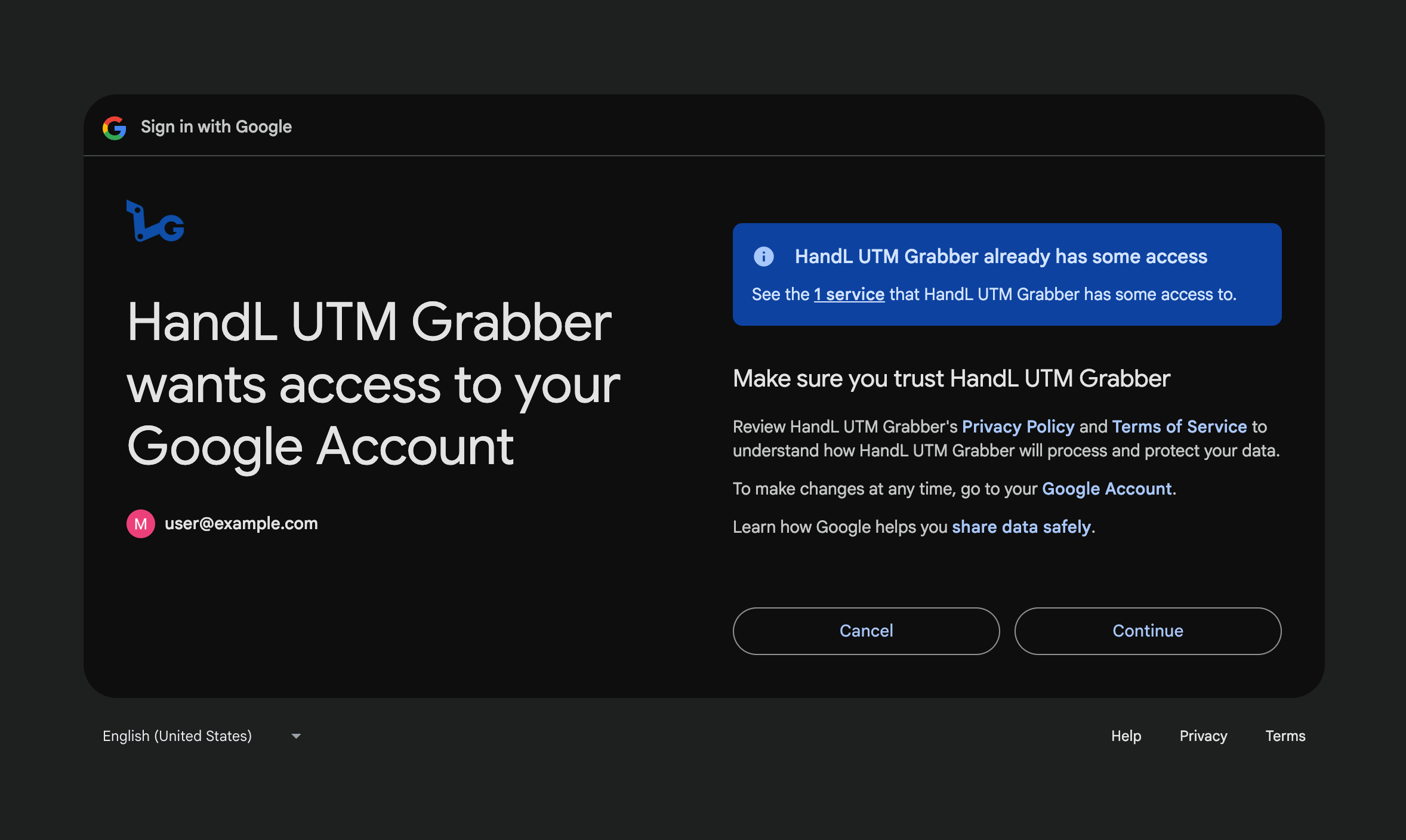
Privacy Note: We never access any sensitive information in your account. We only save
refresh_tokenthe refresh token and your advertising account ID to generate the report, nothing else. See our privacy page formore.more details.
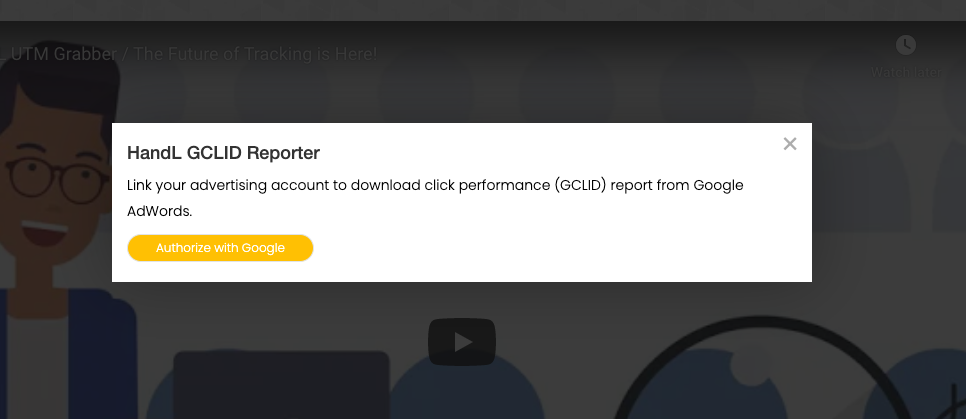
Step 4: Select Your Google Ads Account
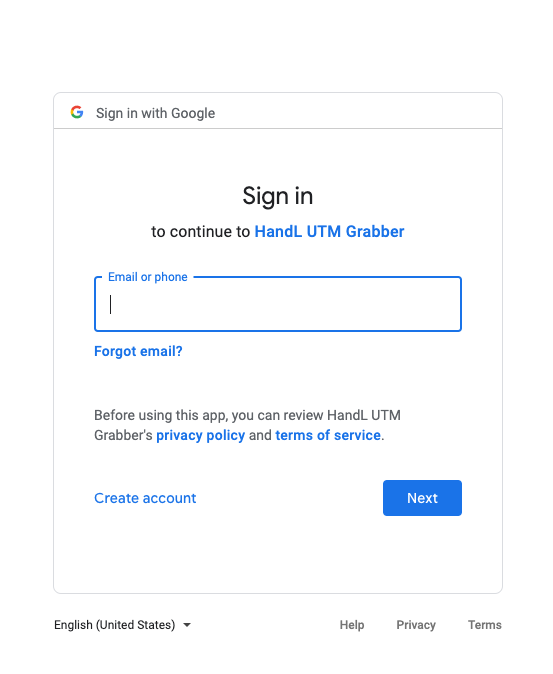
You will be taken to a confirmation page like the shown below. Click Allow
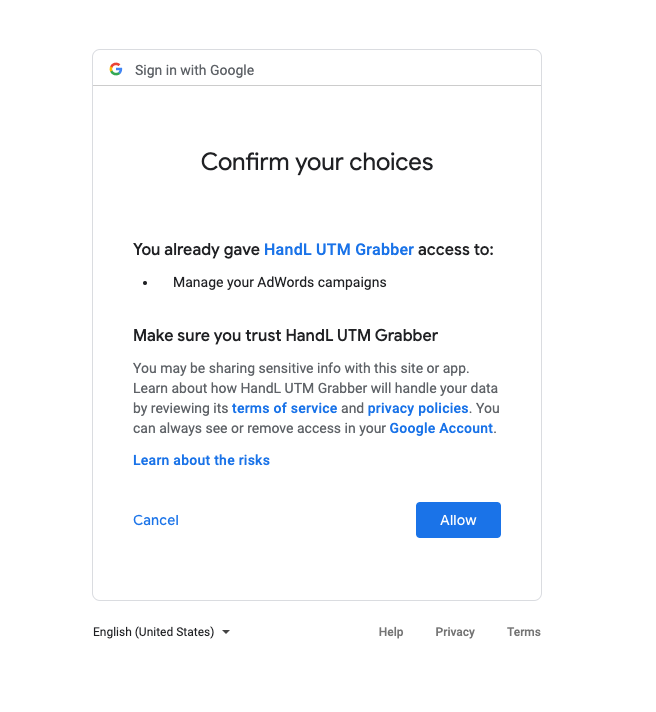
And you will be takenredirected back to ourthe websiteGCLID (utmgrabber.com).Reporter Gopage. A dropdown will appear allowing you to AppsSelect again.Customer Client.
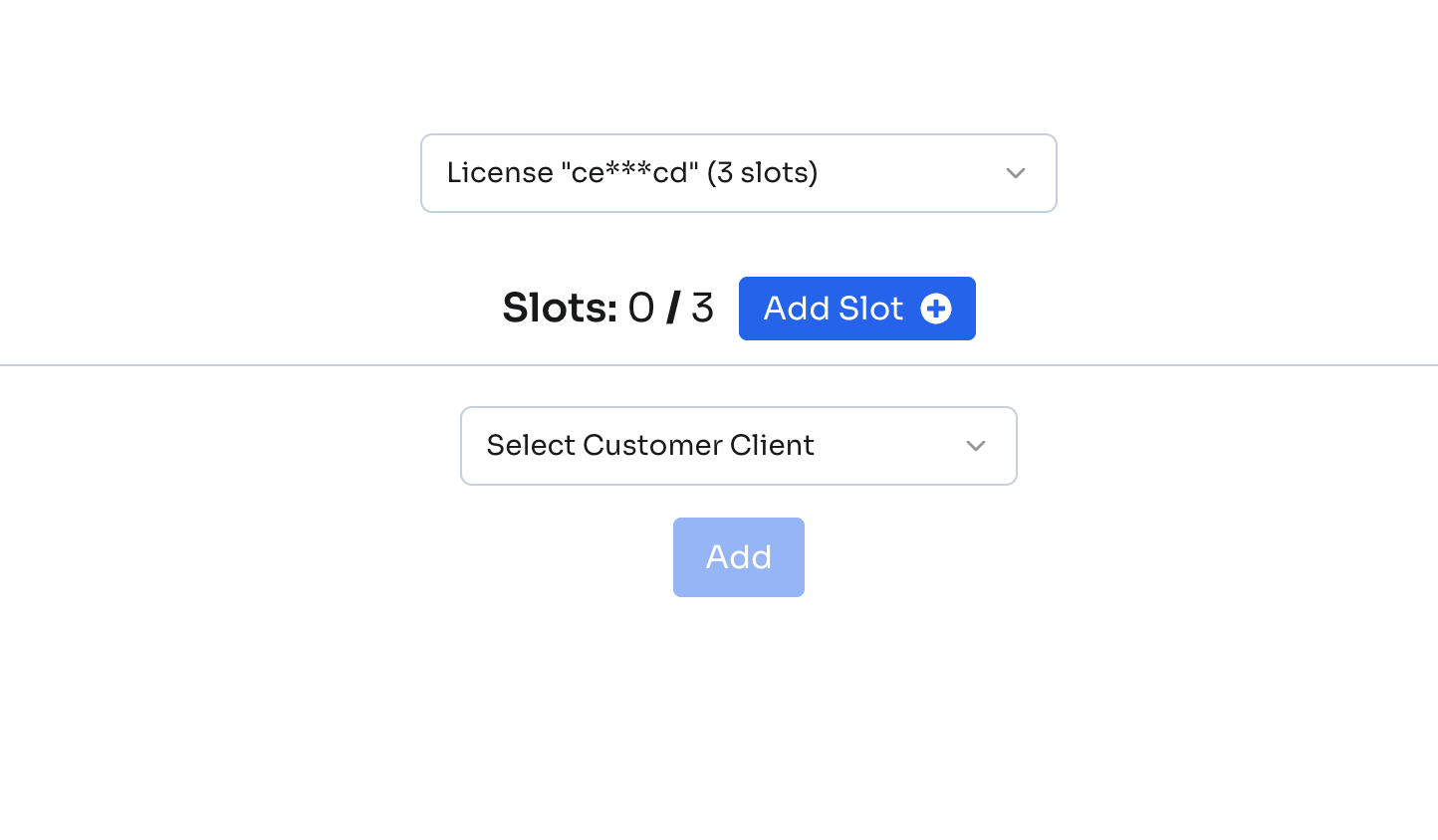 Important: Even if you have multiple Google Ads accounts under the same email (including accounts under different Manager accounts), we list all of them here. Simply choose the account you want to connect and click Add.
Step 5: Generate Reports
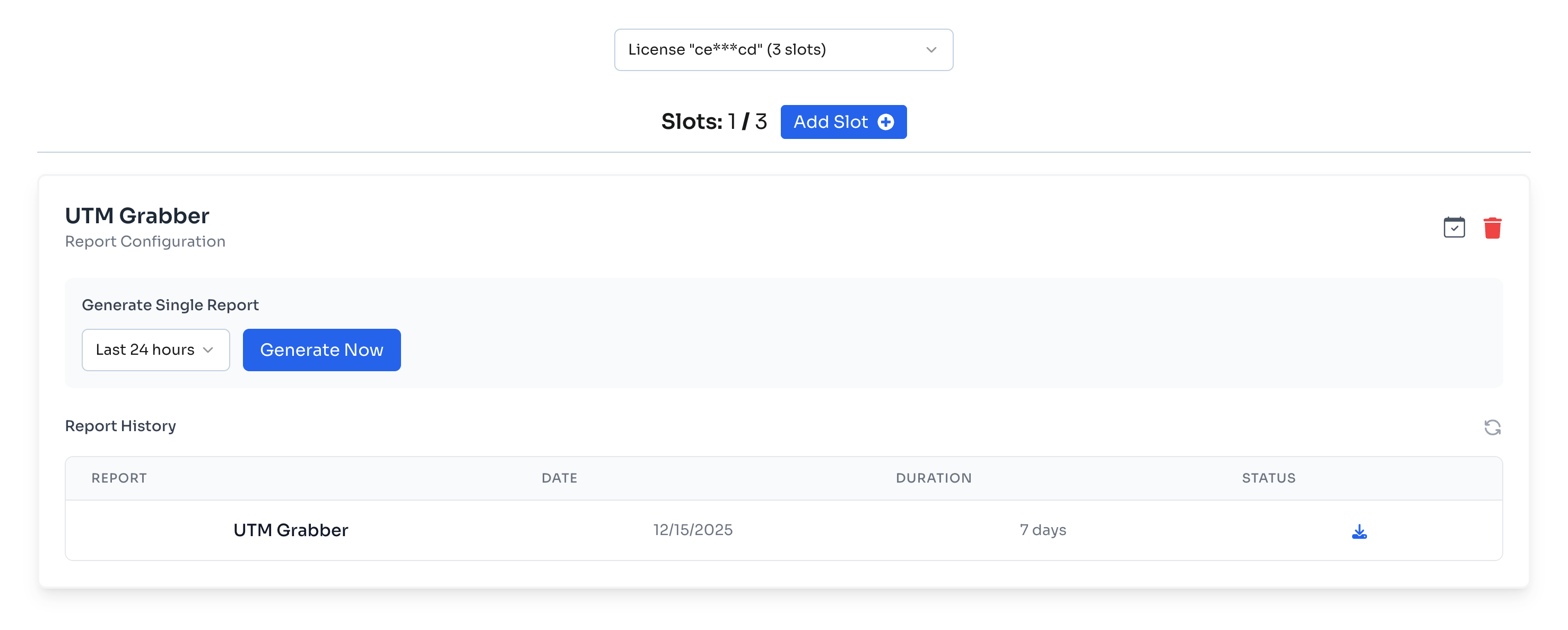
Once your account is connected, you'll see the Report Configuration panel for that account.
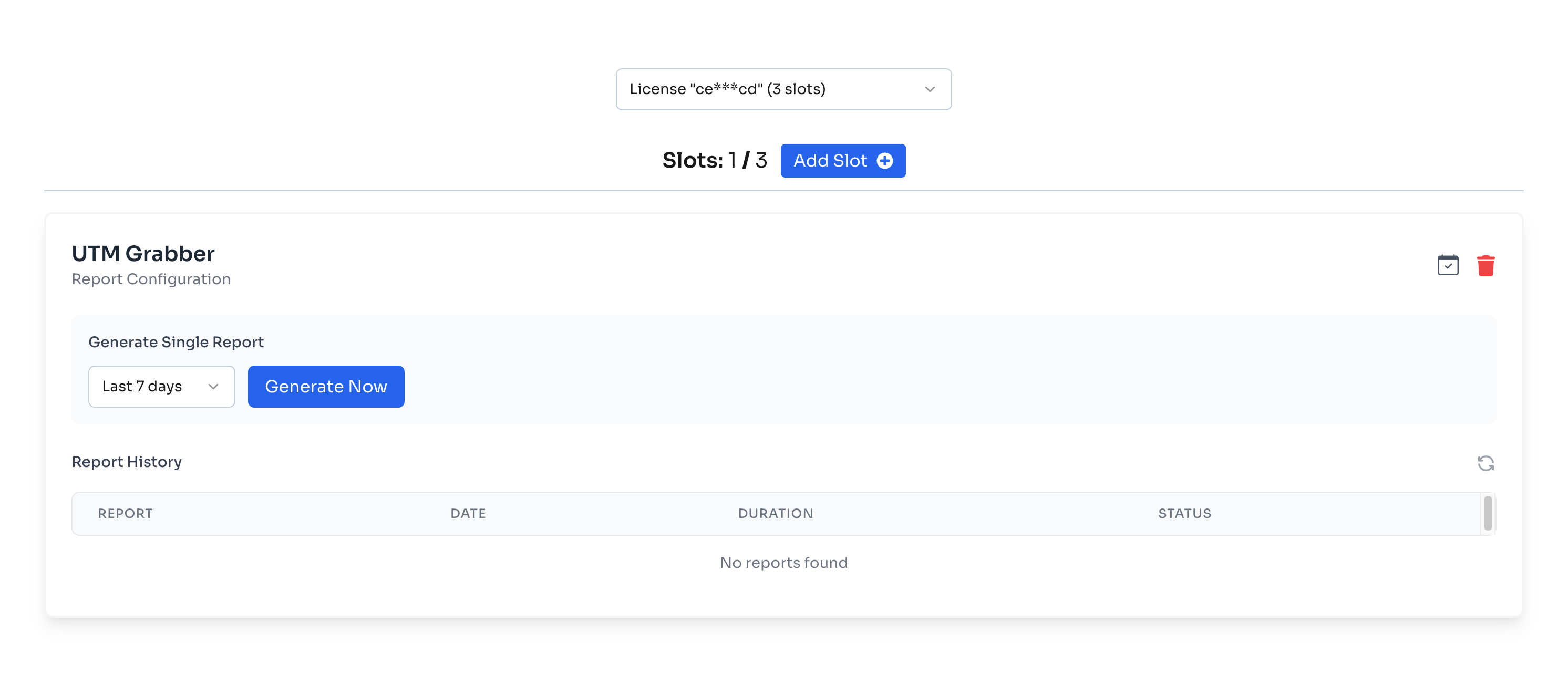
SelectGenerate Adsa accountSingle to useReport
-
All the ads accounts will be displayed like shown below.Select theonetime period from the dropdown:- Last 24 hours
- Last 7 days
- Last 30 days
- Last 90 days
-
Click Generate Now
Note: Time period options may be limited based on your subscription tier.
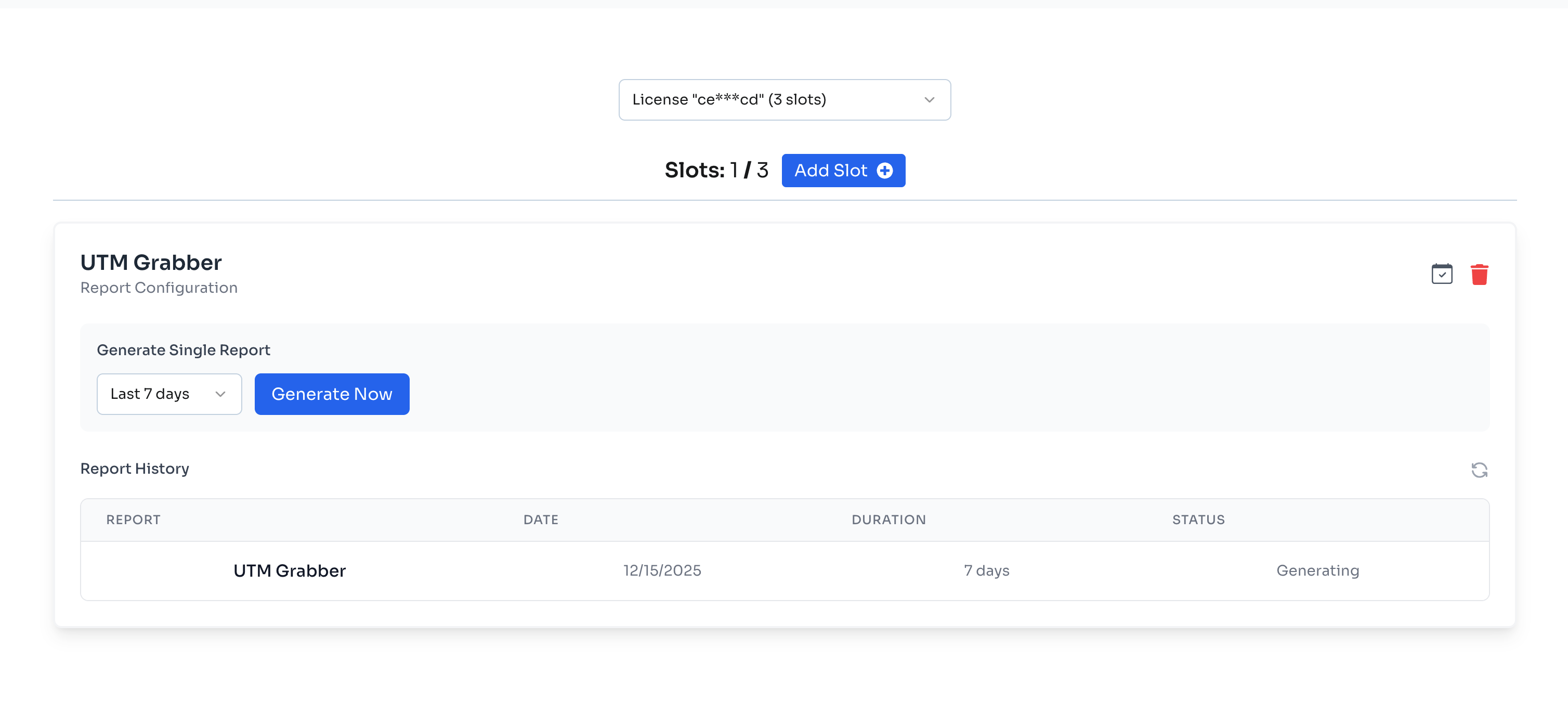
Report Generation Status
While your report is being generated, you'dll likesee toa use."Generating" status in the Report History table.
Step 6: Download Your Report
Once your report is ready, you have two ways to download it:
Option 1: Download via Email
You'll receive an email with a download link for your GCLID report. Note that the link expires in 24 hours.

Option 2: Download from GCLID Reporter Page
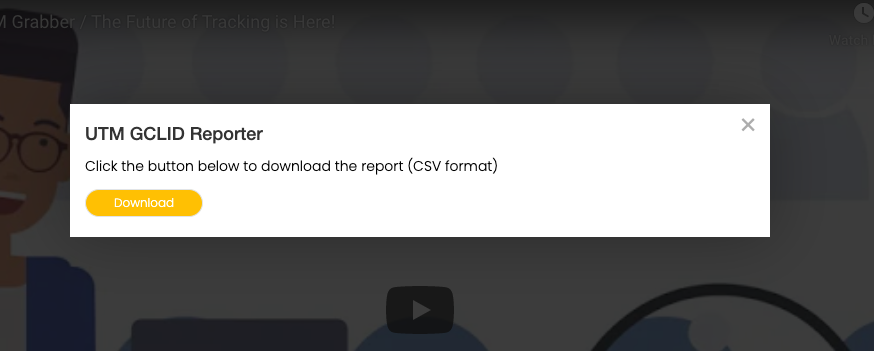
The report will also be available for download directly from the reportGCLID Reporter page. Click the download icon in the Status column.
Schedule Automated Reports
You can downloadset up automated reports to be generated and sent to you on a regular schedule.
Click the schedule icon (calendar icon) next to the delete button on your connected account card.

In the Schedule Automated Reports modal, configure the following:
- Frequency: Choose from Weekly, Biweekly, or Monthly
- Day of week: Select which day you want to receive the report
- CC
away. This will only download yesterday's dataEmail (forOptional):now).AddVisitadditionalusemailagain next dayaddresses todownloadreceive the report
Click Set Schedule to save your automated report configuration.
Managing Your Slots
Add Multiple Accounts
You docan notconnect multiple Google Ads accounts to your available slots. Each account gets its own Report Configuration panel.
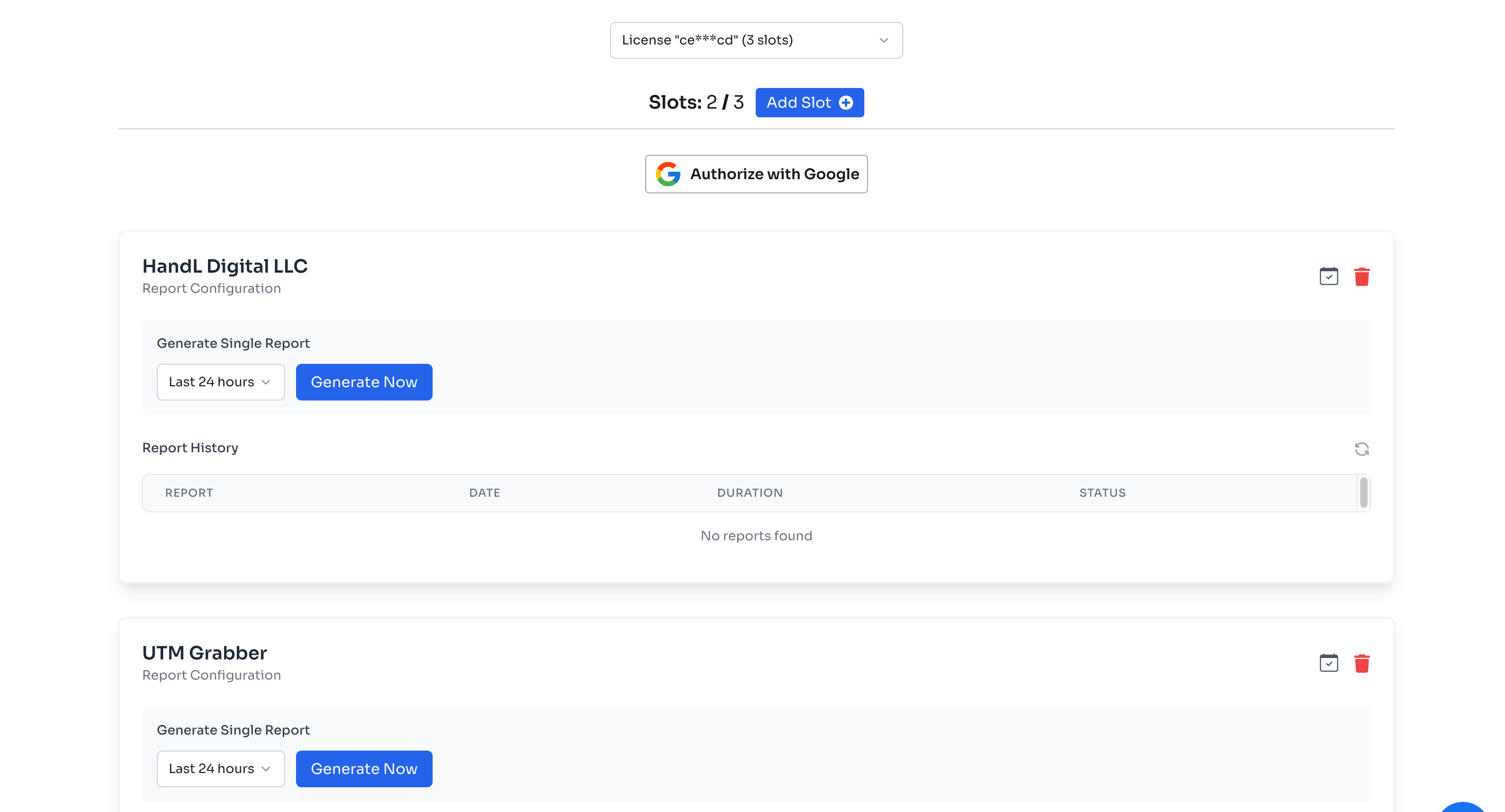
To add another account:
- Click Add Slot
- Click Authorize with Google (you can use the same Google account to add a different customer client, or use a different Google account entirely)
- Select the customer client from the dropdown
- Click Add
Delete a Slot
If you need to gofree throughup authorizationa stepsslot, againclick the nextdelete day.icon (trash icon) on the account card you want to remove.
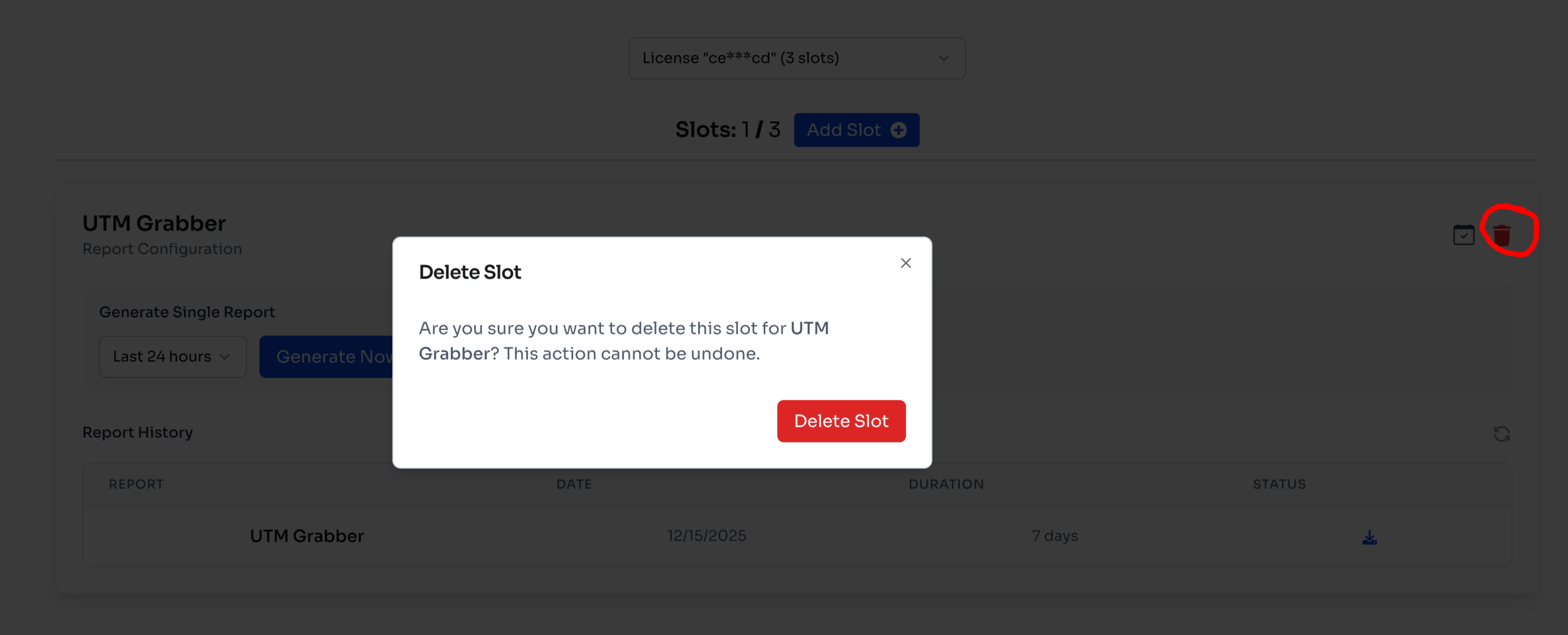
Warning: Deleting a slot will also remove all reports generated with that slot. This action cannot be undone.
Need Help?
Any question,questions helpor needed?need don'assistance? Don't hesitate andto click the chat bubble at the bottom of the page.page or contact us at support@utmgrabber.com.