Active Campaign - HandL UTM Grabber Guide
UTM attribution overview
This guide explains Active Campaign - HandL UTM Grabber Guide. It helps you pass lead attribution into your CRM, email platform, or marketing automation workflow and keep the marketing context needed for accurate reporting across forms, bookings, signups, and sales.
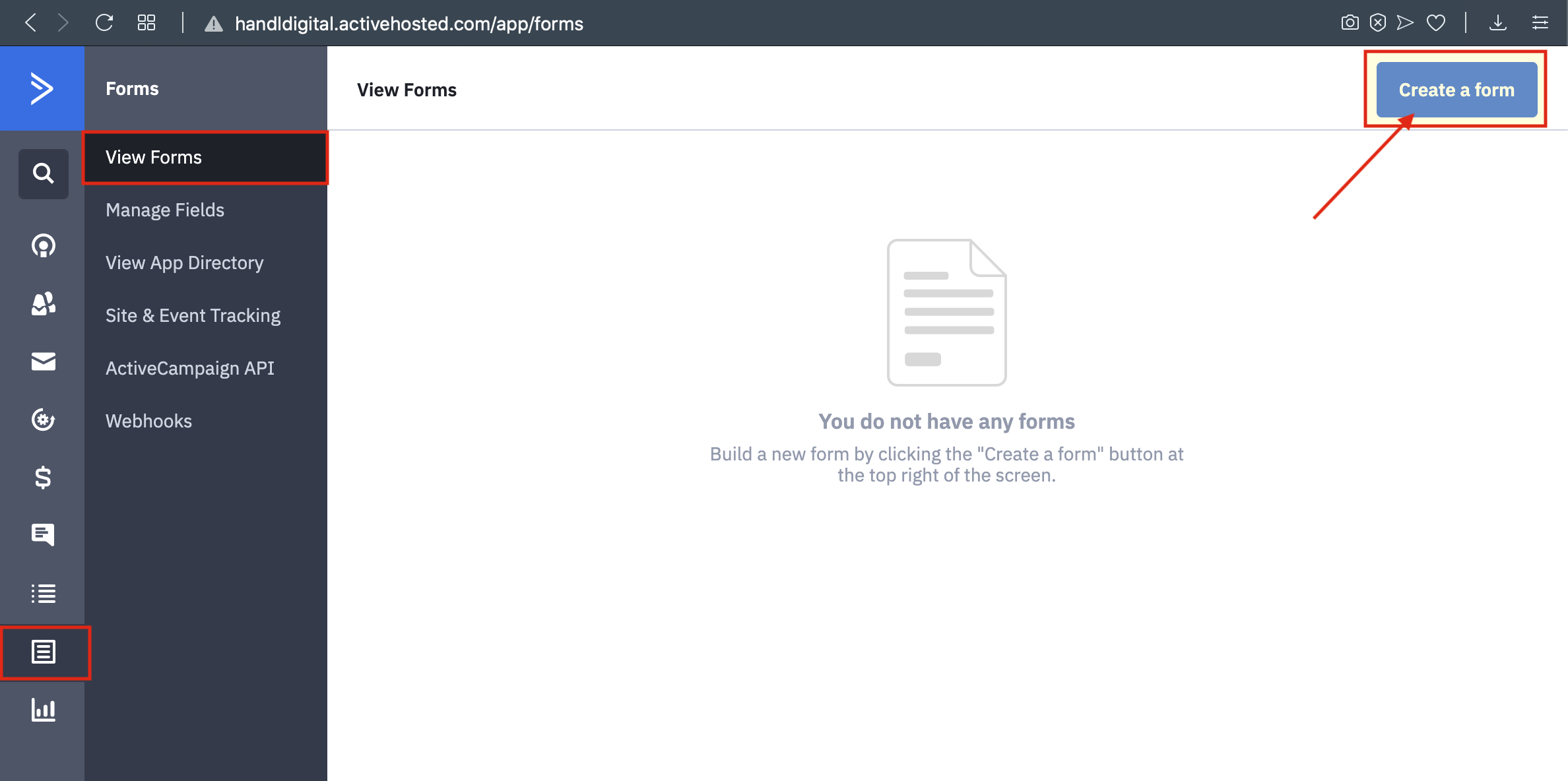
1.Go To Forms and Create A Form In Active Campaign
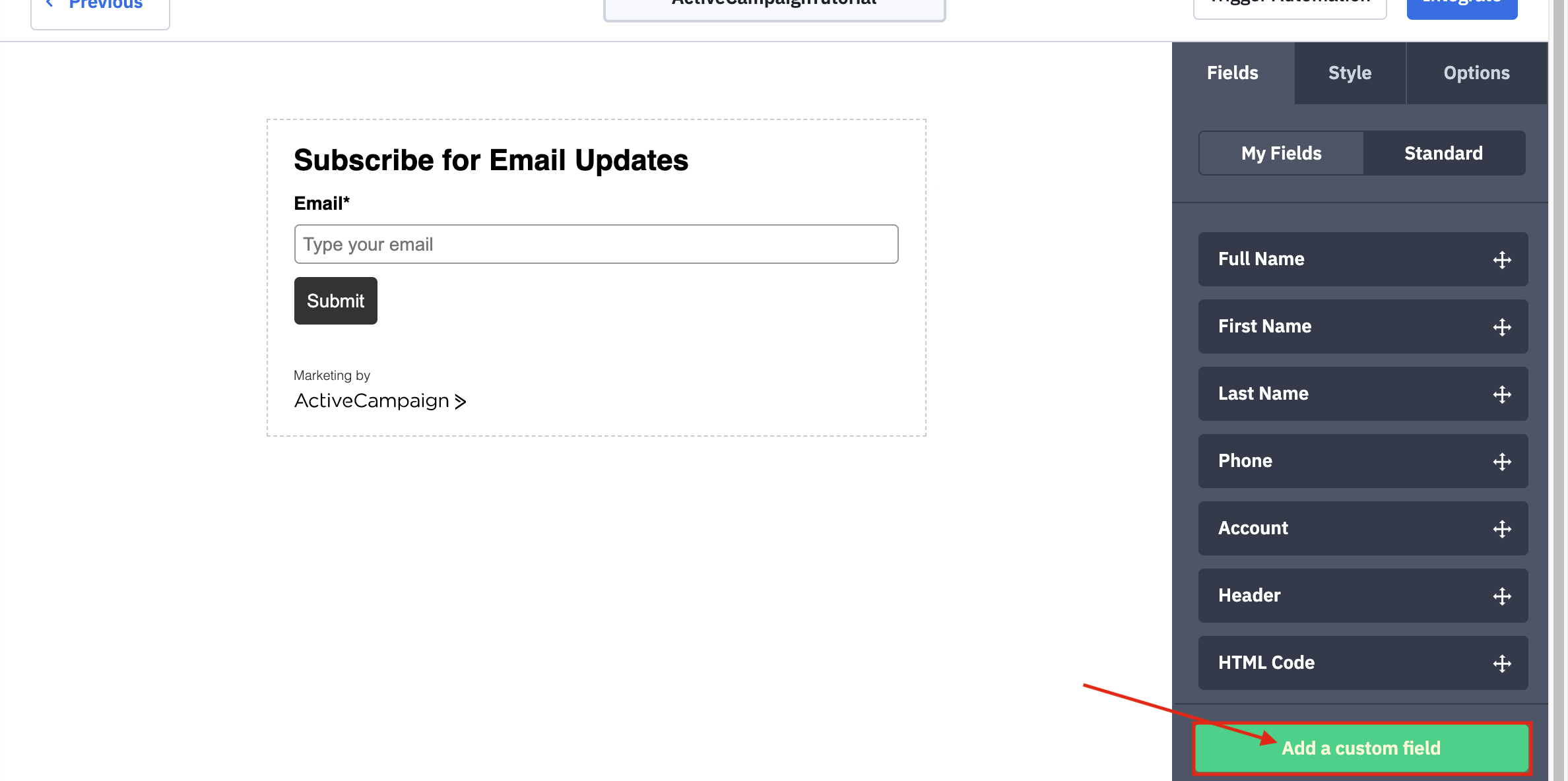
2.Add A Custom Field to Your Form With Using Wrappers
You Can Reach The Wrappers by clicking this link -----> INPUT FIELD WRAPPER
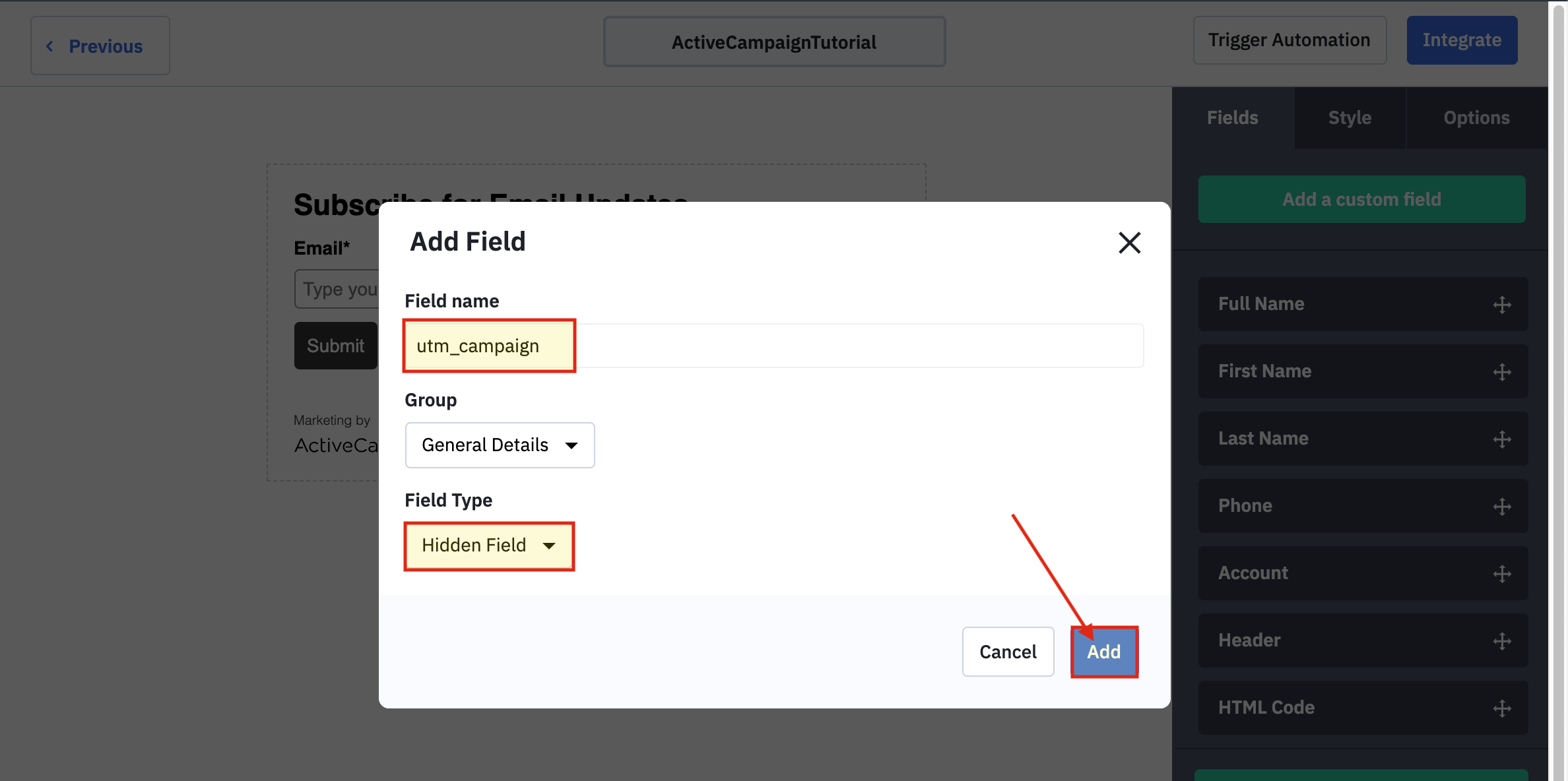
3.Fill The Blanks With Using Wrappers
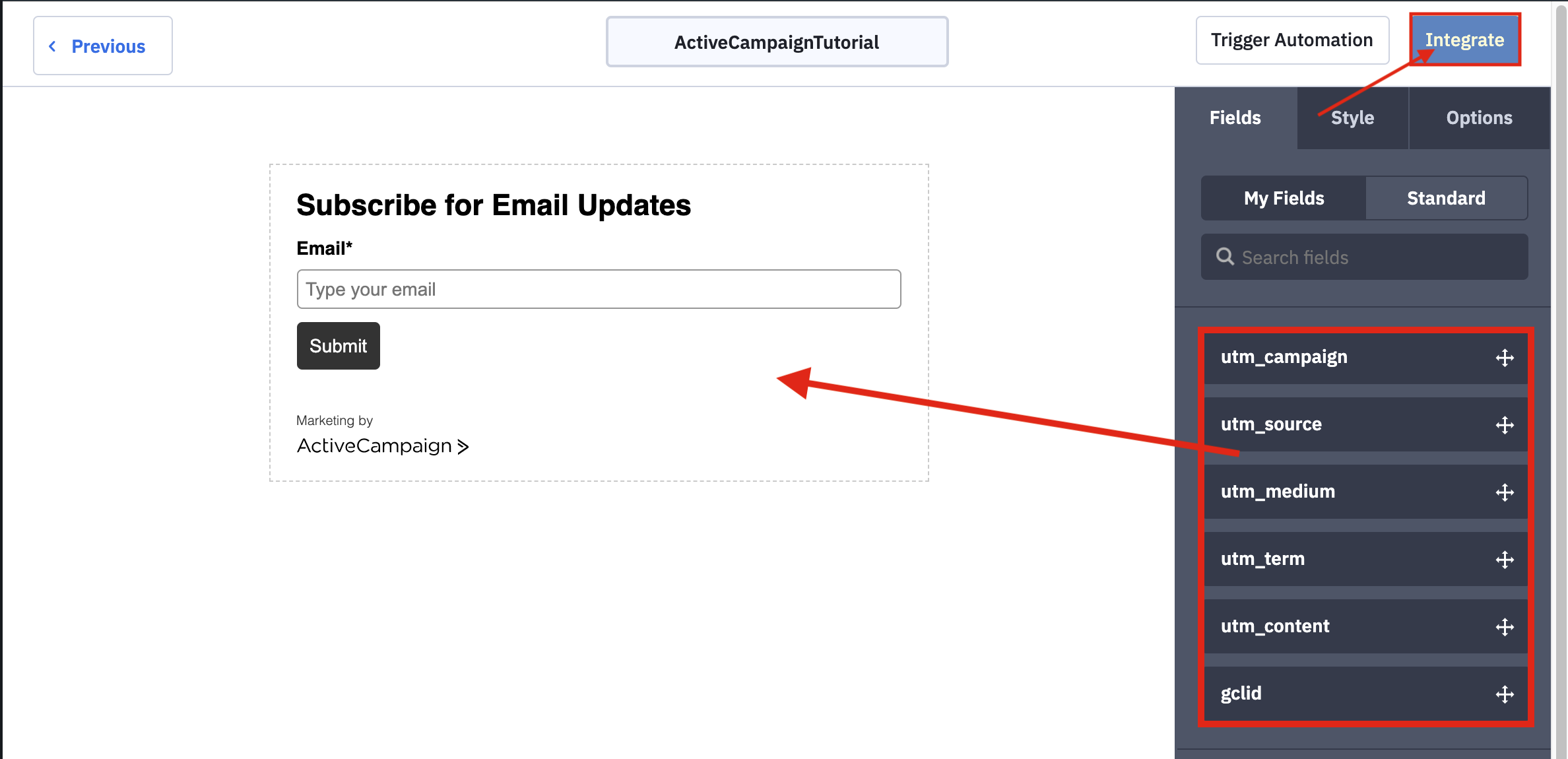
4.Add Your Custom Fields To Your Form And Click "Integrate"
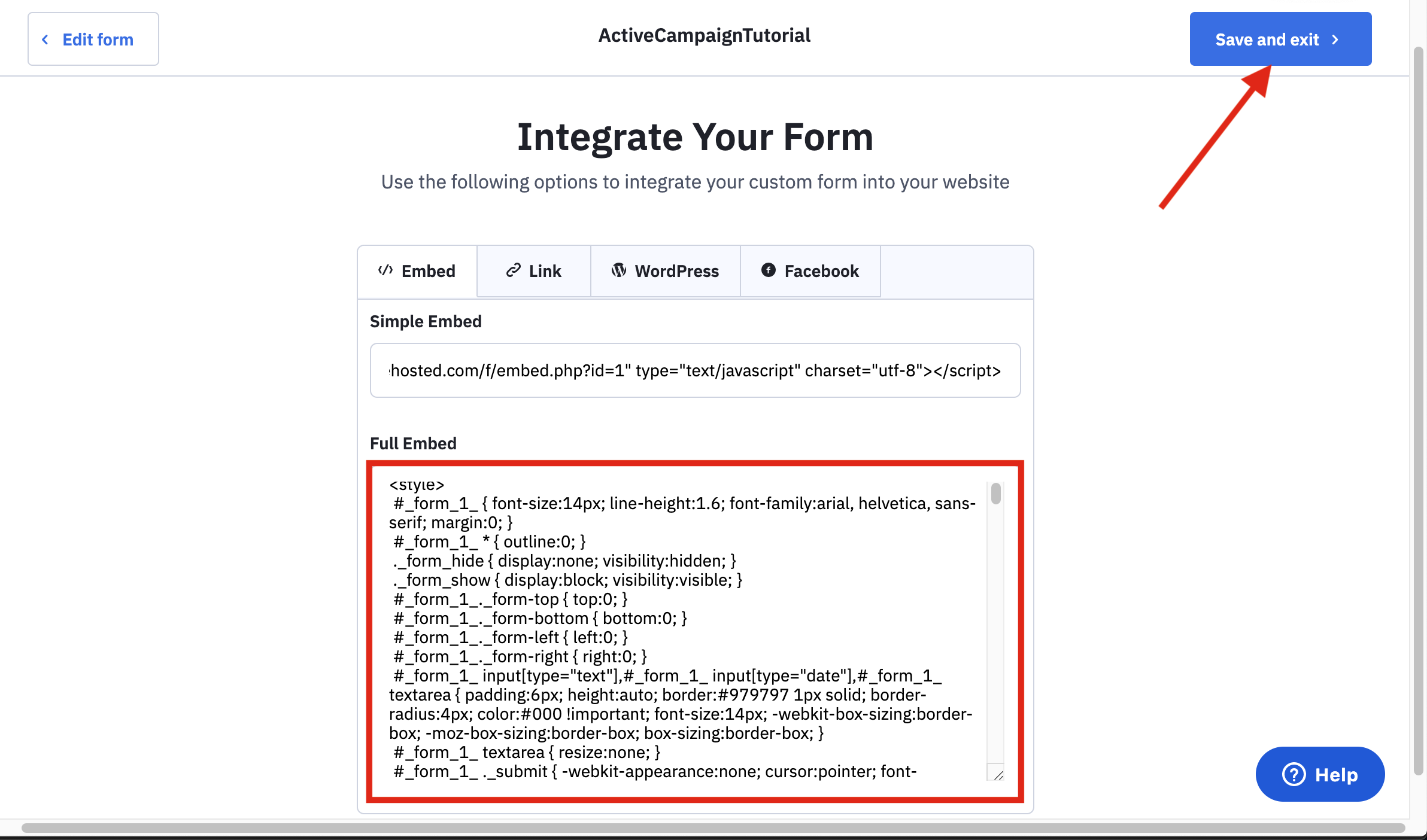
5.Copy The Embed Code
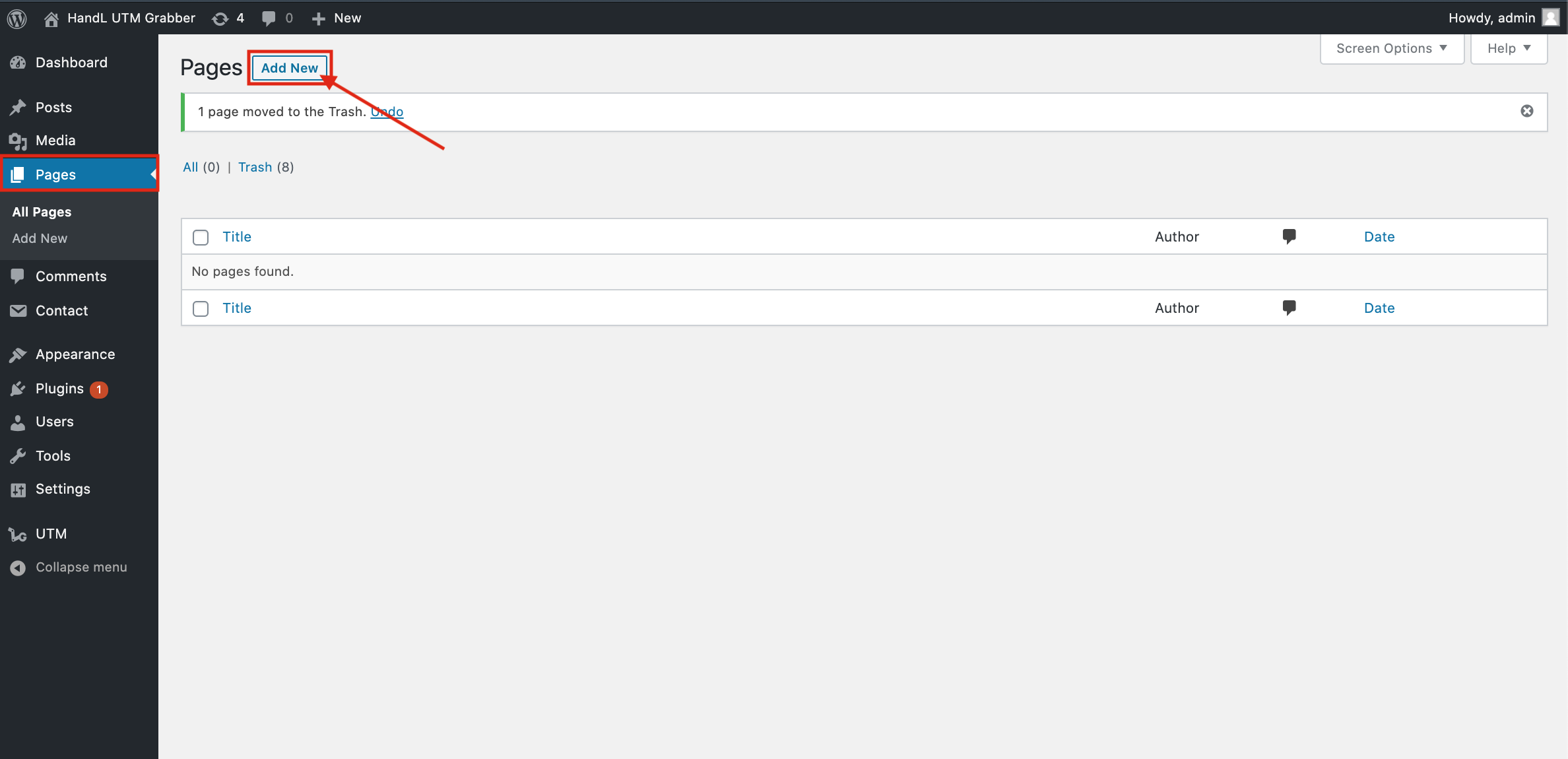
6.Add A New Page To Your Wordpress Site
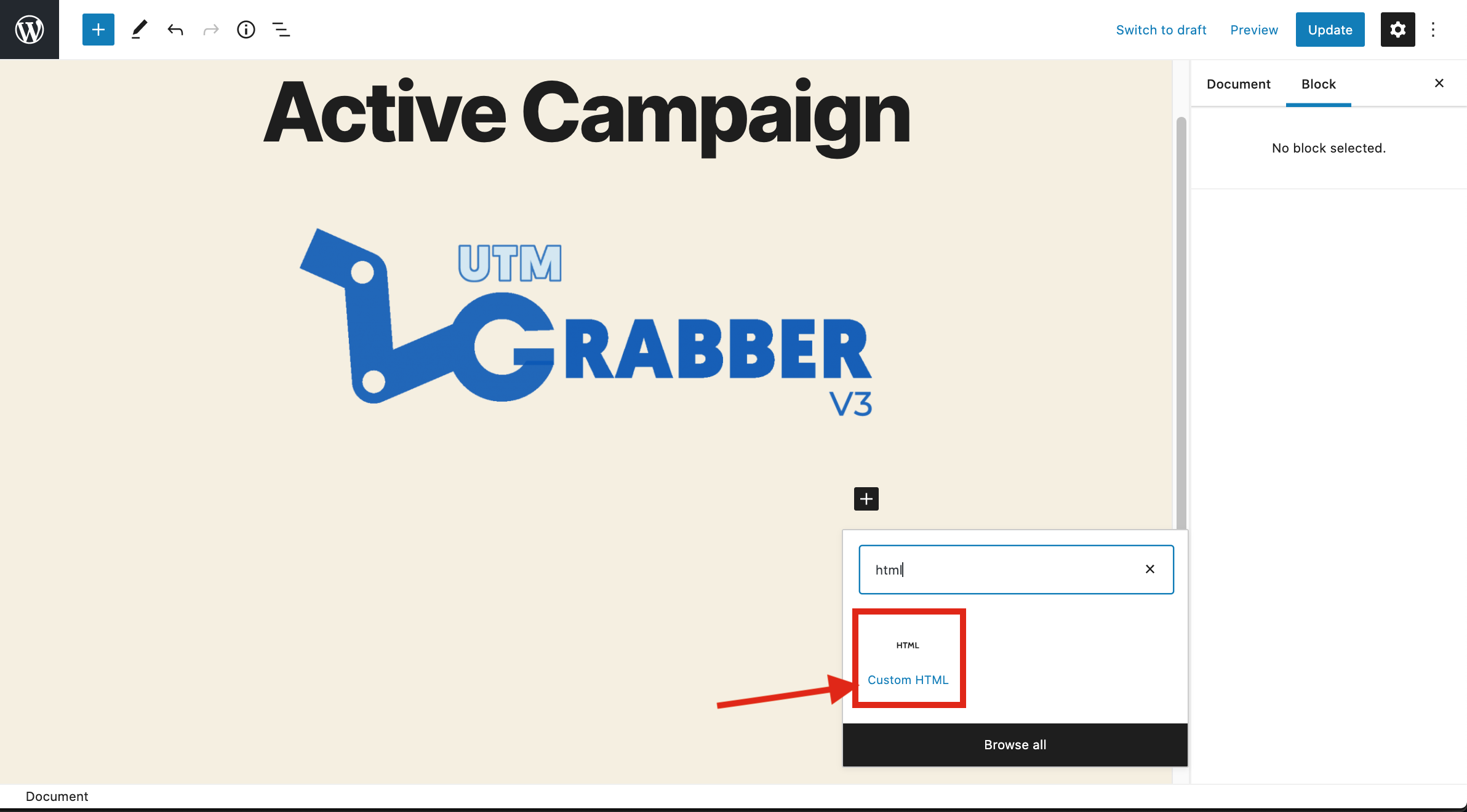
7.Select The Custom HTML Block to Add your Embed Code
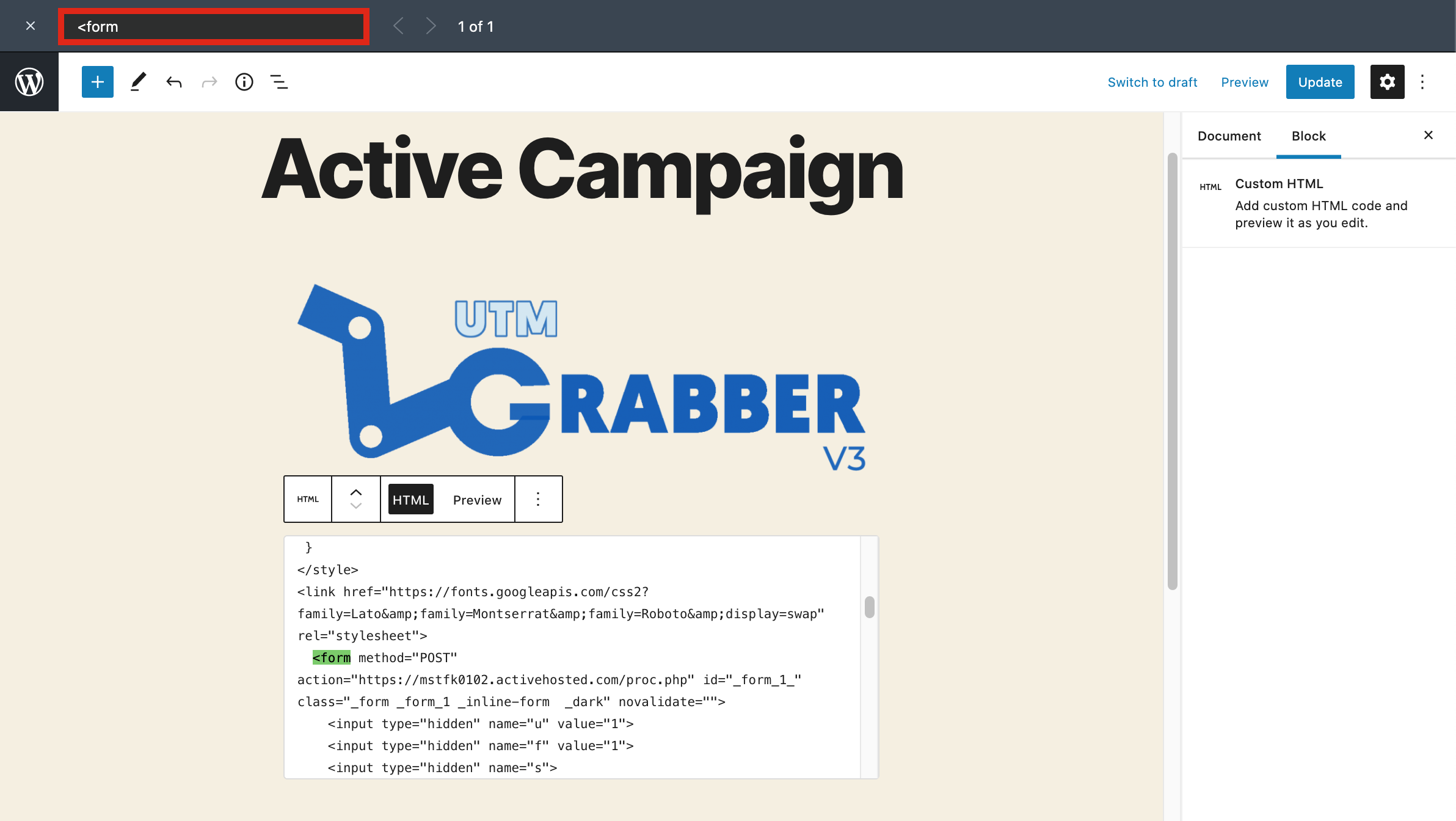
8.After Pasted Your Code Search For "<form" tag in it
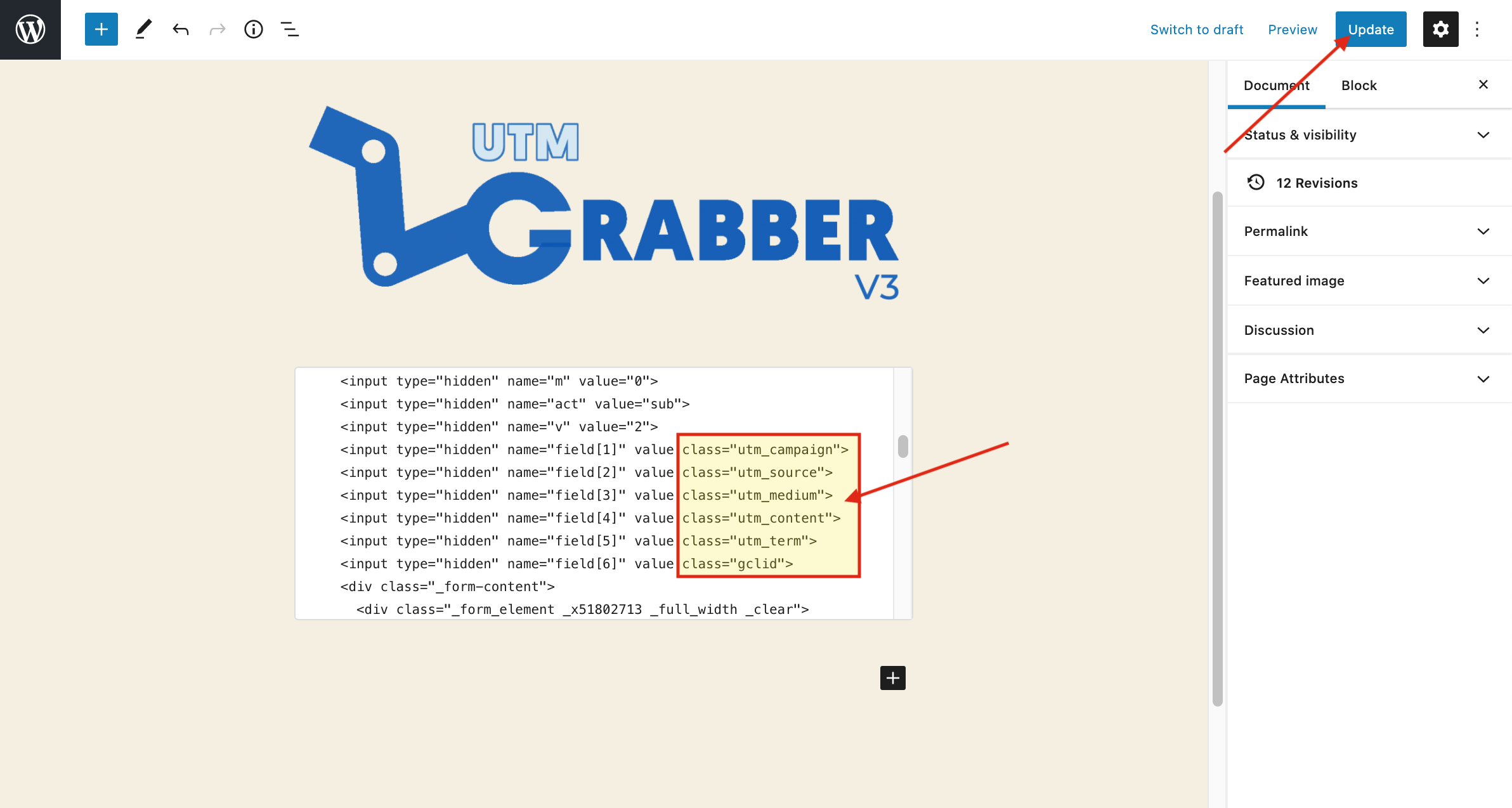
9.Add Class Variable to Your Hidden Fields for detect UTM's
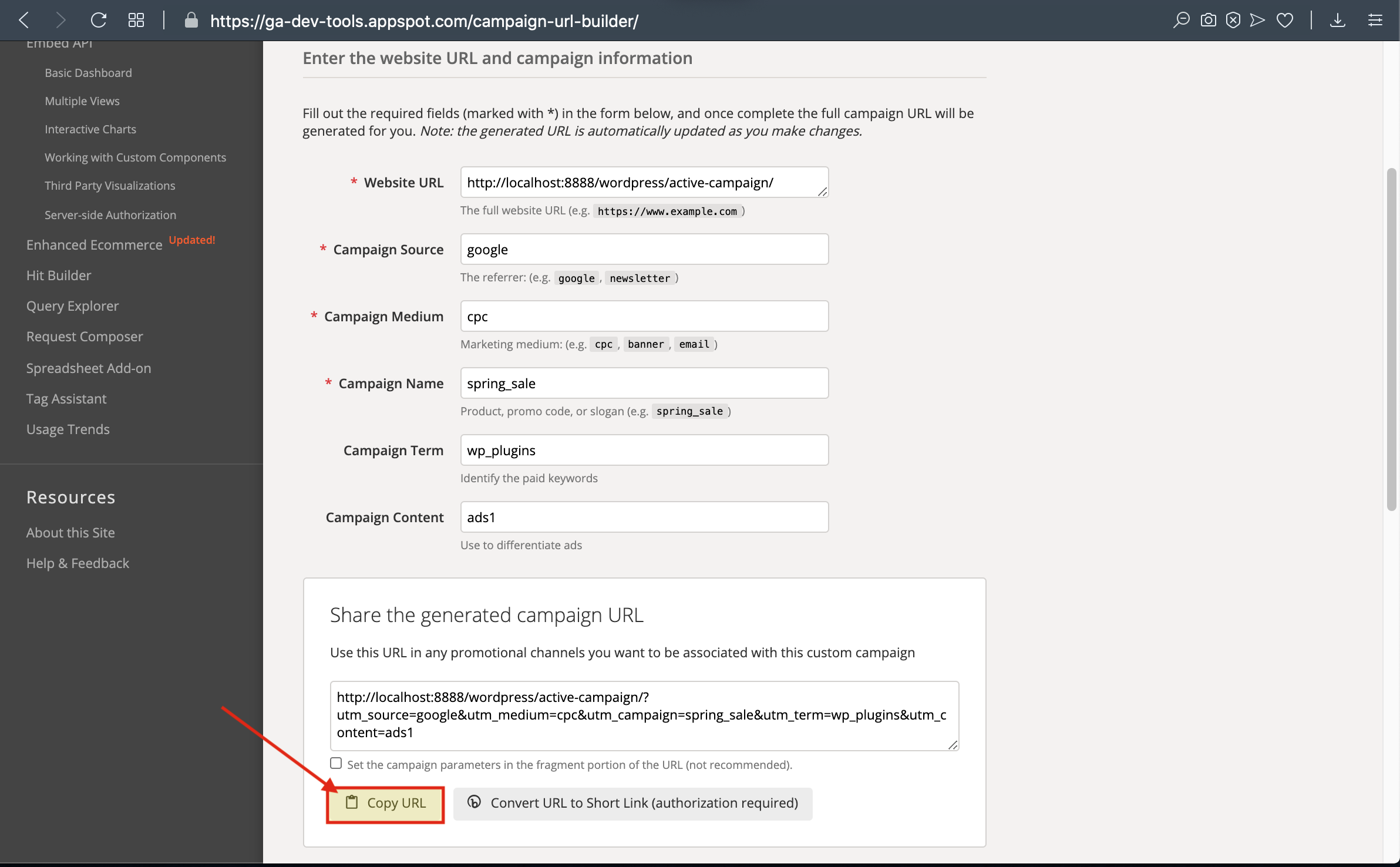
10.Go to Campaign URL Builder and then Copy The URL that it Generated
11.Paste The URL that you copied from Campaign URL Builder
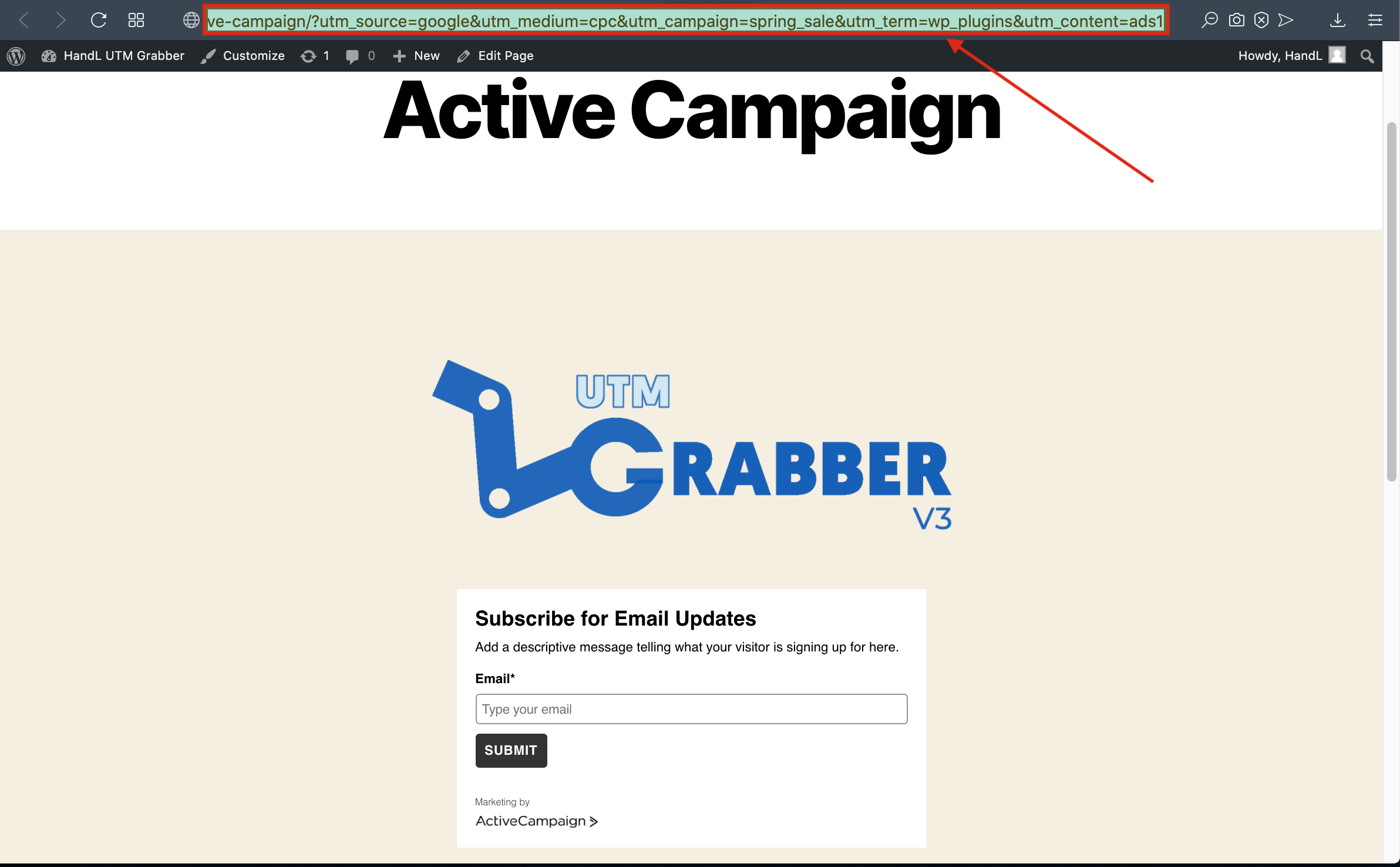
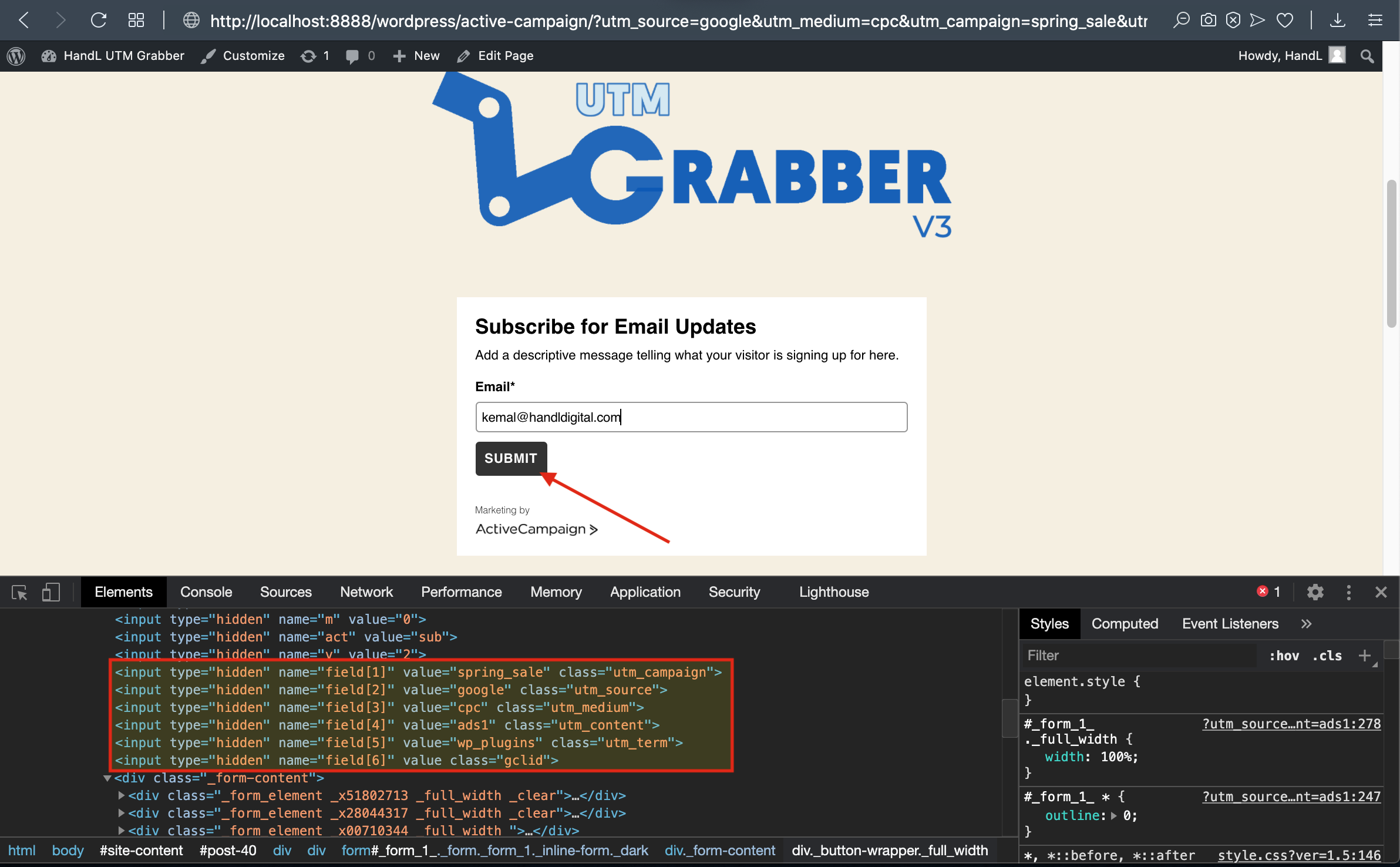
12.Here is Your Values in Form Site,Click "Submit"
13.Go To Your Contacts In Active Campaign
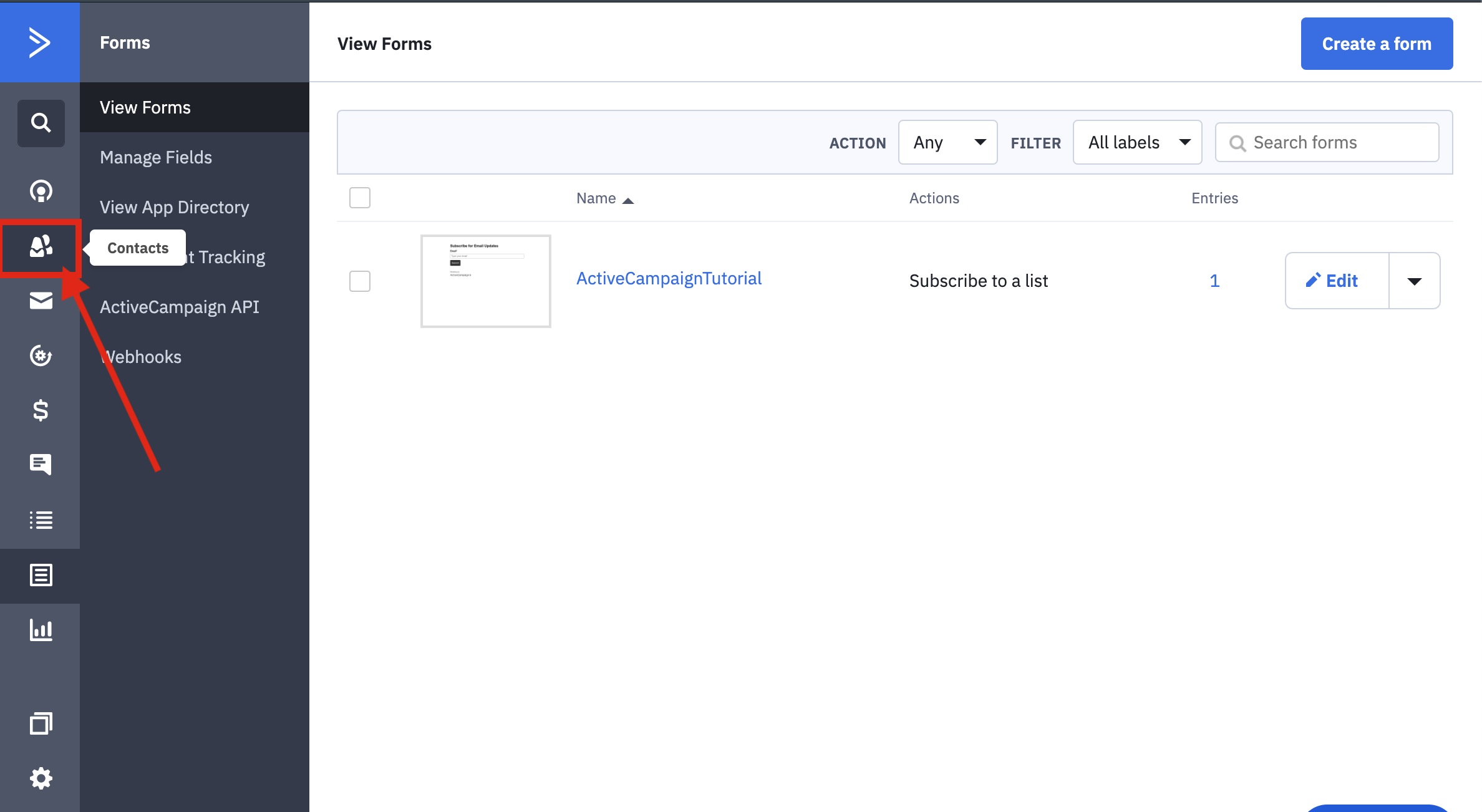
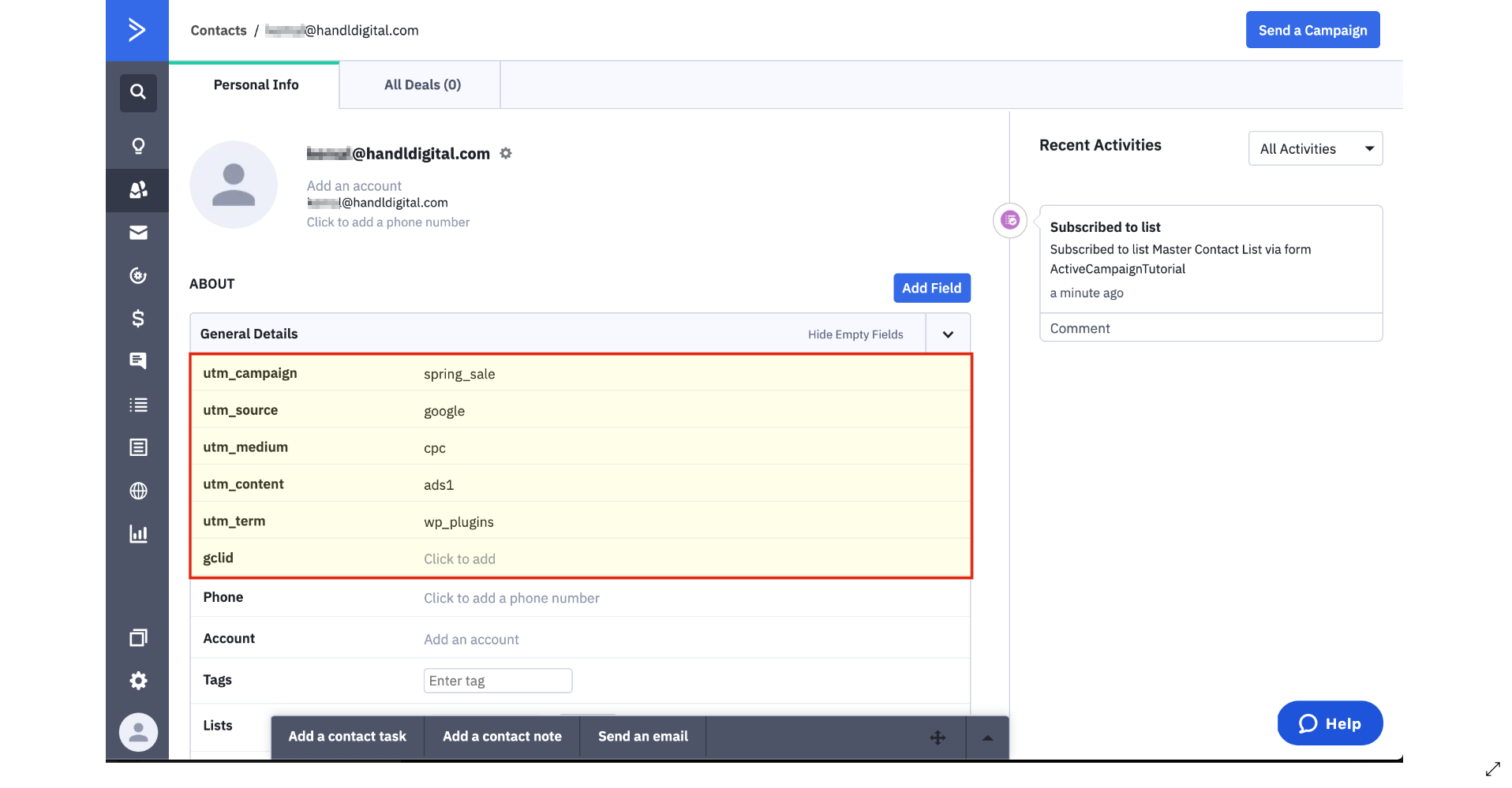
14.Here Is Your Result..