
Contact Form 7 UTM Tracking
OverviewOverview.
HandL UTM Grabber provides provides seamless integration with Contact Form 7 to capture UTM parameters and other tracking tracking data from your form submissions. This integration allows you to automatically capture UTM parameters, GCLID, and other tracking data when users submit your forms.
Features
-
Automatically capture UTM parameters (utm_source, utm_medium, utm_term, utm_content, utm_campaign)
-
Capture
GoogleGoogle Ads GCLID -
Easy one-click insertion of
trackingtracking fields -
Support for
email notificationsemail notifications with UTM data -
Zapier integration
forfor advanced automation
Setup Instructions
1. Adding UTM Fields Fields to Your Form
There There are two ways to add UTM tracking fields fields to your Contact Form 7 form:
Method 1: Using the Tag Generator (Recommended)
-
EditEdit yourContactContact Form 7 form -
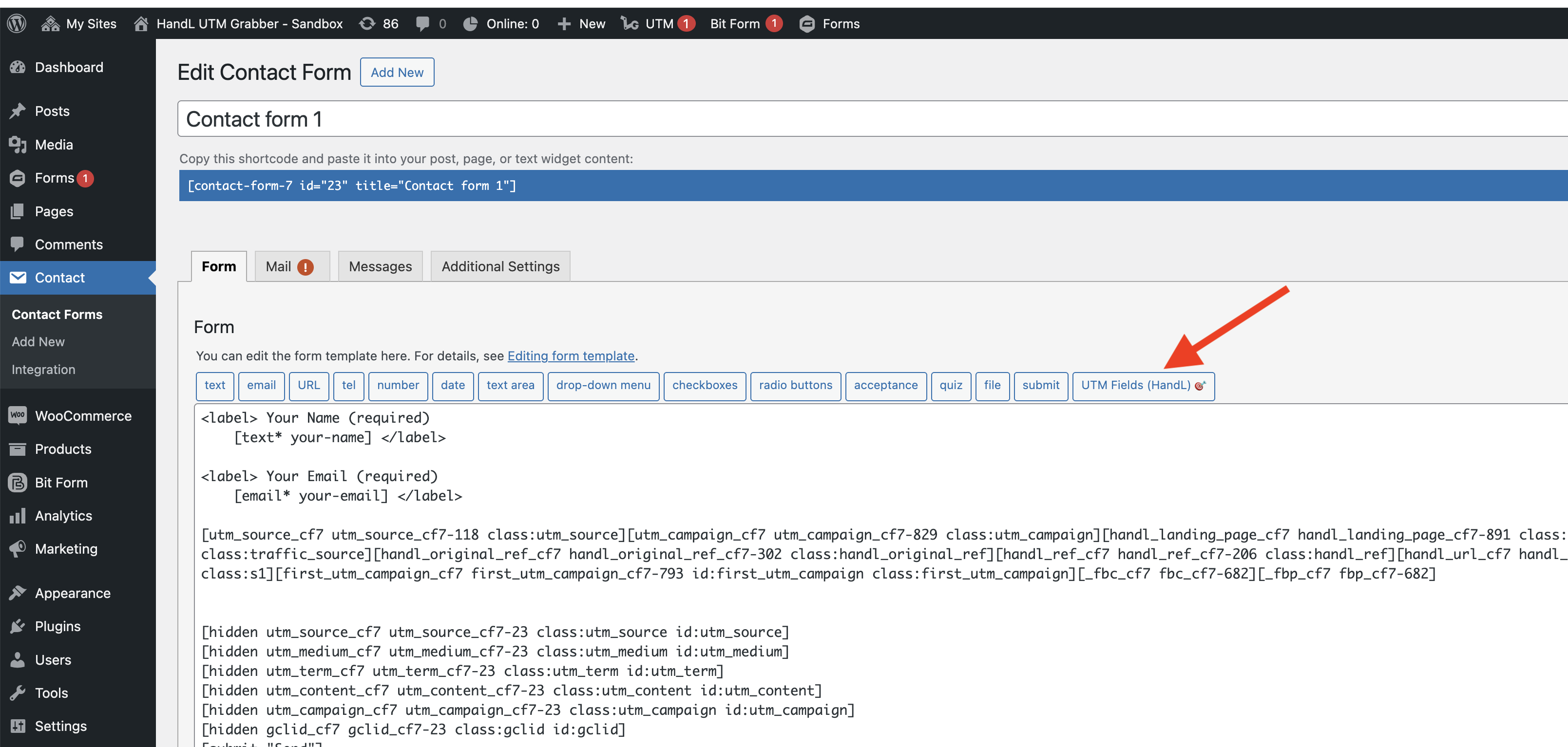
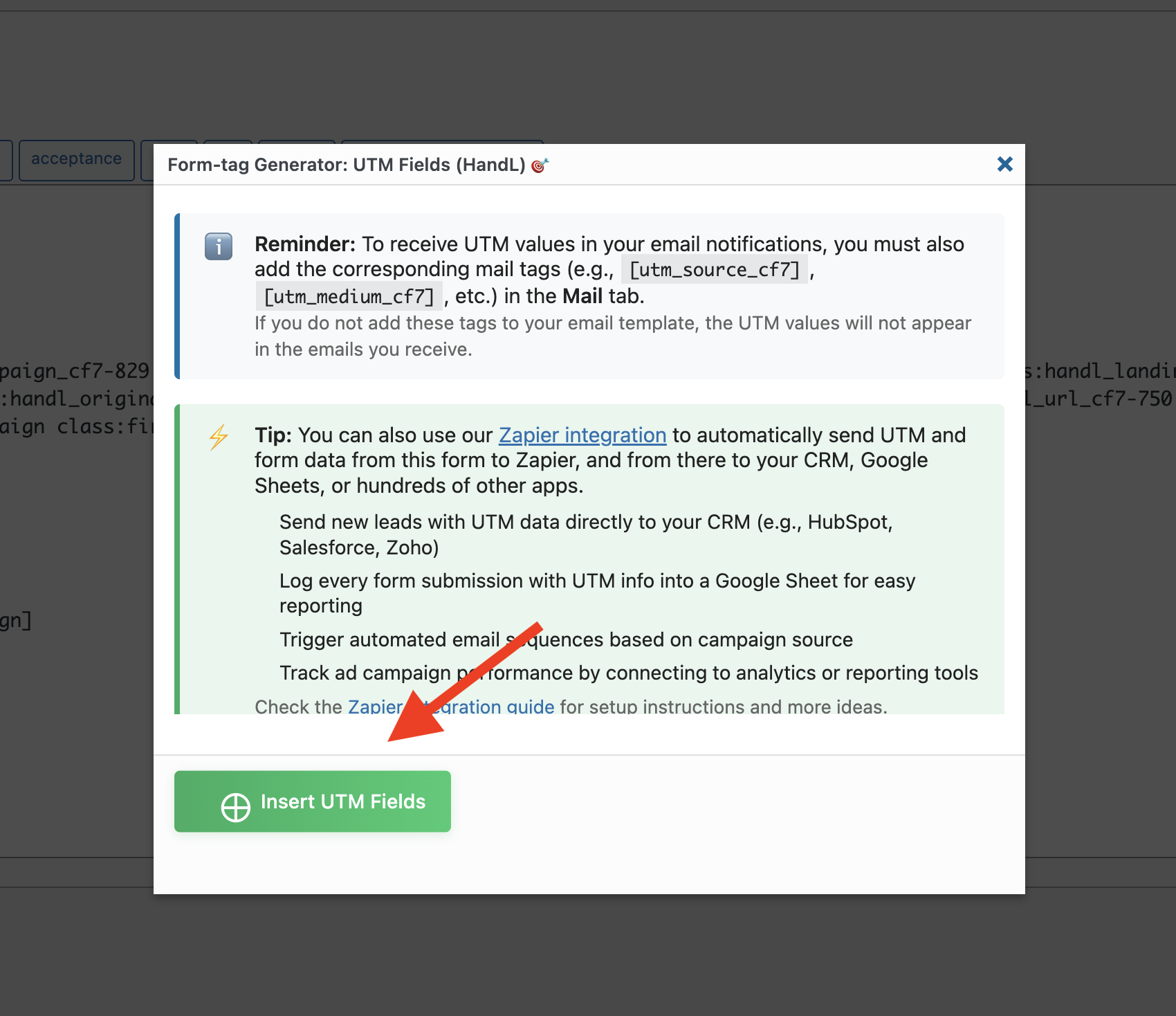
Click the "UTM Fields (HandL) 🎯"
buttonbutton in the form editor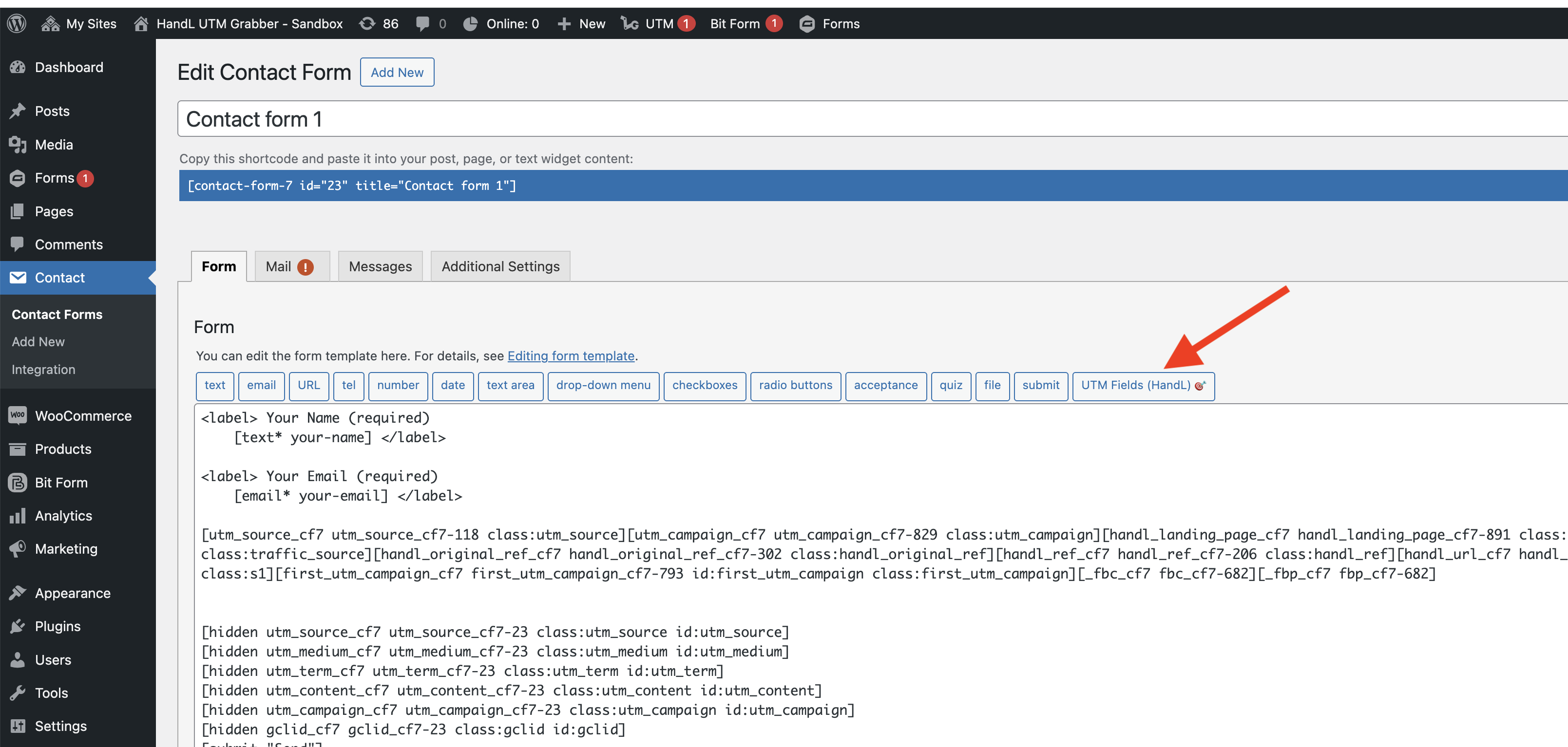
-
Click "Insert UTM Fields" to automatically
addadd all tracking fields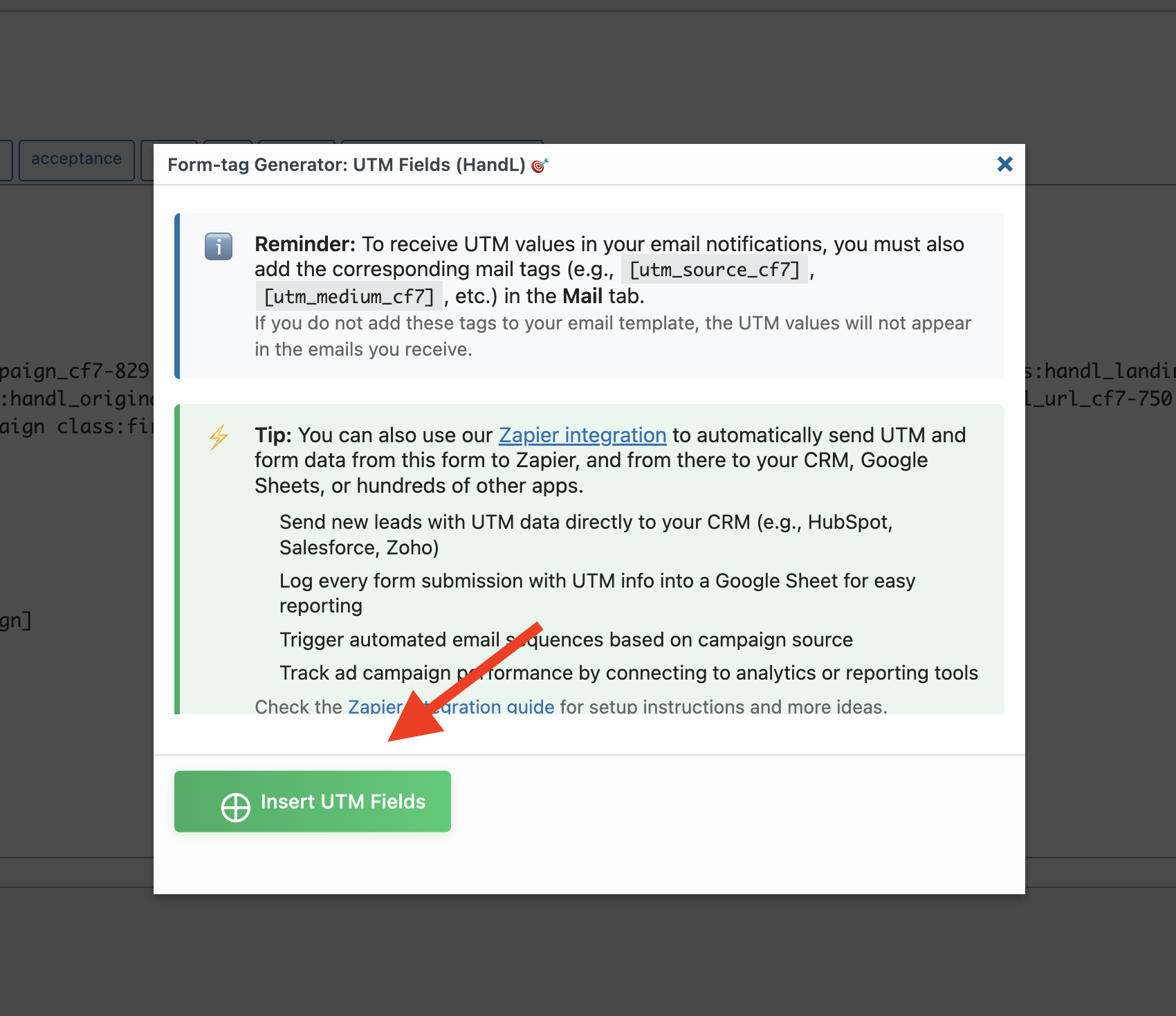
-
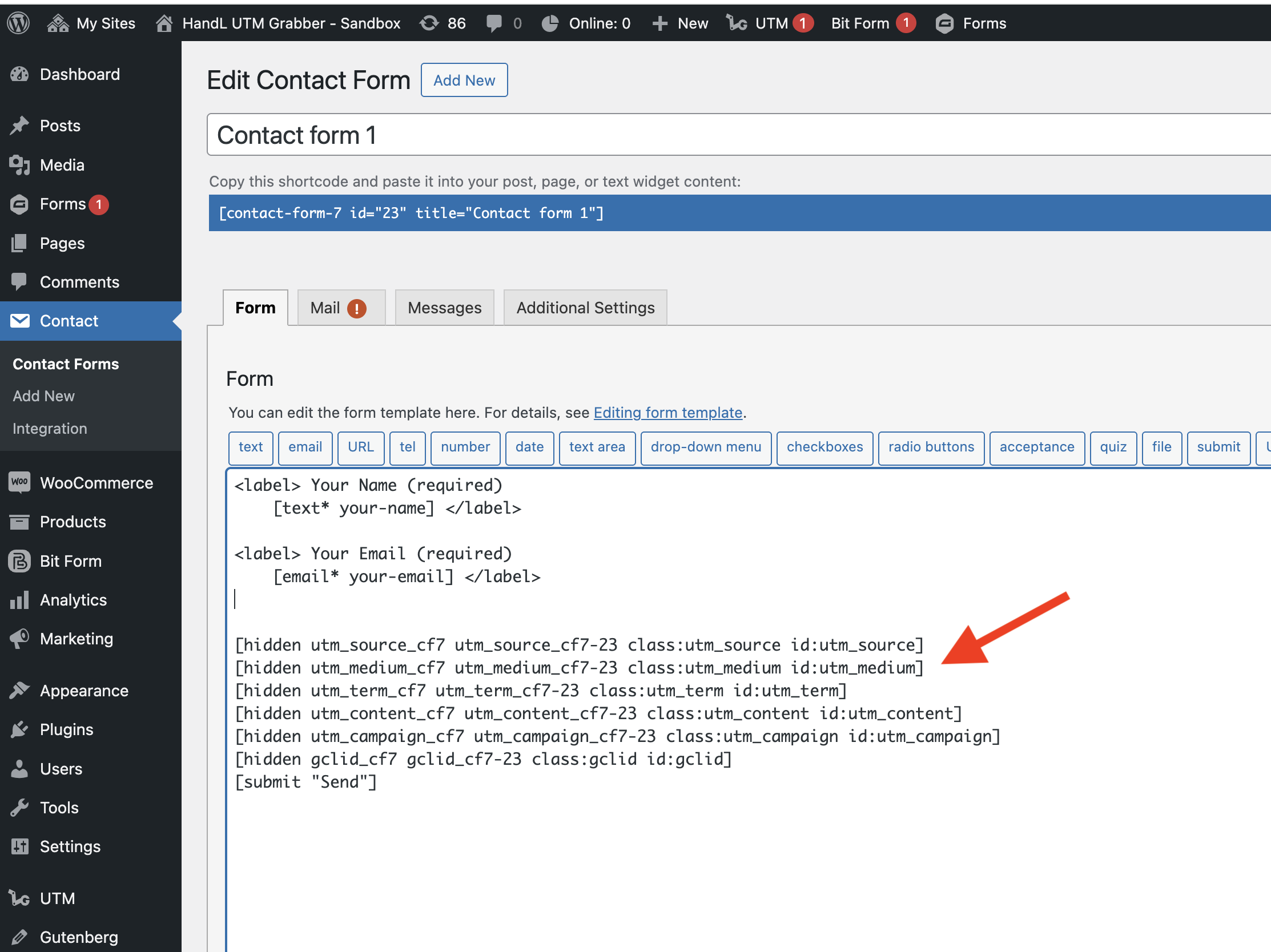
The following hidden fields will be added
toto your form: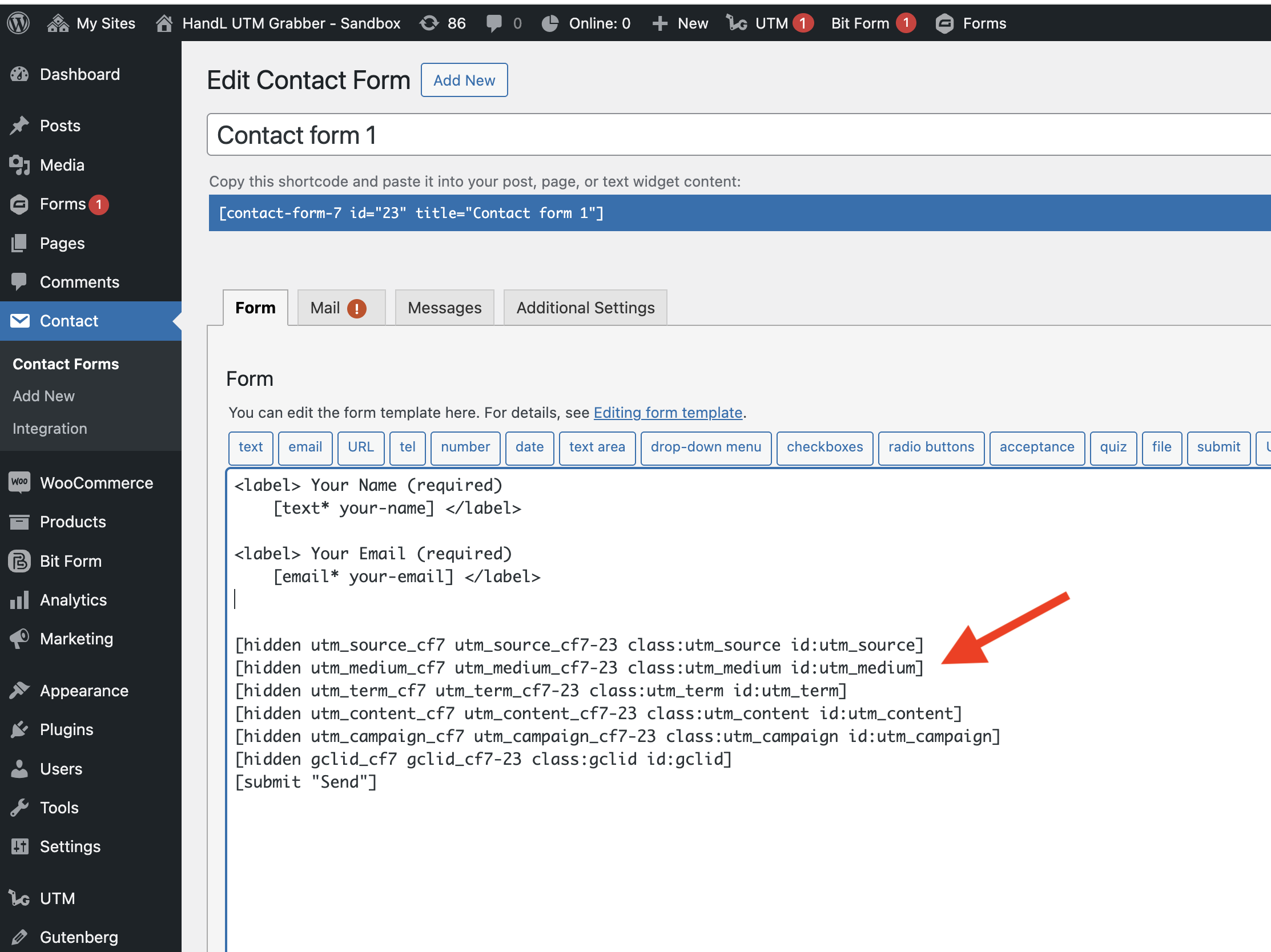
Method 2: Manual Addition
You can manually add the tracking fields to your form form by copying and pasting pasting the field tags tags shown above. Replace Replace {form_id} with your actual form ID.
2. Configuring Email Notifications
To To receive UTM data in your email notifications:
-
Go to the "Mail" tab in
youryour Contact Form 7formform settings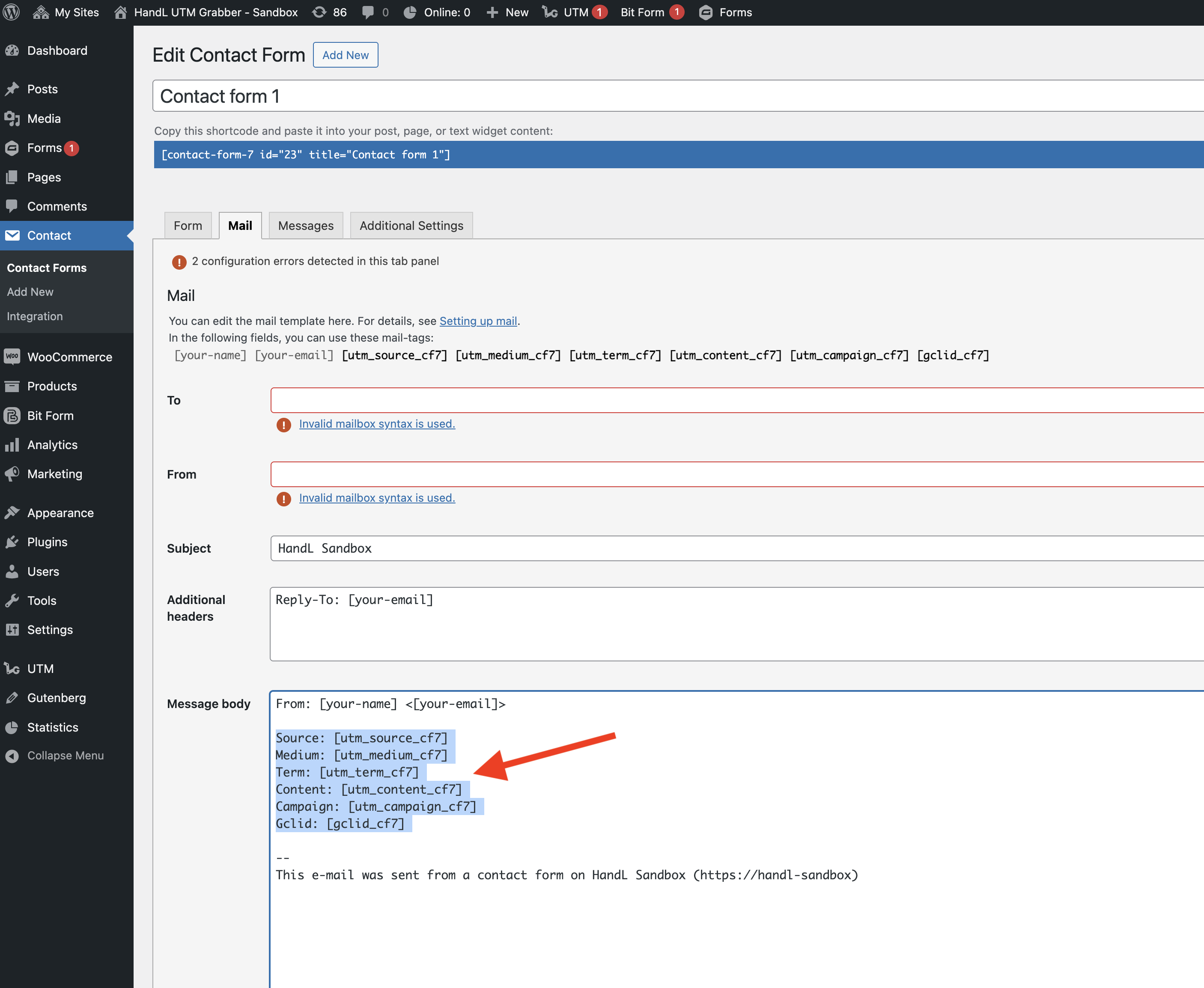
-
Add the following mail tags to your email template:
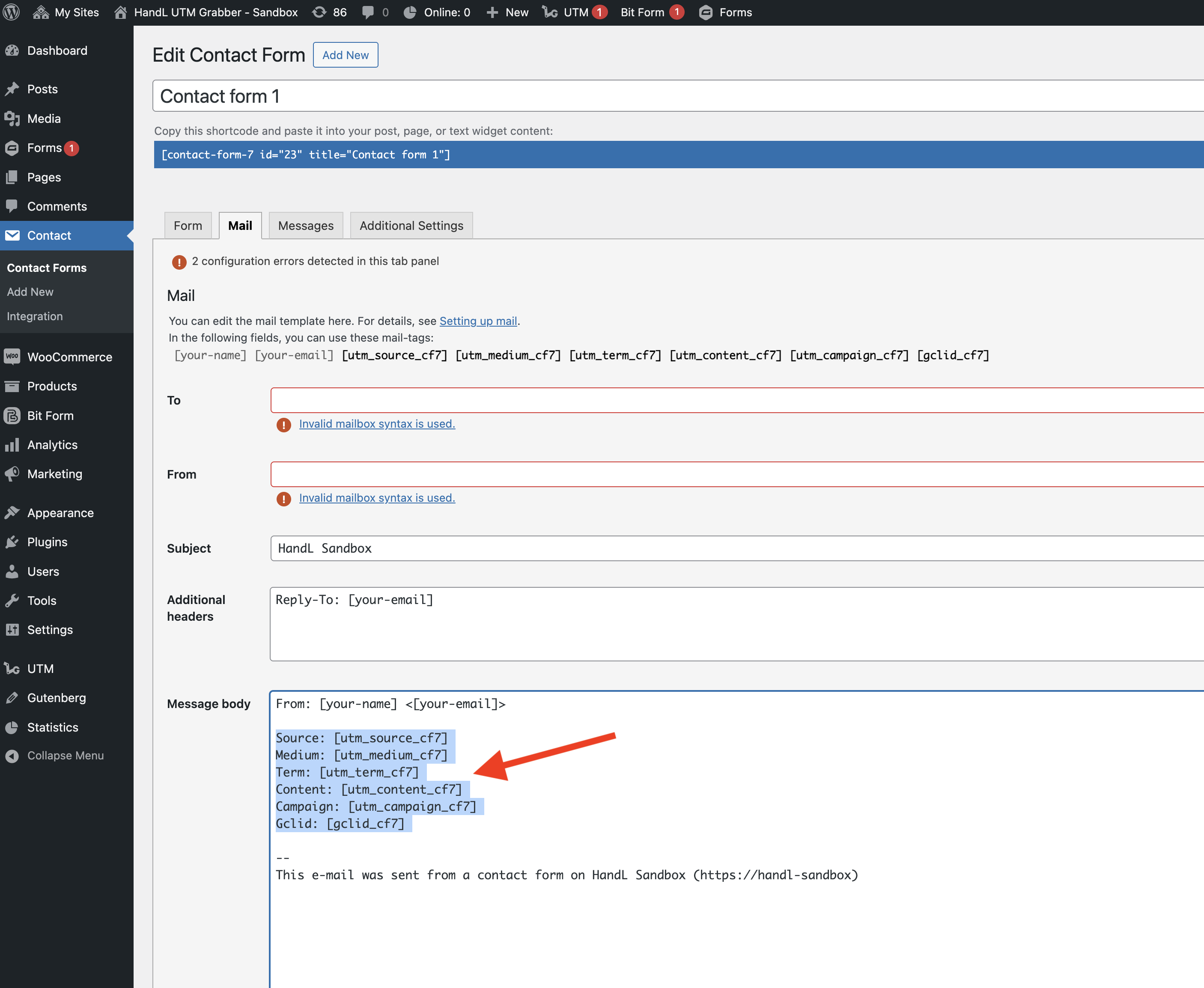
Source: [utm_source_cf7]
Medium: [utm_medium_cf7]
Term: [utm_term_cf7]
Content: [utm_content_cf7]
Campaign: [utm_campaign_cf7]
Gclid: [gclid_cf7]
3. Advanced Integration with with Zapier
For advanced automation and and CRM integration:
-
Set up a Zapier account
ifif you haven't already -
Create a new Zap using Contact Form 7 as the trigger
-
Configure the Zap to send form
submissionssubmissions (including UTM data) to:
-
Your CRM (HubSpot, Salesforce, Zoho, etc.)
-
GoogleGoogle Sheets for reporting -
EmailEmail marketing platforms -
Analytics tools
-
Other apps in the Zapier ecosystem
Best Practices
-
Always
includeinclude UTM fields in email notifications:MakeMake sure to add the UTM mail tags to youremailemail template to receive tracking data. -
Test your form: After setting up, test your form by:
-
Submitting the form with UTM parameters in the URL
-
Checking if
thethe UTM data appears in your email notifications -
Verifying
thethe data in yourCRMCRM or other integration platforms
- Use Zapier for advanced tracking: Consider using the Zapier integration for:
-
Automated lead scoring based on UTM parameters
-
Campaign performance tracking
-
Custom reporting in Google Sheets
-
Multi-step automation workflows
Troubleshooting
If UTM data is not not being captured:
-
VerifyVerify that the UTM fields areproperlyproperly added to your form -
Check if the mail tags are correctly added
toto your email template -
Ensure that UTM parameters are present
inin the URL when testing -
Check your site'
ss caching settings, as some caching plugins might strip UTM parameters
Support
For additional help:
-
Visit
ourour documentation site -
Check
thethe Zapier integration guide -
Contact our support team for personalized assistance
Premium Features
Upgrade to HandL UTM Grabber V3 to access additional features:
-
Organic traffic tracking
-
Google Ads ValueTrack parameters
-
Facebook Ads tracking
-
First/Last touch attribution
-
Custom cookie duration
-
GDPR compliance
-
And more!