
Full Tracking Mode - HandL UTM Grabber Guide
UTM attribution overview
This guide explains Full Tracking Mode - HandL UTM Grabber Guide. It helps you capture UTM source, medium, campaign, term, content, click IDs, referrer, and landing page data and keep the marketing context needed for accurate reporting across forms, bookings, signups, and sales.
Overview
TheFull Tracking Mode records every page a visitor views on your site, together with the UTMs, click IDs and referrer they arrived with. Your forms and orders already save the first and last touch. Full Tracking Mode isadds everything in between: which campaign brought a powerfulvisitor featurein, ofwhich pages they read, how they came back, and what they did before they converted.
The reports live in WordPress Admin > UTM > Full Tracking Mode. You can:
- see your most viewed pages and where their traffic came from,
- list your visitors, counted by browser or by person,
- open any visitor to follow their sessions page by page,
- export the
HandLraw page views to CSV, or ask your AI assistant about them through MCP.
Full Tracking Mode needs an active UTM Grabber license. This guide covers plugin
thatversionallows3.3.9youandtolater.track
Turn on every page visit for each session, providing insights similar to Google Analytics 4 (GA4).
Enabling Full Tracking Mode
NavigateGo to theWordPress HandLAdmin > UTM Grabberand settings in your WordPress admin panel.
Look foropen the "Full Tracking Mode Settings" section.tab.CheckClick Settings in the boxleft labeled "Enable Full Tracking Mode".menu.SaveTurn youron changes.Record every page view.
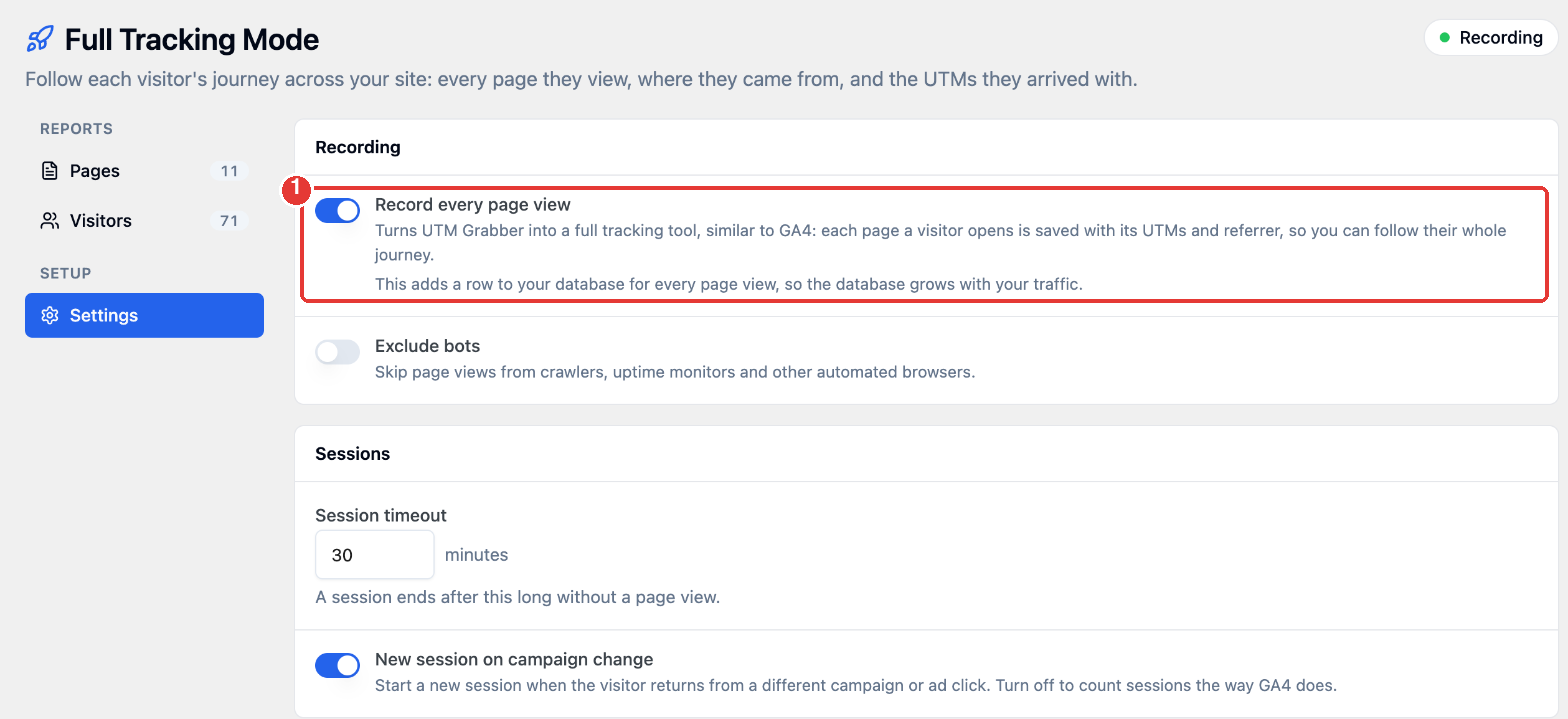
What
UTM DataGrabber iscreates Collectedits
Whendatabase tables and starts recording right away. The badge at the top right of the tab shows Recording while Full Tracking Mode is enabled,on. Click it any time to come back to Settings.
Every page view adds a row to your database, so the plugindatabase collectsgrows with your traffic. Use Data retention to delete old page views automatically.
Settings
- Exclude bots: skips page views from crawlers, uptime monitors and other automated browsers. Off by default.
- Session timeout: a session ends after this many minutes without a page view. 30 minutes by default, and anything from 1 to 1440 minutes (24 hours).
- New session on campaign change: starts a new session when a visitor comes back from a different campaign or ad click, even within the
followingtimeout.dataOn by default. Turn it off to count sessions the way GA4 does.
Consent
Full Tracking Mode follows the same consent rules as the rest of UTM Grabber. If you use UTM Grabber's GDPR option or one of the consent integrations, page views are recorded only after the visitor gives consent, and nothing is recorded for eachvisitors who haven't. See the GDPR Implementation Guide to set it up.
The Full Tracking report
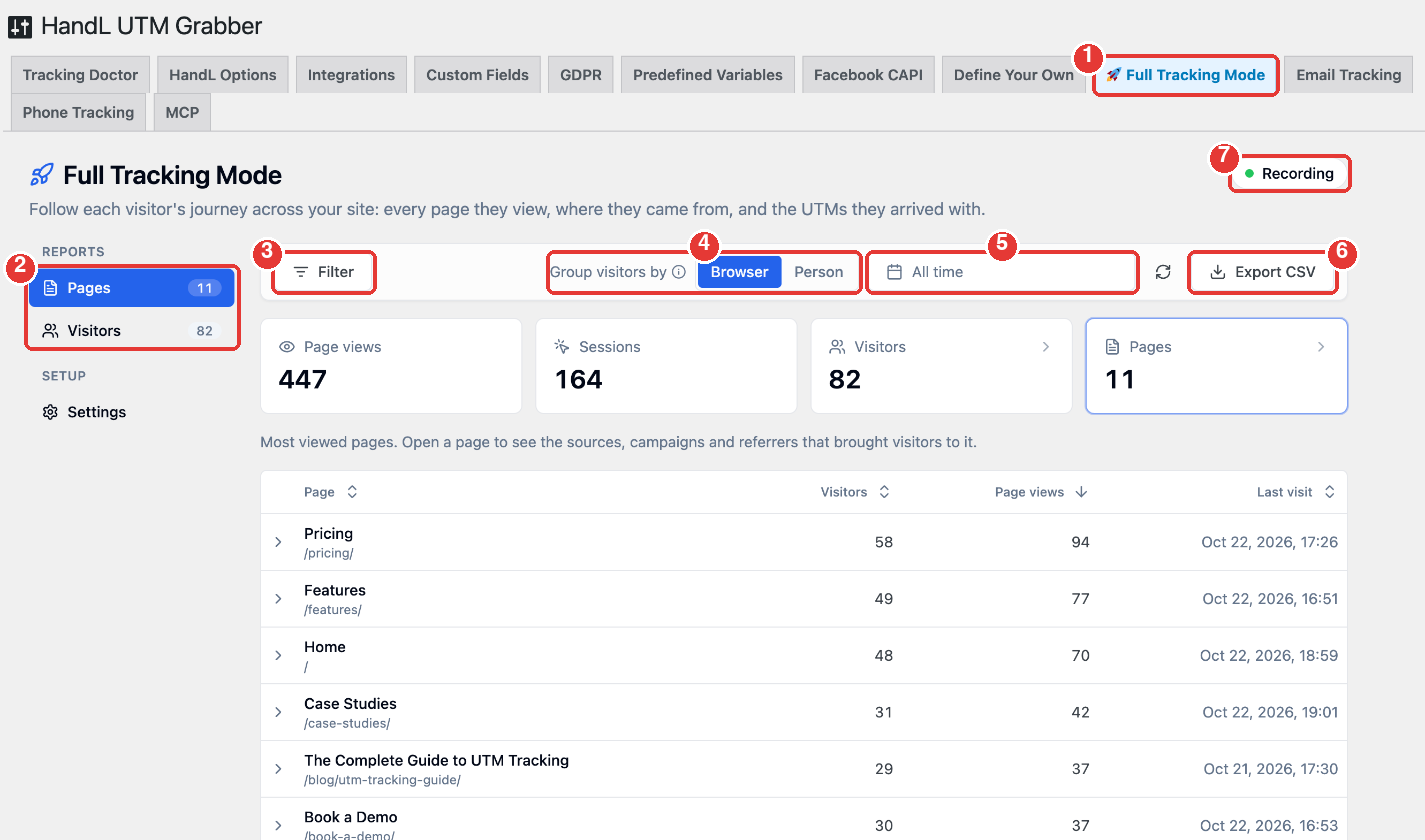
- Full Tracking Mode tab: where the reports live.
- Pages and Visitors: the two reports, with how many pages and visitors match your filters.
- Filter: show only page
visit:views whose URL contains some text (for example/pricing), or one visitor's page views by their ID. - Group visitors by: count each visitor as a Browser or as a Person. See Browser or person.
- Date range: All time by default. Pick Last 7 Days, Last 15 Days, Last 30 Days, Last 3 Months or Last 12 Months, or choose any range on the calendar.
- Export CSV: download the page views that match your filters. See Export to CSV.
- Recording: shows whether Full Tracking Mode is recording. Click it to open Settings.
The tiles show the totals for your filters: page views, sessions, visitors and pages. Click Visitors or Pages to switch reports. The filters and date range apply to every report, to the visitor panel and to the CSV export.
Pages
The Pages report lists your most viewed pages with their visitors, page views and last visit. Click a column header to sort by it.
Click the arrow next to a page to see where its page views came from: the top values for UTM source, medium, campaign, content and term, and the referrer.
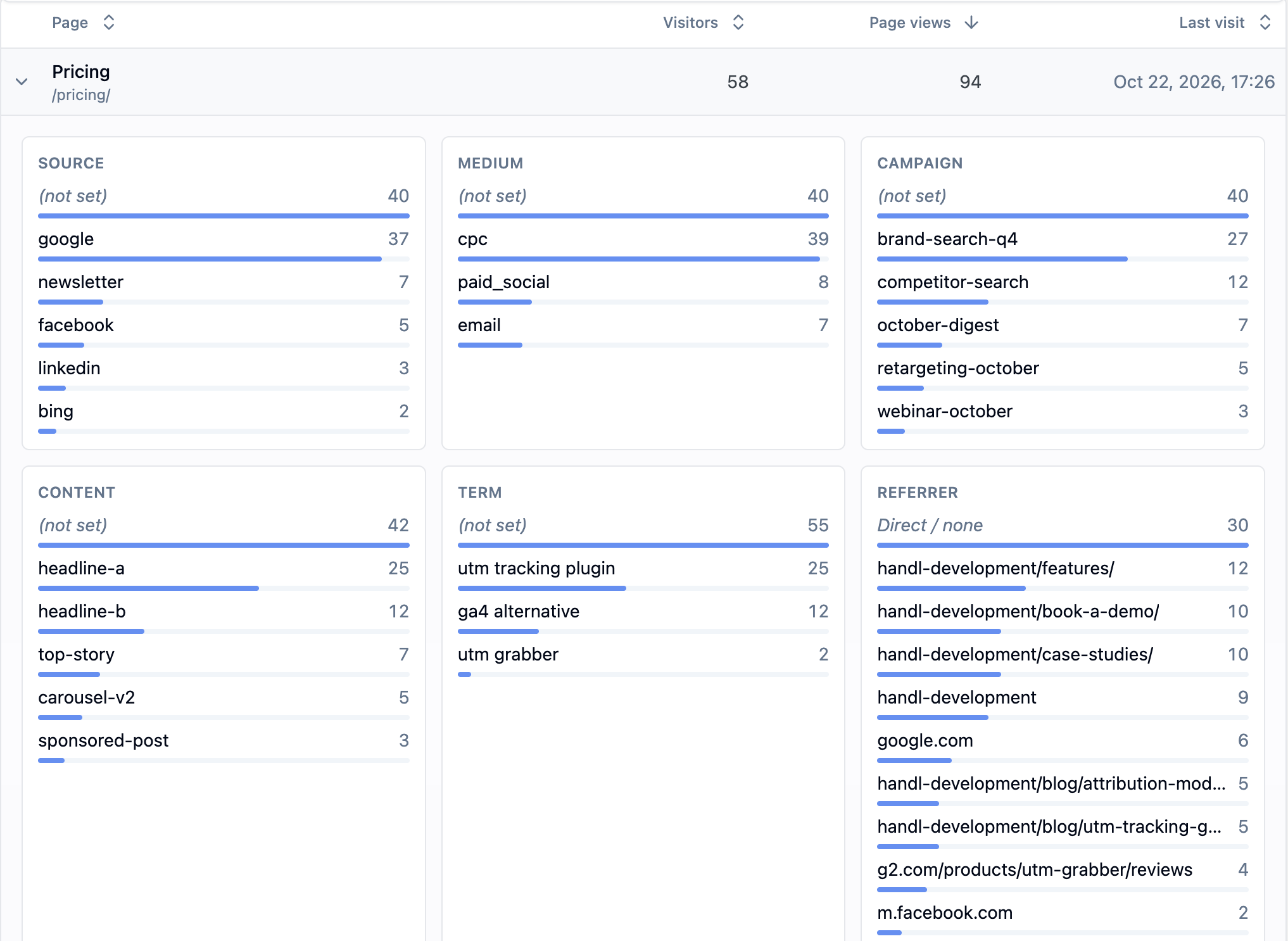
Session(notIDset) means those page views had no value for that field.TimestampDirect / none means there was no referrer.PageAURLreferrer on your own site means the visitor came from another one of your pages.
Visitors
The Visitors report lists every visitor with the number of pages they viewed, their sessions and page views, and their first and last visit. The most recent visitors come first. Click a visitor to open their journey.
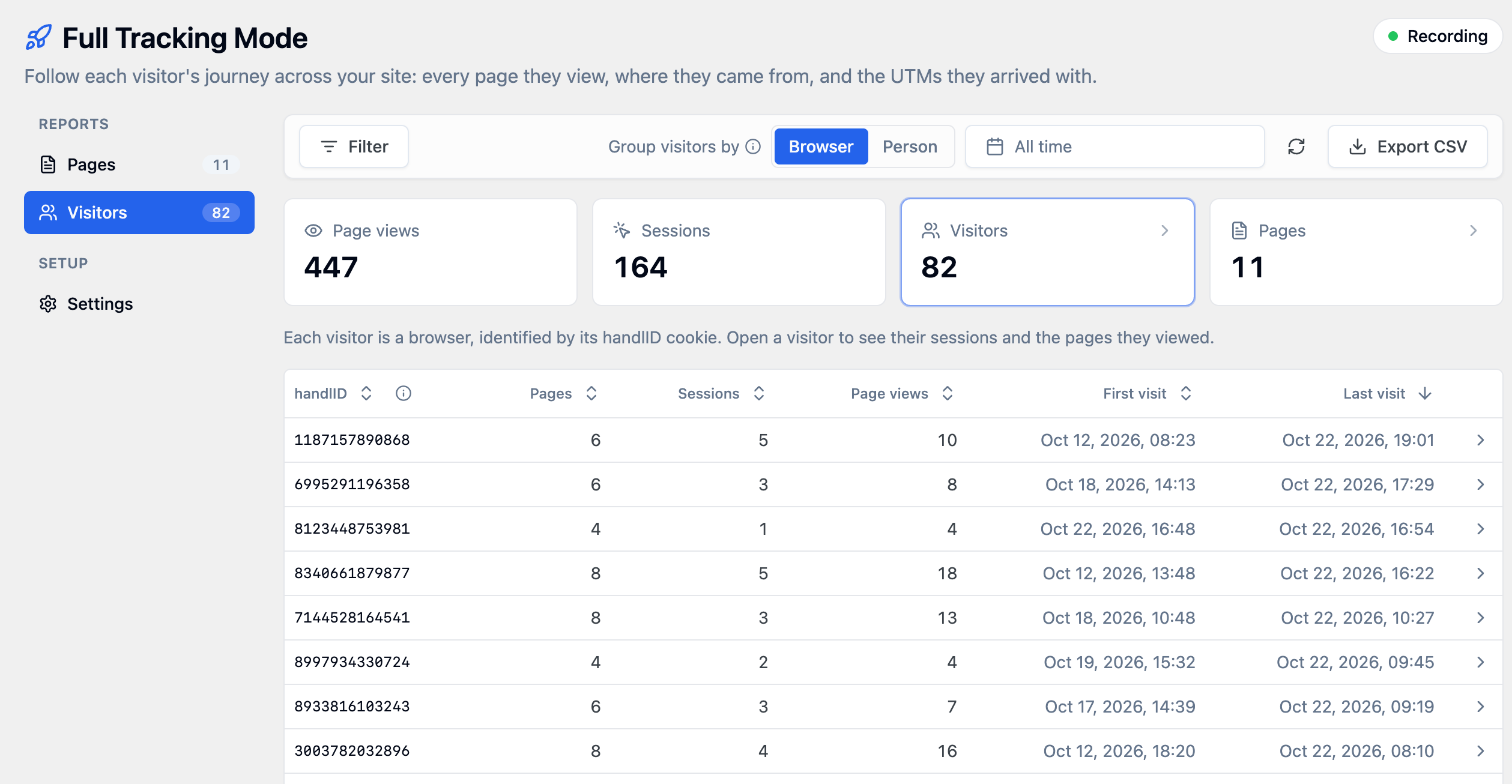
Browser or person
UTM Grabber gives every browser a handlID: a random ID stored in a cookie that links that browser's page views and form submissions. It also keeps a first_handlID: a stable ID based on the visitor's first IP address on your site, which other browsers and devices on the same network share.
- Browser (the default): each visitor is one browser on one device, identified by its handlID.
ReferrerPerson:URLeach visitor is the group of browsers that share a first_handlID. Someone who reads your blog on their laptop and later books a demo on their phone shows up as one person.
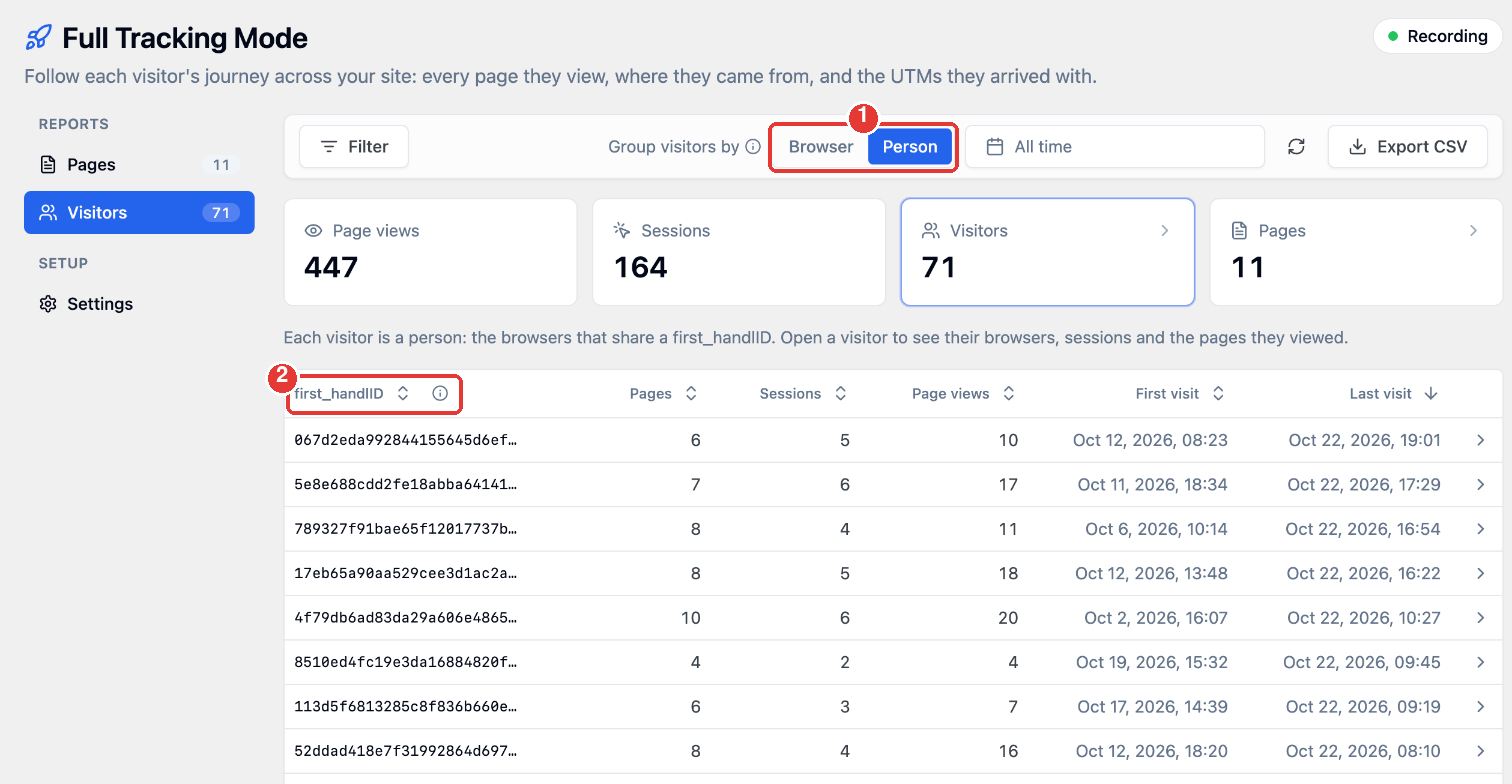
- Switch between Browser and Person.
- In Person mode, visitors are listed by their first_handlID.
Cross Device Traffic
When a visitor comes back on a new browser or device, that browser starts without their UTMs. With Cross Device Traffic turned on in HandL Options, UTM parametersGrabber restores their tracking data, including their first touch, when they return from the same network. Their sessions on the new device then keep their campaign.
Cross Device Traffic is on by default for sites that never changed the setting. If it's off, the Visitors report shows a reminder with a link to HandL Options.
Matching is based on the network, so people who share one (an office, or some mobile carriers) can share attribution.
Follow a visitor's journey
Click a visitor in the Visitors report to open their panel.
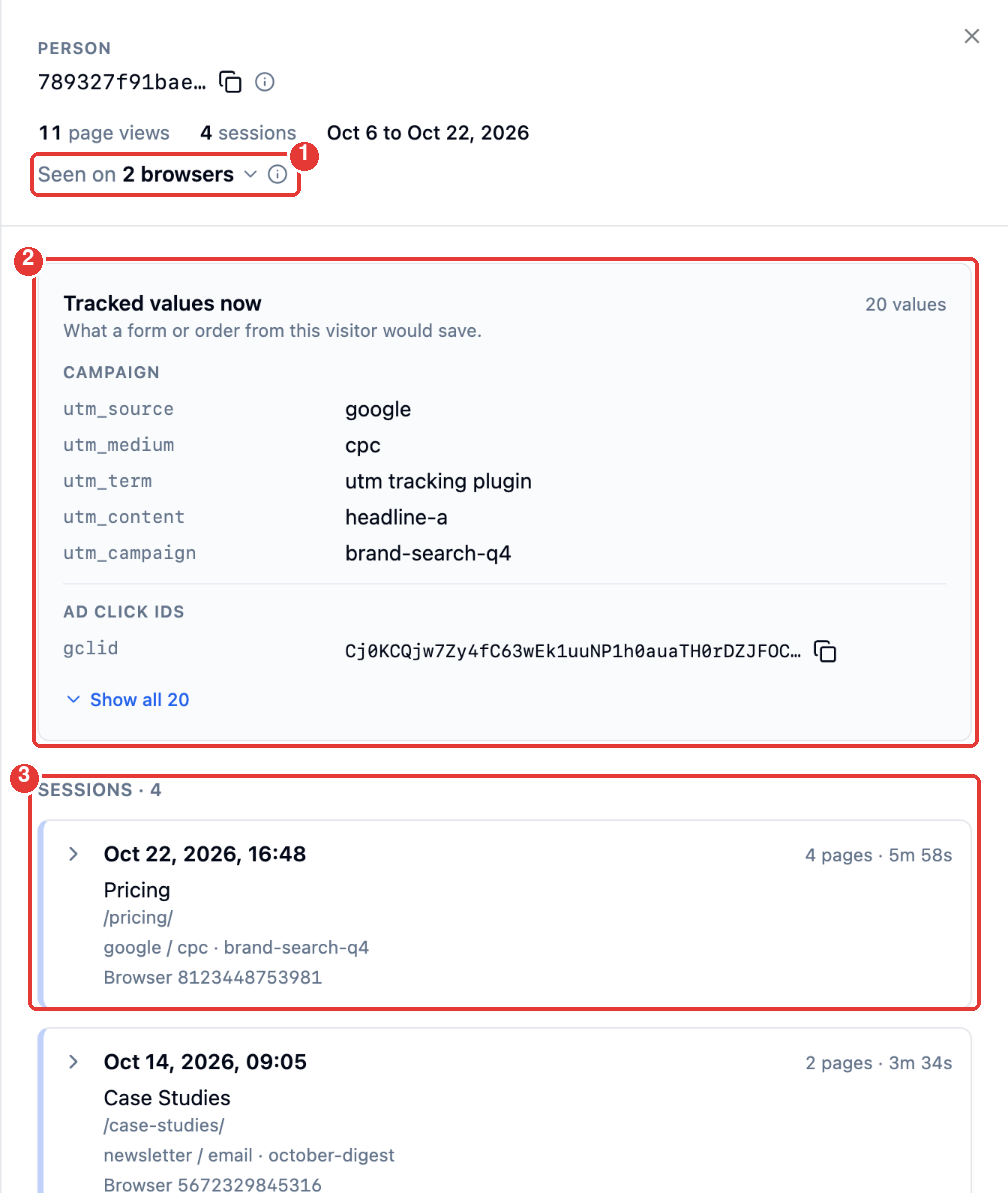
- Seen on 2 browsers: in Person mode, click it to list the browsers (handlIDs) that belong to this person. In Browser mode, the panel shows the browser's first_handlID here instead.
- Tracked values now: what a form or order from this visitor would save right now. It starts with the campaign and ad click IDs. Click Show all to see every value.
- Sessions: the visitor's sessions, newest first.
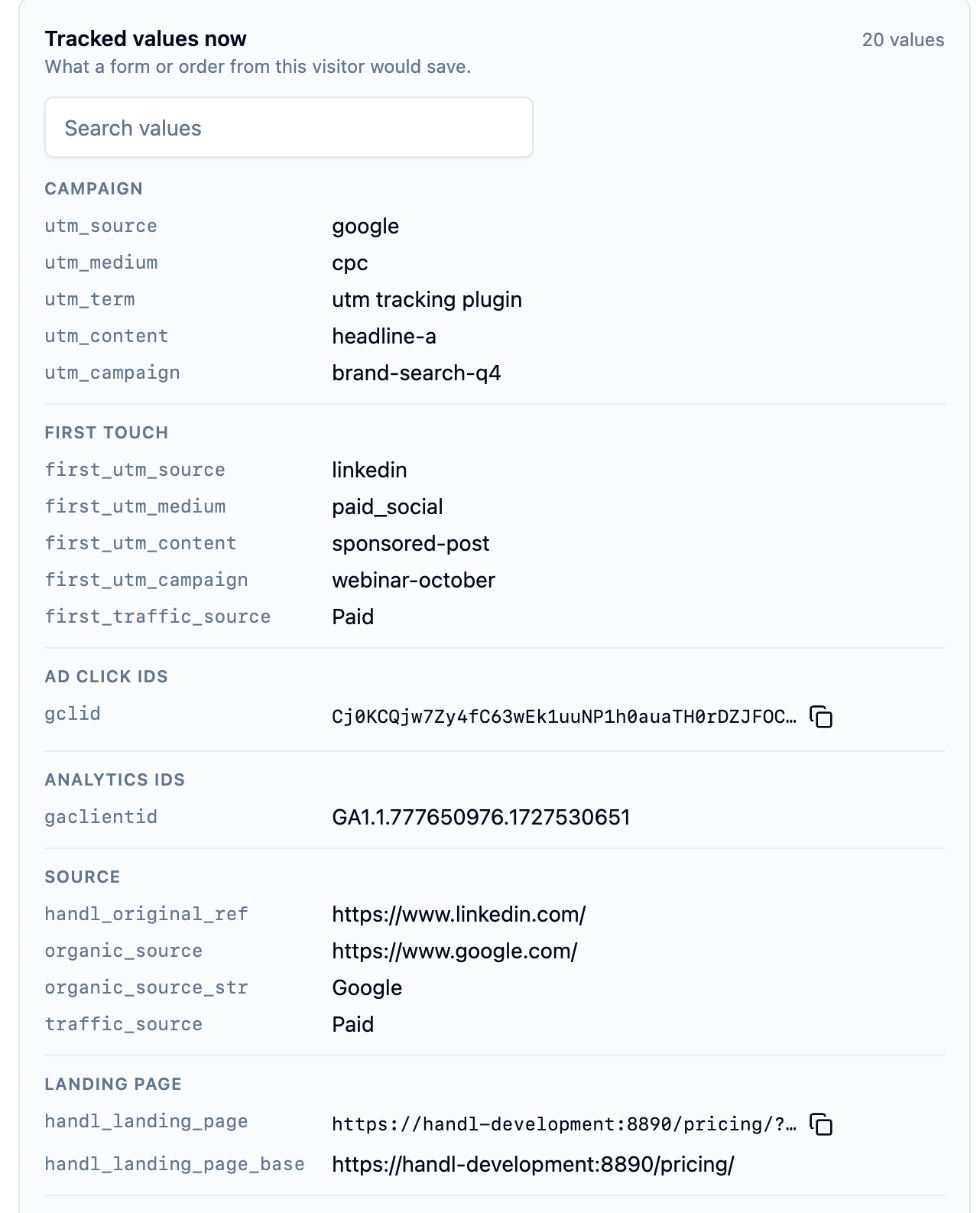
Show all lists every tracked value in groups: Campaign, First touch, Ad click IDs, Analytics IDs, Source, Landing page, Browser and Other (your custom parameters). Use the search box to find a value quickly.
Sessions
Each session shows when it started, its landing page, the campaign it arrived with (or No campaign), how many pages it covered and how long it lasted.
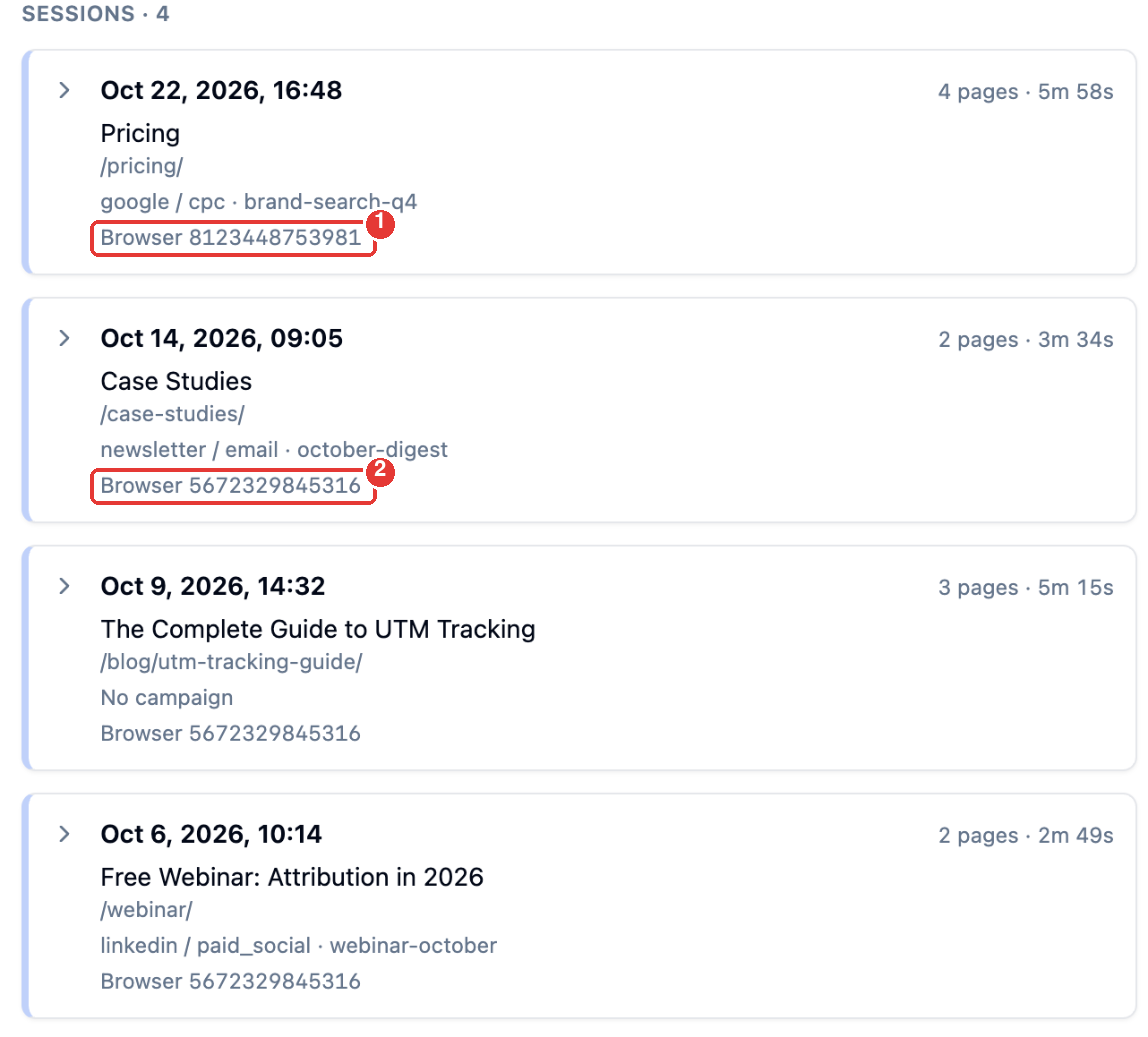
In Person mode each session also shows the browser it ran in. In this example, one person:
- clicked a LinkedIn ad for a webinar on Oct 6, came back from Google search on Oct 9 and from the newsletter on Oct 14, all on their laptop (2),
- then clicked a Google ad on their phone on Oct 22 and booked a demo (1).
Click Load older sessions at the bottom to see earlier sessions.
Pages in a session
Click a session to see its pages in order.
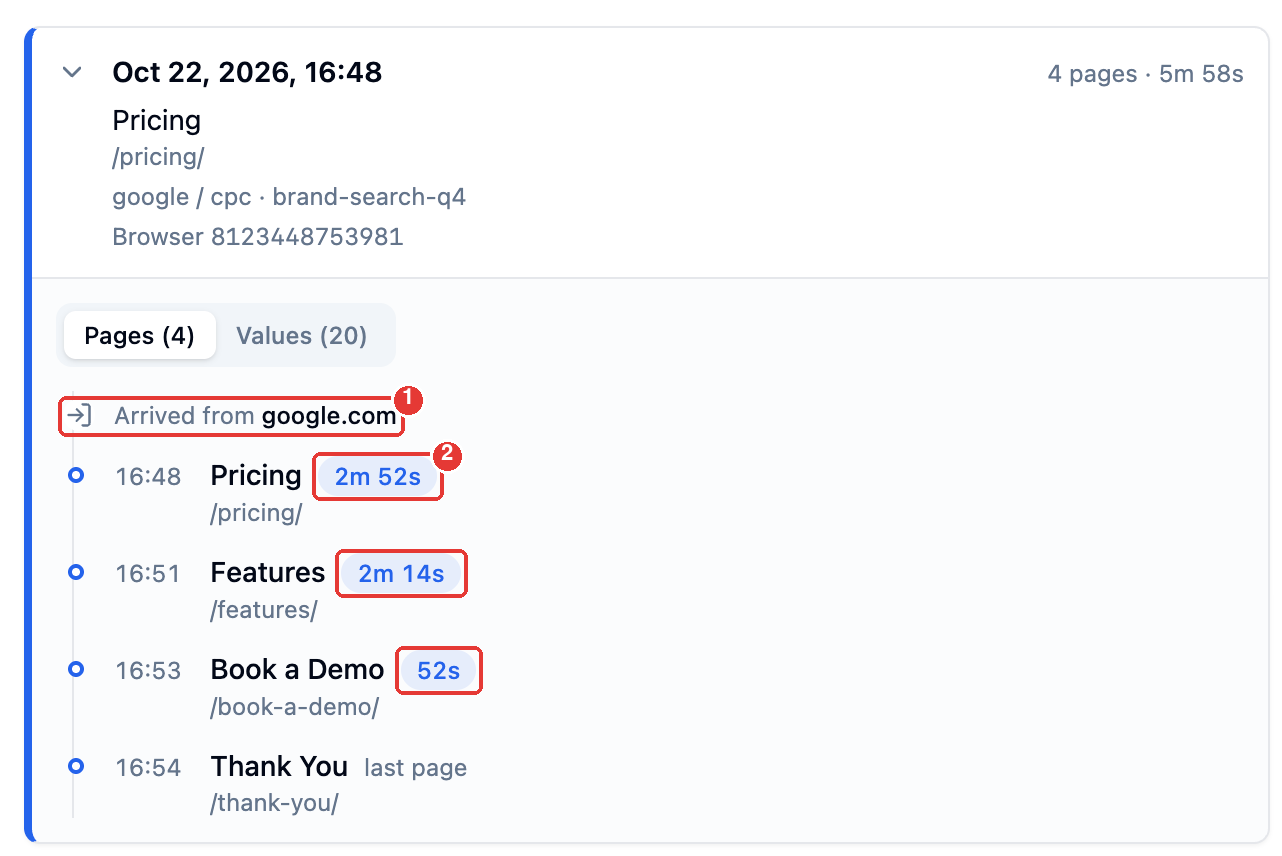
- How the session started: Arrived from a website (such as google.com), Arrived directly, or Continued from this site.
- Time on page: how long the visitor stayed before opening the next page. The last page of a session shows last page, because there is no next page view to measure it against.
Long sessions show their first 5 pages. Click Load more pages to see the rest.
Switch to Values to see the tracked values the session arrived with. Here, the phone session arrived with the Google Ads campaign, while its first touch is still the LinkedIn webinar ad from Oct 6, restored by Cross Device Traffic.
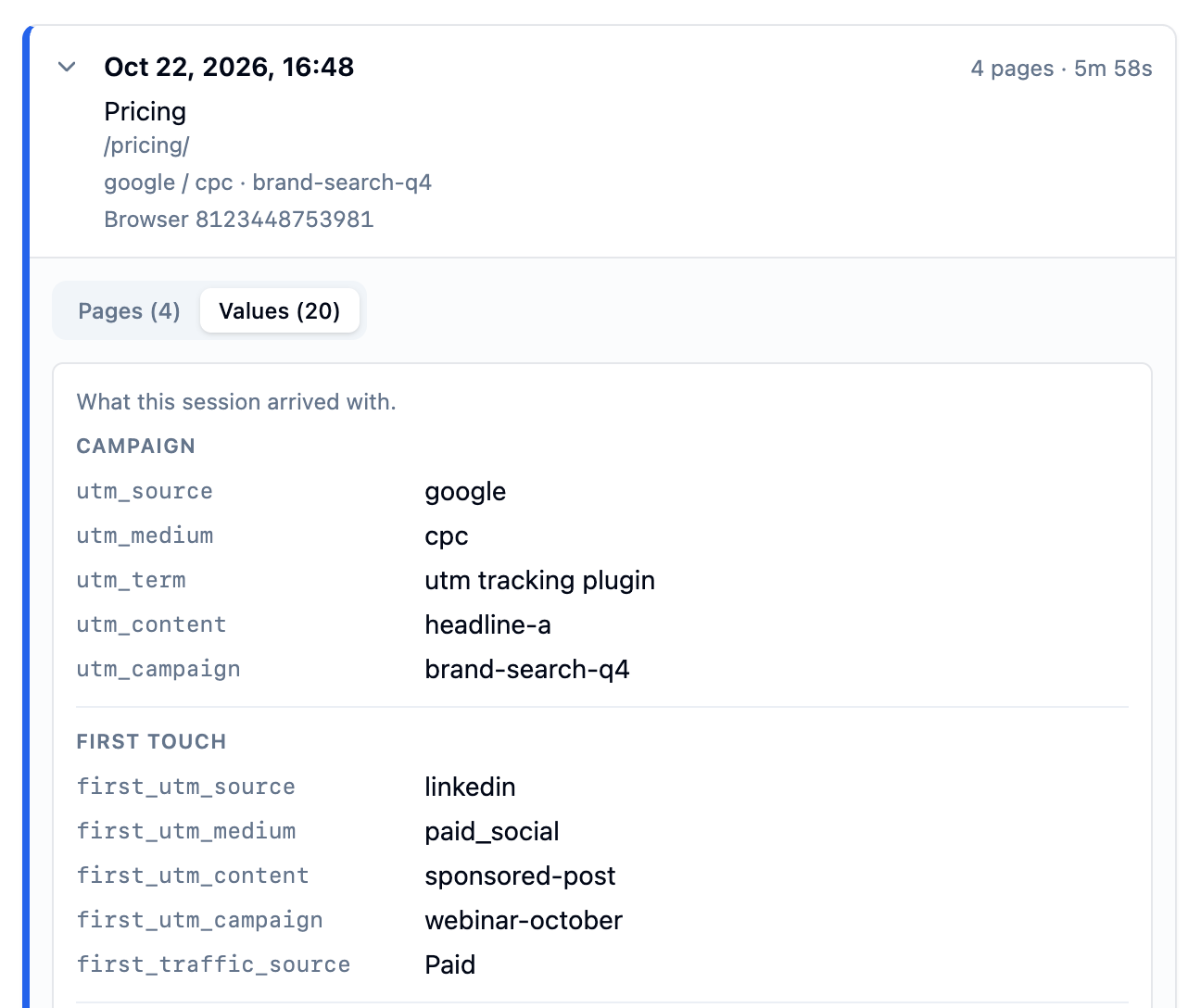
Below the sessions, Page views across all sessions breaks down the visitor's page views by UTM source, medium, campaign, content, term)term and page.
Export to CSV
Click Export CSV in the report toolbar to download the page views that match your current filters and date range. Each row is one page view with these columns:
page_view_id,timestamp,page_url,page_titleandreferrersession_id: the browser's handlIDfirst_handlid: the person's first_handlIDvisit_id: the sessionutm_set_id,utm_source,utm_medium,utm_campaign,utm_contentandutm_term- one more column for each tracked value, such as
gclid,first_utm_sourceor your custom parameters
Ask your AI assistant (MCP)
If you've connected your site to an AI assistant with MCP, it can read your Full Tracking data too: totals, top pages, visitors, traffic breakdowns, a visitor's sessions and the pages they viewed. Try questions like:
- "Which pages got the most visitors from Google Ads this month?"
- "Where did the visitors to my pricing page come from?"
- "Show me the journey of the last visitor who reached the thank you page."
The Full Tracking tools are available on Starter+ and Premium, with plugin version 3.3.9 or later.
Data retention and deleting data
Both options are at the bottom of Settings once Full Tracking Mode has recorded page views.
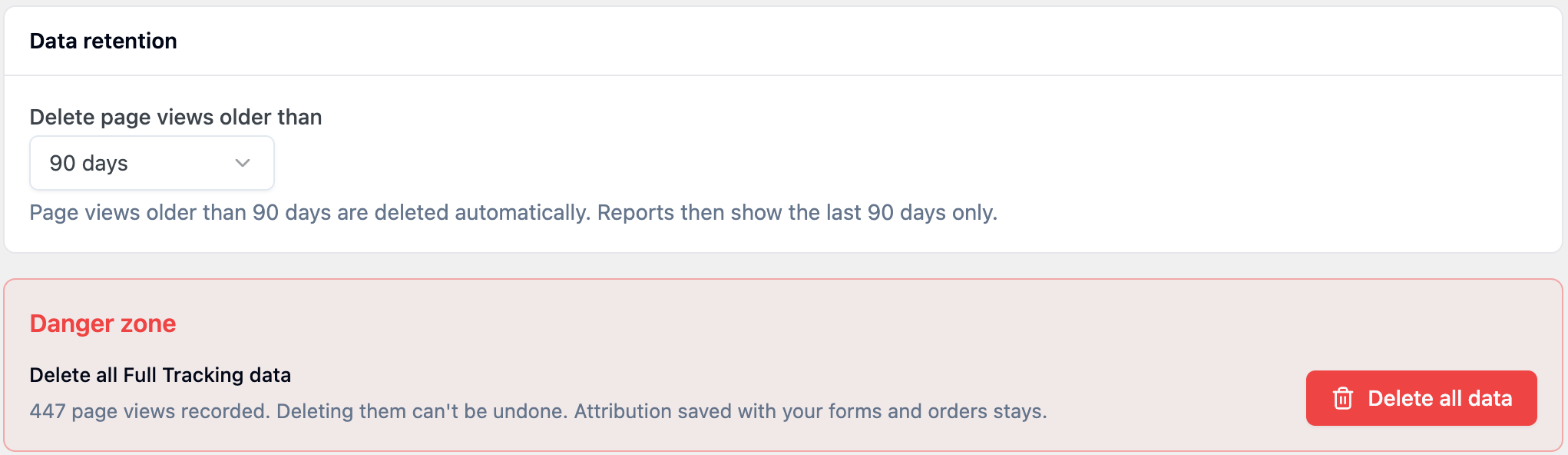
- Delete page views older than: Never (the default), 15, 30, 90, 180 or 365 days. Older page views are deleted automatically, and the reports then cover that period only.
- Delete all data: deletes every recorded page view after you confirm. This
datacan't be undone. Full Tracking Mode stays on, and the attribution already saved with your forms and orders isn't affected.
What is stored
Full Tracking Mode uses three main tables in your WordPress database:database (wp_ is your site's table prefix):
handl_sessionswp_handl_page_viewsStoresoneuniquerowsessionperinformationpage view, with the visitor IDs, session, time, URL, page title and referrer.handl_utm_setswp_handl_utm_setsStorestheuniquetrackedcombinationsvaluesoftheUTMpageparametersviews arrived with. Identical sets are stored once and shared.handl_page_viewswp_handl_sessionsStoresoneindividualrow per browser (handlID).
Good to know
- Database size: every page view adds a row. On busy sites, use data retention to keep the tables a manageable size.
Viewing Reports
To access the
- a
GobrowsingtohistorytheforHandLeachUTMvisitor,Grabberalongmenuwith their tracked values such as IP address and browser. Mention it in yourWordPressprivacyadminpolicy,panel.and Clicksetonup consent where the"FulllawTrackingrequiresReport"ittab.
The report page offers several features:
Filters
You can filter the data by:
Date rangePage URLSession ID

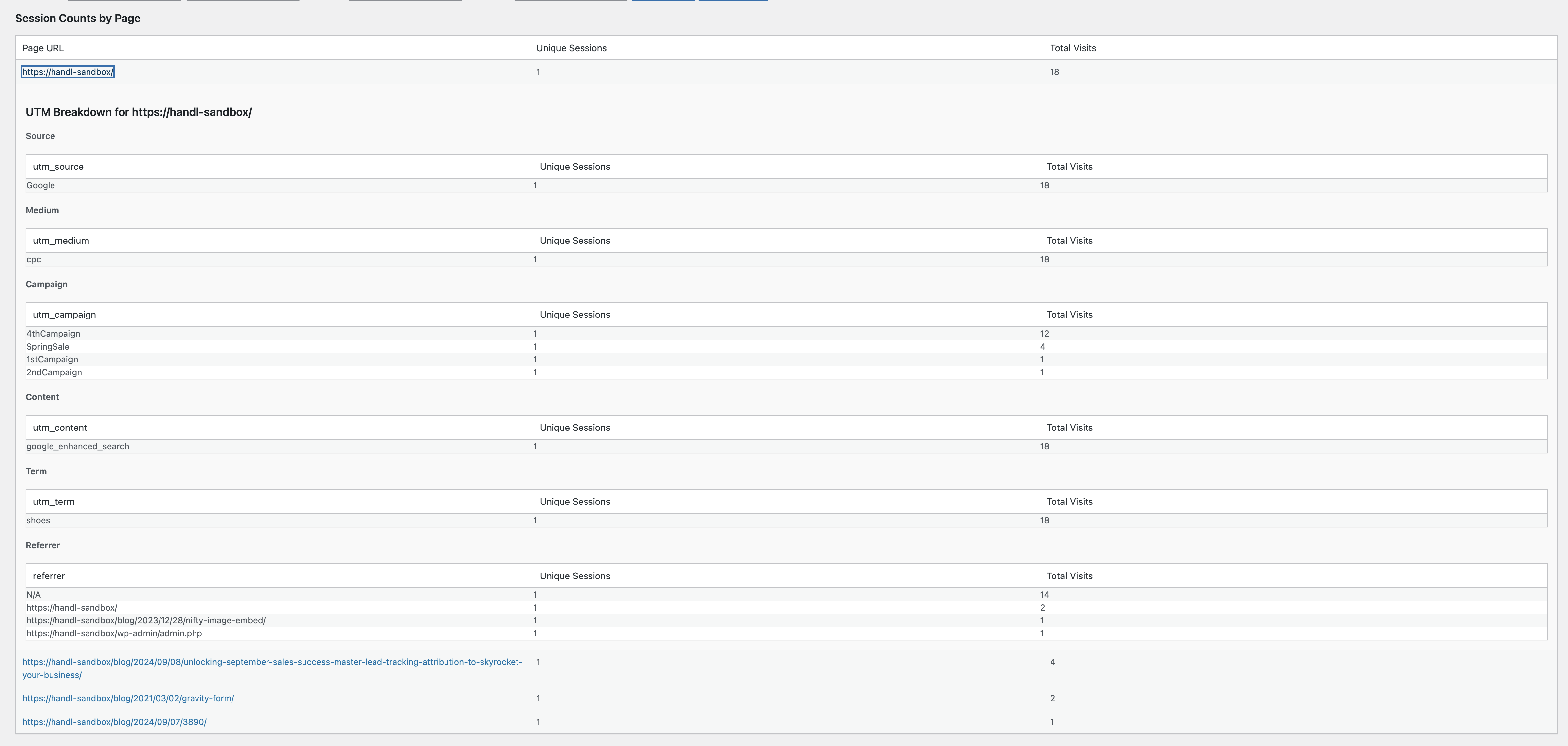
Session Counts by Page
This section shows:
Page URLNumber of unique sessionsTotal visits
You can drill down into each page to see a breakdown of UTM parameters and referrers.
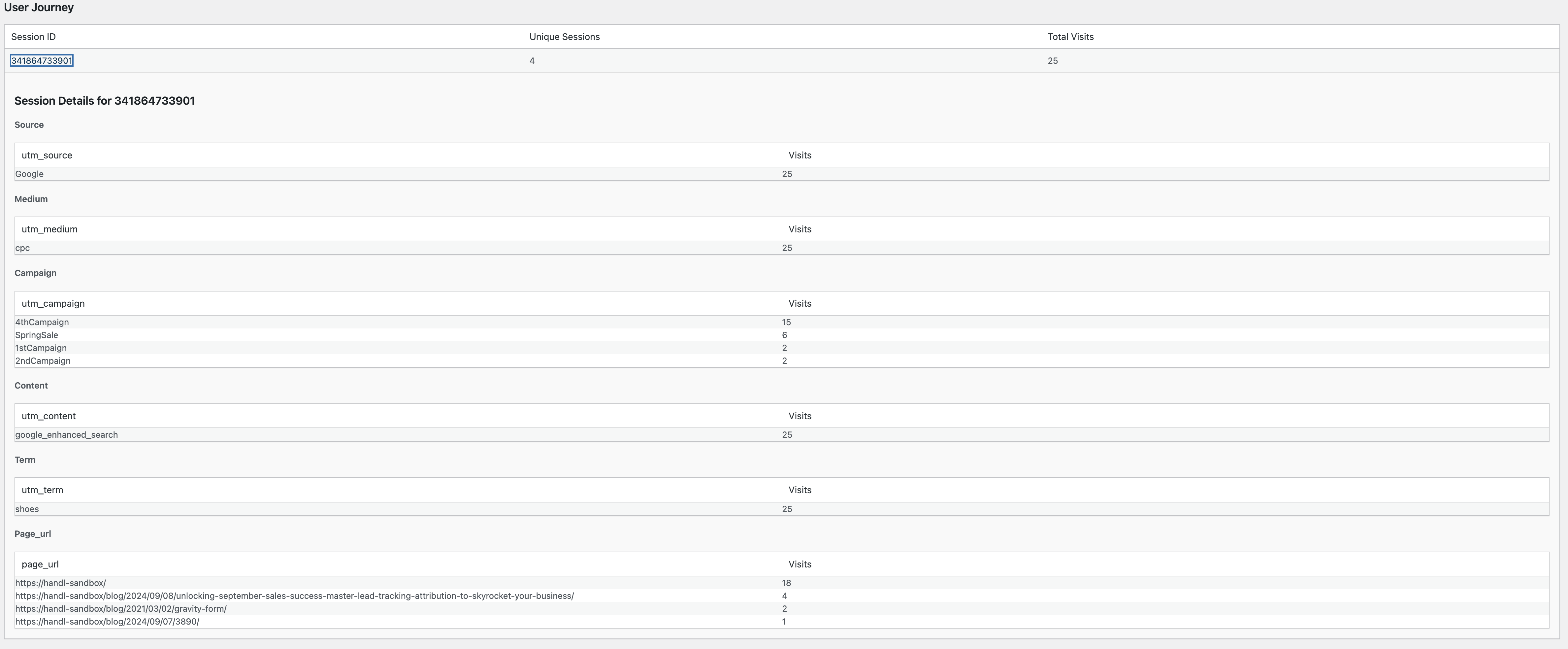
User Journey
This section displays:
Session IDNumber of unique sessionsTotal visits
You can drill down into each session to see detailed information about the pages visited and UTM parameters used.
Exporting Data
You can export the collected data to a CSV file (for furtherexample analysis:
Apply any desired filters.Click the "Export to CSV" button.
Database Management
As Full Tracking Mode collects a significant amount of data, it's important to manage your database effectively:
Viewing Database Statistics
The "Danger Zone" section of the report page shows the current number of rows in each tracking table.
Resetting Tracking Data
If the database becomes overwhelmingGDPR or you need to start fresh:
Scroll to the "Danger Zone" section at the bottom of the report page.Click the "Remove Tracking Tables" button.Confirm your action in the popup dialog.
This action will delete all collected tracking data and cannot be undone.

Important Considerations
Database Size:Full Tracking Mode will increase your database size. Monitor your database usage regularly.CCPA).Performance:TimesWhilearedesignedshownto be efficient, tracking every page visit may have a slight impact on site performance. Monitorin your site'sperformancetimezone,aftersetenablingunderthisWordPressfeature.Admin > Settings > General.Privacy:Ensure that your privacy policy reflects the additional data being collected when Full Tracking Mode is enabled.Compliance:Make sure you're compliant with relevant data protection regulations (e.g., GDPR, CCPA) when using this feature.
Conclusion
Full Tracking Mode transforms HandL UTM Grabber into a powerful analytics tool, providing detailed insights into user behavior on your website. Use this data to optimize your marketing strategies, improve user experience, and drive conversions.