
MCP (Model Context Protocol) for UTM Grabber Reports
UTM attribution overview
This guide explains MCP (Model Context Protocol) for UTM Grabber Reports. It helps you send UTM and click ID data into automations, webhooks, reports, and connected tools and keep the marketing context needed for accurate reporting across forms, bookings, signups, and sales.
Overview
The MCP feature allows you to connect your WordPress site to AI assistants like Claude Desktop, Cursor, and Codex using the Model Context Protocol. Once connected, you can query your UTMGrabber reports using natural language directly from any MCP-compatible client.
Disclaimer: AI-generated results may be inaccurate or incomplete. Always review before acting on them.
For example, you can ask questions like:
- "What are the top UTM sources in my submissions?"
- "How many leads came from organic traffic?"
- "Which campaigns drove the most form submissions?"
- "How much revenue did each campaign bring in last month?" (WooCommerce)
- "Where did the visitors to my pricing page come from?" (Full Tracking Mode)
Requirements
- HandL UTM Grabber V3 (premium) with an active license key
What your AI can read depends on your plan:
| Starter | Starter+ and Premium | |
|---|---|---|
| Forms and their entries | Last 30 days, with a fair-use allowance | Full history, no allowance |
| WooCommerce orders and customers | Upgrade needed | Yes |
| Full Tracking Mode data | Upgrade needed | Yes |
On Starter, your AI tells you when you're close to the allowance, and you can ask it how much is left.
Setup
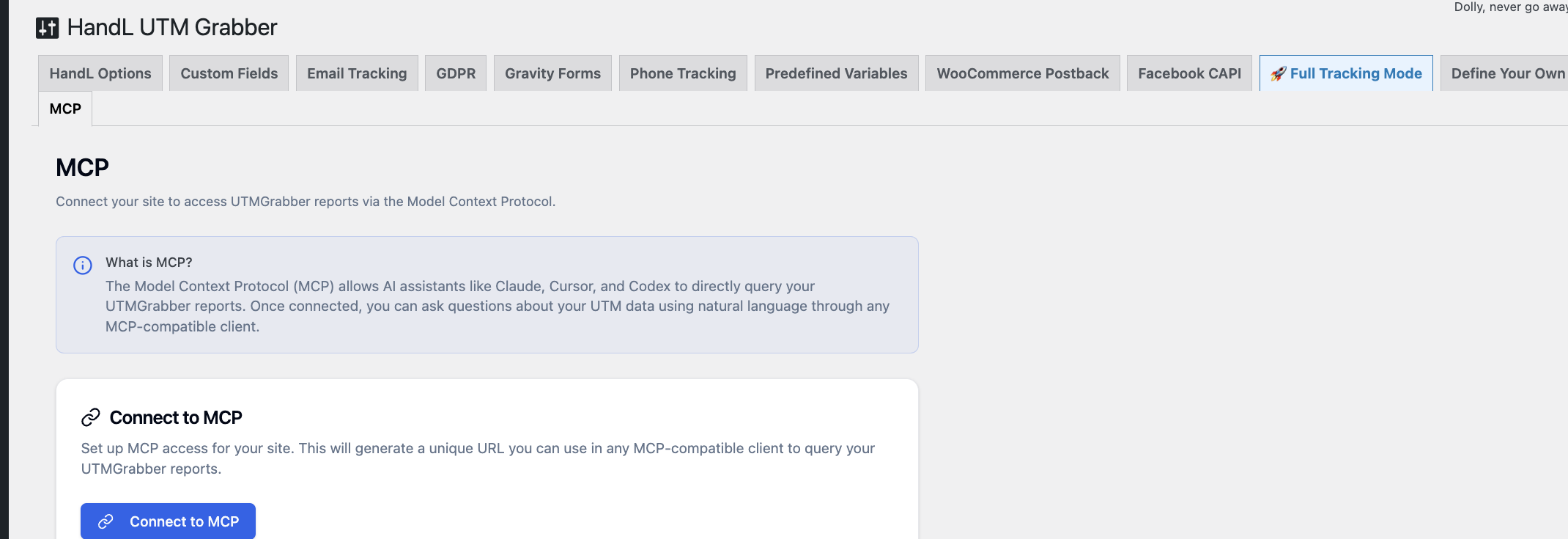
Step 1: Navigate to the MCP Tab
- Go to WordPress Admin > UTM > MCP
You will see the MCP setup screen:
Step 2: Connect to MCP
- Click the Connect to MCP button
- The plugin will automatically register your site using your license key
- Once connected, you will see your unique MCP URL
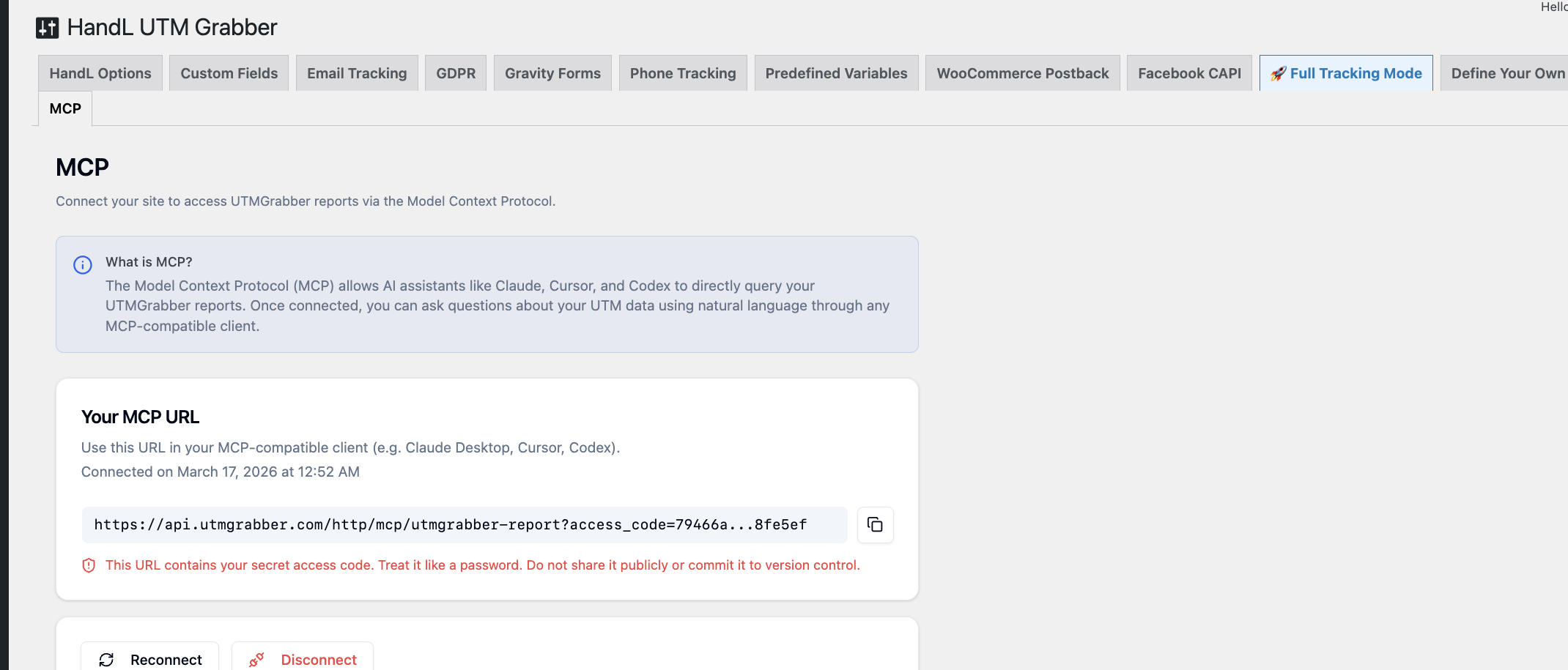
Step 3: Copy Your MCP URL
- Your unique MCP URL will be displayed on screen (partially truncated for security)
- Click the copy icon next to the URL to copy the full URL to your clipboard
- You will see a confirmation toast when the URL is copied
Important: This URL contains your secret access code. Treat it like a password. Do not share it publicly or commit it to version control.
Step 4: Add to Your MCP Client
Use the copied URL in your preferred MCP-compatible client:
Claude (web and desktop app)
Go to Settings > Connectors, add a custom connector, and paste your MCP URL.
Claude Desktop (config file)
Add to your Claude Desktop configuration file (claude_desktop_config.json):
{
  "mcpServers": {
    "utmgrabber": {
      "url": "YOUR_MCP_URL_HERE"
    }
  }
}
Cursor
Add to your Cursor MCP settings (.cursor/mcp.json):
{
  "mcpServers": {
    "utmgrabber": {
      "url": "YOUR_MCP_URL_HERE"
    }
  }
}
Step 5: Install the free Reports Skill (optional)
The free UTM Grabber Reports skill turns your data into branded reports: attribution reviews, forecasts, UTM audits, lead scoring and more. To install it, paste this prompt into your AI:
Install the UTM Grabber Reports skill from https://github.com/handldigital/utm-grabber-skills/releases/latest/download/utm-grabber-reports.skill and run a sample monthly attribution report.
The same prompt, with a copy button, is in the Next step box on the MCP tab. See all report types and the setup video.
Features
Query UTM Reports with Natural Language
Once connected, you can ask your AI assistant questions about your UTMGrabber data. The MCP server exposes the following capabilities:
- Site health: checks that your site is reachable and which plugin version it runs.
- Forms: see which form plugins are active on your site (for example Gravity Forms, WPForms, Fluent Forms), list their forms, and fetch form entries with their UTM data, filtered by date range and form.
- WooCommerce (plugin 3.2.1 or later): fetch orders, with their products, totals and refunds, and customers, each with their UTM data.
- Full Tracking Mode (plugin 3.3.9 or later): totals, top pages, visitors, where a page's or visitor's traffic came from, a visitor's sessions and the pages they viewed, and the raw page view feed. Full Tracking Mode must be on to record data; see Full Tracking Mode.
If your site runs an older plugin version, the AI tells you which version a tool needs so you can update.
Secure Communication
All communication between the MCP server and your WordPress site is secured using HMAC-SHA256 signed requests. Your site secret is never transmitted after the initial setup. Only the MCP server and your WordPress plugin know the shared secret.
Managing Your Connection
Reconnecting
If you need to regenerate your MCP credentials (e.g. you suspect the URL was compromised):
- Click the Reconnect button
- A confirmation dialog will appear warning that this will invalidate your current URL
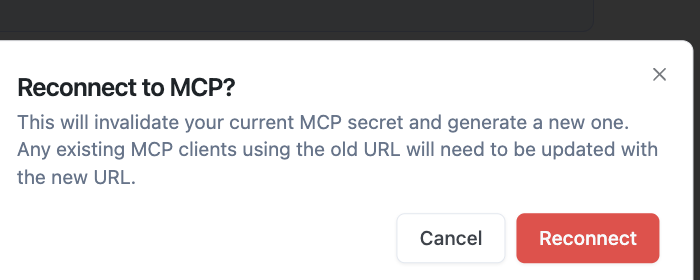
- Click Reconnect to confirm
- A new MCP URL will be generated
- Update all your MCP clients with the new URL
Disconnecting
To completely revoke MCP access for your site:
- Click the Disconnect button (shown in red)
- A confirmation dialog will appear
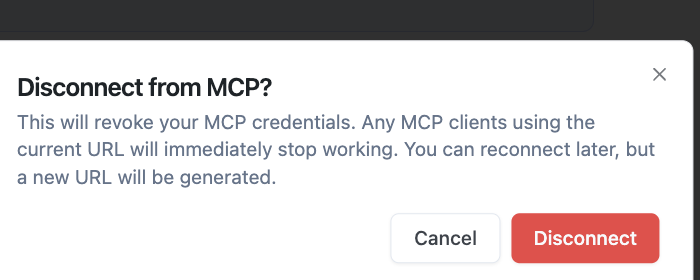
- Click Disconnect to confirm
- Your MCP credentials will be revoked immediately
- Any MCP clients using the old URL will stop working
- You can reconnect later, but a new URL will be generated
Troubleshooting
"Failed to connect to MCP server"
- Verify your license key is active and valid
- Check that your site URL is accessible from the internet
- Ensure your WordPress site is not behind a firewall that blocks outgoing requests
MCP client can't connect after setup
- Make sure you copied the full MCP URL (click the copy button, don't copy the truncated text)
- Verify the URL is correctly pasted in your MCP client configuration
- Restart your MCP client after adding the configuration
Data is not showing in AI responses
- Ensure you have form plugins installed and active (e.g. Gravity Forms, WPForms)
- Verify that form submissions exist in the date range you're querying
- Check that the form plugin is supported by UTMGrabber
The AI says a tool needs a newer plugin version
- Update UTM Grabber in WordPress Admin > Plugins. WooCommerce tools need version 3.2.1 or later, and Full Tracking tools need 3.3.9 or later.
No Full Tracking data
- Make sure Record every page view is on in UTM > Full Tracking Mode > Settings. Page views are only recorded from the moment it's turned on.
- If you use consent, page views are only recorded for visitors who gave consent.
Connection was working but stopped
- Your MCP credentials may have been invalidated. Try clicking Reconnect to generate new credentials
- Check that your WordPress site is still accessible and the plugin is active
Best Practices
- Keep your MCP URL secret - treat it like a password
- Do not share the URL publicly or commit it to version control
- Reconnect if compromised - if you suspect your URL has been exposed, click Reconnect immediately to invalidate the old credentials