Breakdance Form Builder UTM Tracking Integration
Set up Breakdance Form Builder with HandL UTM Grabber to capture UTM parameters, GCLID, FBCLID, referrer, and landing page data for attribution.
- Breakdance Form Builder Native UTM Tracking Integration guide
- Send Breakdance Form Builder UTMs via Zapier or Webhook
Breakdance Form Builder Native UTM Tracking Integration guide
UTM attribution overview
This guide explains Breakdance Form Builder Native UTM Tracking Integration guide with HandL UTM Grabber. It helps you capture UTM source, medium, campaign, term, content, click IDs, referrer, and landing page data and keep the marketing context needed for accurate reporting across forms, bookings, signups, and sales.
Overview
UTM Grabber automatically writes captured UTMs and click IDs into form fields when the field’s name/ID matches our naming convention. Breakdance’s Form Builder works out‑of‑the‑box—just add hidden fields with the correct IDs.
Requirements
- WordPress with Breakdance (Form Builder element)
- HANDL UTM Grabber v3+ active and capturing UTMs
1) Build your form
- Open your page in Breakdance.
- Add the “Form Builder” element (or edit an existing one).
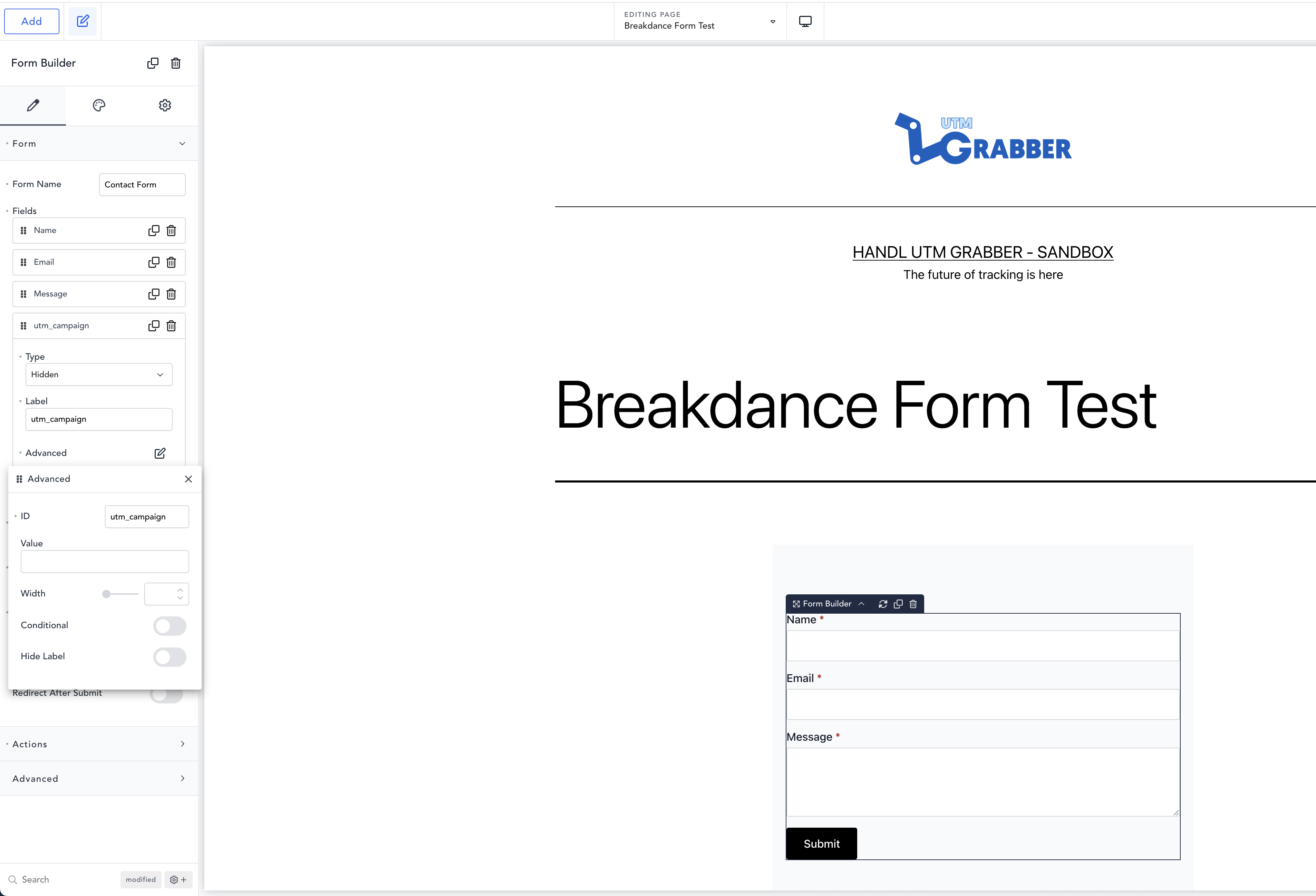
2) Add hidden UTM fields
For every UTM/click ID you want to store:
- Add a new Field.
- Set:
- Type:
Hidden - Label: the parameter name (for your reference)
- Type:
- Open “Advanced” and set:
- ID: the exact parameter name (case sensitive)
- Leave “Value” empty.
Repeat for each parameter you need.
3) Publish the page
4) Test
Visit your form URL with test parameters, submit, and confirm the values in your submission:
https://yoursite.com/contact?utm_source=google&utm_medium=cpc&utm_campaign=bd-test&utm_term=shoes&utm_content=ad1&gclid=123abc
Field names to use (IDs must match exactly)
Recommended first
Create these as Hidden fields (ID shown = field ID you must use):
utm_sourceutm_mediumutm_campaignutm_termutm_content
Common optional fields
Add any you need (IDs must match exactly):
user_agenthandl_iporganic_source_strtraffic_sourcegclid,gbraid,wbraid,msclkid,fbclid,ttclidhandl_refhandl_url
For additional/advanced names (including first-touch/last-touch variants), see the official list:
How the mapping works
- UTM Grabber looks for inputs by
nameoridthat match our parameter names and fills them on page load and when the form appears. - Works with Hidden, Text, Email, etc. Hidden is recommended to keep forms clean.
- Do not prefill the Value—UTM Grabber will do that.
Using the captured values
- Email action: include “All Form Fields” or reference the field IDs in the email template.
- Webhooks/POST/Integrations: hidden fields are submitted like any other field, so your CRM/automation receives the UTMs.
Troubleshooting
-
Values are empty
- Test on the live front end (not the builder preview).
- Confirm the field ID exactly matches a supported name (case sensitive, no extra spaces).
- Clear any “Value” you typed manually.
- Visit the page with UTMs in the URL, then submit without navigating away.
- Temporarily disable or adjust caching/optimization/security plugins that might strip query strings or delay scripts.
-
Only some parameters appear
- Not every click includes every UTM (e.g.,
utm_termis often missing). - Verify the parameter is present in your test URL.
- Not every click includes every UTM (e.g.,
-
Forms loaded via modal, AJAX, or late in the page
- Ensure the form is in the DOM for at least a moment before submit; UTM Grabber listens for DOM changes and then fills fields.
Best practices:
That’s it—once the hidden fields exist and their IDs match our naming convention, UTM Grabber will populate them automatically and your Breakdance submissions will include reliable campaign attribution.
Send Breakdance Form Builder UTMs via Zapier or Webhook
UTM attribution overview
This walkthrough covers sending full UTM Grabber data from Breakdance Form Builder to Zapier, Make, or your own webhook. Handy when you need gclid, fbclid, first-touch fields, or custom params alongside the lead or order.
For the primary setup, see the main Breakdance Form Builder guide.
When a webhook makes sense
Native fields in Breakdance Form Builder often stop at basic UTMs. A webhook lets you push everything UTM Grabber stores without trimming values or losing click IDs.
Thank-you page script
Paste this on your confirmation page. Swap in your Zapier or Make hook URL.
<script>
var qvars = {};
window.location.href.replace(/[?&]+([^=&]+)=([^&]*)/gi, function(m, key, value) {
    qvars[key] = decodeURIComponent(value.replace(/\+/g, ' '));
});
qvars = Object.assign({}, (typeof handl_utm !== 'undefined' ? handl_utm : {}), qvars);
setTimeout(function() {
    var data = new URLSearchParams(qvars).toString();
    var xmlHttp = new XMLHttpRequest();
    xmlHttp.open('GET', 'https://hooks.zapier.com/hooks/catch/YOUR_ID/YOUR_KEY/?' + data, true);
    xmlHttp.send(null);
}, 1000);
</script>
Full pattern explained in Triggering Zapier on Thank you Page.
Quick Zapier / Make checklist
- Create a Catch Hook trigger and copy the URL
- Run a test conversion with UTMs in the landing URL
- Confirm gclid, utm_source, and email (if present) show up in the payload
- Map fields into your CRM or spreadsheet
Parameter reference: Native WP Shortcodes.
Make users: see Make Integromat integration.