Contact Form 7 UTM Tracking (Legacy) with HandL UTM Grabber
UTM attribution overview
This guide explains Contact Form 7 UTM Tracking (Legacy) with HandL UTM Grabber. It helps you capture UTM source, medium, campaign, term, content, click IDs, referrer, and landing page data and keep the marketing context needed for accurate reporting across forms, bookings, signups, and sales.
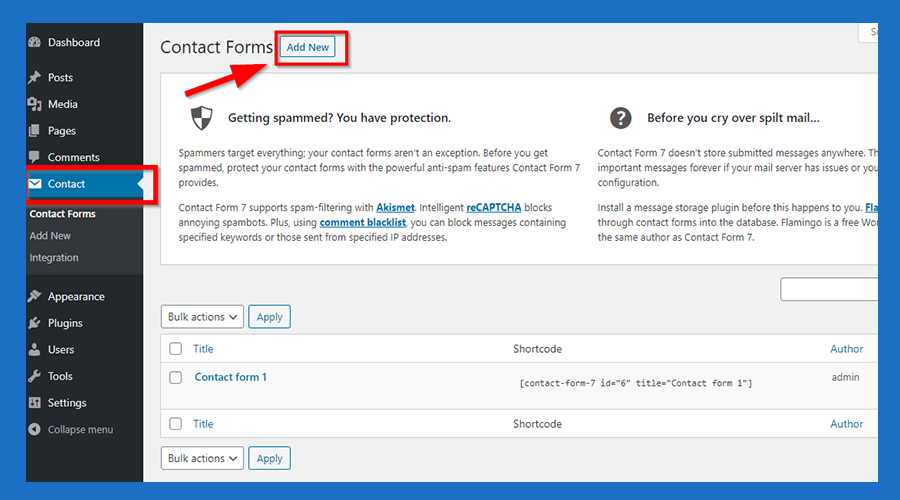
1.Click Contact And Add New
2.Paste The Code Shown Below to the Form Section Like that
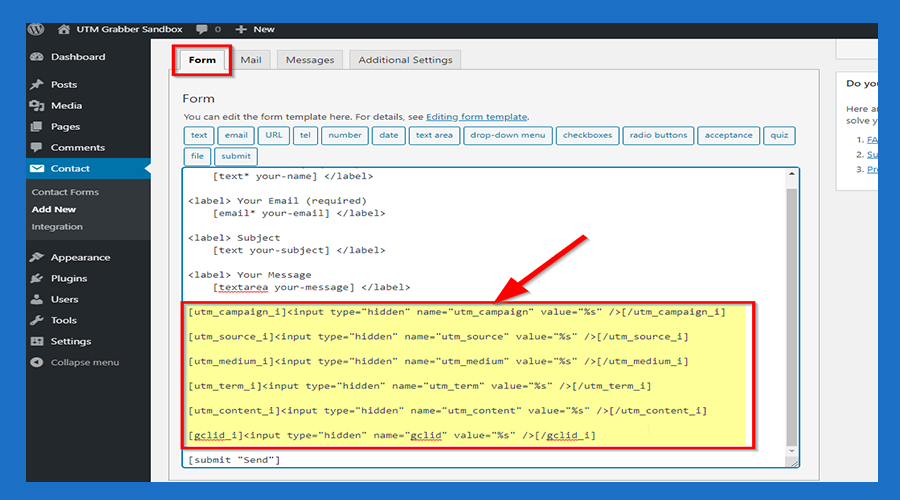
--->Code Snippets<---
[utm_campaign_i]<input type="hidden" name="utm_campaign" value="%s" />[/utm_campaign_i]

[utm_source_i]<input type="hidden" name="utm_source" value="%s" />[/utm_source_i]

[utm_medium_i]<input type="hidden" name="utm_medium" value="%s" />[/utm_medium_i]

[utm_term_i]<input type="hidden" name="utm_term" value="%s" />[/utm_term_i]

[utm_content_i]<input type="hidden" name="utm_content" value="%s" />[/utm_content_i]

[gclid_i]<input type="hidden" name="gclid" value="%s" />[/gclid_i]
3.Paste The Code Shown Below to the Mail Section Like that
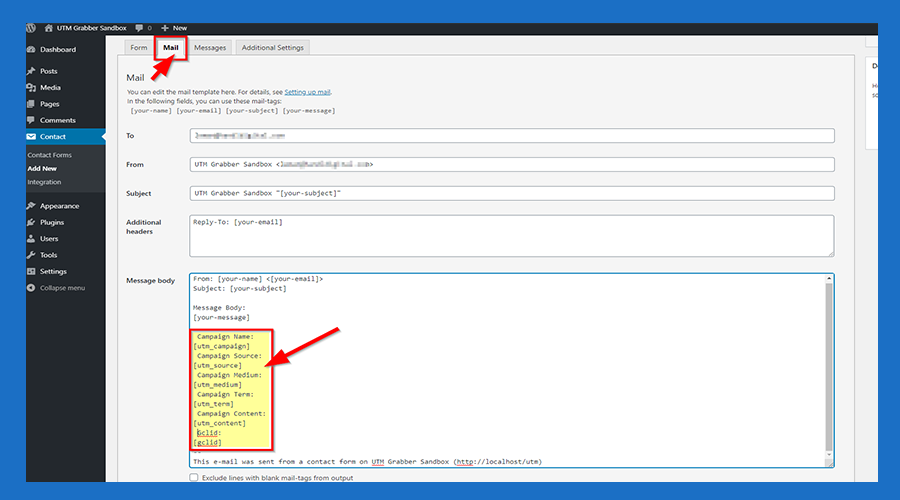
--->Code Snippets<---
Campaign Name:
[utm_campaign]

Campaign Source:
[utm_source]

Campaign Medium:
[utm_medium]

Campaign Term:
[utm_term]

Campaign Content:
[utm_content]

Gclid:
[gclid]
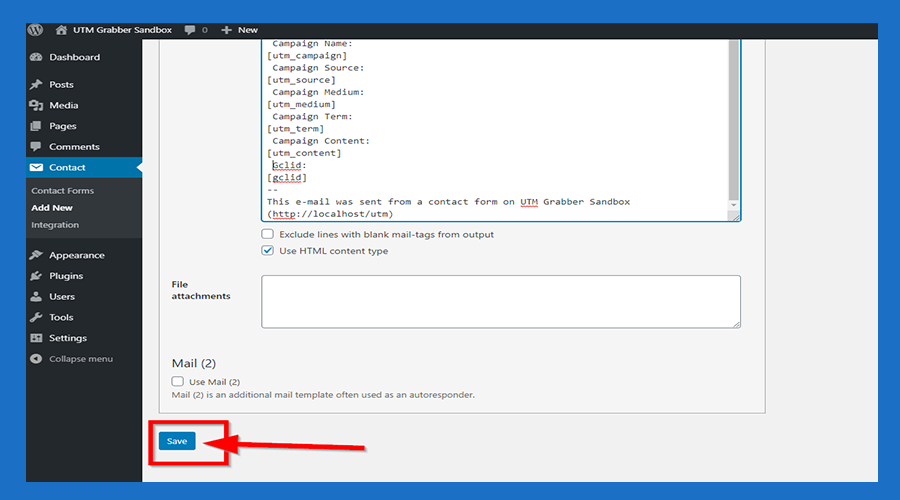
4.Click the 'Save' Button
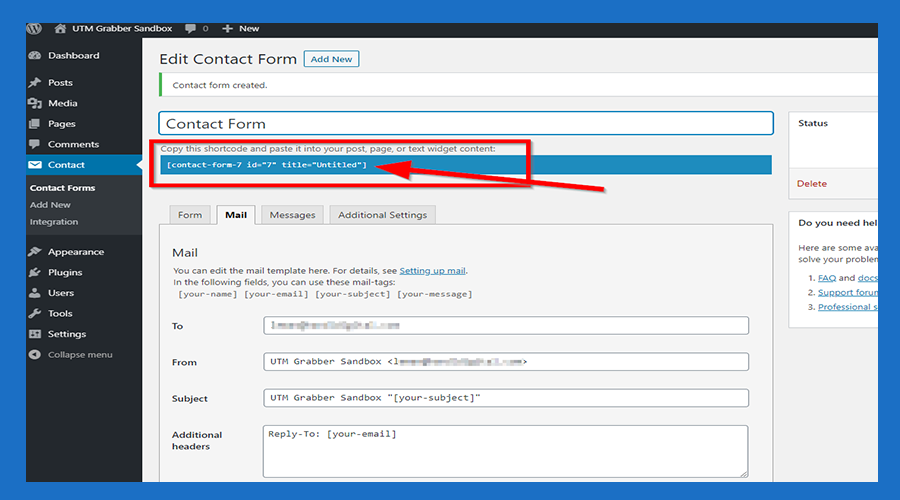
5.Copy the Shortcode
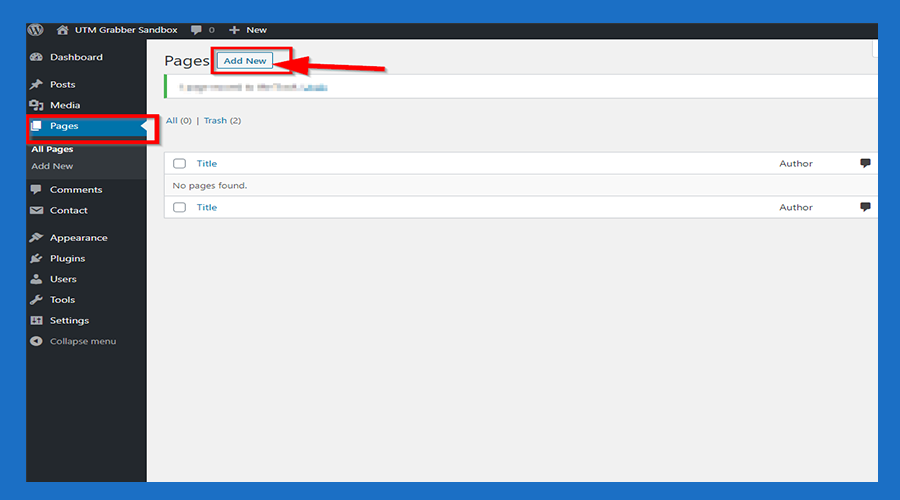
6.Click 'Pages' and then click the 'Add New' button
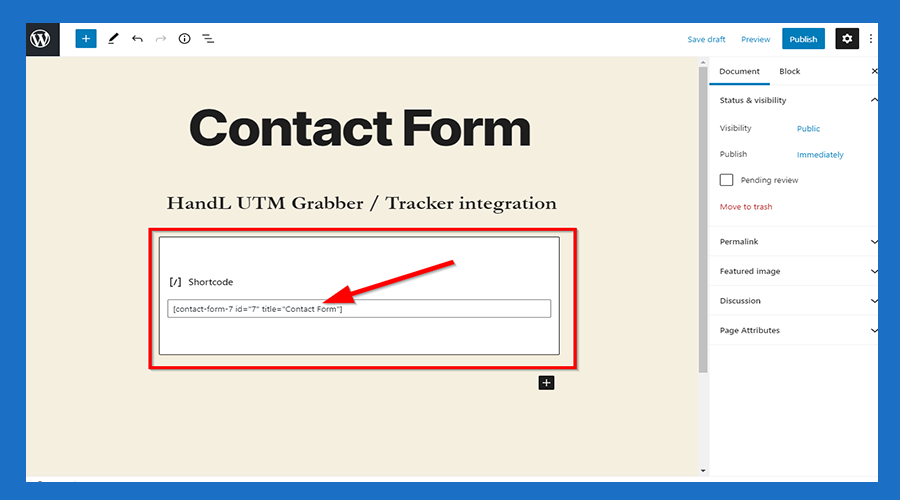
7.Paste the code you copied
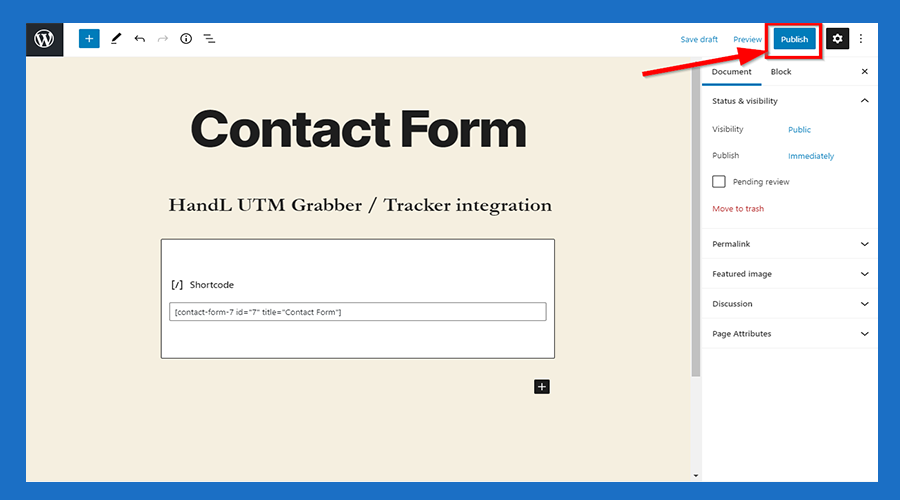
8.Click the 'Publish' Button
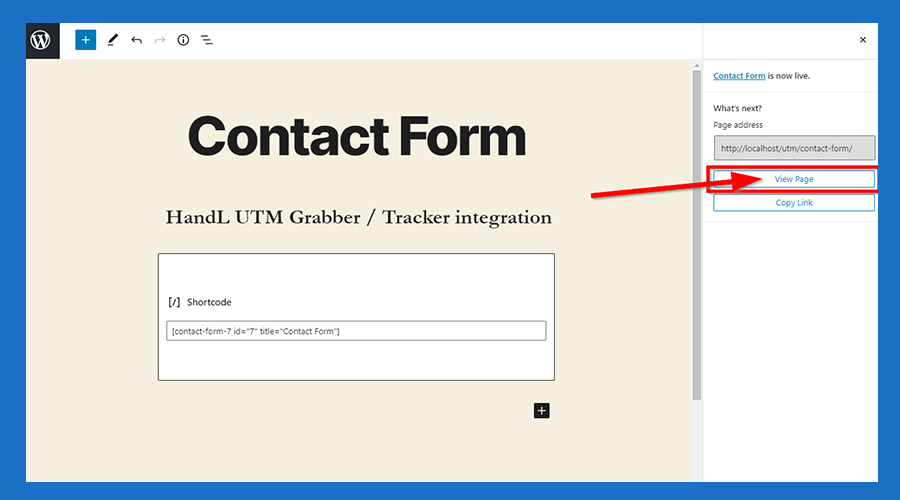
9.Click 'View Page' Button
10.Now You are Ready to roll