Send Saleskick UTMs via Automation or Webhook
UTM attribution overview
This walkthrough covers sending full UTM Grabber data from Saleskick to your backend using Saleskick automations. Use this when you need gclid, fbclid, first-touch fields, or custom HandL params alongside the lead record in your CRM.
For the primary embed setup, see Track UTMs in Saleskick.
When an automation webhook makes sense
Saleskick stores all URL parameters captured at submission time. Automations expose them as a single query string via {{submission.shareQueryParams}}, so you can POST the full attribution payload to Zapier, Make, or your own API without manually mapping every field in Saleskick.
Automation setup
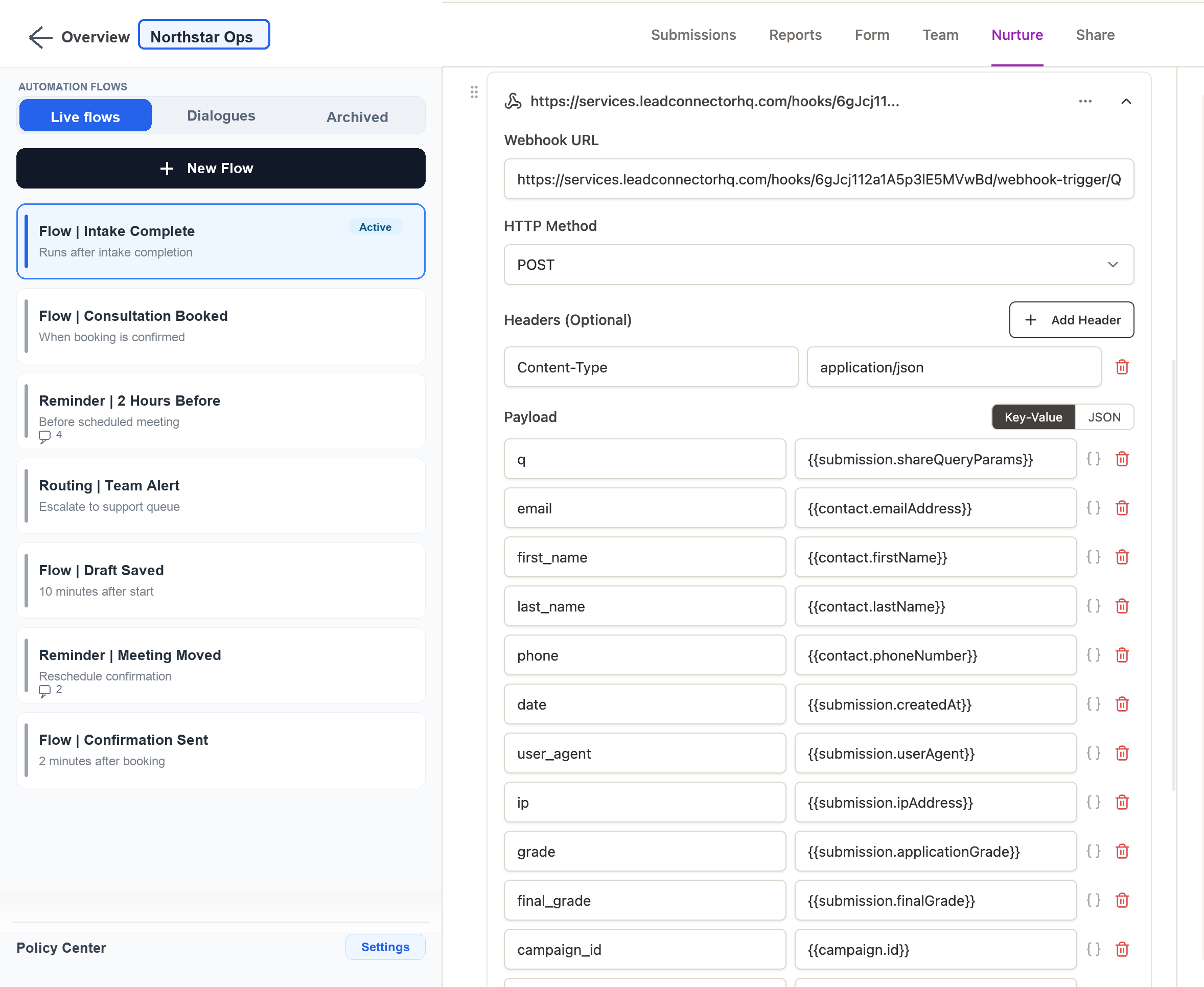
In Saleskick, create an automation triggered on form submission. Add an HTTP Request action configured as follows:
- Method: POST
- Header:
Content-Type: application/json - Payload (key-value):
| Key | Value |
|---|---|
q |
{{submission.shareQueryParams}} |
email |
{{contact.emailAddress}} |
first_name |
{{contact.firstName}} |
last_name |
{{contact.lastName}} |
phone |
{{contact.phoneNumber}} |
date |
{{submission.createdAt}} |
The q field contains the full query string of tracked parameters (for example utm_source=fb&utm_medium=paid&handlID=1353780194080&first_handlID=5698995462407). Your backend can parse it with parse_str() in PHP, URLSearchParams in JavaScript, or equivalent.
Backend parsing example (PHP)
$params = [];
parse_str($request->input('q', ''), $params);

$utmSource = $params['utm_source'] ?? null;
$handlId   = $params['handlID'] ?? null;
$fbclid    = $params['fbclid'] ?? null;
Quick checklist
- Confirm URL Parameters appear on test submissions in Saleskick (Application tab)
- Create the automation with
qmapped to{{submission.shareQueryParams}} - Submit a test lead with UTMs in the landing URL
- Verify your endpoint receives
utm_source,handlID, and contact fields - Map parsed values into your CRM or spreadsheet
Parameter reference: HandL param definitions.