How to downgrade my plan? for HandL UTM Grabber
UTM attribution overview
This guide explains How to downgrade my plan? for HandL UTM Grabber. It helps you configure HandL UTM Grabber correctly so campaign attribution works reliably across WordPress and keep the marketing context needed for accurate reporting across forms, bookings, signups, and sales.
Important Information Before You Downgrade
- Downgrades are scheduled: Your plan change will take effect at the end of your current billing period. You'll keep full access to your current plan until then.
- No refunds or credits: Since you've already paid for your current billing period, there are no refunds or credits issued. You simply switch to the lower plan when your next billing cycle begins.
- You can cancel anytime: Changed your mind? You can cancel a scheduled downgrade before it takes effect.
How to Downgrade
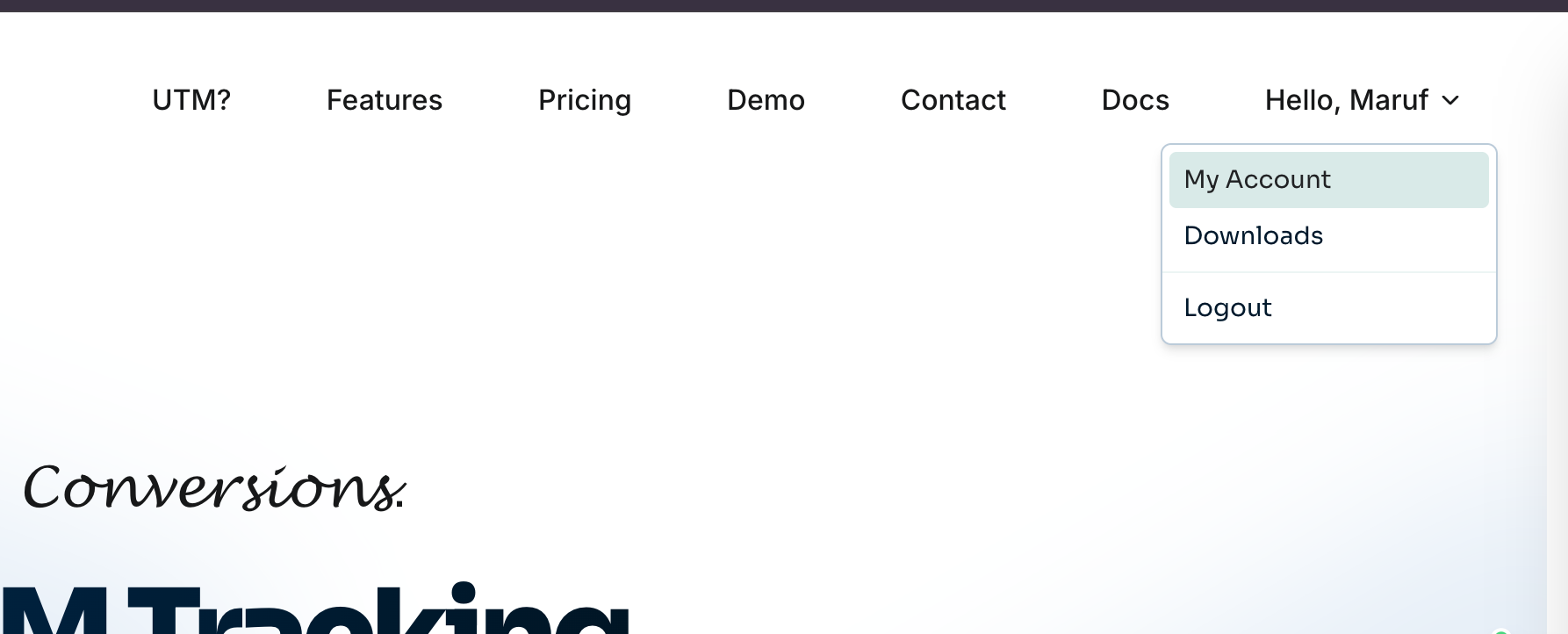
Step 1: Login to your account on utmgrabber.com
Click your name and select My Account
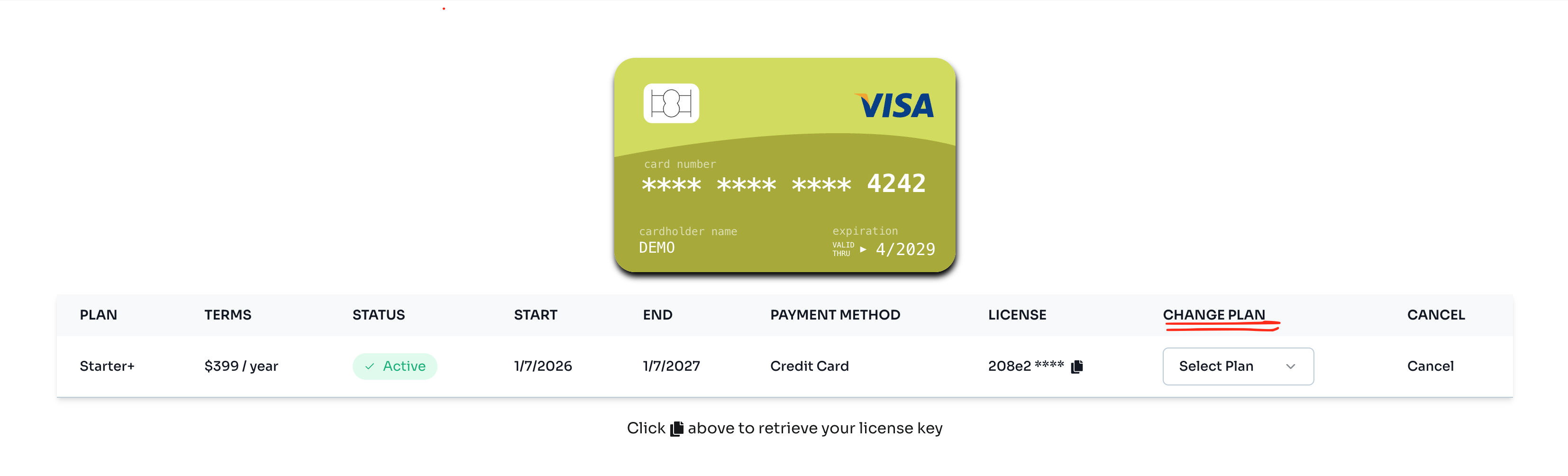
Step 2: Find the "Change Plan" dropdown
Locate your current subscription and click on the Change Plan dropdown menu.
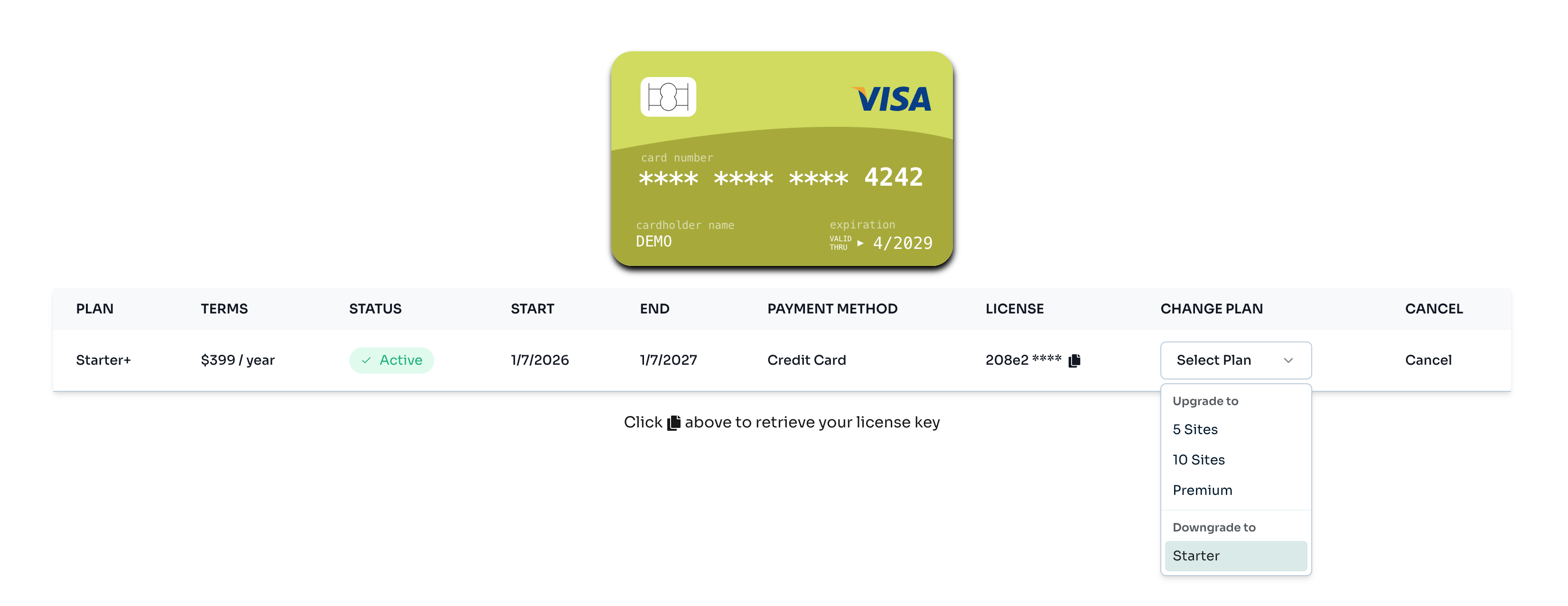
Step 3: Select the plan you want to downgrade to
The dropdown shows available options grouped by "Upgrade to" and "Downgrade to". Select a plan from the Downgrade to section.
Step 4: Review and confirm your downgrade
You'll see a confirmation modal showing:
- Your current plan and the plan you're switching to
- The date when the change will take effect
- Confirmation that you'll keep your current plan until then
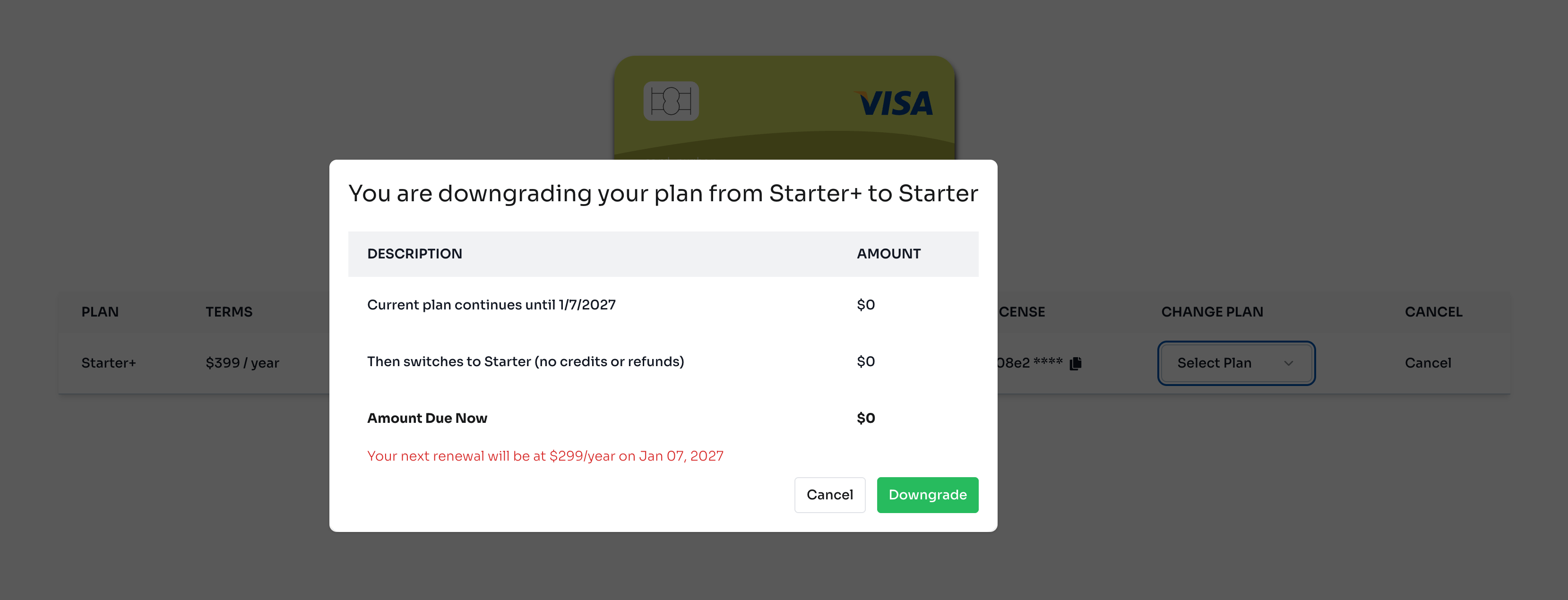
Click the Downgrade button to schedule your plan change.
Step 5: Confirmation
After confirming, you'll see a scheduled change notice on your subscription showing when your plan will switch.
How to Cancel a Scheduled Downgrade
Changed your mind? You can cancel a scheduled downgrade at any time before it takes effect.
Step 1: Find the scheduled change notice
On your Subscriptions page, you'll see an alert showing your scheduled plan change.
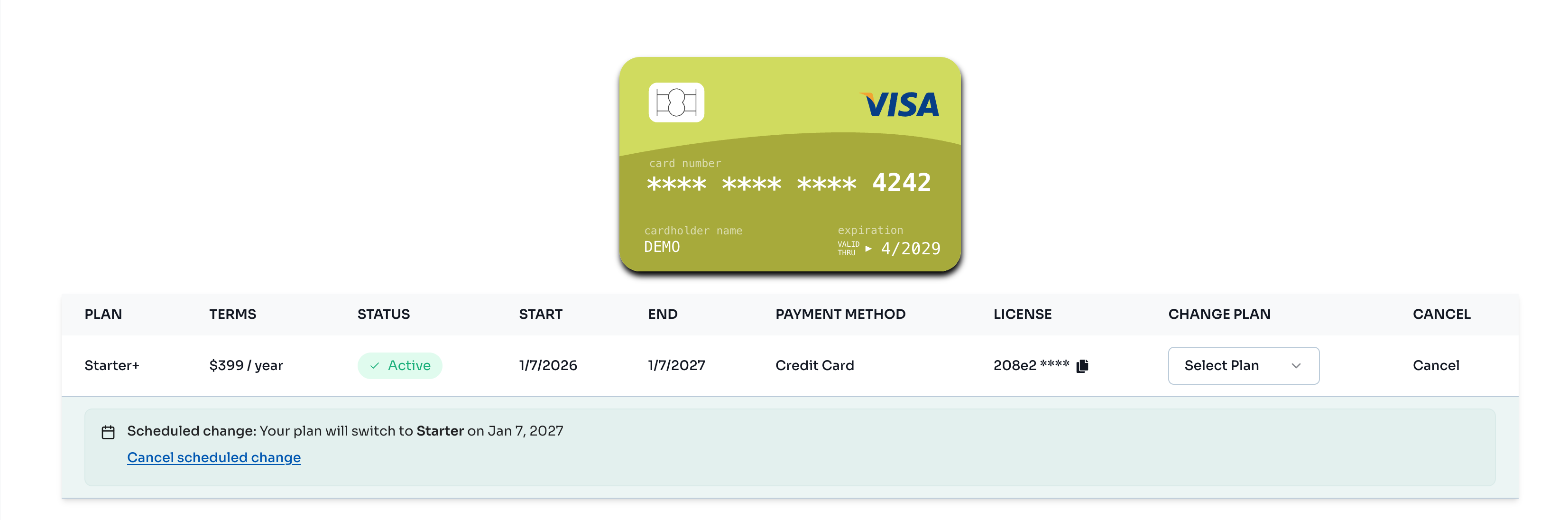
Step 2: Click "Cancel scheduled change"
Click the Cancel scheduled change link in the alert.
Step 3: Confirm cancellation
A confirmation dialog will appear. Click Cancel Scheduled Change to confirm.
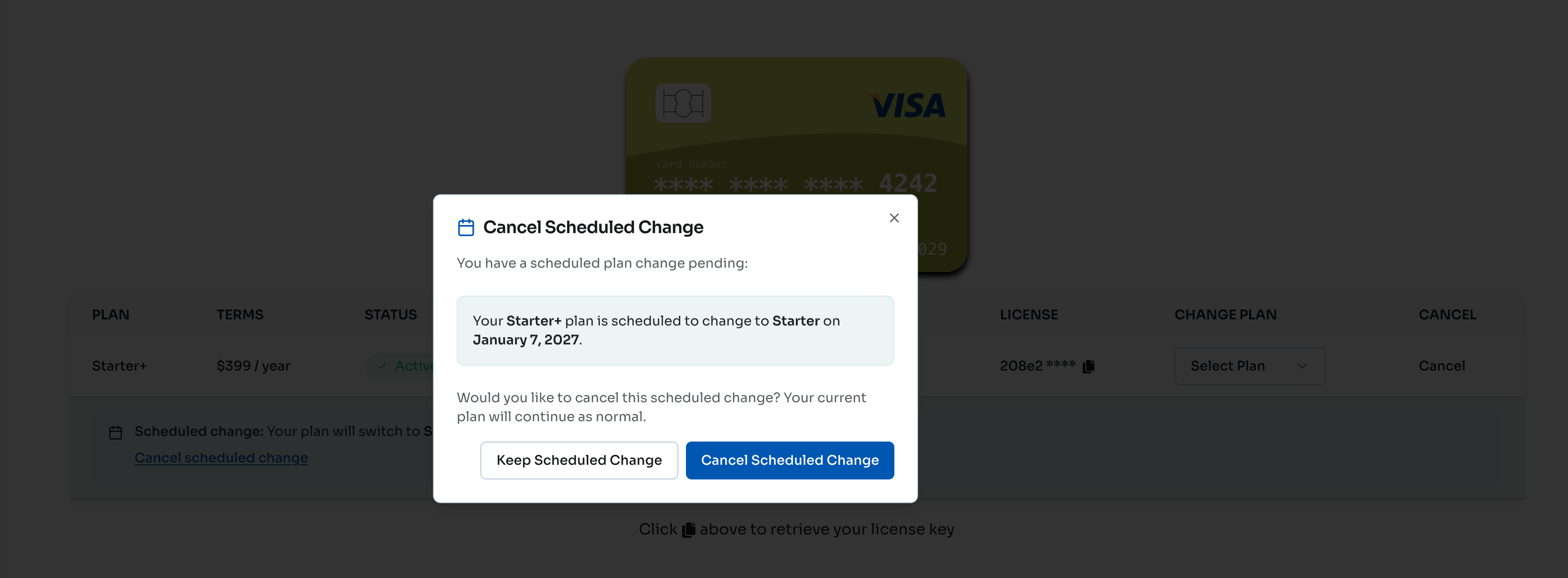
Your subscription will continue on your current plan as normal.
PayPal Users
Downgrades are not available for PayPal subscriptions through the self-service portal.
If you're a PayPal subscriber and need to downgrade your plan, please chat with us or contact support. We'll be happy to assist you with your plan change.
Frequently Asked Questions
Q: When does my downgrade take effect? A: Your downgrade is scheduled to take effect at the end of your current billing period. You'll keep full access to your current plan until then.
Q: Will I get a refund for the remaining time on my current plan? A: No. Since you've already paid for your current billing period, there are no refunds or credits. You'll continue to have access to your current plan features until the billing period ends.
Q: Can I upgrade again after scheduling a downgrade? A: You'll need to cancel the scheduled downgrade first before making any other plan changes. Simply click "Cancel scheduled change" and then you can upgrade or make other changes.
Q: What happens to my sites/tracking if I downgrade to a plan with fewer sites? A: Please ensure you're within the site limits of your new plan before the downgrade takes effect. Contact support if you need assistance.